
Goal
To inform customers about how Voice Campaigns works and what things should be taken into account.
How to send a voice campaign
-
Step 1:
Log in to the CM.com platform and click on the nine dots in the right top corner. Now select "Voice Campaigns" under de Mobile Marketing Cloud header. If you cannot find the icon, please check if it was included in the order.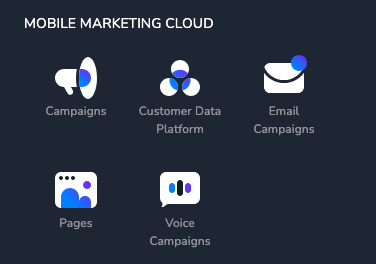
-
Step 2
-
In order to sent out a Voice Campaign a telephone number has to be required to send out the campaign. This phone number can also be used for end-users to reach out and hear the campaign message again or to have calls routed towards e.g. Flowbuilder, contact center for further follow-up actions.
-
A message will appear if no number is available within the selected account.

-
To request a number, please follow the instructions in the Knowledge Center article, How do I order a New DDI number.
-
-
Step 3
When in the Voice Campaigns app, click on the blue button with a plus icon in the right top corner.
-
Step 4
A new window opens. First, fill in the campaign name, select the sender and select the recipients group.
(if you can't select a sender, add one via de Voice Management app, see step 2) -
Step 5
Decide if you want to use text to speech or use an audio file.-
Text to speech: Fill in the language, voice and text
-
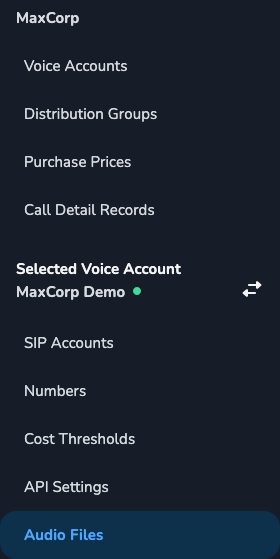
Audio file: Upload the audio file that you'd like to use. This action is performed via the Audio File option available within the Voice Management app.
-
-
Click “Next”.
-
Step 6
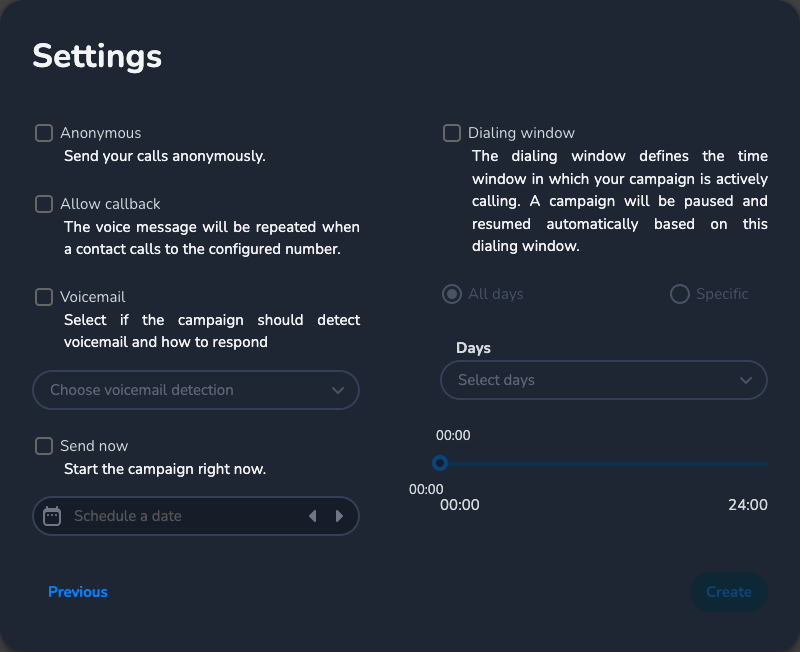
On the last page, you can customize the settings for your campaign.-
Customize the settings as needed. If the “Allow callback” is NOT selected you have the option to configure the assigned phone number to be routed towards e.g. Flowbuilder or other means as described in Step 2.
-
Select “Create” to schedule/sent-out the campaign.
-
Things to take into account
-
Make sure that your audio file complies with the specs.
-
Supported audio file types (automatically transcoded): .aif, .cda, .mid, .midi, .m4a, .wma, .wpl, .flac, .mp4, .mp3, .mpa, .ogg
-
Sample size: 16 bit
-
Channels: Mono
-
Audio sample rate: 8 kHz (8000 Hz)
-
Audio codec: PCM
-
Filename: *.wav
-
-
Wait a couple of seconds before you start with the message, it might take some time for someone to pay attention after picking up. You can fill this up by starting with a bit of music.
-
You can choose to replay the audio file if someone does not pick up the phone.
-
You can play the message again when someone calls back. Be aware that only one message can be used at a time.
-
End with a call to action and follow it up with a SMS message.
-
People tend not to pick up the phone when they're called by an unknown number. Therefore it is wise to announce the voice campaign with an SMS.
-
The call is restricted to a maximum of 60 seconds, however people tend to loose attention sooner. Make the message short and to the point.
-
After sending a voice campaign, it might take a while before all calls are completed. The rate for voice campaigns is 5 calls per second.
-
The audio quality of a voice call might not be as high as you'd expect. Take this into account when using voice campaigns for, for example, a song release.
-
The size of a campaign may not exceed 2500 calls. If you have a campaign that has more than 2500 recipients, create batches and send it out in separate campaigns.
-
A voice campaign is more intrusive than a SMS message, make sure to take into account the time when sending out a campaign.
-
You can either use a local number or a national number.