
Overview
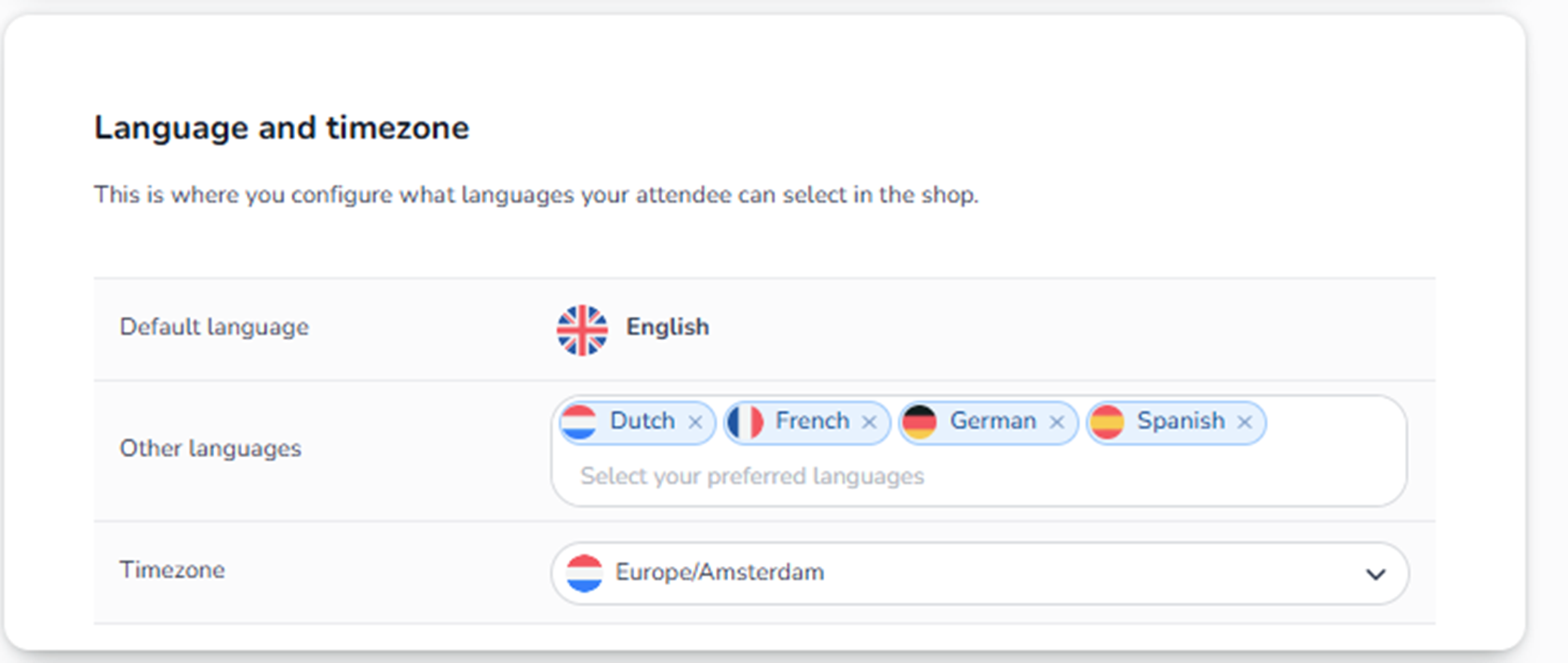
The Language and timezone section controls:
-
Which languages are available in the shop
-
What the default language is
-
Which timezone the event operates in
This directly affects how buyers see the shop and how time-based logic functions.
Default Language
Field: Default language
The default language setting in Event Settings is always set to 'English' and cannot be changed in the interface by yourself. If you want to change the default language, please contact your dedicated contact person — they can set this up for you.
What it controls:
-
Shop interface language
-
Checkout labels
-
System messages
-
Possibly email templates (if multilingual configured)
The default language is used when:
-
A visitor's browser language does not match available options
-
No manual language selection is made
-
No language is specified in the URL
Force a Different Default Language via URL
While the Event Settings default is always English, you can force a different language to load by default by adding a language code to the shop URL. This is especially useful for:
-
Embedding the shop on different language versions of your website
-
Running campaigns targeted at specific language audiences
-
Deep-linking to the shop from multilingual marketing materials
How to use it:
Add the language code at the end of your shop URL, using the format: /language-code
Supported language codes:
-
Dutch:
/nl-nl
Example:https://sales.ticketing.cm.com/yourshop/nl-nl -
English:
/en-gb
Example:https://sales.ticketing.cm.com/yourshop/en-gb -
German:
/de-de
Example:https://sales.ticketing.cm.com/yourshop/de-de -
French:
/fr-fr
Example:https://sales.ticketing.cm.com/yourshop/fr-fr -
Spanish:
/es-es
Example:https://sales.ticketing.cm.com/yourshop/es-es
Important: The language you force via URL must be enabled in the Other languages section below. If you force a language that is not enabled for the event, the shop will fall back to the default language (English).
Use cases:
-
Website integration: Embed
/nl-nlon your Dutch site and/en-gbon your English site -
Email campaigns: Send Dutch customers a link ending in
/nl-nland English customers/en-gb -
Social media: Use language-specific URLs in targeted ads or posts
Other Languages
Field: Other languages (multi-select)
Here you can add additional languages that buyers can select in the shop.
What happens when added:
-
A language switcher appears in the shop
-
Buyers can manually select their preferred language
-
The language can be forced via URL (see above)
-
Translations must be configured for content
Important:
Adding a language does NOT automatically translate your event description or emails.
You must ensure:
-
Content is translated
-
Email templates support that language
-
Legal texts are translated
Too many unused languages can cause:
-
Poor user experience
-
Partially translated pages
Timezone
Field: Timezone dropdown
This defines the official timezone of the event.
It affects:
-
Start and end time interpretation
-
Ticket validation timing
-
Reservation expiry timing
-
Reporting timestamps
-
Dashboard analytics
-
Schedule resend logic
Critical:
If timezone is incorrect:
-
Tickets may validate at the wrong time
-
Sales reports may appear shifted
-
Checkout timers may misalign
Always set the timezone to the physical location of the event.
Interaction With Other Sections
Timezone interacts with:
-
Event start & end date (Event settings)
-
Order process timing
-
Dashboard analytics
-
Scan app validation
Language interacts with:
-
Content and branding
-
Consents
-
Email templates
-
Buyer information labels
Common Issues
If users report:
-
"Event shows wrong time"
→ Check timezone. -
"Ticket stops working too early"
→ Verify timezone and event end time. -
"Shop shows wrong language"
→ Check default language and available languages, or use URL language parameter. -
"Translations missing"
→ Ensure content is translated for enabled languages. -
"I can't change the default language from English to Dutch"
→ Use the URL language parameter (/nl-nl) to force Dutch as default for specific links or embeds.
Summary
Language and Timezone controls:
-
Buyer interface language options
-
Default shop language (English, but can be forced via URL)
-
Event timing logic
It is simple to configure but critically important for:
-
International events
-
Multi-language shops
-
Accurate ticket validation
-
Correct reporting