
HP Engage One Pro not working? Check the points below before contacting support.
1. Power button and lights
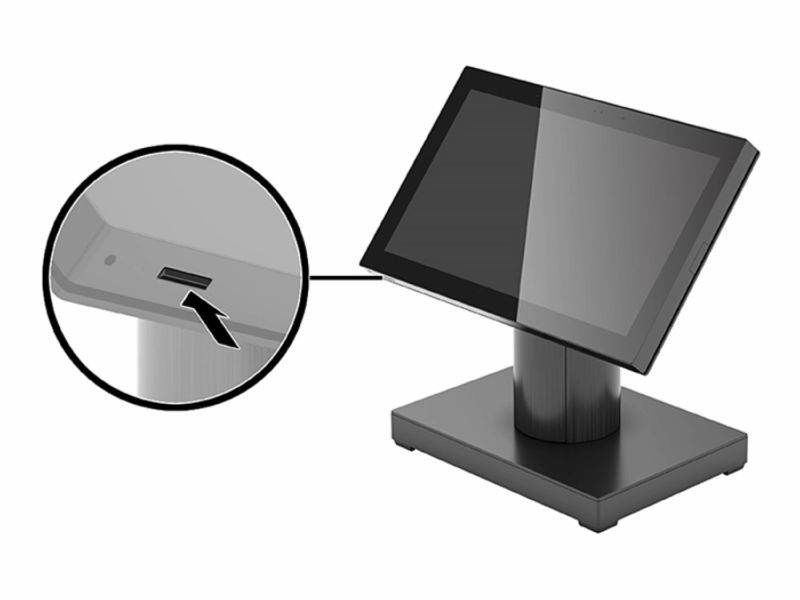
The power button is on the bottom-left edge of the screen frame.
-
Turn on: press the power button for less than 4 seconds. The light turns white.
-
Wake up from sleep: press the power button for less than 4 seconds.
-
Do NOT hold the power button for more than 4 seconds when waking up the device. The device shuts down and unsaved data is lost.
-
Device is frozen: hold the power button for at least 4 seconds until it switches off. Then press it again to start.
-
Light blinks red: the device shows an error code. Count the long red blinks and the short white blinks (for example 3 red and 5 white is code 3.5) and see the table below. Give this code to support.
2. Opening the column hub
The column hub is the column under the screen with all the connections.
-
Loosen the security screw on the triangular part of the cover. You do not need to take it out, just unscrew it until the cover can be lifted. Tip: the screwdriver for this screw is usually in the box of the HP.
-
Lift the cover up and off.
3. Power check: power light on the column hub
-
Power light on: the hub has power. Press the power button (see point 1) and check the light on the power button.
-
Power light off:
-
Check that the power adapter is plugged into a working wall socket. Try another socket.
-
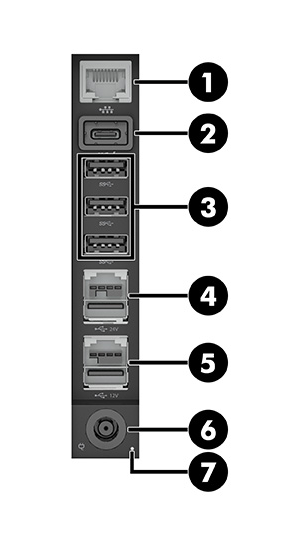
Follow the power cable and check the IEC side: the plug must be pushed fully into the power adapter.
-
Push the power plug fully into the column hub.
-
Still off? Contact support.
-
HP Engage Column Hub Ports
|
Typical CM Installation
|
|---|---|
|
|
4. Customer facing display not working
-
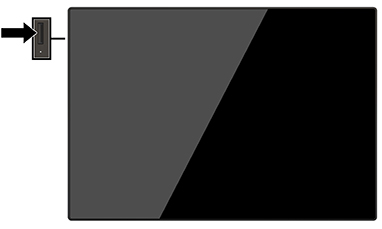
Check if the display is on. Press the power button on the side of the display.
-
Button does nothing? Hold the button for 10 seconds, then try again.
-
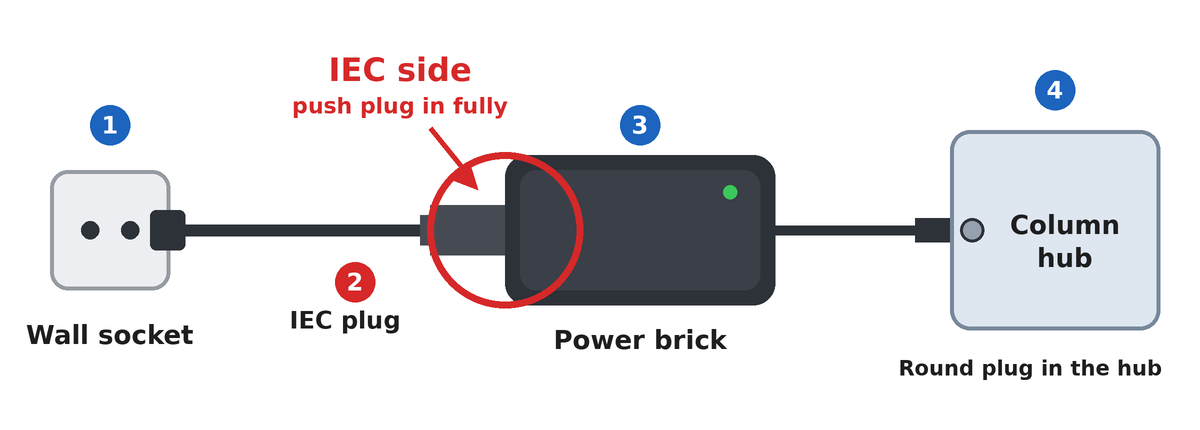
Check that the USB-C cable of the display is fully plugged into the column hub (USB C Port [2]).
-
Amber light on the display: it is asleep because the POS is asleep. Wake the POS and the display follows.
-
Message "Input Signal Not Found": check the USB-C cable and check that the POS is on.
-
Still black? Restart the POS.
Still not working?
Before you call, look up the serial number of the device. It is on the label on the bottom edge of the screen, next to the power button.

Then contact support and have the serial number and the light code, if any, ready.