
Please contact us if you have any hardware related questions
Not sure which scanner you have? See Handheld scanner.
1. I scan something, but nothing happens
-
On the cash register, click in the search field.
-
Scan a barcode.
-
Check what happens in the search field.
Then follow the steps below for the problem you see. The barcodes of one scanner do NOT work on the other, so use the barcodes for your scanner.
Text appears, but is not submitted
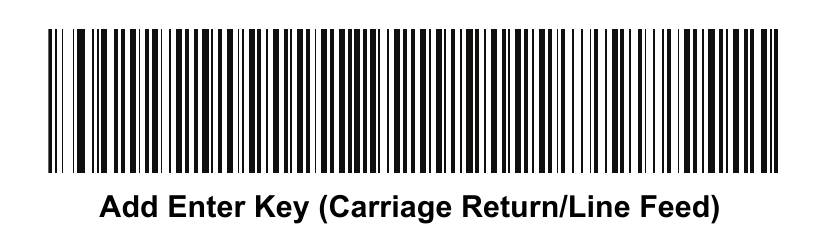
The scanner is missing the Enter key. Scan the Enter key barcode for your scanner.
Zebra DS2208 - scan this barcode:
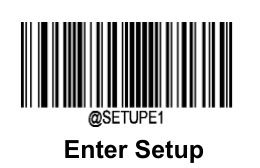
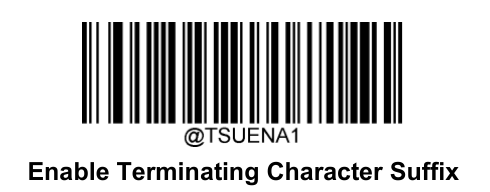
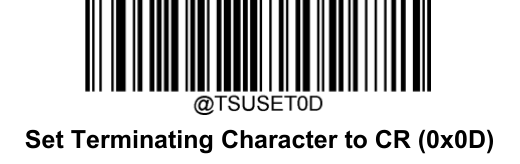
Newland HR32 Marlin - show the barcodes (scan one by one, in this order)
|
Step |
Barcode |
|---|---|
|
1. Enter Setup |
|
|
2. Enable Terminating Character Suffix |
|
|
3. Set Terminating Character to CR (0x0D) |
|
|
4. Exit Setup |
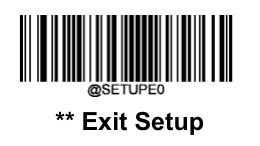
|
Nothing appears
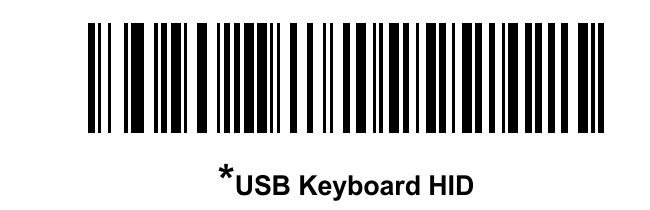
The scanner is not in keyboard mode. Scan the USB keyboard barcode for your scanner.
Zebra DS2208 - scan this barcode:
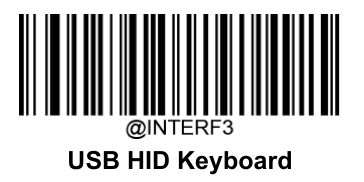
Newland HR32 Marlin - show the barcodes (scan one by one, in this order)
|
Step |
Barcode |
|---|---|
|
1. Enter Setup |
|
|
2. USB HID Keyboard |
|
|
3. Exit Setup |
|
Then repeat steps 1 to 3 above. If text now appears but is not submitted, scan the Enter key barcode(s) for your scanner (see above).
On the Zebra, a high-low-high-low beep means the scanner accepted the barcode.
2. Other scanner models
The barcodes differ per brand and model. Use the guide of your scanner and scan the barcode for USB keyboard and the barcode that adds an Enter key.
-
Zebra DS2208 quick start guide (the Zebra barcodes above come from this guide; they also work on the Zebra LS2208)
Other brand? Search for the model name followed by "quick start guide".