
Entrance management → Entrance plans
Description
There is always 1 Entrance plan available where you can scan all tickets with 1 time.
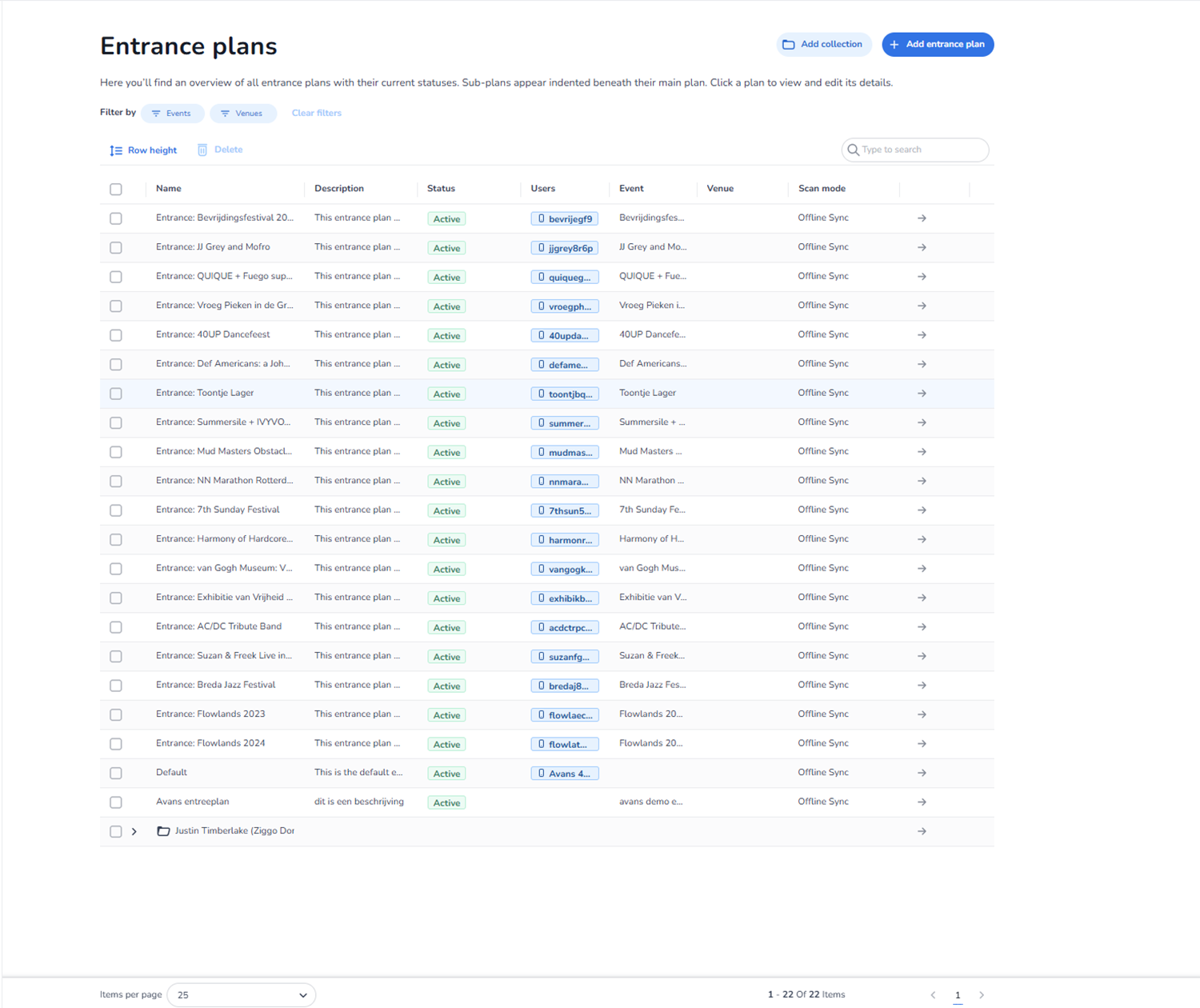
This screen appears when a user opens Entrance plans within Entrance Management.
Entrance plans define how tickets are validated at the entrance of an event. They control which tickets can be scanned, which entrances are used, and which users are allowed to scan tickets.
From this page, users can:
-
View all entrance plans
-
Search or filter plans by event or venue
-
Create new entrance plans
-
Create collections of plans
-
Edit or manage existing plans
Entrance plans are important because they control how visitors enter an event.
For example, at a football stadium, every match is a separate event. Even though the venue is the same, a new entrance plan must be created for each match to ensure only valid tickets for that specific game are accepted.
Entrance plans also allow organisers to assign different scanning users to different entrances, such as:
-
Main entrance
-
VIP entrance
-
Staff entrance
This ensures that staff can only scan tickets for the entrance they are responsible for.
Online and Offline Scanning
Entrance plans also determine how scanning synchronizes with the platform database.
Online scanning is used for most events. Each scan is immediately checked and synced with the database, preventing duplicate scans and providing real-time visitor data.
Offline scanning can be used at very large events or when internet connectivity is limited. Scans are stored locally on the device and synchronized later.
In most cases, online scanning is recommended.
Page Header
Title: Entrance plans
Below the title, a short explanation clarifies:
-
This page provides an overview of entrance plans and their statuses.
-
Sub-plans may appear indented beneath main plans.
-
Users can click a plan to view and edit its details.
Top Right Action Buttons
Add collection
Function:
-
Creates a collection group for entrance plans.
-
Used to logically group related entrance plans.
-
Does not create a scanning rule itself, but organises plans.
Add entrance plan
Function:
-
Creates a new entrance plan.
-
Opens a configuration flow for defining:
-
Event scope
-
Venue
-
Scan mode
-
Access rules
-
User permissions
-
This is the primary action for expanding scanning logic.
Filtering Controls
Filter by
Located below the page header.
Events Button
-
Filters entrance plans by specific events.
-
Useful when managing large environments.
Venues Button
-
Filters entrance plans by venue.
-
Helps isolate plans per location.
Clear filters
-
Removes all active filters.
-
Restores full list view.
Filters affect only the visible list and do not modify plan data.
Bulk Action Controls
Located above the table.
Row height
Function:
-
Adjusts visual density of table rows.
-
Affects readability only.
-
Does not impact data.
Delete
Function:
-
Deletes selected entrance plans.
-
Requires selecting one or more plans via checkboxes.
-
May require confirmation before removal.
Search Field
Located on the right side above the table.
Placeholder: “Type to search”
Function:
-
Searches entrance plans by name or other searchable attributes.
-
Dynamically filters visible rows.
Entrance Plans Table
The table provides a structured overview of entrance plans.
Each row represents one entrance plan.
Checkbox (First Column)
Function:
-
Selects individual entrance plans.
-
Enables bulk deletion.
Name
-
Displays the name of the entrance plan.
-
Clicking the row or arrow navigates to detailed plan configuration.
Description
-
Short description of the entrance plan.
-
Helps identify purpose or configuration.
Status
-
Indicates whether the plan is active.
-
Active plans are currently usable in scanning.
Users
-
Displays users assigned to this entrance plan.
-
Users listed here can operate scanners under this plan.
Event
-
Indicates which event the entrance plan is linked to.
-
Defines the ticket pool and validation context.
Venue
-
Shows which venue the entrance plan applies to.
-
Determines physical scanning location.
Scan mode
-
Indicates how scanning operates.
-
Example shown: Offline Sync.
-
Determines whether scanning:
-
Syncs live
-
Works offline and syncs later
-
Uses specific validation modes
-
Arrow Icon (Rightmost Column)
Function:
-
Opens detailed configuration view of the selected entrance plan.
-
Allows editing validation rules, user assignments, and scan behaviour.
Hierarchical Structure
Some entrance plans may appear indented beneath others.
Purpose:
-
Indicates sub-plan structure.
-
Allows complex entrance logic configurations.
Pagination Controls
Located at the bottom.
Items per page Dropdown
Function:
-
Controls number of plans displayed per page.
-
Affects table view only.
Page Indicator
Displays:
-
Current page number.
-
Total items count.
Previous and Next Arrows
Function:
-
Navigate through pages.
-
Does not modify plan data.
What This Page Does
The Entrance Plans page functions as:
-
The configuration hub for entry validation logic.
-
The control center for scanning permissions.
-
The operational planning interface for venue access.
It defines:
-
Who can scan
-
What tickets are valid
-
Where scanning applies
-
How scanning behaves
What You Can Do With It
From this screen, users can:
-
Create new entrance plans
-
Organise plans into collections
-
Assign users to specific plans
-
Filter by event or venue
-
Search for specific plans
-
Delete plans
-
Adjust table density
-
Navigate through large sets of plans
-
Access detailed plan configuration
This page is typically used by:
-
Event operations managers
-
Access control supervisors
-
Technical scanning administrators