
Service Notice: Meta Integration Update
Due to an unannounced change to Meta's platform interface, CM.com has been required to re-engineer parts of our Meta integration. As a result, creating, adding, or reconfiguring Instagram pages is temporarily unavailable.
Existing Instagram channels are not affected and continue to operate normally.
New customer onboarding is currently on hold. Please contact your Account Manager or our support team for assistance in the meantime.
We are actively working to resolve this and will update this page once functionality has been restored.
Once your Instagram channel is connected, follow these steps to add your Instagram Business profiles. CM.com can then link them to your other applications.
⬅️ Previous: Onboard Instagram Channel
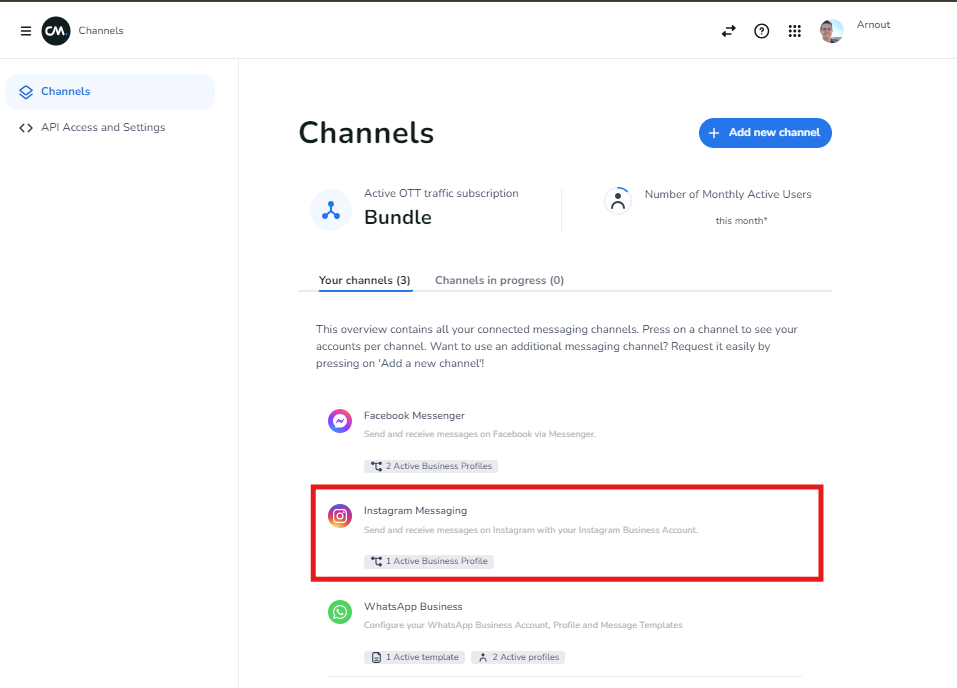
Step 1 – Navigate to Instagram Messaging
Go to the Instagram Messaging channel in your CM.com account.
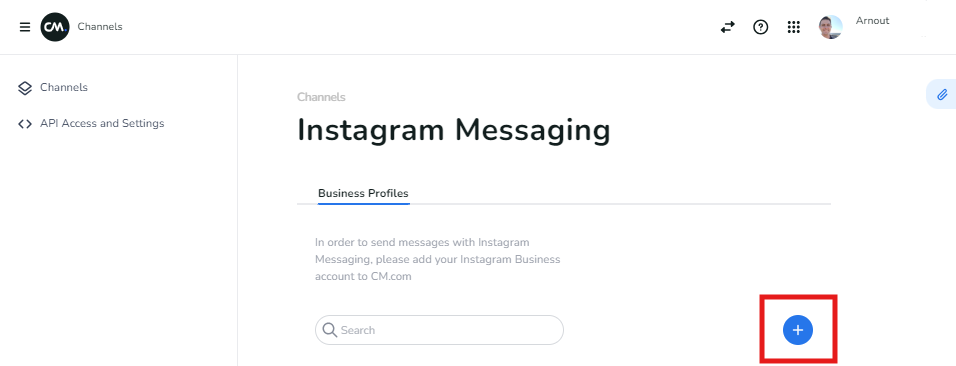
Step 2 – Add your Instagram Business account
Click Add Instagram Business account.
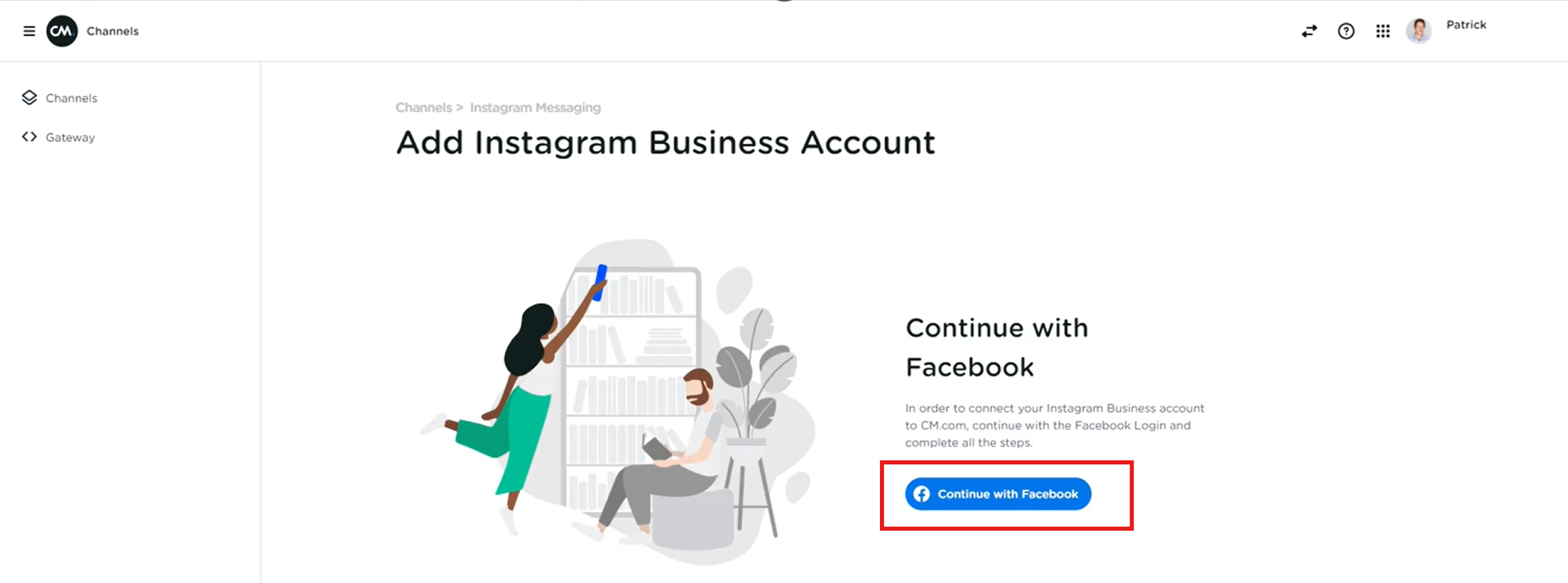
Step 3 – Continue with Facebook
Click Continue with Facebook to authenticate.
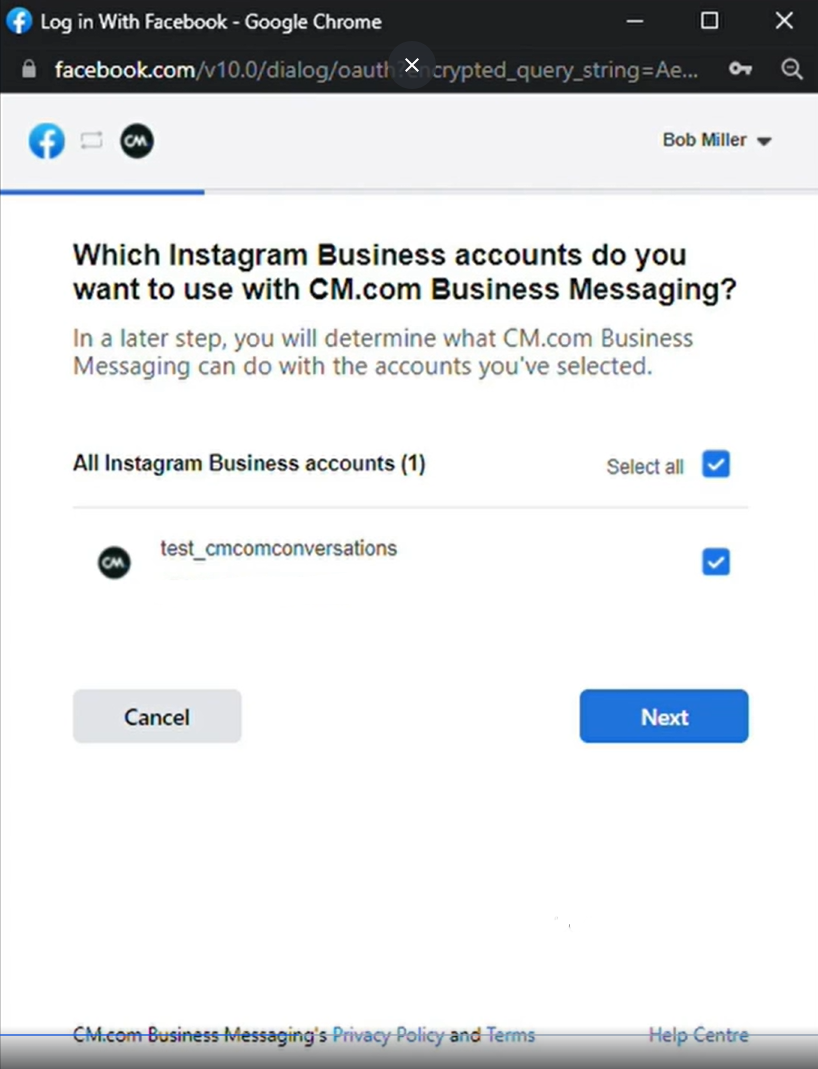
Step 4 – Select your Instagram Business account
Choose the Instagram Business account you want to connect.
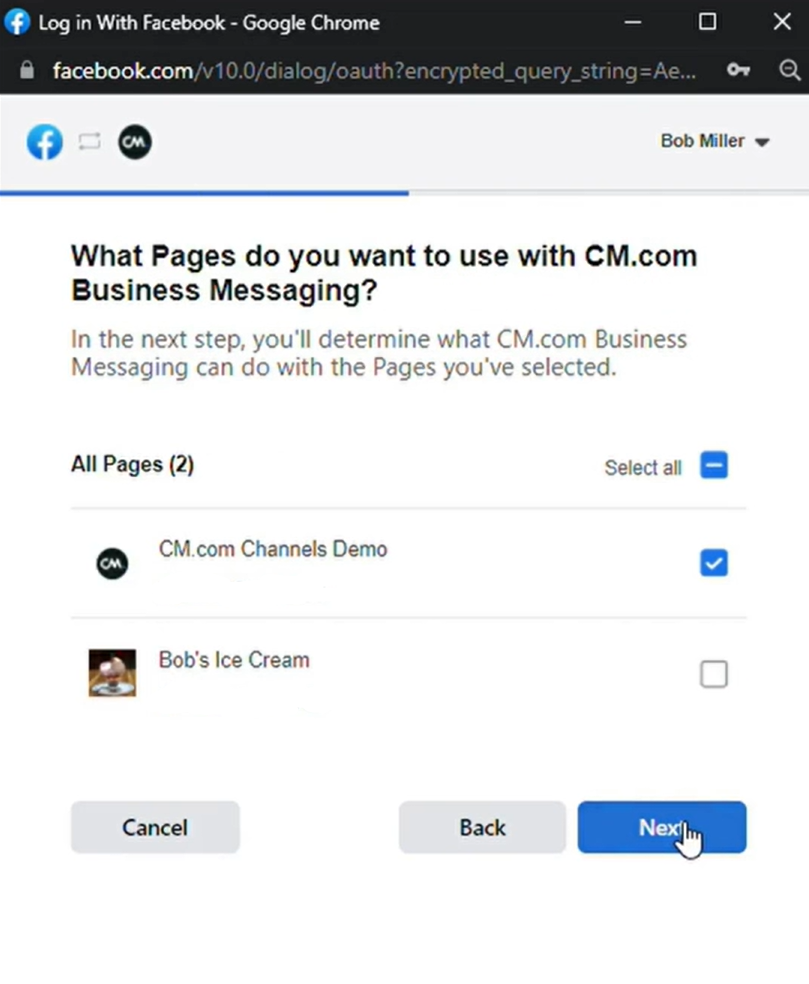
Step 5 – Select your Instagram Pages
Select the Instagram Pages you want to connect.
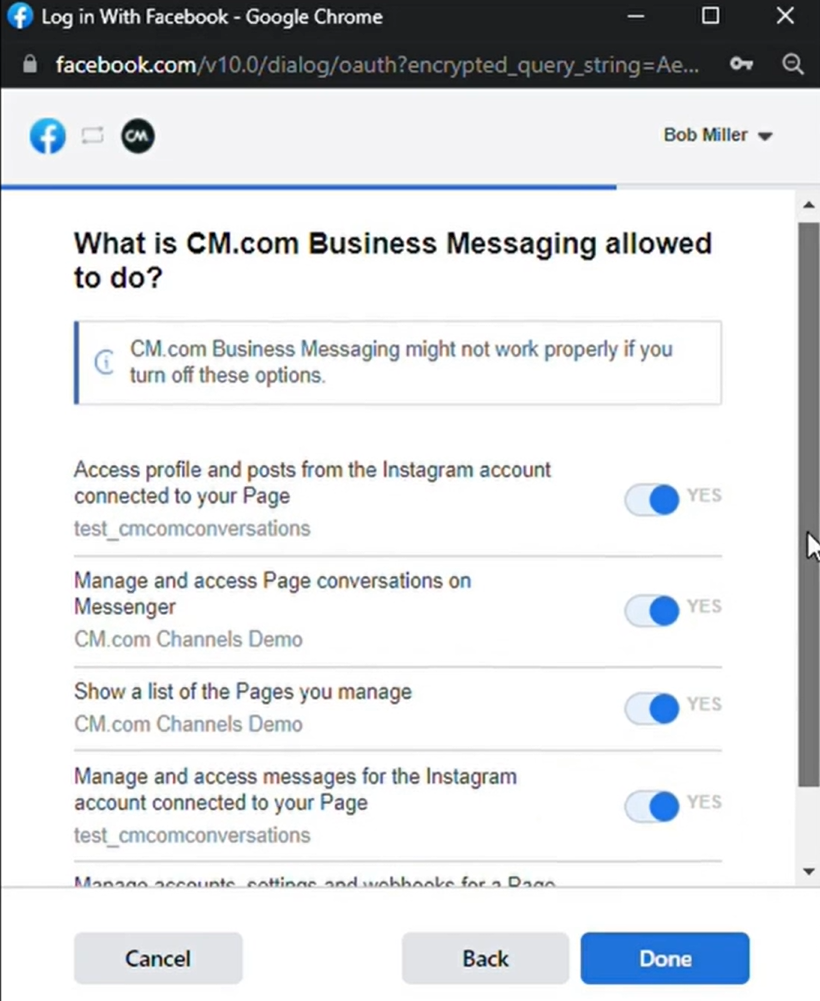
Step 6 – Agree to the requested access
Review and agree to the requested permissions. Keep in mind the application may not work properly if you turn off any of these options.
Step 7 – Done!
CM.com can now connect your Instagram profile(s) to your other applications.