
CM.com uses embedded signup to onboard businesses on the WhatsApp Business Platform and allow you to create your own WhatsApp Business account.
What is the benefit of Embedded Sign-Up?
Embedded Signup reduces onboarding time from days to minutes by simplifying the process and having all the steps (i.e., connecting WhatsApp Business Manager accounts, creating WhatsApp Business Accounts (WABAs), verifying phone numbers) in a single flow.
With Embedded Signup, you own the WhatsApp Business Account(s) and grant their Business Solution Providers direct access to them. This account model allows you to see the WhatsApp Business Accounts in thee WhatsApp Business Manager and seamlessly integrate with other Meta experiences, such as Ads that Click to WhatsApp.
Before you can start with WhatsApp and embedded signup, there are three prerequisites:
-
Meta Business Account
-
Phone number (not in use), able to receive an OTP code via text message or phone call
-
Signed contract with CM.com
Meta Business Account
A Meta Business Account is necessary to start the Embedded signup onboarding. This tool helps you manage the permissions of all your assets, such as your Facebook pages, Instagram profiles or WhatsApp Business accounts.
If you don’t have a Meta Business Account yet, you can create one via Meta Business. You will need a Facebook account to log in to this platform. This can (ideally) be a personal Facebook account. When the business account is created, you can manage more people to be added to your account.
Please find more information about creating a Meta Business Manager account here.
Phone number
You need to have a phone number to start working with WhatsApp for Business. This needs to be a phone number which is not in use and where you have access to for receiving the one-time password.
If you do not have a phone number, please contact your CM.com point of contact to acquire one to start with WhatsApp Business.
Flow
You log in into your account on CM.com and navigate towards Channels. In Channels, you will fine WhatsApp business under “Your channels” or “Channels in progress”. If you can’t find WhatsApp in these lists, reach out to your CM.com point of contact.
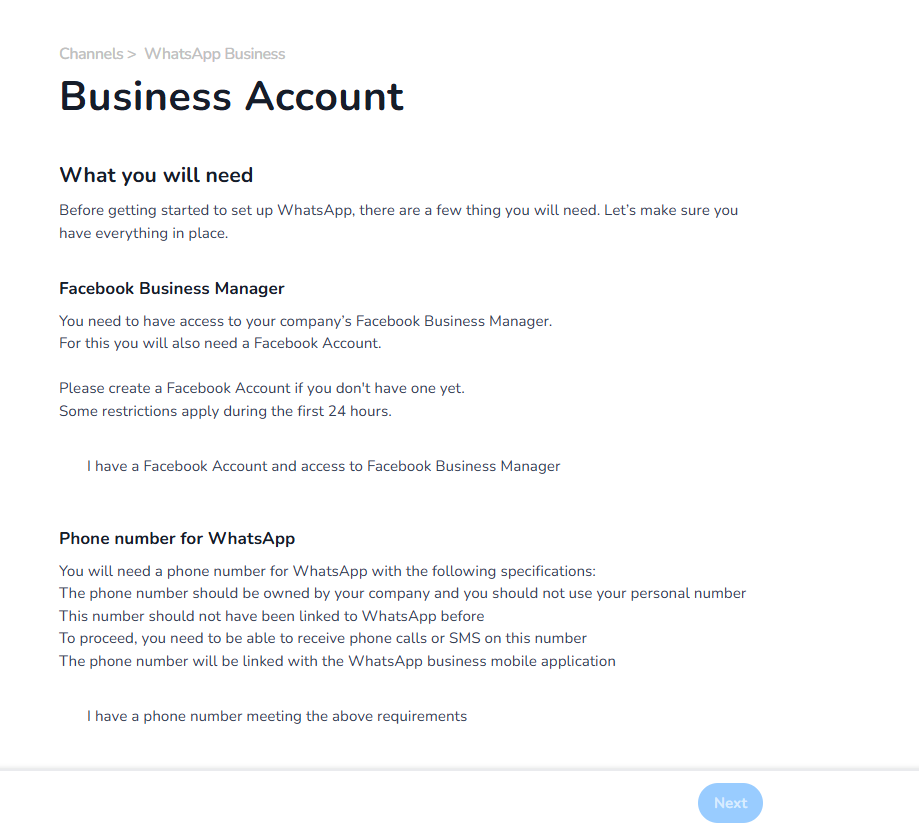
Step 1 – Select Embedded signup to start the onboarding.
You need to have a Meta Business Manager and a phone number. Make sure you have access to both and proceed to the next screen. Enter your contact information and start the Embedded signup onboarding.
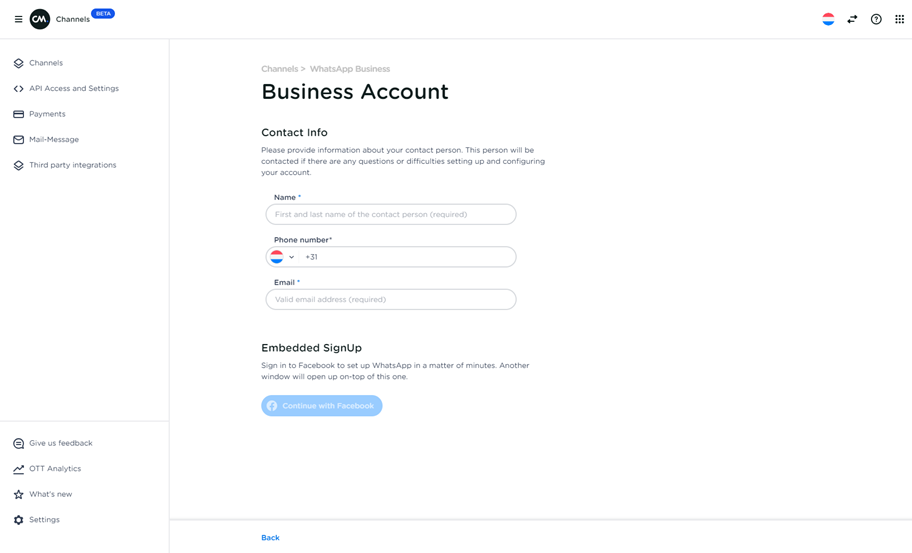
Step 2 - Start of the Embedded signup dialog
Please log in with the credentials linked to the Meta Business Manager. It will ask you to continue to give CM.com permission to send out messages.
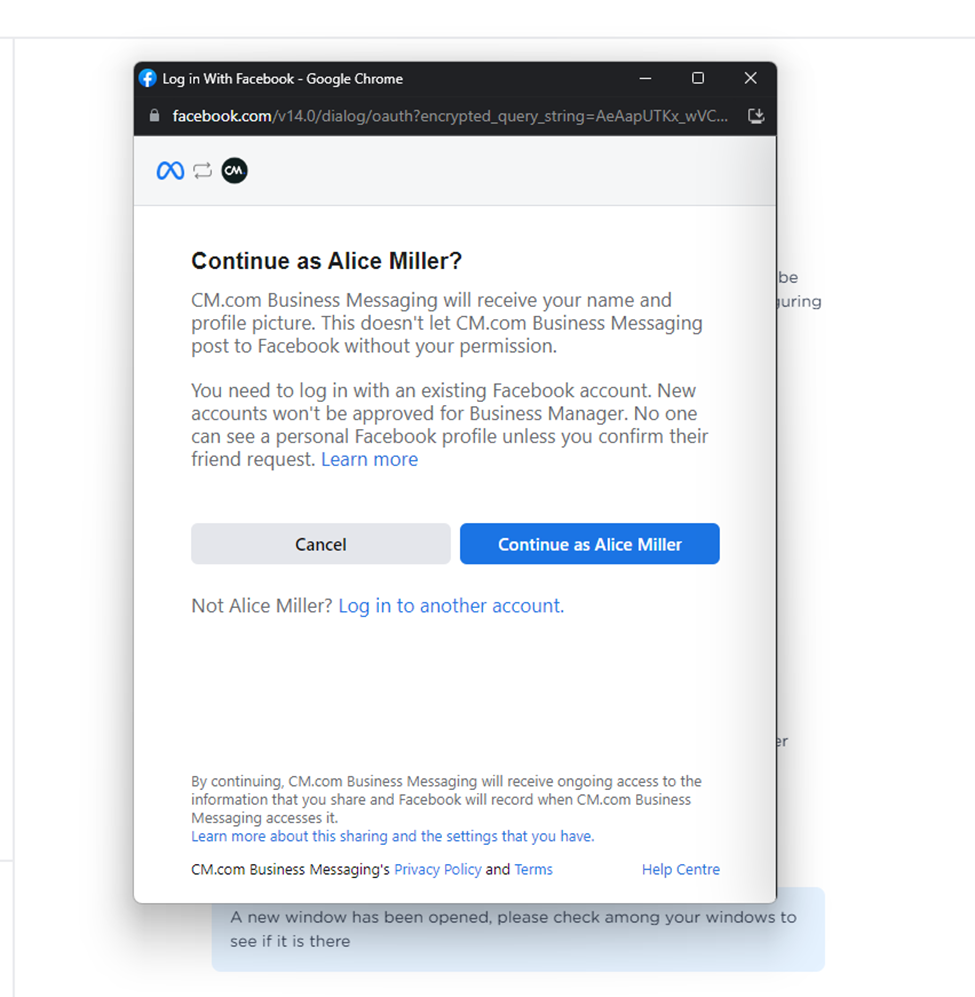
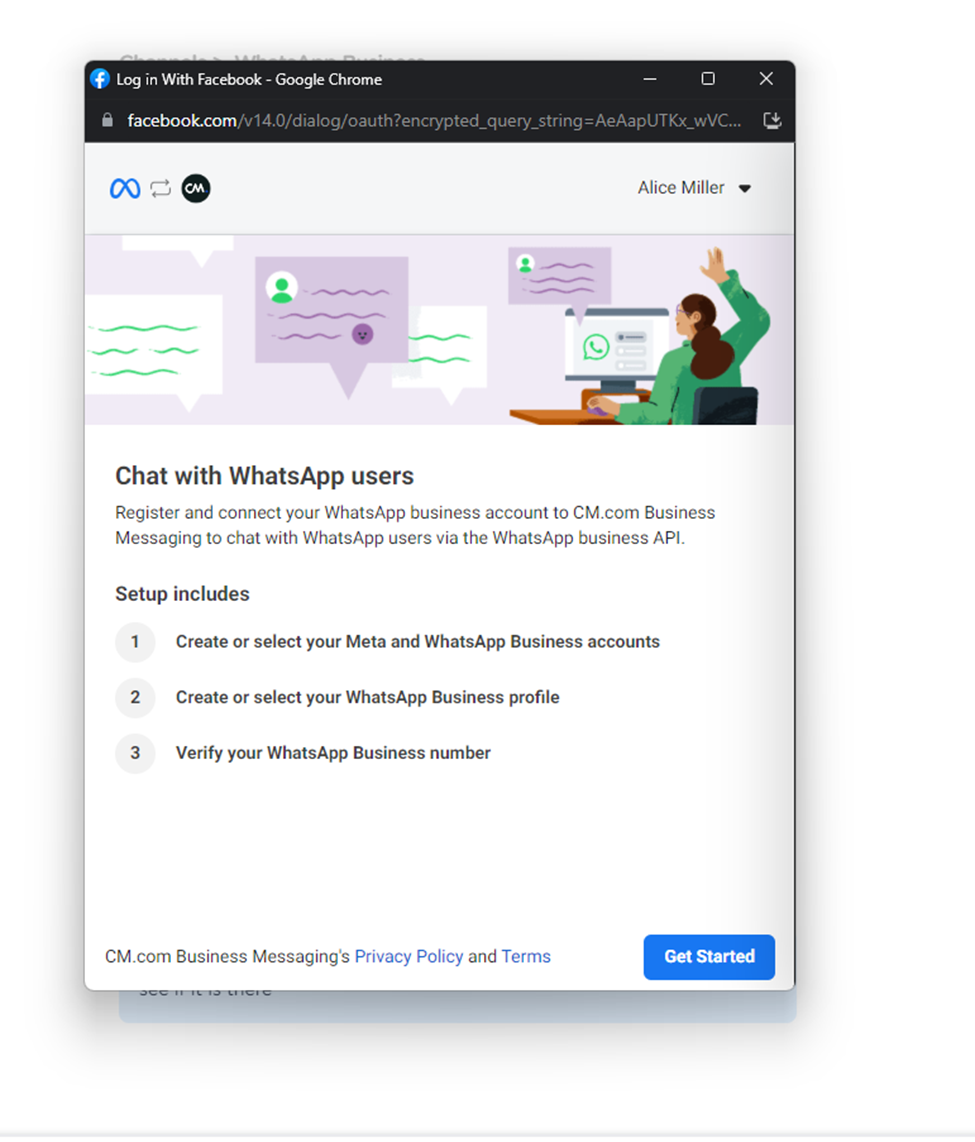
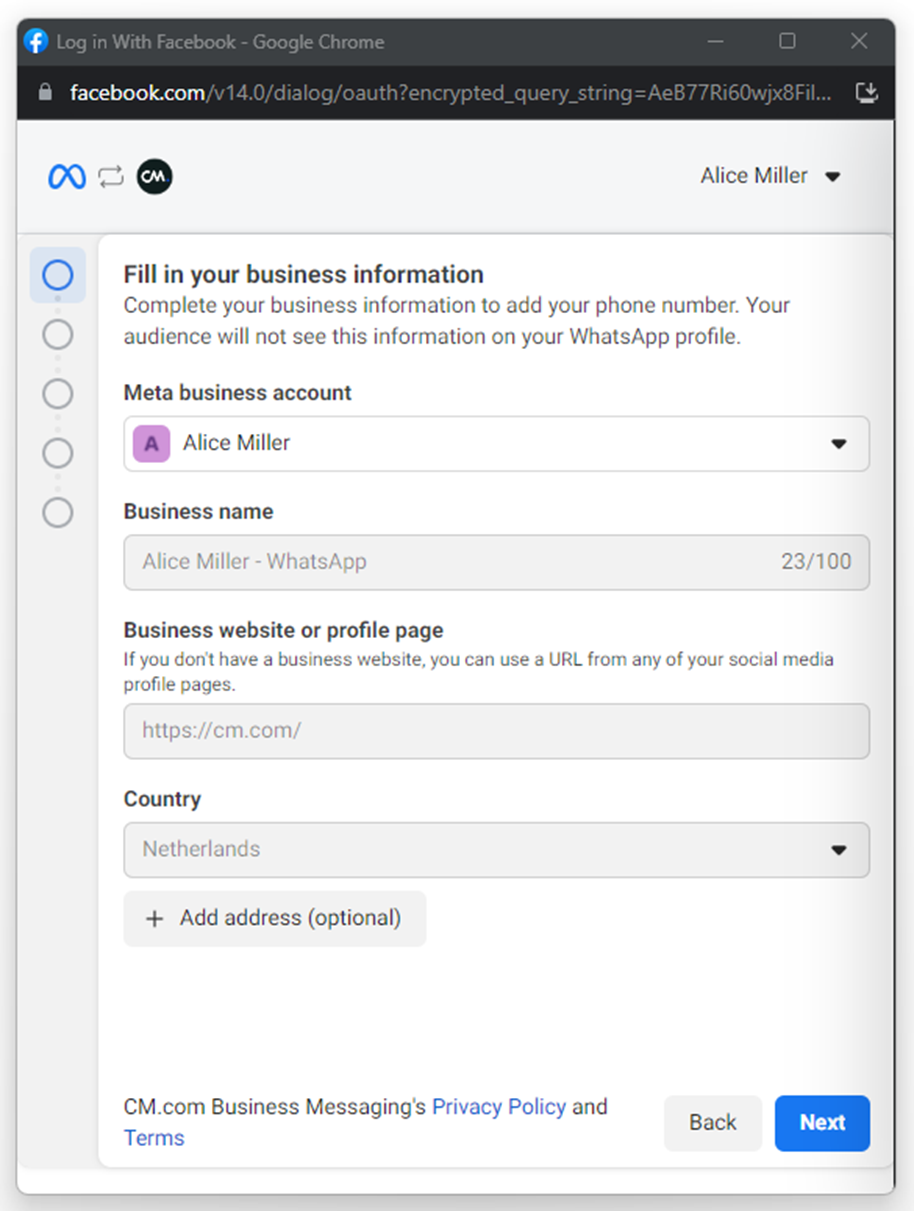
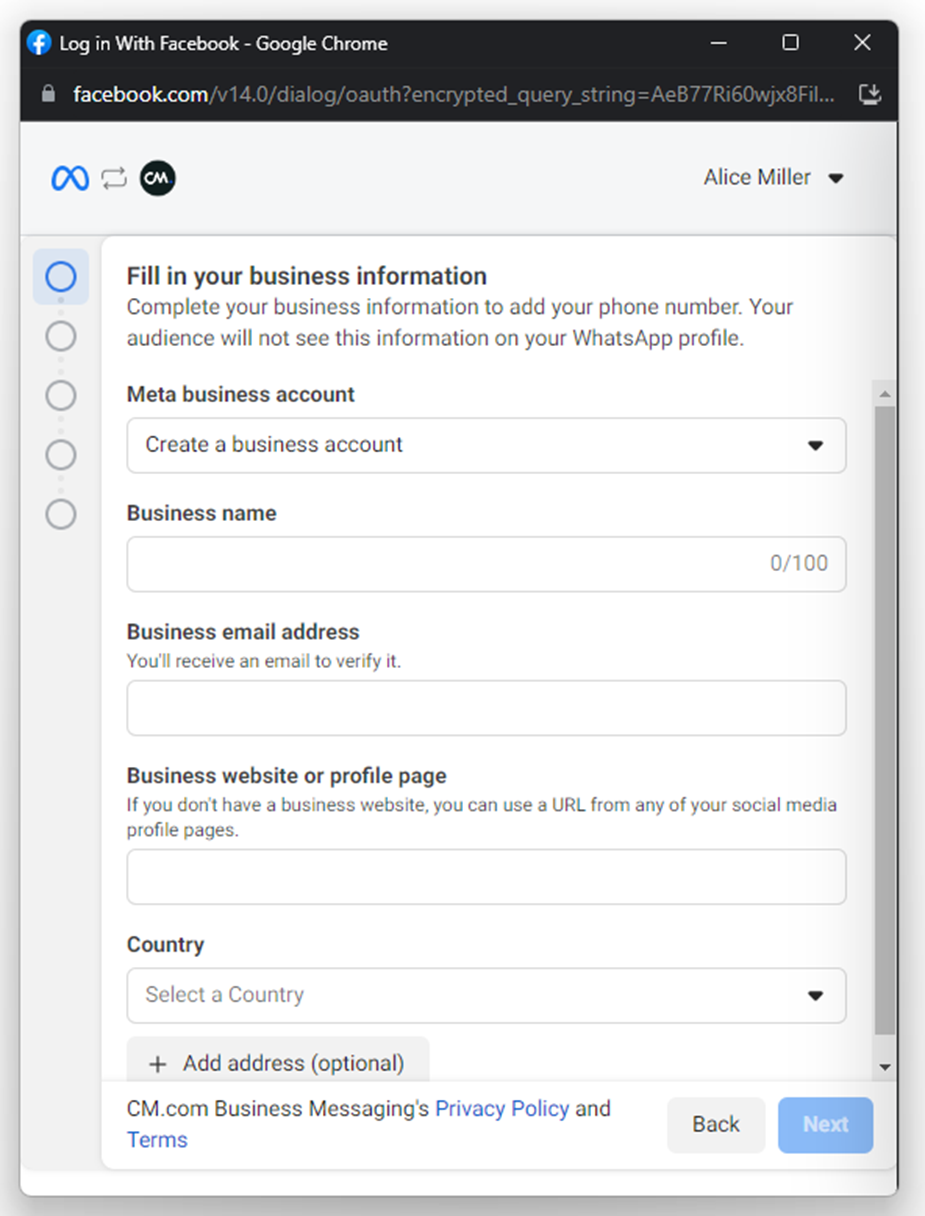
Step 3 – Link Business Manager or create a new Business Manager account
You get the option to select an existing Business Account or create a new one. For creating a new Business Account, it is required to provide some information about the business. If you select an existing one, the information is visible but can’t be changed.
Step 4 - Create or select a WhatsApp Business Account
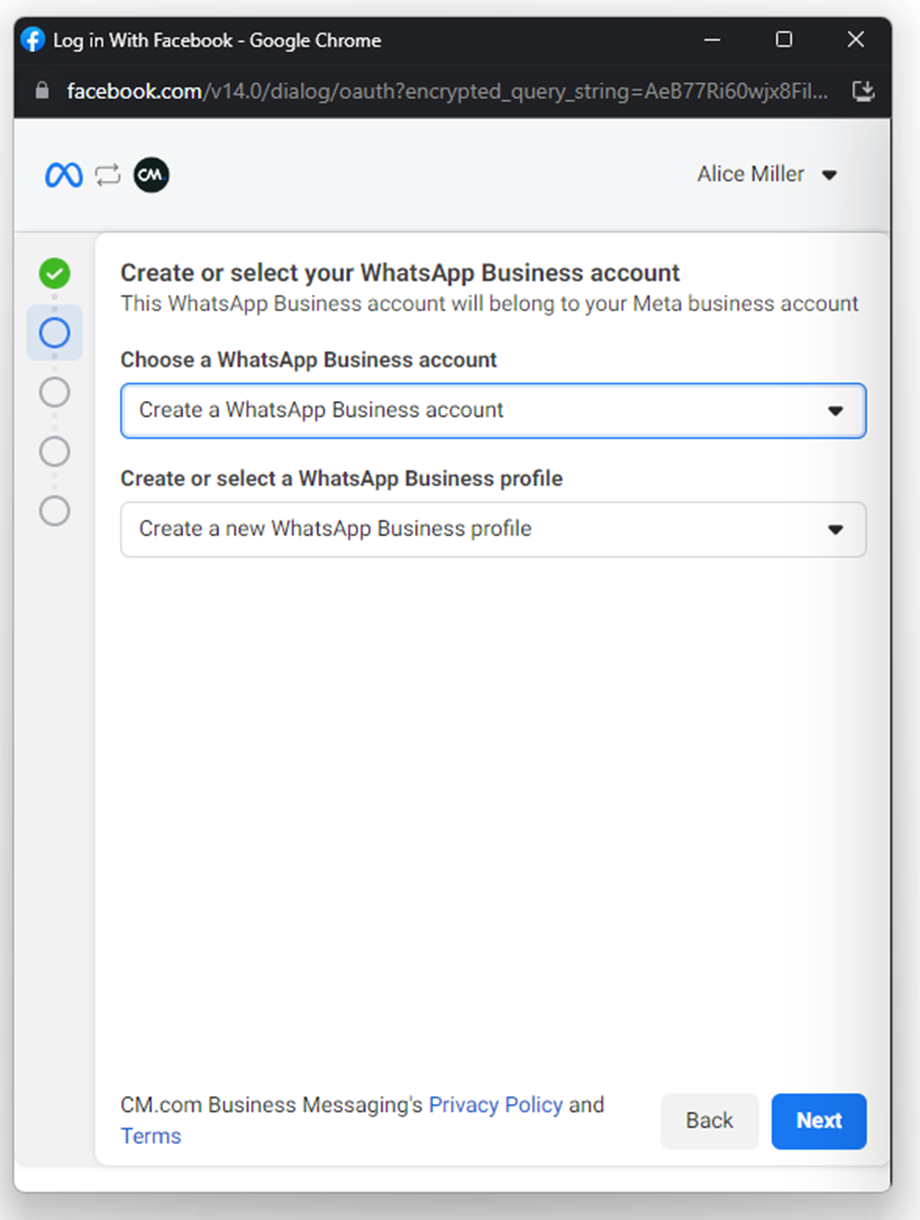
After linking an existing or creating a Business Manager, it is time to create a WhatsApp Business Account. This account is necessary to store your WhatsApp profiles and contain your business information.
The process for adding or selecting a new account and profile is standardized, and the same for both scenarios. From this screen, you have the following options:
-
Create a new WABA and profile
-
Select an existing WABA and create a new profile
-
Select an existing WABA and profile
Note: a WhatsApp Business account can only be linked to one unique CM.com Platform account. If you are unsure how to continue, please reach out to your CM.com point of contact for advice.
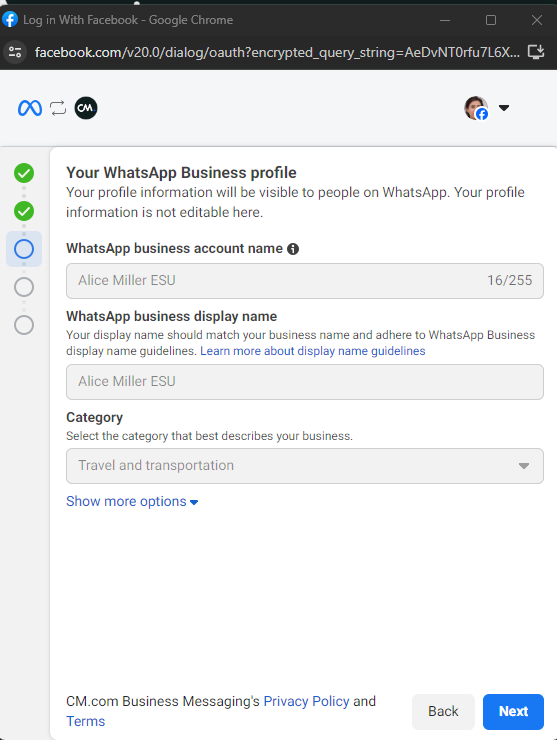
Please provide the right information for your business. The business description and website field are optional.
You can select an existing WhatsApp Business Account and existing WhatsApp profile. You can not change the information in this dialog, but in the WhatsApp Manager.
Step 5 – Verify the phone number
Once you have created or selected a WhatsApp Business Account and profile, you need to verify the phone number with an one-time password (OTP). Please make sure you can receive the OTP via SMS or a voice call.
Are you not receiving the OTP or are you using a number supplied by CM.com? Please contact your point of contact at CM.com for help.
Step 6 - Next steps
You now have successfully onboarded yourself on WhatsApp!
Please reach out to your point of contact to finalize the account creation.