
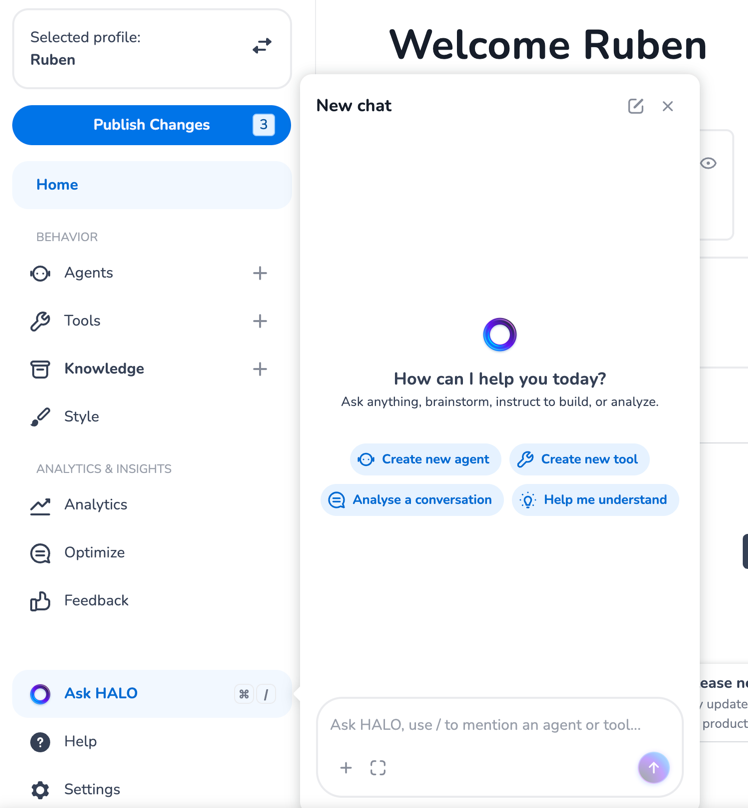
Ask HALO is the built-in AI assistant of HALO Studio. It lives in a chat widget inside Studio and helps you build, manage, test, and debug your conversational AI — agents, tools, context variables, knowledge, and lexicon — and answers your questions about how HALO works.
Ask HALO is itself a HALO agent, built on the same platform you use to build your own agents and tools. So everything it does for you is a live example of what HALO can do.
Ask HALO is the successor to Ava. It does everything Ava did and far more: it not only creates agents and tools, it can manage context variables and knowledge sources, test what it builds, debug live conversations, and guide you around HALO Studio.
What Ask HALO can do for you
Ask HALO works across four broad areas:
-
Build and optimize your setup. It can create and edit agents, tools, and context variables for you, wire them together, and fit a new agent into your existing agent network.
-
Debug conversations. Share a conversation that went wrong and Ask HALO investigates what happened — which agent answered, which tools ran, what knowledge was used — and either fixes the cause or tells you how to.
-
Answer questions about HALO. Ask things like "What is the Lexicon for?" or "What's the difference between a handover and a breakout?" and get a clear, to-the-point answer.
-
Guide you to the right place. Not sure where a setting lives or why something behaves a certain way? Ask HALO points you to the exact page in Studio and explains what to do there.
Where to find Ask HALO
Ask HALO is available as a chat widget inside HALO Studio. Open it from the Ask HALO entry in the left sidebar, or with the keyboard shortcut Cmd + / (Mac) or Ctrl + / (Windows) from any page, then start typing.
You can interact in whatever way suits you:
-
Type your request in plain language.
-
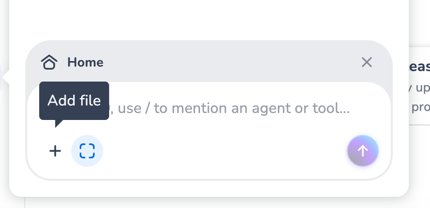
Attach a file or image using the '+' icon — for example a PDF describing a process, or a screenshot of a flow you want recreated. You can also paste an image straight into the type bar.
Ask HALO replies in your own language. If it can't tell which language you're using, it defaults to English.
Letting Ask HALO see your screen
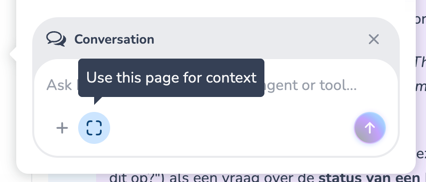
When you say "this agent" or "this conversation," Ask HALO needs to know what you're looking at. Click the page context knob ("Use this page for context") at the bottom of the chat widget to share your current page. This lets Ask HALO pick up exactly which agent, tool, or conversation you mean, so you don't have to spell it out.
Attaching files and images
Use the Add file knob ('+') to attach a PDF or PNG, or simply paste an image directly into the type bar — handy for recreating a tool flow from a diagram or a screenshot.
Building and editing agents
Ask HALO can create a brand-new agent or change an existing one.
-
Describe what you want. For example: "Create an agent that uses the order management tool to retrieve order statuses." Ask HALO works out what's needed, proposes sensible defaults you can react to, and asks only the questions that genuinely matter.
-
Review the plan. For anything substantial — like a new agent or a multi-agent setup — Ask HALO first lays out a plan and waits for your go-ahead before making changes. Smaller, specific tweaks it can make right away.
-
Let it build and wire things up. Ask HALO creates the agent, sets up any missing tools or context variables it depends on, and slots it into your agent network (deciding what hands over to what).
-
Refine in plain language. Ask follow-ups like "Make this agent ask for the customer's name first" or "Have it hand over to the Returns agent when someone wants a refund."
Before suggesting changes to an existing agent, Ask HALO always reads its current configuration first, so it changes only what you asked and preserves the rest.
Building and editing tools
Tools are the step-by-step workflows your agents call to look something up or carry out an action — API calls, calculations, asking the user a question, branching on a result, and so on.
Ask HALO can build a tool from a description, a file, or an image:
-
From text: "Create a tool that looks up an order by its number and returns the status."
-
From a file or image: Attach a diagram or document of a flow — or paste an image into the type bar — and say "Create a tool from this."
It can also edit existing tools — adding a step, changing an API call, or fixing a branch — and it reuses or creates the context variables (such as API tokens or endpoints) the tool needs.
Managing context variables
Context variables are shared values that all your agents and tools can read and, where allowed, update during a conversation — things like an API endpoint, a customer's order ID, or the current channel. Ask HALO can create, update, and delete custom context variables, and wire them into the agents and tools that need them. System context variables (like the conversation ID or current date/time) are read-only and managed by HALO itself.
Managing knowledge and lexicon
-
Knowledge: Ask HALO can create knowledge sources of type website and API connection, and can read, check, and delete sources of any type. Some source types still need to be added by you in the Knowledge page — JSON, PDF, and Marketplace sources — and syncing a source is always done from that page. Ask HALO will point you there when needed.
-
Lexicon: Ask HALO can add, change, and remove Lexicon entries that control how brand names and other terms are translated and pronounced.
Testing what you build
Ask HALO doesn't just build — it checks its work. After creating or changing an agent or tool, it runs a few test cases for you. It then shows you what it sent and what came back, so you can judge the behavior yourself.
For tests that could affect a live external system, Ask HALO asks for your approval first.
Debugging conversations
When a conversation didn't go as expected, Ask HALO can investigate it. Open the conversation in the Optimize page and share it (the page context knob, or paste a link), and Ask HALO will:
-
Trace which agent answered, which tools ran, and which knowledge and context values were involved.
-
Identify the likely cause — a failing tool, a missing handover, a wrong or missing answer, a fallback, or a styling issue.
-
Fix what it can directly, or guide you to the place in Studio where you can.
Working with Ask HALO
A few things that make Ask HALO easy and safe to work with:
-
It plans before big changes. For larger work, you'll see a plan first and nothing is changed until you approve it.
-
It confirms before deleting. Ask HALO won't delete an agent, tool, context variable, or lexicon entry without checking with you first.
-
It matches your level. Whether you're new to HALO or deeply technical, Ask HALO adjusts how it explains things to suit you.
-
It's honest about limits. If something can't be done, it says so plainly and offers the closest path you can take yourself.
What Ask HALO can and can't do
Ask HALO can:
-
Create, update, and delete agents, tools, context variables, and lexicon entries.
-
Test agents and tools.
-
Create knowledge sources of type website and API connection, and read or delete any source.
-
Retrieve a conversation and its messages for debugging.
-
Answer questions about HALO and guide you around Studio.
Ask HALO can't (it will point you to the right page instead):
-
Create JSON, PDF, or Marketplace knowledge sources, or sync any knowledge source.
-
Change Style page settings such as Tone of Voice.
-
Open Analytics or KPI dashboards, or retrieve several conversations at once.
-
Change a conversation's resolution classification.
-
Restore deleted agents or tools.
-
Configure external integrations or connect external MCP servers.
Tips for the best results
-
Be specific about the goal. "Create an agent that answers shipping questions and hands over to a human for refunds" gives Ask HALO far more to work with than "make a support agent."
-
Share the screen when you say "this." Use the page context knob so Ask HALO knows which resource you mean.
-
Let it test. Reviewing the test results it shows you is the fastest way to confirm something works the way you intended.
Your live setup stays safe
Ask HALO never changes the agents and tools your customers are talking to. Everything it builds or edits stays in your draft version — your published, live setup is untouched until you decide otherwise. When you're happy with the result, use Publish Changes in the left sidebar to review exactly what changed and push it live yourself. Nothing goes live without that step.
E-learning