
The Optimize Page in the HALO Studio allows you to see what Conversations were handled by HALO and gives you the tools you need to start improving your HALO Studio.
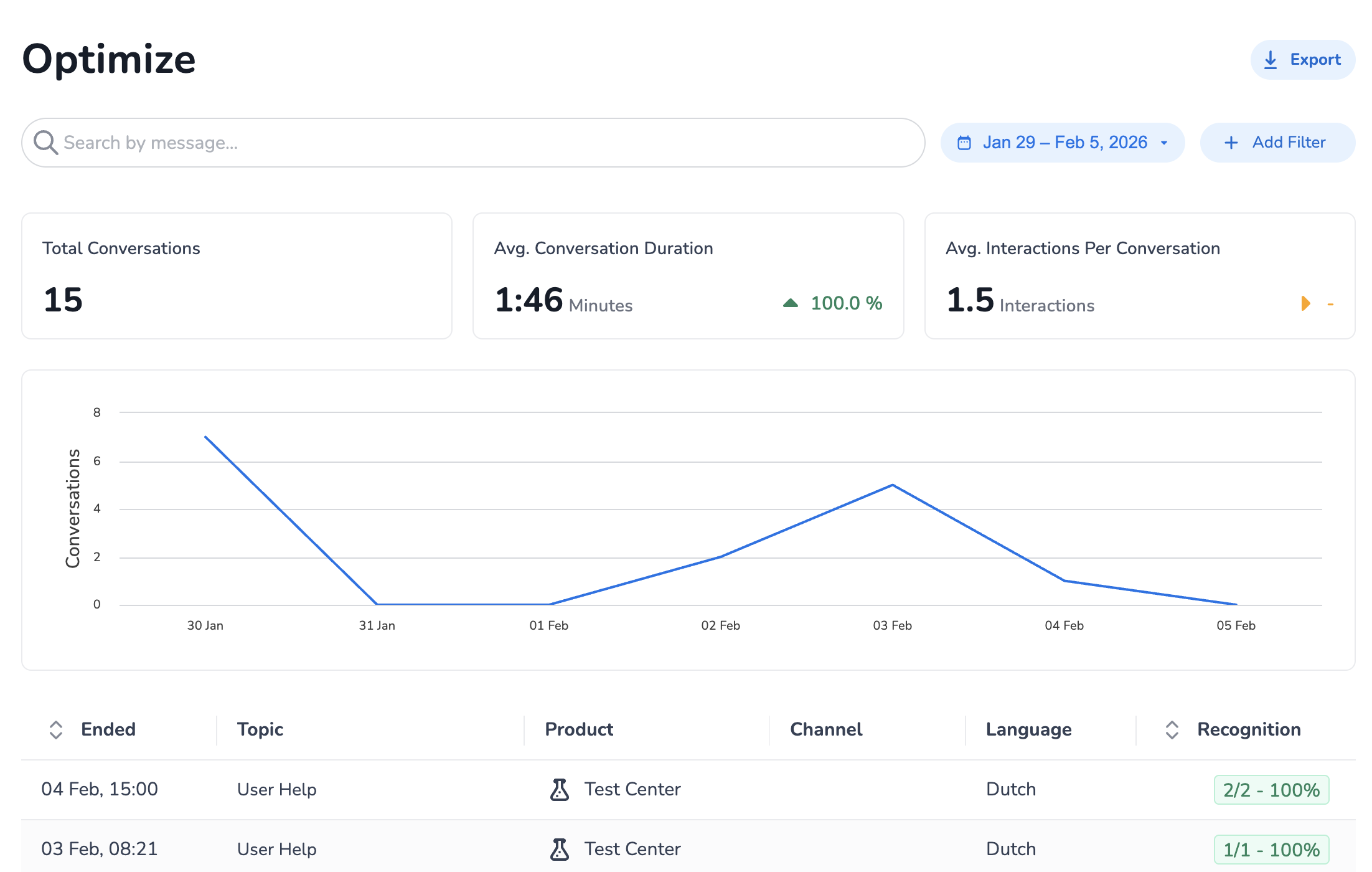
On the Optimize page, several useful features are displayed, like searching for specific words in messages, setting (combinations of) filters to find specific conversations, and a graph that displays the number of conversations per day.
At the bottom of the page there is a list of the actual Conversations that were handled by HALO, with some general characteristics on them. Clicking on any of these Conversations opens the following view:
Conversation View
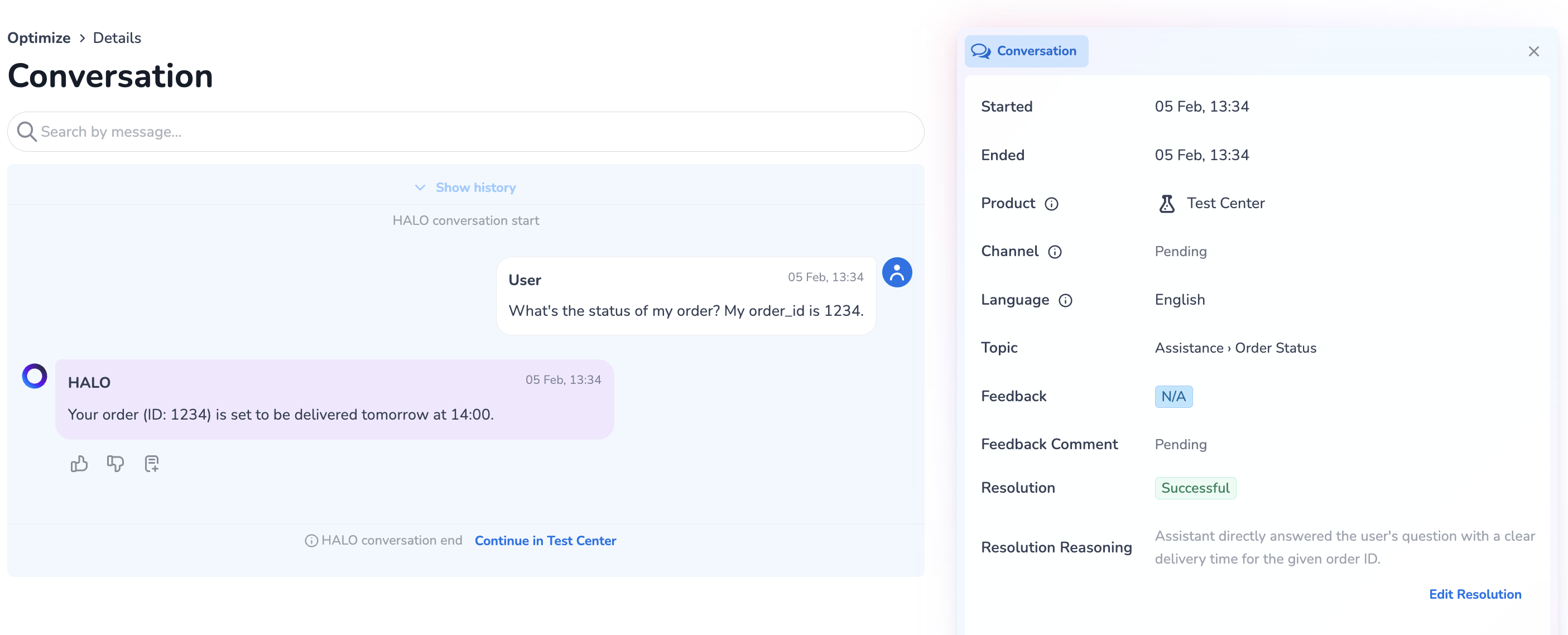
On the left-hand side of the page, you can see all the messages that were sent. 5 different types of messages are distinguished:
-
HALO: These messages were generated by HALO in response to a query. Clicking on such a message reveals details on the way HALO came to the final answer, like used Agents, Tools or Knowledge.
-
User: These messages were typed out by end-users of HALO.
-
Customer Service Agent: These messages were sent from a human agent within MSC to the end-user.
-
Customer Service Agent Instructions: These messages were sent from a human agent within MSC to HALO as an instruction.
-
Assistant: These messages were created by some other system (like Conversation AI Cloud) and sent to the user.
On the right-hand side of the page, you can see some general information on the Conversation, and Analytical insights. Here, you can also adjust Resolution Statuses. To do this, you can click the little 'Edit Resolution' button at the bottom of the HALO Conversation Details. This allows you to change the resolution status to either Resolved or Unresolved, and allows you to provide a reasoning for why you classified this conversation to this category.
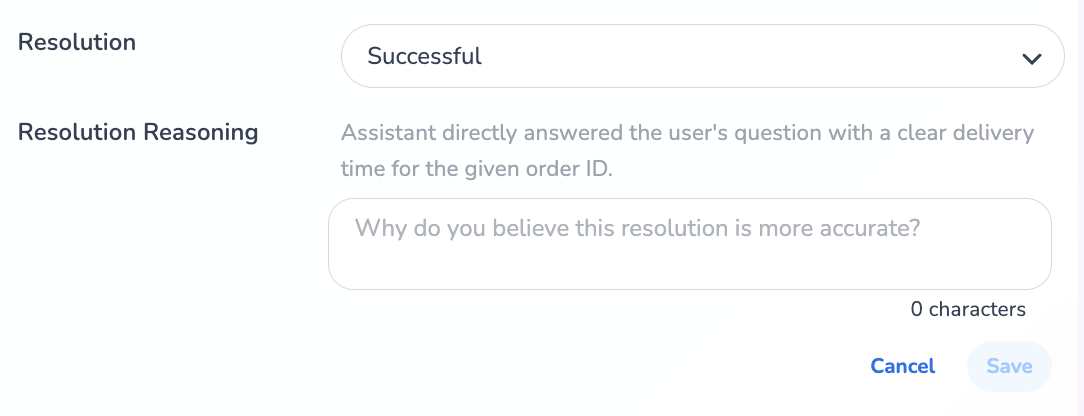
More information on this can be found on the Analytics | Adjusting Conversation Resolution Statuses page.
Adding a reasoning for why you changed the Resolution Statuses helps HALO more accurately determine Resolution Statuses for future conversations.
Learn More with E-Learning Videos
For a detailed walkthrough of how HALO organizes customer feedback into topics and subtopics, explore our dedicated e-learning video. It also shows you how to use topics and subtopics to identify patterns in feedback and prioritize improvements, ensuring your setup delivers a seamless user experience.