
In this tutorial, you'll create a tool using HALO to retrieve energy usage data for Dutch households. Please see the assignment below for more details. Try completing the task yourself before consulting the answers in the step-by-step guide provided.
Good luck!
Assignment
Create a tool using HALO to retrieve energy usage data for Dutch households based on a zipcode and house number. The tool accesses energy consumption information via an open API (https://commondatafactory.nl/docs/api/energie).
API Details: Use the endpoint 'https://ds.vboenergie.commondatafactory.nl/list/?match-postcode=[ZIPCODE]&match-huisnummer=[HOUSENUMBER]', replacing [ZIPCODE] and [HOUSENUMBER] with the correct parameters.
Steps-by-Step Guide
-
Initiate Tool Creation
-
Go to the Tools section in HALO.
-
Click the blue plus sign and select ‘Add New Tool’.
-
Name the tool “Retrieve Dutch Household Energy Data”.
-
Set the description as “Accesses government data through an open API.”
-
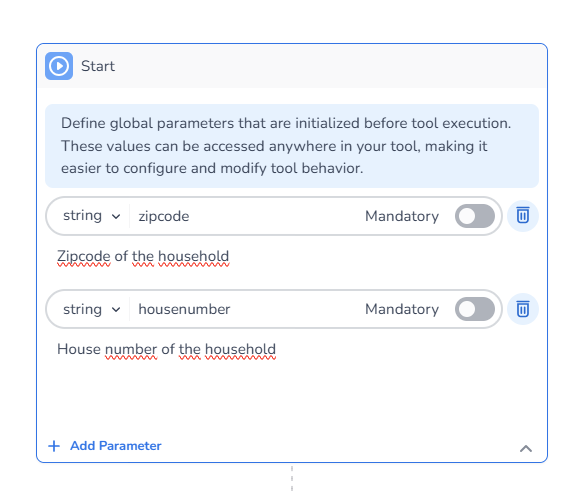
Add two parameters:
-
Zipcode: Set as a String data type and include a description specifying the format
1234AB(4 digits followed by 2 letters, no space). -
House Number: Set as a String data type with a description.
-
-
-
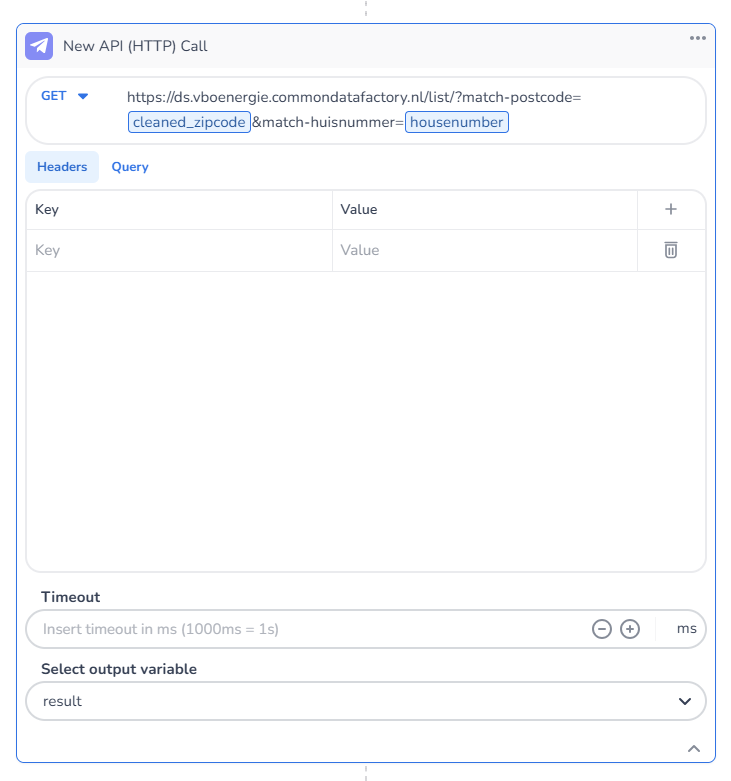
API Configuration: Create the next step for the API call:
-
HTTP Method: Set to "GET".
-
API URL: '
https://ds.vboenergie.commondatafactory.nl/list/?match-postcode=[ZIPCODE]&match-huisnummer=[HOUSENUMBER]’ -
Replace parameters:
-
For
[ZIPCODE], selectzipcodevia the menu by typing '/'. -
For
[HOUSENUMBER], choosehousenumber.
-
-
-
Output Verification
-
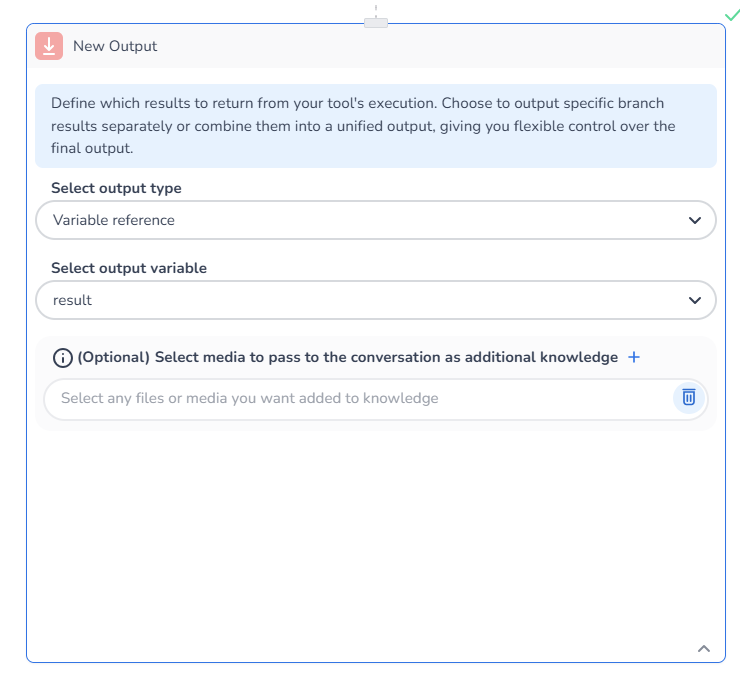
Verify that the API call results are stored correctly in the
resultvariable.
-
-
Save the Tool
-
Don’t forget to save the tool!
-

-
Testing the Tool
-
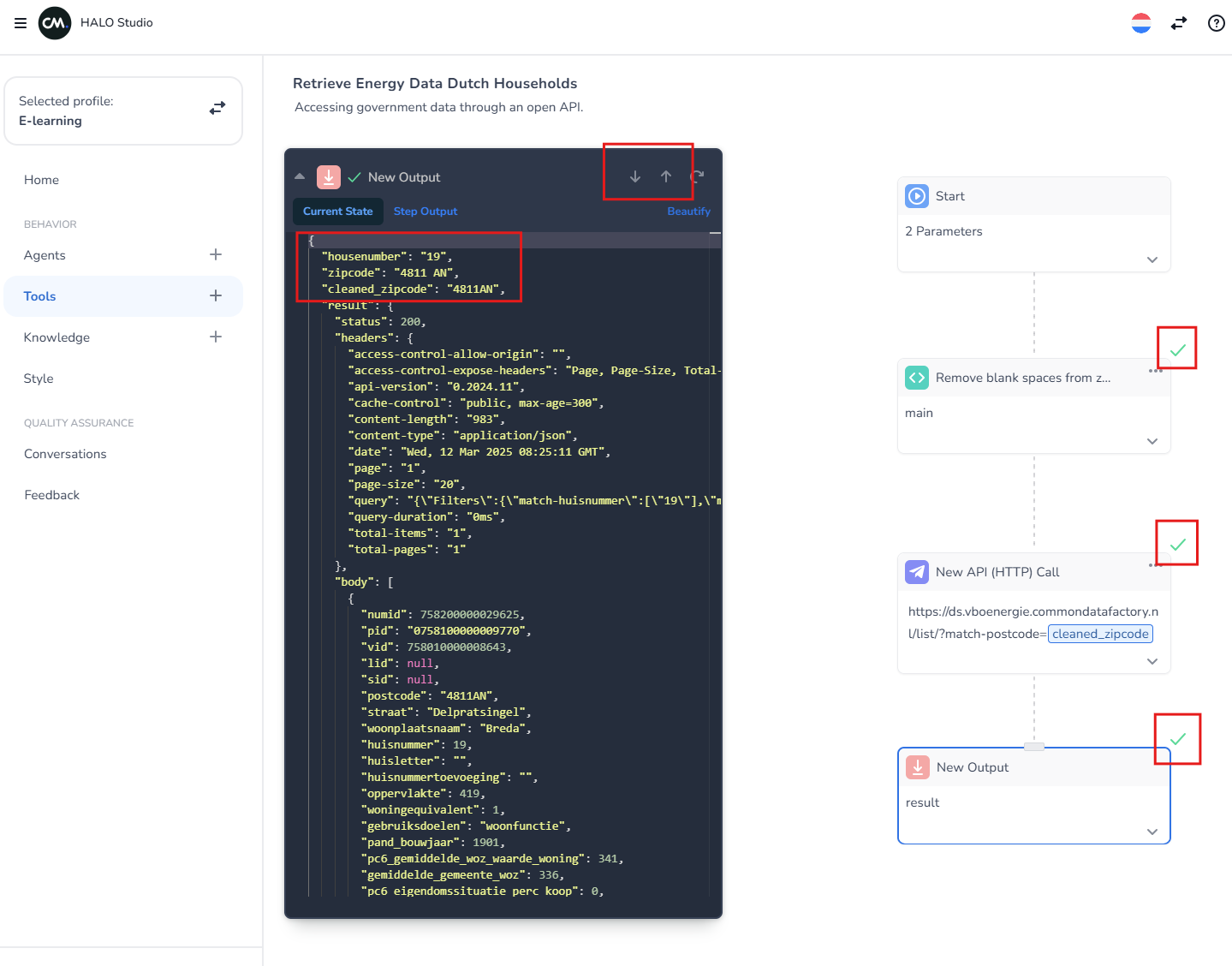
Use the play button at the bottom to test the tool.
-
Input “19” for the house number.
-
Format the zipcode without a space: "4811AN", and click ‘Run & Debug.’
-
Confirm successful test execution by checking green marks at each step.
-
Utilize arrows in the top right to review the steps.
-
-
Save Tool
-
After a successful test, click Save to store the tool. Don't forget to click Publish Changes if you want the tool to go live.
-
Conclusion
Congratulations on your first Tool! In the next tutorial, you will learn how to build an AI agent utilizing this tool, enhancing your agent's capabilities!
Answer Video
Please watch the video below to see the solution to the assignment for this tutorial on creating a tool. It provides a step-by-step guide.