
CXP will work with the HALO automation engine. CXP provides the triggers, the engine handles the flow.
The Automations page is where you set up triggers. A trigger watches for something to happen in your data and, when it does, automatically triggers a HALO automation (an automation flow such as sending an email, SMS, or journey).
In one sentence: When <something happens>, fire <a Halo automation>.
Example: When a profile joins the VIP customers segment, fire the Loyalty Welcome Halo automation.
The Automations overview
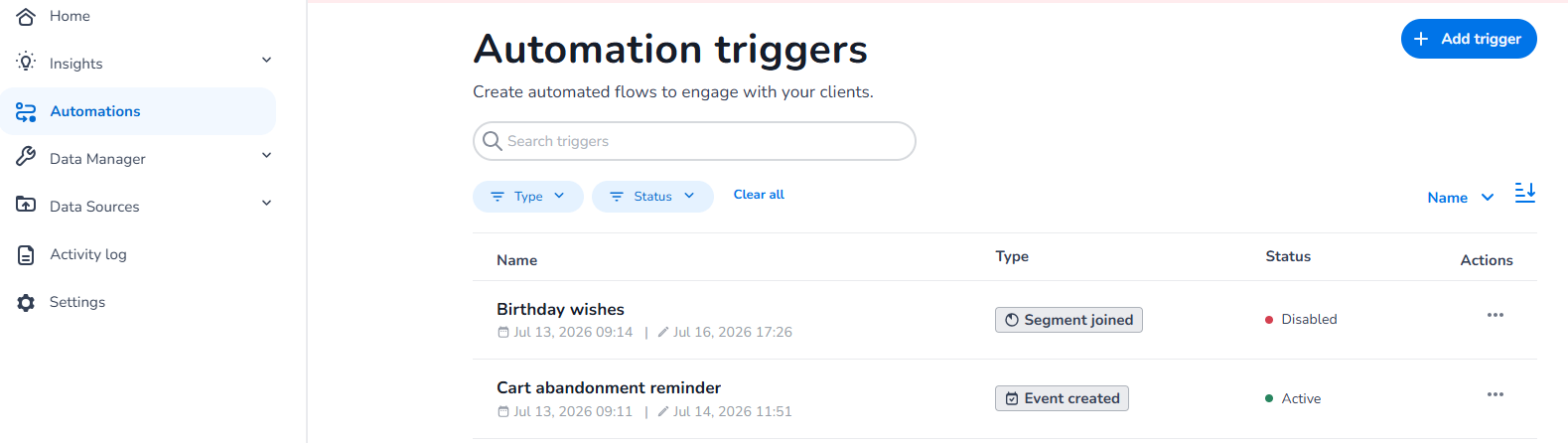
When you open Automations you see all your triggers in one list.
Finding a trigger
Use the filter bar above the list to:
-
Search by name.
-
Filter by Status (Active, Disabled, Draft, Error).
-
Filter by Type (segment, object, relation, event…).
-
Sort by name, creation date, last triggered, or type.
Reading a row
Each trigger shows:
|
Column |
What it tells you |
|---|---|
|
Name |
The trigger's name, plus who created it and when. |
|
Type |
What kind of change starts it (e.g. Segment joined, Object updated). |
|
Status |
A colored dot + label: Active (green), Disabled (orange), Draft (grey), Error (red). |
Creating a trigger
-
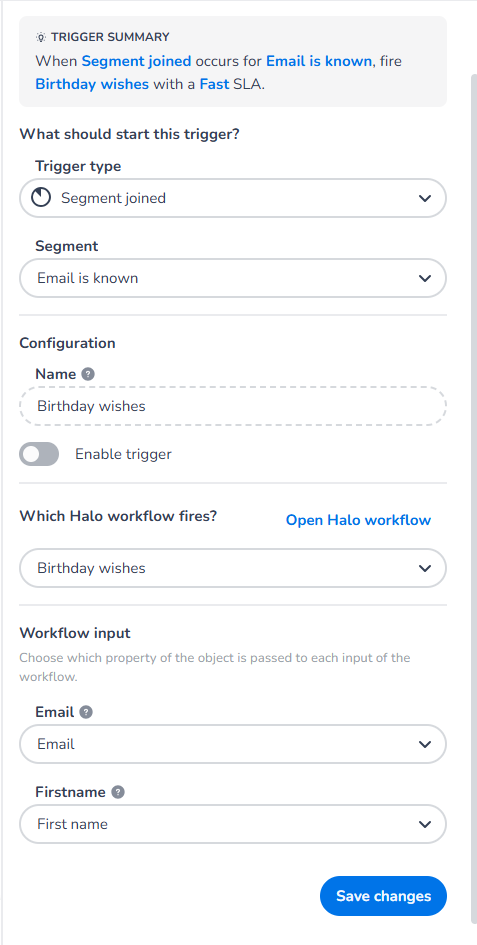
Click Add trigger (top-right). A panel slides in from the right.
-
Choose what starts the trigger. Pick a CXP activity as trigger type
-
Events — Event created (a tracked event is received)
-
Segments — Segment joined / Segment left (a profile enters or leaves a segment)
-
This will ALWAYS trigger also when it already went through the workflow before
-
-
Objects — Object created / Object updated / Objects merged. → WIP
-
Relations — Relation created / Relation updated. → WIP
-
-
Choose the source. Right under the type, select the specific thing to watch — the segment,
object definition, relation, or event, depending on the type you picked. -
Configure it:
-
Name — give the trigger a clear name (e.g. Birthday wishes). (Required.)
-
SLA target — Always near real time, with a continue on breach
-
Enable trigger — leave off to save it without it running yet; turn on to make it
live. (New triggers start disabled.)
-
-
Choose the HALO workflow that should fire. After selecting one, you can use Open HALO workflow to
view the flow in a new tab. -
Map the HALO workflow parameter to CXP object properties. This is needed to pass along CXP values as input values of the workflow.
-
Click Create trigger.
The Create trigger button stays disabled until you've given a name, picked a source, and
chosen a Halo tool.
Editing a trigger
-
Click anywhere on a trigger's row or open its actions menu and choose Edit.
-
The same panel opens, pre-filled with the trigger's current settings. Make your changes and click
Save changes.
Enabling or disabling a trigger
A disabled trigger is kept exactly as configured but won't fire until you turn it back on.
You can change this in two places:
-
From the list — open a trigger's actions menu and choose Enable or Disable
(the option shown depends on the current status). A confirmation message appears and the status
updates. -
Inside the panel — use the Enable trigger toggle in the Configuration section, then save.
Understanding the building blocks
-
Trigger — the rule: when X happens, do Y.
-
Type — the kind of change that starts it (segment join/leave, object create/update/merge,
relation create/update, event received). -
Source — the specific segment, object definition, relation, or event the trigger watches.
-
Halo tool — the automation flow that runs when the trigger fires.
-
Input parameters - The input parameters as set in the HALO workflow mapped to a CXP object property. (the values of the CXP properties are then sent along with the trigger to fill the needed HALO input parameters)
-
SLA target — Always near real time, with a continue on breach
-
Status — Active (running), Disabled (paused), Draft (not yet live), Error (recent failures).
Tips
-
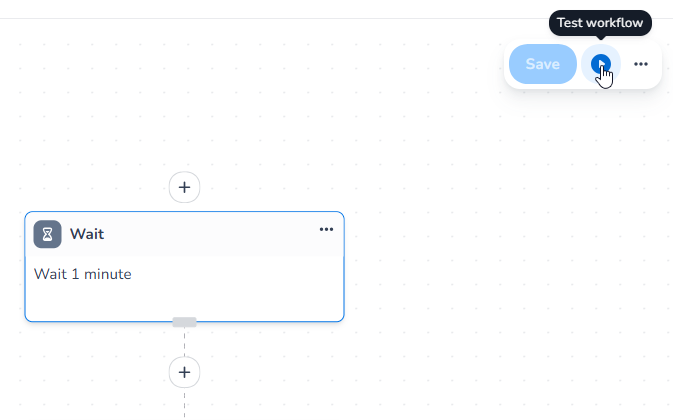
Test the flow using HALO’s workflow test capabilities
-
On a re-process, NOTHING will the be triggered again
-
Segment joined/left triggered will go off on EVERY trigger, also when an object has already been triggered before