
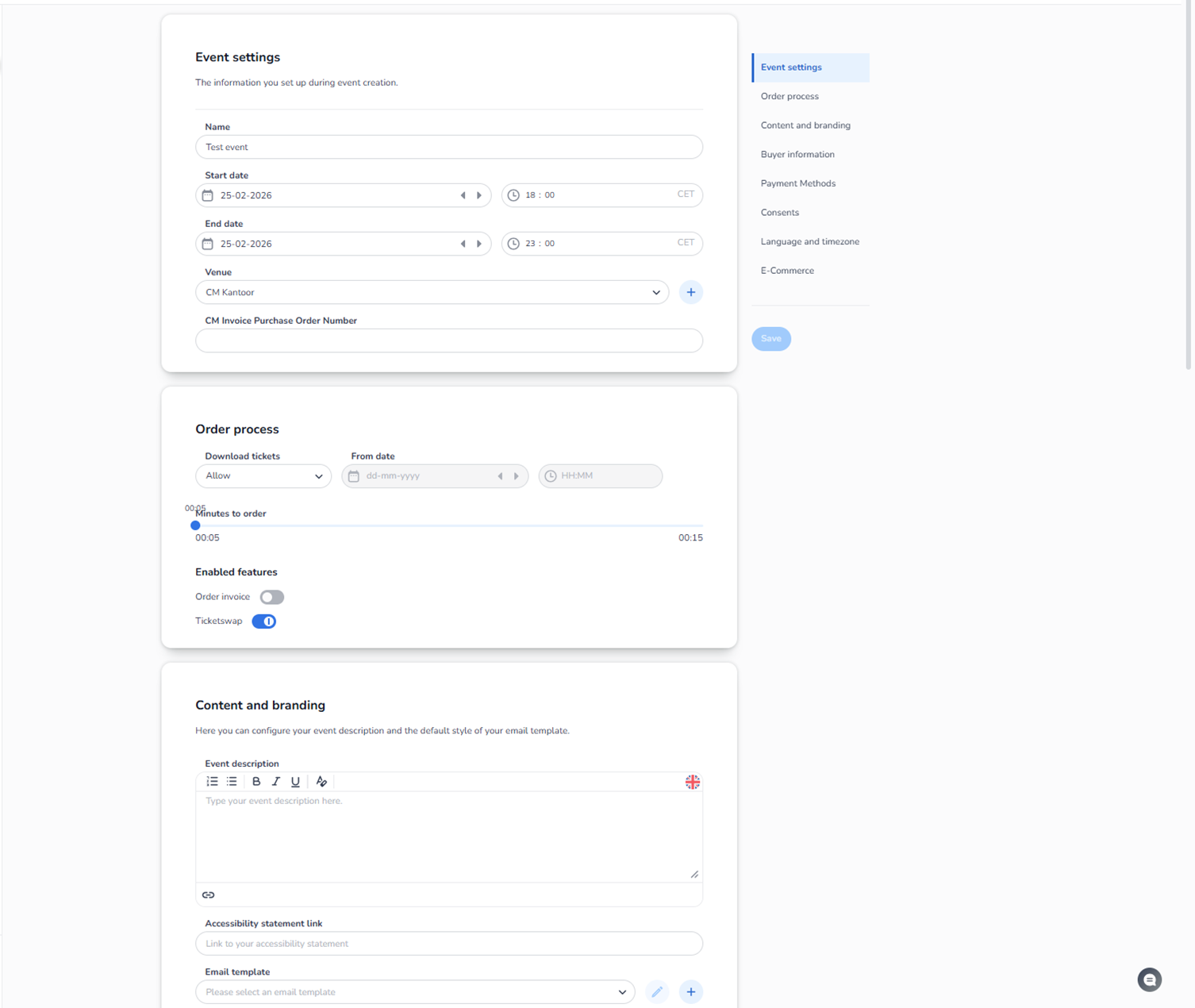
Overview
The Event settings section is where you configure the operational behavior of your event.
This is one of the most important sections in the platform.
It determines:
-
When your event is active
-
How orders behave
-
What buyers see
-
What emails look like
-
What payment methods are allowed
-
What buyer data is collected
This section contains multiple sub-sections on the right-hand side navigation.
Below is a complete explanation of what you see and what each button or control does.
Right-Side Navigation Menu
Inside Event Settings, you see the following tabs:
-
Event settings
-
Order process
-
Content and branding
-
Buyer information
-
Payment methods
-
Consents
-
Language and timezone
-
E-Commerce
Each tab controls a different part of your event logic.
-
Event Settings (Basic Event Configuration)
This section contains the core event details.
Name
Editable text field.
Changes the display name of your event.
Start date & time
IT’S NOT POSSIBLE TO CHANGE THE DATE OR TIME OF YOUR EVENT WITHIN THE EVENT SETTINGS ONCE THE EVENT IS MARKED AS DONE IN THE SYSTEM.
Controls when the event officially begins.
Buttons:
-
Date picker icon → Opens calendar
-
Arrow buttons → Navigate date forward/backward
-
Time field → Set hour and minutes
-
Timezone label (e.g. CET) → Shows current timezone
This influences:
-
Validation timing
-
Sales window logic
-
Reporting
End date & time
Defines when the event officially ends.
Same controls as start date.
Important:
Tickets may stop validating based on this setting.
IT’S NOT POSSIBLE TO CHANGE THE DATE OR TIME OF YOUR EVENT WITHIN THE EVENT SETTINGS ONCE THE EVENT IS MARKED AS DONE IN THE SYSTEM. If your event is still running but shows as expired due to an incorrect date or time, you'll need to duplicate the event instead. You can do this from the start screen. Guide to start screen for the right knowledge about this. Start screen - Everything_related_to_start_screen
Venue
Dropdown menu:
-
Select an existing venue
-
Plus (+) button → Quickly create a new venue
This connects the event to its physical location and seating structure.
CM Invoice Purchase Order Number
This field allows you to enter a PO (Purchase Order) number that will be included on the invoice CM.com sends to you as the organiser. This is useful for matching CM.com invoices to your internal budgets or accounting processes. It does not affect anything on the visitor side.
Text field:
Used for internal or financial reference.
Does not affect customer-facing flow.
Save Button
Appears on the right side.
Must be clicked to apply changes.
Changes are not automatically saved.
-
Order Process
This section controls ticket purchasing behavior. It is not possible to send an invoice retroactively if ‘Order Invoice’ is disabled
Download tickets
Dropdown options:
-
Allow → Customers can download tickets
-
Other options (depending on configuration)
Controls whether ticket download is enabled.
From date
Date and time picker:
Defines from when tickets become downloadable.
Buttons:
-
Calendar icon → Select date
-
Time field → Select time
Minutes to order (Slider)
Slider control:
Defines how long a ticket remains reserved during checkout.
Example:
If set to 5 minutes:
-
Customer has 5 minutes to complete payment
-
After that, tickets return to inventory
This is critical for high-demand events.
Enabled Features
Toggle switches:
Order invoice - Bestelling factuur
Enable or disable invoice option for buyers. Than the buyers have the option to reicive an order invoice about their purchase. This could be helpfull for business customers.
Ticketswap
Enable integration with ticket resale functionality.
Blue toggle = Enabled
Grey toggle = Disabled
Always click Save after changing.
-
Content and Branding
This controls customer-facing text and email styling.
Event Description
Rich text editor:
-
Bold
-
Italic
-
Lists
-
Links
-
Formatting options
This description appears:
-
On event pages
-
Possibly in confirmation emails
Language flag icon:
Indicates language version.
Accessibility Statement Link
Text field:
Add a link to your accessibility page.
This improves compliance and transparency.
Email Template
Dropdown:
Select which email template is used for order confirmations.
Buttons:
-
Pencil icon → Edit selected template
-
Plus icon → Create new template
This controls branding of:
-
Confirmation emails
-
Ticket emails
Why This Section Is Important
Event Settings control:
-
Customer experience
-
Sales behavior
-
Reservation logic
-
Financial handling
-
Branding consistency
-
Legal compliance
Misconfiguration here can affect:
-
Sales performance
-
Customer confusion
-
Payment failures
-
Ticket validation issues
How the Agent Should Understand This
Event Settings = Operational Brain of the Event
Everything here affects:
-
Orders
-
Tickets
-
Buyers
-
Emails
-
Time logic
-
Integrations
When a user reports:
-
Tickets not downloadable
-
Checkout timeout issues
-
Wrong event time
-
Email branding problems
-
Missing invoices
-
Wrong venue connection
The first place to check is Event Settings.