
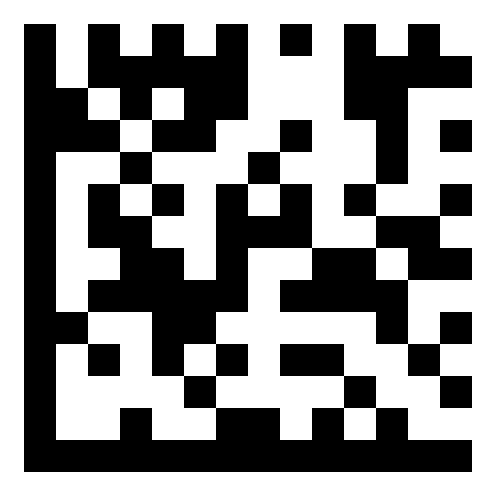
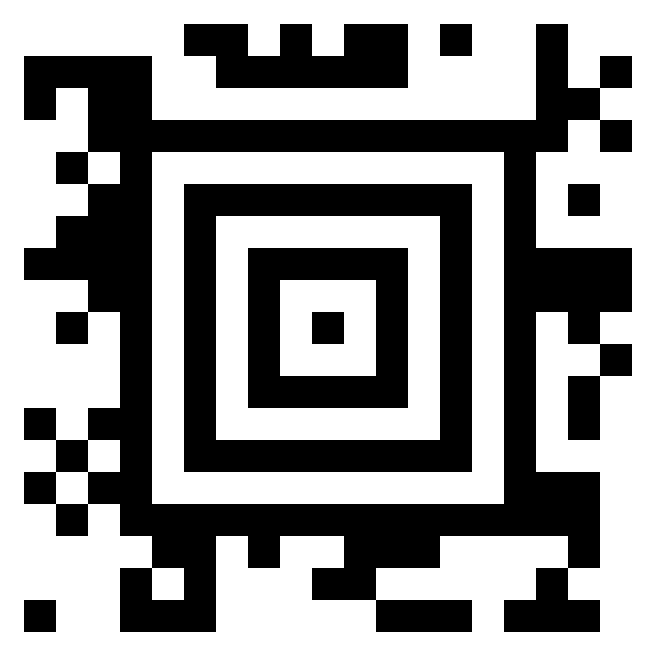
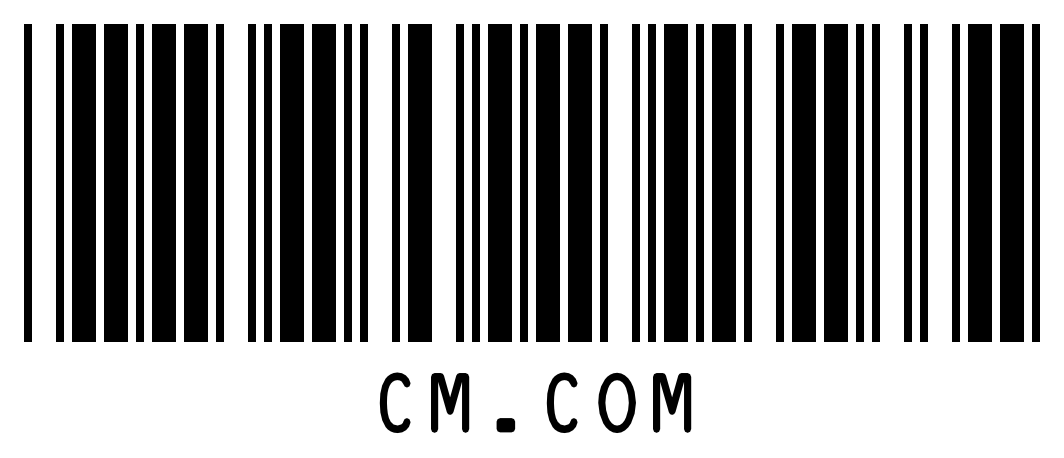
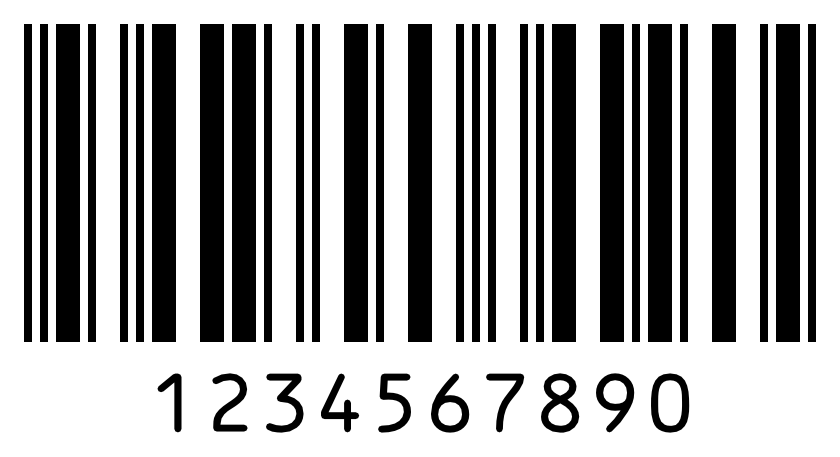
Which barcodes can be read depends on how you scan: with a hardware scanner (laser or imager) or with the camera in an app. Camera scanning is done by the app itself, so a Sunmi handheld using the scan app camera reads the same barcodes as any other device using the scan app camera. The tables show the options per scan method.
2D barcodes
|
|
Hardware scanner |
Camera |
||||
|---|---|---|---|---|---|---|
|
Barcode |
Example |
Zebra TC26 / TC27 |
Zebra DS2208 |
Sunmi L3 / P3 / CPad |
Scan app |
POS app |
|
QR Code |

|
✔ |
✔ |
✔ |
✔ |
✔ |
|
Data Matrix |
|
✔ |
✔ |
✔ |
✖ |
✔ |
|
Aztec |
|
✖ |
✖ |
✔ |
✖ |
✔ |
|
PDF417 |

|
✔ |
✔ |
✔ |
✖ |
✔ |
1D barcodes
|
|
Hardware scanner |
Camera |
||||
|---|---|---|---|---|---|---|
|
Barcode |
Example |
Zebra TC26 / TC27 |
Zebra DS2208 |
Sunmi L3 / P3 / CPad |
Scan app |
POS app |
|
Code 128 |

|
✔ |
✔ |
✔ |
✔ |
✔ |
|
Code 39 |
|
✔ |
✔ |
✔ |
✔ |
✔ |
|
Interleaved 2 of 5 |
|
✔ |
✔ |
✔ |
✔ |
✔ |
|
Code 93 |

|
✔ |
✔ |
✔ |
✔ |
✔ |
|
EAN-13 |
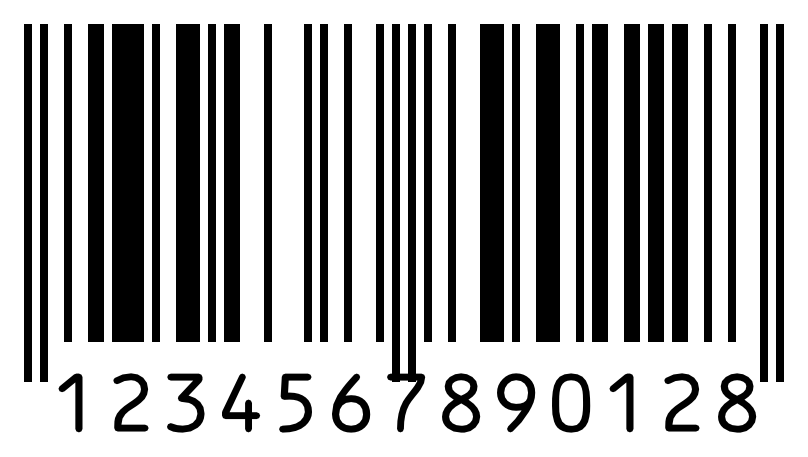
|
✔ |
✔ |
✔ |
✔ |
✔ |
|
EAN-8, UPC-A, UPC-E |
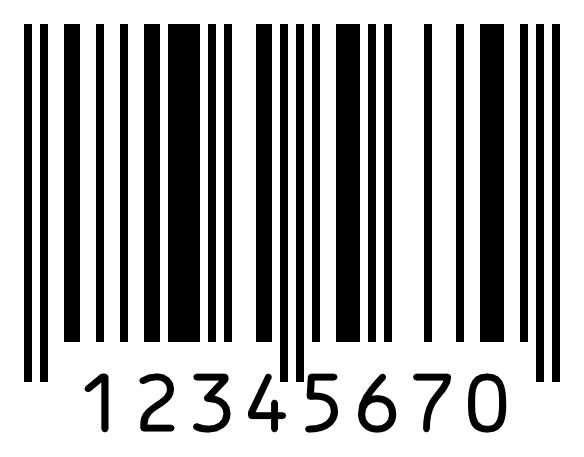
|
✔ |
✔ |
✔ |
✖ |
✔ |
✔ supported ✖ not supported
Why does the camera support fewer barcode types?
At the entrance, speed matters most: visitors should be scanned in a moment. The camera in the scan app checks every image it takes against each barcode type it supports. The fewer types it has to check, the faster it recognises a ticket. A shorter list also makes it less likely that a damaged or partly hidden barcode is mistaken for a different one.
The POS app supports more types because products and discount codes come in many formats, and scanning them is less time-critical than scanning visitors at the door.
Hardware scanners are different. They have a dedicated, highly optimised scan engine, so they are not slowed down in the same way.
Tips for scanning barcodes
Most scanning problems are not caused by the scanner but by the barcode itself, or by how it is presented. These tips help you, as the person scanning, to get a reliable scan and to know what to ask your visitors or customers.
Barcodes that scan well
-
Complete. The whole barcode must be visible, from edge to edge. A code that is cut off, folded or partly covered cannot be read. This goes for the bars of a line barcode as much as for a QR code.
-
Empty margin around it. There should be a clear, blank border around the code. Text or graphics touching the barcode can prevent it from scanning.
-
Large enough. A barcode that is too small is hard to read, especially with a camera.
-
Strong contrast. Dark code on a light background, ideally black on white. Light grey, coloured or patterned backgrounds make scanning harder.
-
Sharp and clean. Smudges, scratches, creases, faded print and blurry low-resolution screenshots can all cause a failed scan.
-
Flat and matte. Wrinkled paper, curved surfaces and glossy or laminated tickets can cause glare and distortion.
E-tickets on a phone: what to ask the visitor
-
Turn the screen brightness up to the maximum, and switch off battery saver modes that dim the screen.
-
Wipe the screen. A dirty, scratched or cracked screen, or a damaged screen protector, can make the code unreadable.
-
Zoom in on the code. If the ticket is a PDF and the QR code is small, ask the visitor to zoom in until the QR code fills a large part of the screen. Make sure the whole code is still visible.
-
Have the ticket open and ready in the app, wallet or e-mail before reaching the scanner. This also keeps the queue moving.
-
Hold the phone still and flat towards the scanner, without reflections from lights or windows.
Printed tickets and cards
-
Ask the visitor to hold the ticket flat and unfolded, by the edges, so fingers do not cover the barcode.
-
If a printed ticket is damaged, wet or faded (for example thermal paper left in the sun), ask whether the visitor also has the e-ticket on a phone.
Your scanning technique
-
Distance. Hold the scanner or camera at a comfortable distance, usually 10 to 20 cm, and keep it steady. Move closer for small codes and further away for large ones.
-
Angle. If you see glare on the barcode, tilt the ticket or phone slightly.
-
Light. Camera scanning needs good, even light. Avoid strong backlight and deep shadow.
-
Clean the scanner. Fingerprints or dust on the scanner window or camera lens reduce reading performance. Wipe it with a soft, dry cloth.
If the barcode still does not scan
-
Go through the tips above: ask for full brightness, zoom and a clean screen, check that the code is complete, and clean the scanner.
-
Try again from a slightly different distance and angle.
-
Check that the barcode type is listed in the table above for the solution you use.
-
If the code is read but the ticket is rejected, the barcode is fine. The ticket itself is not valid, already used or for another event or date.
-
Still not working? Contact our support team and include a photo of the barcode, the type of device and app you use, and a short description of what happens when you scan.