
The Conversations page in Message Insights shows every conversation across your messaging channels — the exchange of messages between your senders and your recipients. Each conversation groups the individual inbound and outbound messages between two participants on a single channel, so you can see the participants, the messages exchanged, and their timestamps in one place. You can open any conversation to inspect its messages as a log table or as a chat window, set your preferred timezone, and export the results.
Explanations
What is a conversation?
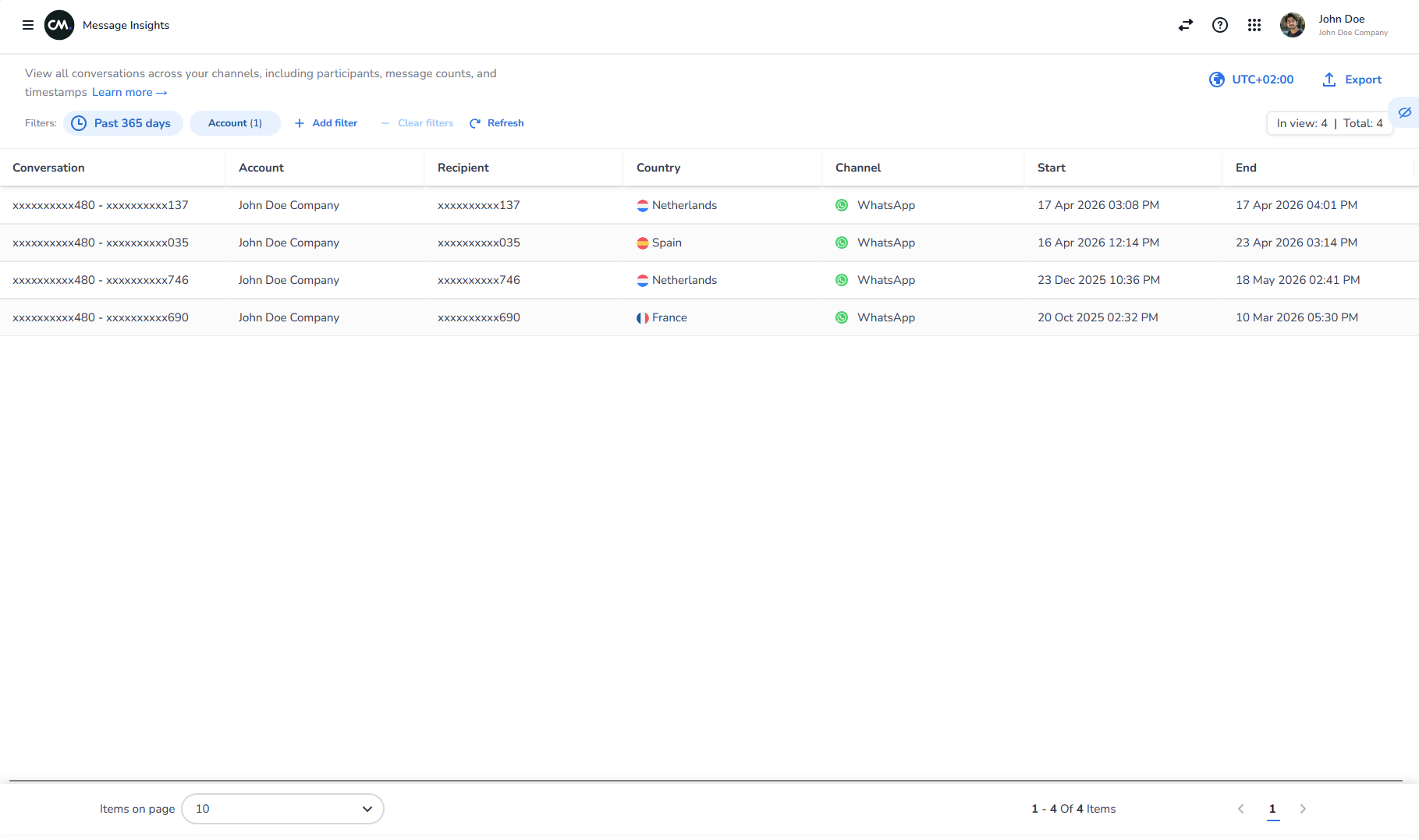
A conversation is the complete exchange of messages between two participants on one channel — for example, your WhatsApp Business sender and a single recipient. Every message between those two numbers is grouped into the same conversation, whether it is inbound (received from the recipient) or outbound (sent from your account). Each row in the conversations table is one conversation, identified by its participants, account, channel, and the time of its first and last message.
Why would I use the Conversations page?
Use the Conversations page when you need the full context of a message exchange rather than individual messages in isolation. It helps you:
-
confirm what was sent and received between a specific sender and recipient,
-
check the order and timing of messages in an interaction,
-
review the exact content and payload of each message for troubleshooting,
-
understand how a conversation progressed across message types — for example, a WhatsApp template followed by an SMS fallback.
For aggregated metrics and trends across all your traffic, use Message Analytics instead. See What is Message Analytics in Message Insights?.
What information does each conversation show?
The conversations table lists every conversation that matches your filters. For each one you see:
-
Conversation — the identifier for the exchange between the two participants.
-
Account — the CM.com account the conversation belongs to.
-
Recipient — the recipient's number.
-
Country — the recipient's country.
-
Channel — the messaging channel used, such as WhatsApp Business.
-
Start — the timestamp of the first message in the conversation.
-
End — the timestamp of the most recent message in the conversation.
A counter above the table shows how many conversations are currently in view and the total number found for your filters — for example, In view: 3 | Total: 3.
What's the difference between the table view and the chat window?
When you open a conversation, you can view its messages in two ways:
-
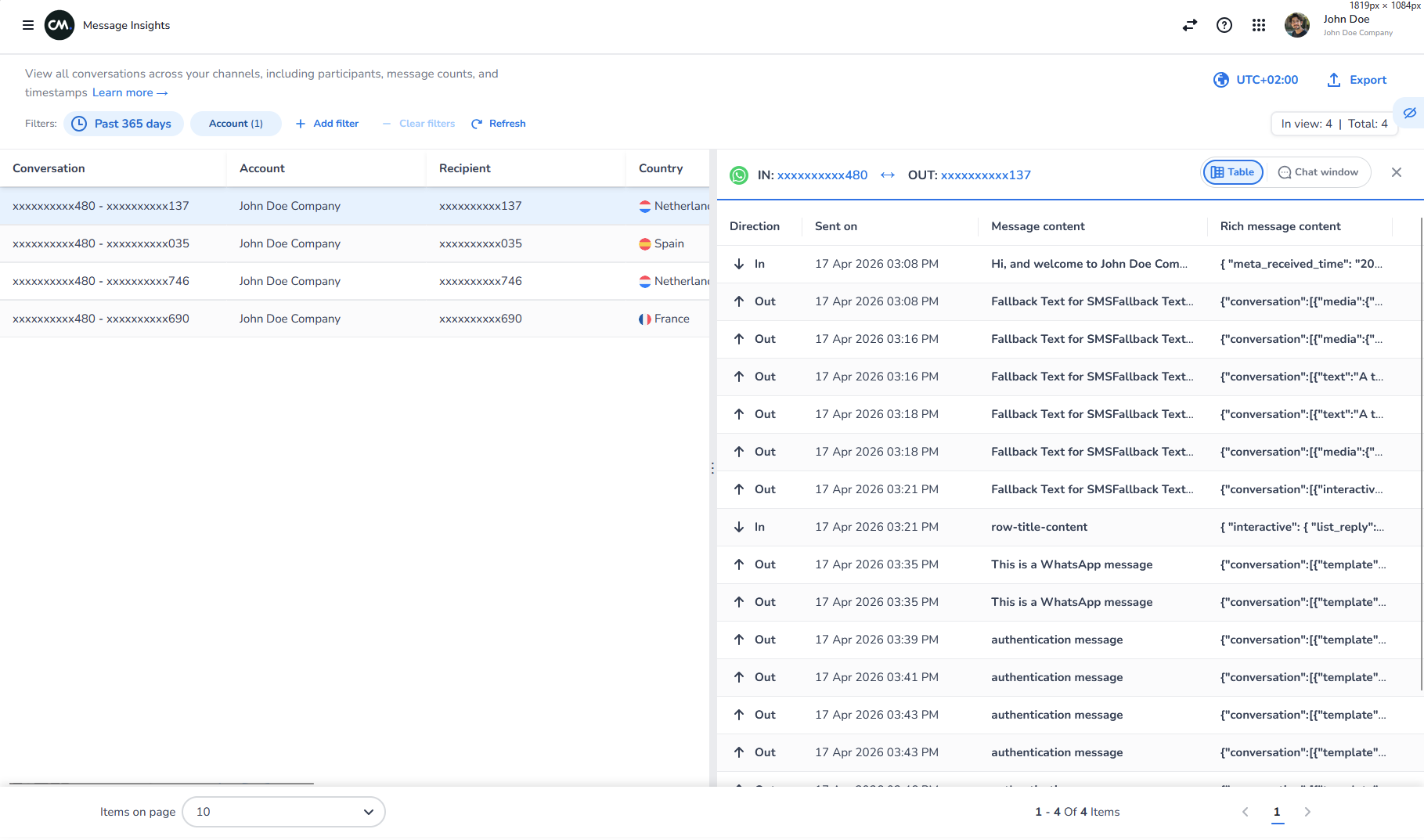
Table — a chronological log of every message, with columns for Direction (in or out), Sent on (the timestamp), Message content (the readable message text or type), and Rich message content (the raw payload, shown as JSON). Use this view to inspect exact content, delivery order, and payloads — useful for troubleshooting and for developers.
-
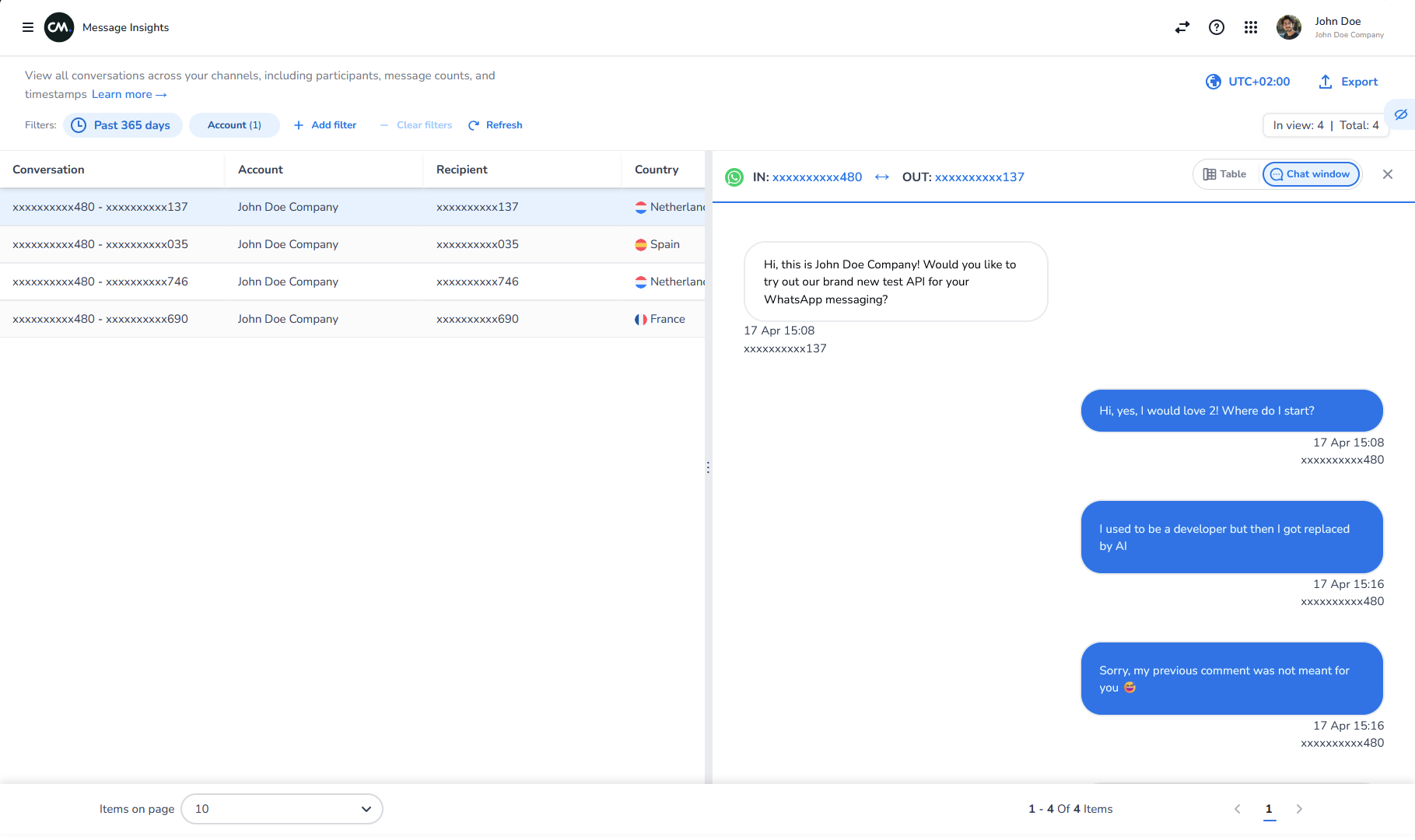
Chat window — a visual rendering of the conversation as message bubbles, with received messages on the left and sent messages on the right, like a messaging app. Use this view to read the conversation as the participants experienced it.
Switch between the two using the Table / Chat window toggle at the top of the conversation panel.
Which channels does the Conversations page cover?
The Conversations page covers conversations across every messaging channel CM.com supports — including SMS, WhatsApp, RCS, Viber, Apple Messages for Business, Facebook Messenger, Instagram, and Telegram, among others. The Channel column shows which channel each conversation used.
Is the data on the Conversations page real-time?
The Conversations page is effectively near real-time — messages appear within seconds to minutes of being sent or received. This makes it suitable for following an active conversation or troubleshooting a recent message, rather than waiting for aggregated reporting.
How far back does conversation history go?
Conversation history is available from July 2025 onwards — the point at which CM.com began grouping traffic by conversation ID. The Conversations page opens on the Last month by default; widen the date range filter to see older conversations, back to July 2025.
Configurations
How do I filter conversations?
By default, the Conversations page shows conversations from the Last month for your account. Adjust what you see using the filter bar above the table:
-
Open Message Insights in the CM Platform portal and go to Conversations.
-
Use the date range filter (set to Past 90 days by default) to change the time period.
-
Use the Account filter to select the account or sub-accounts you want to include.
-
Select Add filter to filter by channel, country, or recipient.
-
Select Refresh to reload the table with the latest data, or Clear filters to reset all filters.
The counter above the table updates to show how many conversations match (In view and Total).
How do I set my timezone?
All timestamps on the Conversations page — Start, End, and Sent on — follow the timezone you select. The current timezone is shown in the top navigation bar, for example UTC+02:00.
-
Select the timezone control in the top-right of the Conversations page (shown with a globe icon and the current offset).
-
Choose your preferred timezone from the list.
-
All timestamps in the table and in each conversation update to reflect your selection.
If you export conversations, the exported timestamps reflect the timezone set at the time of export.
How do I view the messages in a conversation?
-
In the conversations table, select the conversation you want to inspect.
-
The conversation opens in a panel showing the two participants at the top — the recipient (labelled IN) and your sender (labelled OUT) — for example
IN: …5678 ↔ OUT: …4321. -
Use the Table / Chat window toggle to switch between the message log and the chat-bubble view.
-
Close the panel using the × in the top-right to return to the full table.
How do I export conversations?
Use the Export button in the top-right of the Conversations page to download the full table of conversations that match your current filters.
-
Apply the filters you want — date range, account, and any added filters.
-
Select Export.
-
Choose your format — CSV or XLSX.
The export covers the conversations currently matching your filters — the whole filtered table, not an individual conversation. Exported timestamps reflect your selected timezone.
How many conversations are shown per page?
The table shows a set number of conversations per page (10 by default). Change this using the Items on page selector at the bottom-left, and move between pages using the pagination controls at the bottom-right.
Examples
Example 1: Reviewing a WhatsApp onboarding exchange with a customer in the Netherlands
A customer in the Netherlands (recipient 0031612345678) started a WhatsApp Business conversation with your sender 0031687654321 on 17 April 2026. You open the Conversations page, keep the default Past 90 days range, and find the conversation in the table — account MaxCorp, country Netherlands, channel WhatsApp, started 17 Apr 2026 03:08 PM. You open it in Chat window view and read the exchange as the customer saw it: an inbound message, your login template in Dutch, and an outbound image. Switching to Table view, you confirm each message's exact send time and payload.
Example 2: Troubleshooting an SMS fallback on a long-running conversation
Your operations team reports that a WhatsApp message to a recipient was delivered as an SMS fallback. You open the Conversations page, locate the relevant conversation (started 16 Apr 2026 and still active weeks later), and switch to Table view. In the Message content column you see entries such as "Fallback Text for SMS", and in Rich message content you inspect the raw payload to confirm exactly which message fell back and when — 17 Apr 2026 03:16 in your selected timezone.
Example 3: Exporting a country's conversations for review
You want to review all WhatsApp conversations with recipients in Spain over the last quarter. You set the date range, filter the table to the relevant account, and confirm the Total count matches what you expect. You then select Export to download the filtered conversations for offline review and sharing with your team.