
In summary, the steps taken to personalize tickets are:
-
Once the order is completed, the main booker receives an email confirmation with a link to the personalization page.
-
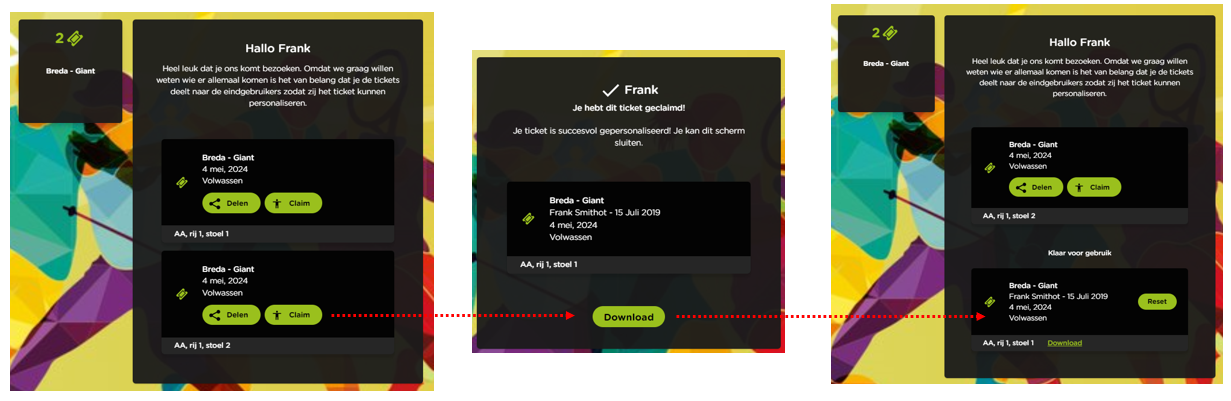
On this page, it is possible to claim a ticket and/or share it for someone else to personalize.
-
When sharing a ticket, you choose through which channel you want to do that.
-
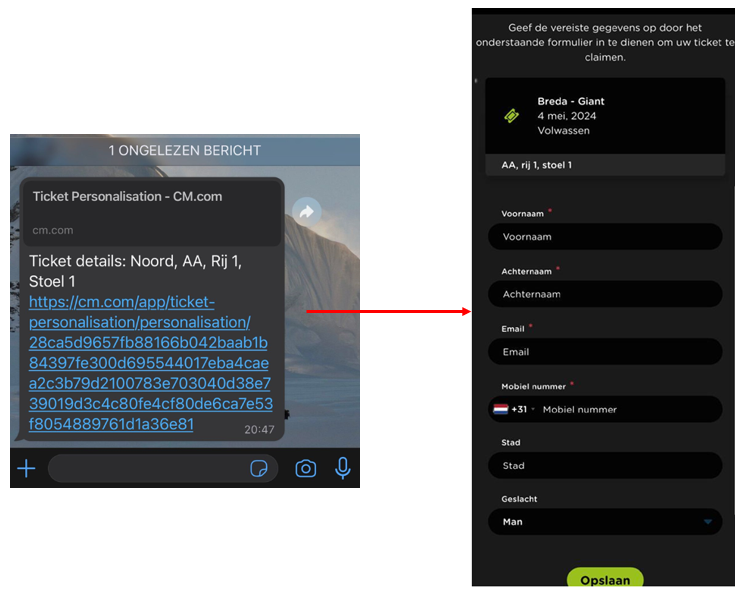
When the person receives the shared link, they can fill in and submit their details.
-
Once all the information is filled in, the ticket can be downloaded immediately. This download button can be deactivated by the organizer by deactivating Download order enabled in the backend of the shop.
-
As the main booker, you can easily see the status (changing) in your overview, and you can also download each ticket from here.
Example of sharing a link via WhatsApp
Overview page for the main booker
How to unclaim a ticket or correct claimed ticket details
There is no "unclaim" button in NXTGN. Once a ticket is claimed, the claim button becomes inactive. However, the organizer can always correct or overwrite the claimed ticket details from the backoffice. Users sometimes refer to this as wanting to "unclaim" or "reset" a ticket.
If a ticket has been claimed — meaning the claim button is no longer clickable — and the details need to be changed or corrected, there are two options for the organizer and one option for the visitor.
Option 1 — Organizer edits the ticket directly (single ticket / unclaim workaround)
The organizer can manually overwrite the personalization data of a specific claimed ticket without resetting the entire order. This is the recommended approach when only one ticket needs to be corrected.
-
Go to Ticketing → Orders and open the relevant order.
-
Find the specific ticket within the order and click the ⋯ (three dots) on that ticket.
-
Click Edit.
-
Change the details (name, email address, phone number) as needed.
-
Save the changes.
This adjusts the data for that one ticket only — the rest of the order is not affected.
Option 2 — Organizer resets the entire personalization (all tickets)
If a full reset is needed for all tickets in an order — for example when multiple tickets are claimed incorrectly:
-
Go to Ticketing → Orders and open the relevant order.
-
Click the ⋯ (three dots) at the top right of the order.
-
Choose Open Personalisation.
This reopens the personalization flow for the entire order, allowing all ticket details to be re-submitted. Use this when multiple tickets need to be corrected or when the personalization needs to start over.
Option 3 — Visitor wants to correct it themselves (consumer desk)
If the visitor wants to unclaim or correct the ticket themselves, they should contact the consumer desk. The consumer desk will handle the adjustment directly with the visitor.
Consumer desk via WhatsApp: Contact consumer desk
The organizer can always correct personalization data themselves via Option 1 or 2 without needing to involve the consumer desk. The consumer desk is only needed when the visitor wants to make the correction themselves.