
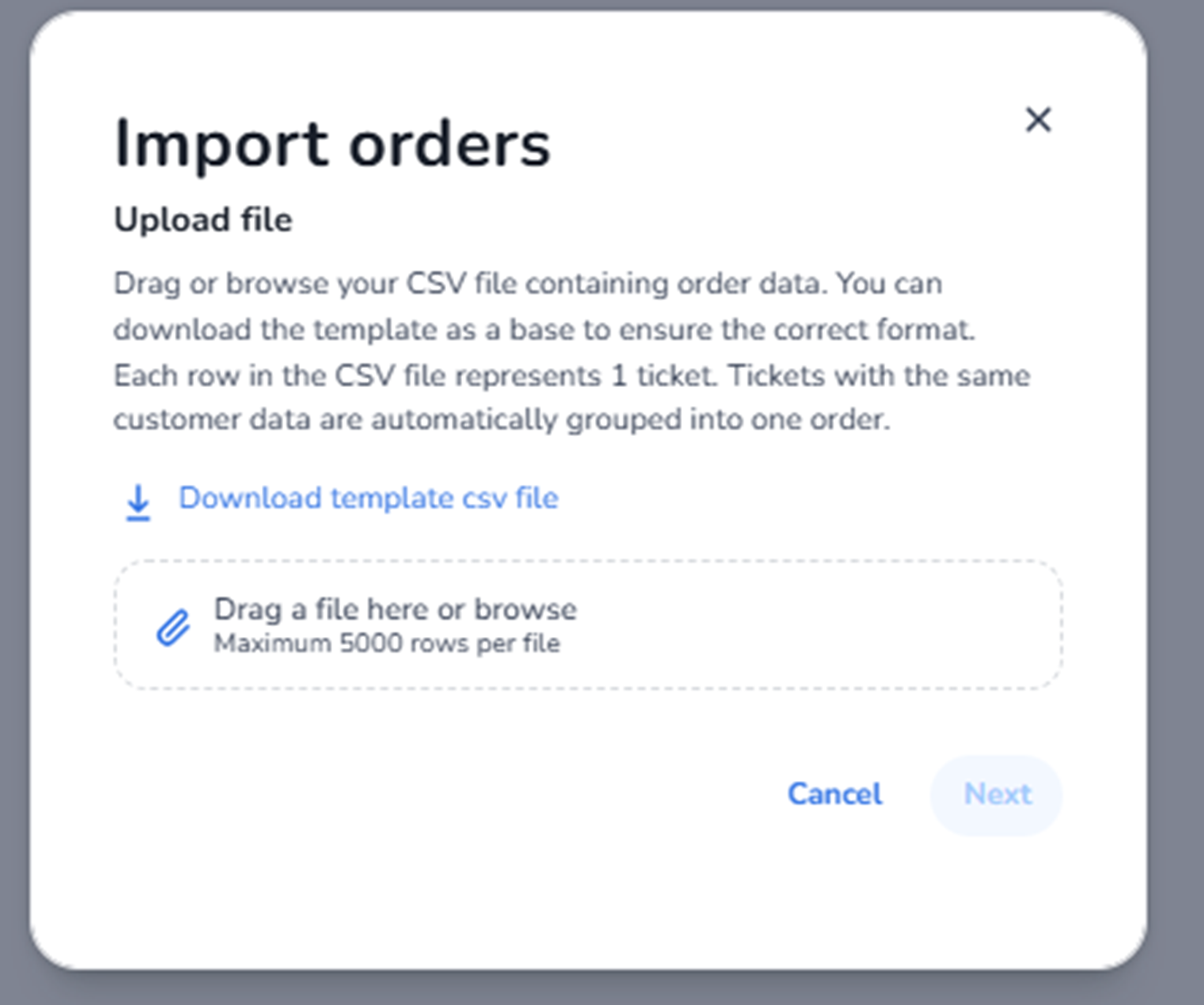
First to see this screen, you have to click on the … dots (three dots) to see this screen and import the orders.
FOR IMPORTING ORDERS IT’S ALWAYS GUESTTICKET/BACKOFFICE ORDERS BECAUSE THEY CAN ONLY BE FREE
Overview
This modal appears when the user clicks the ⋯ (three dots) in the Orders overview and selects Import orders.
It is used to bulk import orders into the system via a CSV file.
This function allows administrators to:
-
Upload multiple orders at once
-
Migrate external order data
-
Create structured backoffice orders in bulk
This is a batch-processing tool.
What You See in This Screen
Modal Title
Import orders
Top-right corner:
-
X (close icon) → Closes the modal without importing.
Upload File Section
Instructions
Text explains:
-
Upload a CSV file containing order data.
-
Each row in the CSV represents 1 ticket.
-
Tickets with the same customer data are automatically grouped into one order.
Important logic:
If multiple rows share the same customer details:
→ They will be combined into a single order.
This enables structured multi-ticket order imports.
Download Template
Link: Download template csv file
Purpose:
-
Download the required CSV template.
-
Ensures correct column structure and formatting.
Important:
Using the template reduces import errors.
This is how the template looks like, just fill in the data and import it in the section

File Upload Area
Drag-and-drop field:
“Drag a file here or browse”
Maximum: 5000 rows per file
Purpose:
-
Upload CSV file for processing.
-
Supports drag-and-drop or manual file selection.
Restriction:
-
File must follow the template structure.
-
Maximum 5000 ticket rows per import
Action Buttons
Cancel
Closes the modal without importing data.
Next
Button: Next
Behaviour:
-
Remains disabled until a valid file is uploaded.
-
Proceeds to validation and processing step.
When imported the file. You can map the tickets to the tickettype you added in the excel file.
For example tickettype in excel file is: Friday, saturday, sunday. You can connect these to the current tickets you setted up. And everyone in that tickettype will be linked to that specific ticket you connected to it.
What This Screen Actually Controls
Import Orders controls:
-
Bulk creation of orders
-
Ticket assignment per order
-
Automated grouping logic
-
Migration of structured order data
It allows large-scale administrative order creation.
It does NOT:
-
Modify existing orders directly
-
Change ticket pricing
-
Override capacity logic
-
Modify ticket configuration
It strictly processes new order imports.
Important Considerations
-
CSV must follow the provided template format.
-
Each row equals one ticket.
-
Duplicate customer data rows are grouped automatically.
-
Import is limited to 5000 ticket rows per file.
-
Capacity rules still apply during import.
Incorrect CSV formatting may result in:
-
Import validation errors
-
Incorrect grouping
-
Failed processing
Imported orders affect:
-
Revenue reporting
-
Capacity allocation
-
Order history
Functional Summary
Within Ticketing → Orders → ⋯ → Import orders, the user can:
-
Download import template
-
Upload structured CSV file
-
Bulk create orders
-
Automatically group tickets per customer
-
Process up to 5000 ticket rows per import
This section influences:
-
Administrative bulk sales
-
Data migration workflows
-
Large-scale order management
-
System integration scenarios
It is the batch import interface for the Orders module.