
Overview
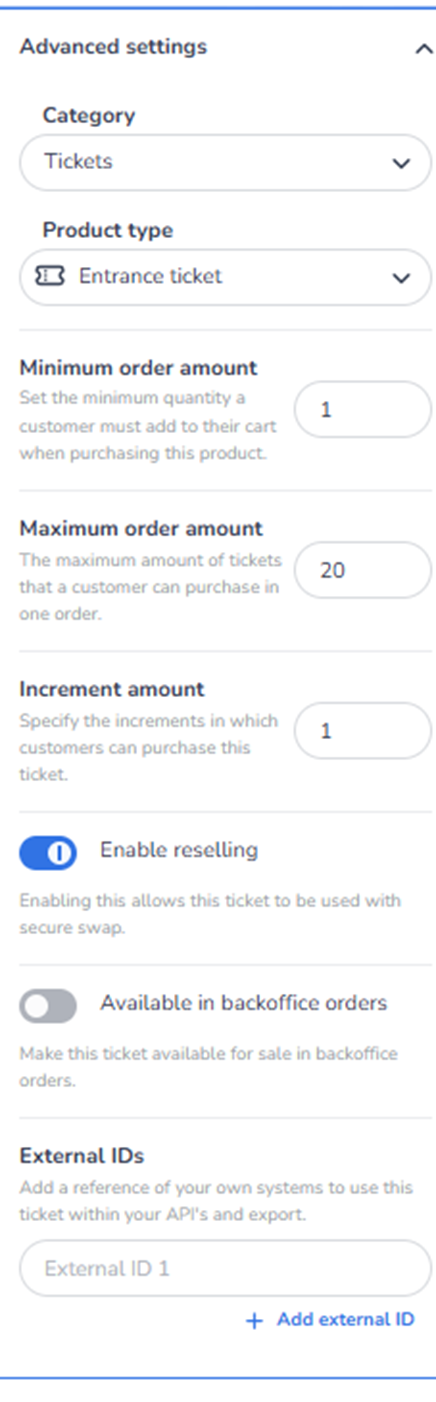
This section appears in the right-side ticket detail panel under Advanced settings when a ticket is selected.
It controls advanced configuration options that influence ordering logic, resale behaviour, backoffice availability, and system integrations.
Advanced Settings define operational and commercial rules beyond basic pricing and visibility.
What You See in This Section
-
Category
Field label: Category
Dropdown (example: Tickets)
Purpose:
-
Reassign the ticket to a different category.
-
Adjust structural grouping within Inventory.
Impact:
-
Changes where the ticket appears in the inventory structure.
-
Does not affect pricing or availability directly.
-
Product Type
Field label: Product type
Dropdown (example: Entrance ticket)
Purpose:
-
Define or change the type of product.
-
Determines whether the ticket is treated as an entrance ticket or another product type.
Impact:
-
Influences behaviour within the system.
-
May affect access logic, validation, or integrations.
-
Minimum Order Amount
Field label: Minimum order amount
Description:
Set the minimum quantity a customer must add to their cart when purchasing a ticket. So here you can set to buy a minimum amount of tickets per time.
The minimum order amount defines the lowest number of tickets a buyer must purchase for this ticket type. For example, if set to 4, the buyer cannot purchase fewer than 4 tickets. This is commonly used for group tickets to ensure a minimum group size per order.
Purpose:
-
Require customers to purchase at least a specific number of tickets.
Example:
If set to 2:
-
Customers must buy at least 2 tickets per order.
Impact:
-
Useful for bundled sales or minimum attendance rules.
-
Influences checkout validation.
-
Maximum Order Amount
Field label: Maximum order amount
Description:
The maximum amount of tickets that a customer can purchase in one order.
Purpose:
-
Limit the number of tickets per transaction.
Impact:
-
Prevents bulk buying.
-
Helps reduce scalping or unfair distribution.
-
Controls per-order sales limits.
-
Increment Amount
Field label: Increment amount
Description:
The increment amount defines the step size in which tickets can be added. For example, if set to 4, buyers can only purchase in multiples of 4 (4, 8, 12, etc.). This is useful in combination with a minimum purchase amount for setting up group ticket logic.
Purpose:
-
Define purchase step size.
Example:
If increment is 2:
-
Customers can only purchase 2, 4, 6, etc.
Impact:
-
Enforces grouped sales.
-
Useful for paired tickets or table seating.
-
Enable Reselling
Toggle: Enable reselling
Description:
Allow this ticket to be used with secure swap.
Purpose:
-
Enable official resale functionality.
-
Allow ticket holders to resell through controlled mechanisms.
Impact:
-
Supports secondary market management.
-
Improves buyer confidence.
-
Reduces unofficial resale risks.
If disabled:
-
Ticket cannot be used in secure resale flow.
-
Available in Backoffice Orders
Toggle: Available in backoffice orders
Description:
Controls whether this ticket can be selected when manually creating a backoffice order or Guestlist order.
Purpose:
-
Allow internal staff to include this ticket in manually created orders.
-
Enable the ticket to be used for guestlist distribution via backoffice.
Impact:
-
Toggle ON: the ticket is selectable in Ticketing → Orders → Create order → Add Tickets for both regular backoffice orders and Guestlist orders.
-
Toggle OFF: the ticket cannot be selected in backoffice or Guestlist orders. It remains visible and purchasable in the public shop if configured there — this toggle only controls backoffice order creation.
Ticket not selectable in a Guestlist or backoffice order?
This toggle must be ON for the ticket to be selectable in Ticketing → Orders → + Create order → Add Tickets.
If a ticket is missing from the Add Tickets list, even though it exists in Inventory and has available capacity, check this setting first:
Event → select the ticket → Advanced Settings → Available in backoffice orders → enable the toggle.
Note: disabling this toggle does not affect the ticket's visibility or availability in the public shop.
-
External IDs
Section: External IDs
Field: External ID 1
Button: + Add external ID
Purpose:
-
Link this ticket to external systems.
-
Store internal references for API, reporting, or integrations.
Use cases:
-
ERP integration
-
CRM reference
-
Accounting systems
-
Partner platform sync
Impact:
-
Enables system interoperability.
-
Supports custom reporting and data exports.
What This Section Actually Controls
Advanced Settings control:
-
Structural classification
-
Order quantity rules
-
Purchase limits
-
Resale eligibility
-
Backoffice sales availability
-
External system integration
It governs operational and policy-level behaviour of the ticket.
It does NOT control:
-
Visual presentation
-
Marketing tracking
-
Shop assignment
-
Pricing (directly)
It defines advanced commercial logic.
Important Considerations
-
Incorrect order limits may block legitimate customers.
-
Reselling should align with event policy.
-
External IDs must match external system configuration.
-
Backoffice availability should align with internal sales processes.
-
"Available in backoffice orders" must be enabled for a ticket to be selectable when creating a Guestlist or backoffice order. This does not affect public shop visibility — the ticket can still be sold through the shop regardless of this setting.
Changes here can significantly affect:
-
Purchase behaviour
-
Distribution fairness
-
Integration workflows
-
Administrative control
Functional Summary
Within Ticketing → Tickets → Inventory → Ticket Detail → Advanced Settings, the user can:
-
Change ticket category
-
Adjust product type
-
Define minimum and maximum order limits
-
Configure purchase increments
-
Enable or disable resale
-
Allow or restrict use in backoffice and Guestlist orders
-
Link ticket to external systems
This section influences:
-
Purchase rules
-
Sales policy enforcement
-
Integration architecture
-
Operational flexibility
It is the control panel for advanced commercial and operational configuration of the ticket.