
Overview
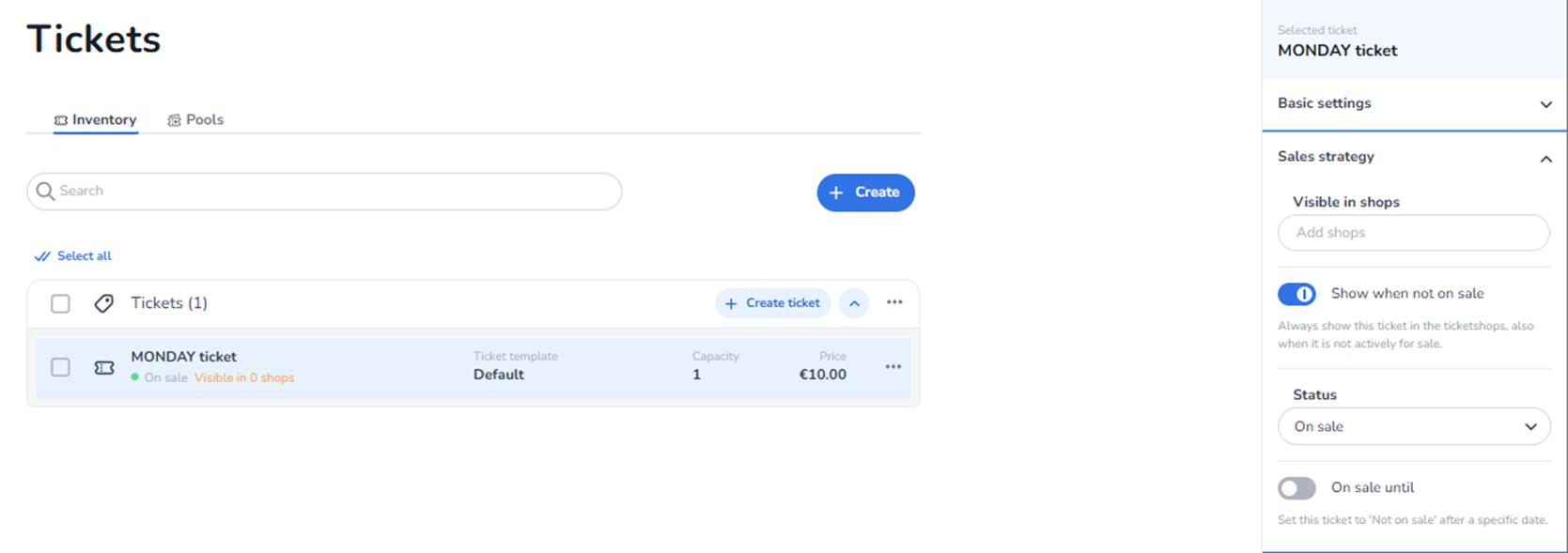
This section appears in the right-side ticket detail panel under Sales strategy when a ticket is selected. It controls how and where the ticket is sold.
Sales Strategy defines:
-
In which shops the ticket is visible
-
Whether the ticket is shown when not on sale
-
The current sales status
-
Optional sale scheduling and timing rules
This section manages commercial availability logic.
What You See in This Section
-
Visible in Shops
Field label: Visible in shops Button/Field: Add shops
Purpose:
-
Assign the ticket to one or more shops. If tickets are not visible in shops or says visible in shops 0, then there's a big chance it's because of this.
-
Determines in which sales channels the ticket appears.
If no shops are added:
-
The ticket is not visible to buyers.
-
It cannot be purchased.
Impact:
-
Controls distribution.
-
Enables selective channel selling.
-
Supports multi-shop strategies (e.g., public shop vs partner shop).
-
Show When Not On Sale
Toggle: Show when not on sale Description shown: "Always show this ticket in the ticketshops, also when it is not actively for sale."
Purpose:
-
Control visibility when the ticket is set to "Not on sale".
-
If enabled, the ticket remains visible but unavailable for purchase.
Impact:
-
Can display sold-out or upcoming tickets.
-
Supports marketing transparency.
-
Improves user experience by showing availability status.
If disabled:
-
Ticket disappears from shops when not on sale.
-
Status
Field label: Status Dropdown options:
-
On sale — Ticket can be purchased immediately (if visible and capacity available).
-
Not on sale — Ticket cannot be purchased.
-
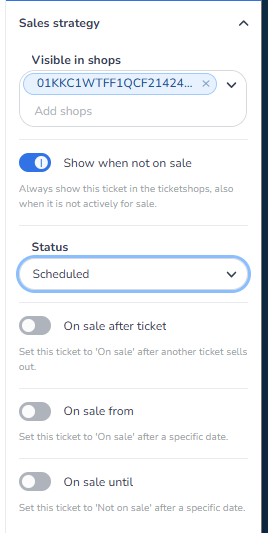
Scheduled — Ticket is not yet on sale, but has one or more automated rules that will trigger its availability. When set to Scheduled, additional timing and conditional options become available (see below).
This could also be for ticket boxes etc. -
In reservation (read-only) — Tickets are temporarily reserved in carts but not yet sold. This status is automatically set by the system when all available tickets are held in reservation. It cannot be manually selected, but can be changed from "In reservation" to "Sold out" if needed.
Changing status directly affects checkout availability.
-
On Sale After Ticket
Toggle: On sale after ticket Description: "Set this ticket to 'On sale' after another ticket sells out."
Purpose:
-
Create sequential or conditional sales logic between tickets.
-
For example, configure Section B to automatically go on sale only after Section A is sold out.
Impact:
-
Enables phased selling strategies without manual intervention.
-
Useful for venue sections, tiered pricing (e.g., early bird → regular → last minute), or overflow capacity.
-
The ticket remains in Scheduled status until the linked ticket sells out, then automatically switches to On sale.
-
On Sale From
Toggle: On sale from Description: "Set this ticket to 'On sale' after a specific date."
Purpose:
-
Automatically start ticket sales at a defined date and time.
-
Useful for timed releases, presales, or phased launch strategies.
Impact:
-
The ticket stays in Scheduled status until the specified date/time is reached.
-
Once triggered, it automatically switches to On sale.
-
Reduces manual operational work for time-based releases.
If enabled:
-
A date/time selection is required.
-
On Sale Until
Toggle: On sale until Description: "Set this ticket to 'Not on sale' after a specific date."
Purpose:
-
Automatically end ticket sales at a defined time.
-
Useful for early bird deadlines, timed releases, or sales cutoffs before an event starts.
Impact:
-
Enables automated sales cutoff.
-
Reduces manual operational work.
-
Supports phased ticket strategies.
If enabled:
-
A date/time selection is required.
-
Ticket automatically switches to Not on sale after that moment.
What This Section Actually Controls
Sales Strategy controls:
-
Sales channel visibility
-
Purchase availability
-
Automatic sale timing (start and end)
-
Conditional sale triggers based on other tickets
-
Visibility when unavailable
It determines whether, when, and where customers can buy the ticket.
It does NOT control:
-
Pricing
-
VAT
-
Capacity (directly)
-
Pool logic
-
Marketing tracking
It strictly governs commercial availability, distribution, and sale scheduling.
Important Considerations
-
A ticket must be added to at least one shop to be sellable.
-
Status "On sale" does not override capacity limits.
-
If part of a pool, pool availability may restrict sales even if status is "On sale."
-
Scheduled status requires at least one timing or conditional rule to be enabled, otherwise the ticket will never go on sale.
-
On sale after ticket, On sale from, and On sale until can be combined for complex release strategies.
-
Automatic end dates should align with marketing campaigns.
Incorrect configuration may result in:
-
Tickets not appearing in shops
-
Tickets being visible but not purchasable
-
Sales ending or starting unexpectedly
-
Tickets staying in Scheduled status indefinitely if no trigger is configured
Functional Summary
Within Ticketing → Tickets → Inventory → Ticket Detail → Sales Strategy, the user can:
-
Assign tickets to shops
-
Control visibility in shops
-
Toggle display when not on sale
-
Set current sales status (On sale, Not on sale, Scheduled)
-
Configure automatic sale start timing (On sale from)
-
Configure automatic sale end timing (On sale until)
-
Set conditional sales triggers based on other tickets selling out (On sale after ticket)
This section influences:
-
Distribution channels
-
Sales timing and sequencing
-
Customer visibility
-
Commercial control
-
Automated release strategies
It is the primary control area for ticket availability, channel distribution, and sale scheduling