
Overview
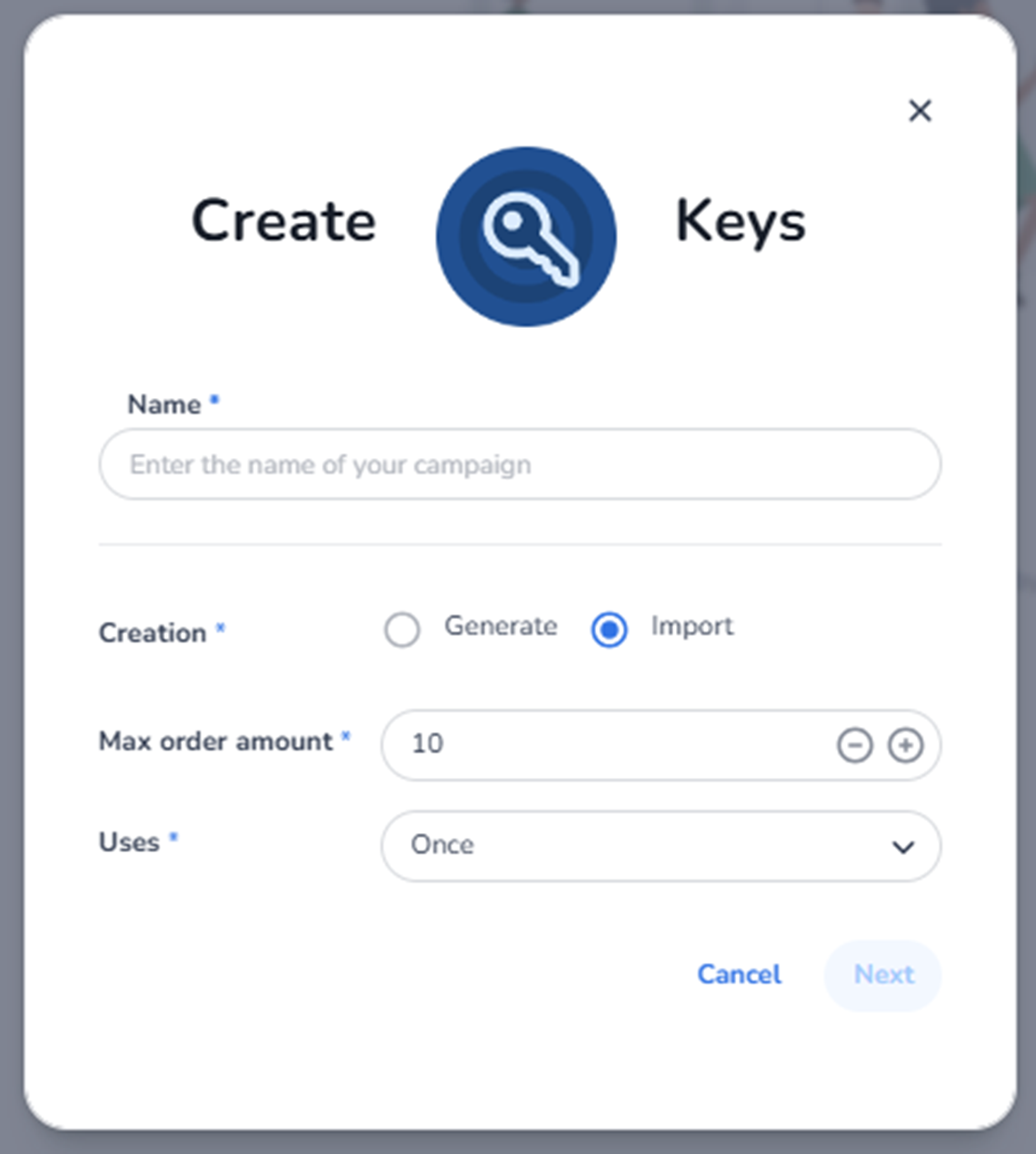
This screen appears after clicking + Create campaign inside Ticketing → Promotions → Access keys, with Creation = Import selected.
FIRST MENTION WHEN TO THE USER CREATING AN ACCESS KEY TO SECURE YOUR TICKETSHOP VIA SHOPS → EDIT → ADVANCED SETTINGS → VIA PRIVATE ACCESS
Always mention this when a user is asking for creating or setting up an access key.
Instead of automatically generating keys, this option allows you to use your own predefined access keys.
This is typically used when:
-
You already have a list of access codes
-
Codes are distributed externally
-
You integrate with external systems
-
You want specific, recognisable key formats
What You See in This Screen
Modal Header
Title: Create Keys
Top-right corner:
-
X (close icon) → Closes the modal without saving.
-
Name (Required)
Field label: Name*
Placeholder: Enter the name of your campaign
Purpose:
-
Define the internal campaign name.
-
Used in the Access keys overview for identification.
This name is internal and does not represent the actual access codes.
-
Creation Method (Required)
Field label: Creation*
Selected option: Import
Purpose:
-
Indicates that access keys will be uploaded manually.
-
The system will not generate codes automatically.
-
You must provide the key list in a later step.
This is used when:
-
You want full control over key values.
-
Codes must match external distribution lists.
-
Keys are pre-generated by another system.
-
Max Order Amount (Required)
Field label: Max order amount*
Numeric field with minus (–) and plus (+) controls.
Purpose:
-
Defines the maximum number of tickets a customer can purchase per order when using an imported access key.
Impact:
-
Prevents bulk purchases.
-
Controls order-level purchasing behaviour for restricted access.
-
Uses (Required)
Field label: Uses*
Dropdown (example: Once)
Purpose:
-
Defines how many times each imported key can be used.
Possible configurations may include:
-
Once
-
Multiple times
Important:
This applies per individual key from the imported list.
Example:
If set to Once:
-
Each imported key becomes invalid after a single use.
Navigation & Actions
Cancel
Closes the modal without saving.
Next
Proceeds to the next step of the import flow.
The Next button remains disabled until:
-
Name is entered
-
Required configuration is completed
In the next step, the user will typically:
-
Upload a CSV file
-
Paste a list of keys
-
Validate key format
What This Screen Actually Controls
This screen defines:
-
The campaign identity
-
That keys will be imported instead of generated
-
Maximum tickets per order
-
Per-key usage limits
It prepares the campaign for:
-
Manual key upload
-
External system integration
-
Controlled distribution
It does NOT yet define:
-
Which tickets are unlocked
-
Validity dates
-
Shop restrictions
-
Advanced campaign logic
Those steps follow after clicking Next.
ALWAYS MENTION TO THE USER WHEN CREATING AN ACCESS KEY TO SECURE YOUR TICKETSHOP VIA SHOPS → EDIT → ADVANCED SETTINGS → VIA PRIVATE ACCESS
Always mention this when a user is asking for creating or setting up an access key.
Important Considerations
-
Imported keys must be unique.
-
Incorrect formatting may cause upload validation errors.
-
Usage limits apply per key.
-
Max order amount prevents purchase abuse.
Import is best suited for:
-
Partner campaigns
-
Corporate distribution
-
External marketing tools
-
Predefined access lists
Functional Summary
Within Ticketing → Promotions → Access keys → Create campaign (Import), the user can:
-
Define a campaign name
-
Select import as the creation method
-
Set order limits
-
Configure usage rules
-
Continue to the key upload step
This section influences:
-
Controlled ticket visibility
-
Private sales flows
-
External key management
-
Audience-restricted ticket access
It is the configuration screen for manually imported access key campaigns.