
Introduction
When using SSO capabilities to authenticate user logins, the creation of users is a little different within the Agent Inbox. This article explains how to create/add an additional user in your Agent Inbox environment.
Add a platform user with SSO
-
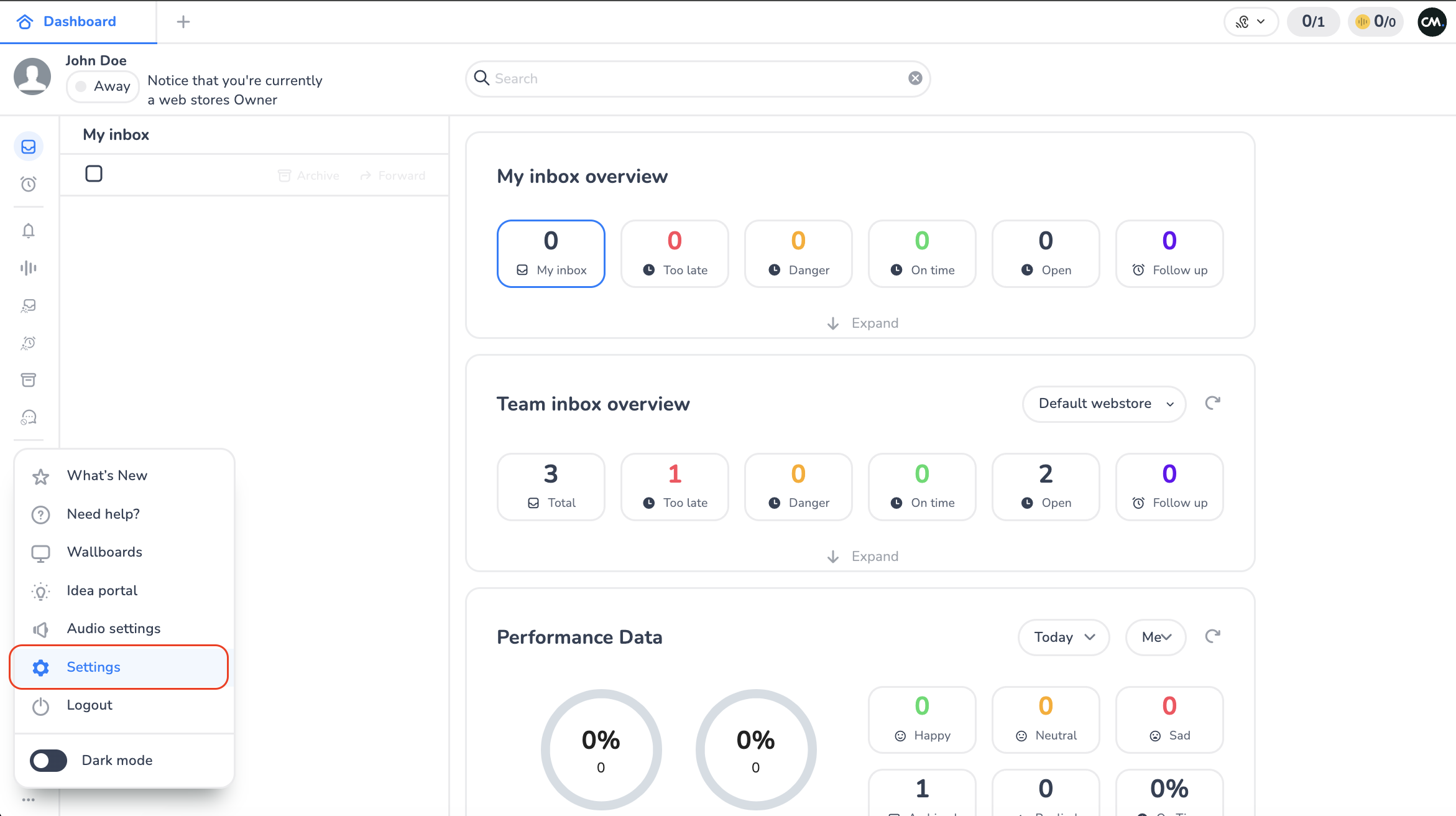
From the dashboard, click the three-dotted menu in the bottom-left corner and choose Settings.
-
In Settings, click Team.
-
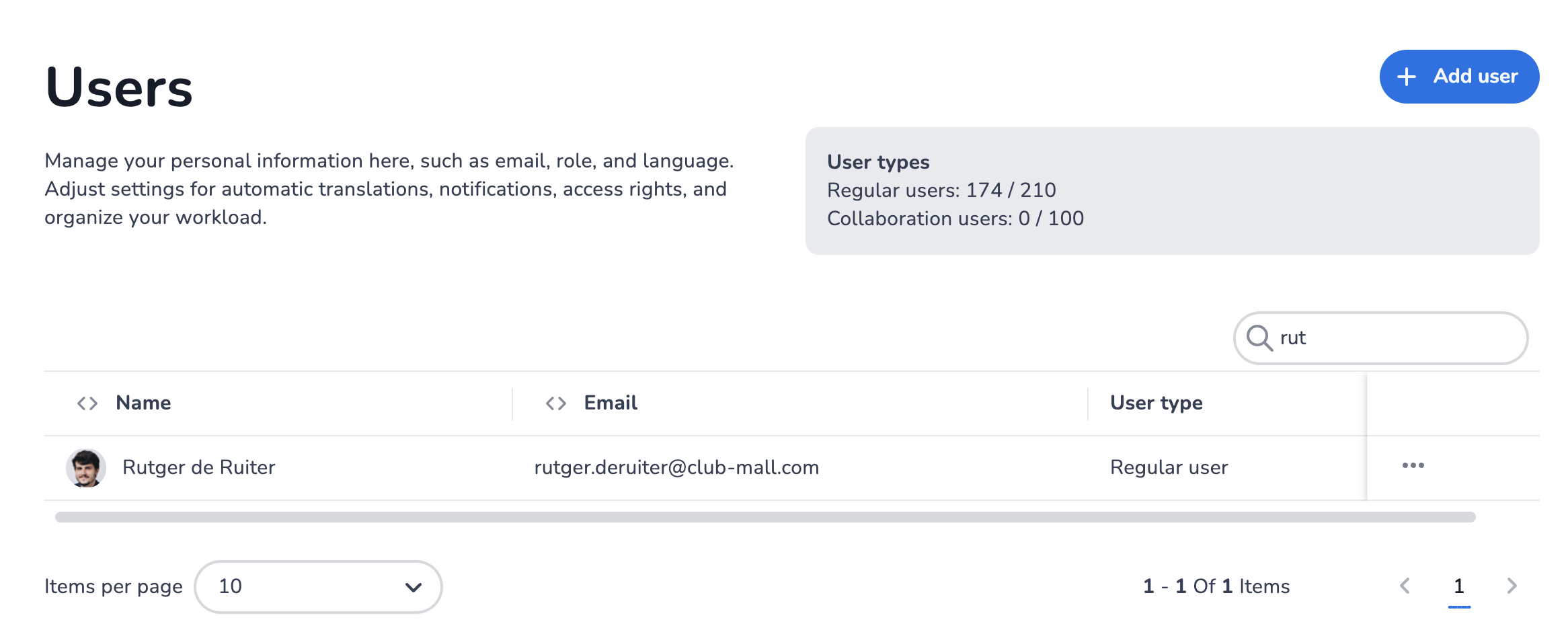
You arrive on the Users overview — a searchable list of all configured users. Click + Add user in the top-right to open the Add user modal.
-
In this modal, all platform users for this account are displayed (that have not yet been added as users to the Agent Inbox). Find the user(s) — by scrolling or using the search — that you want to allocate a seat, select them, and click Add User(s).
Note: multiple users can be added at the same time.
-
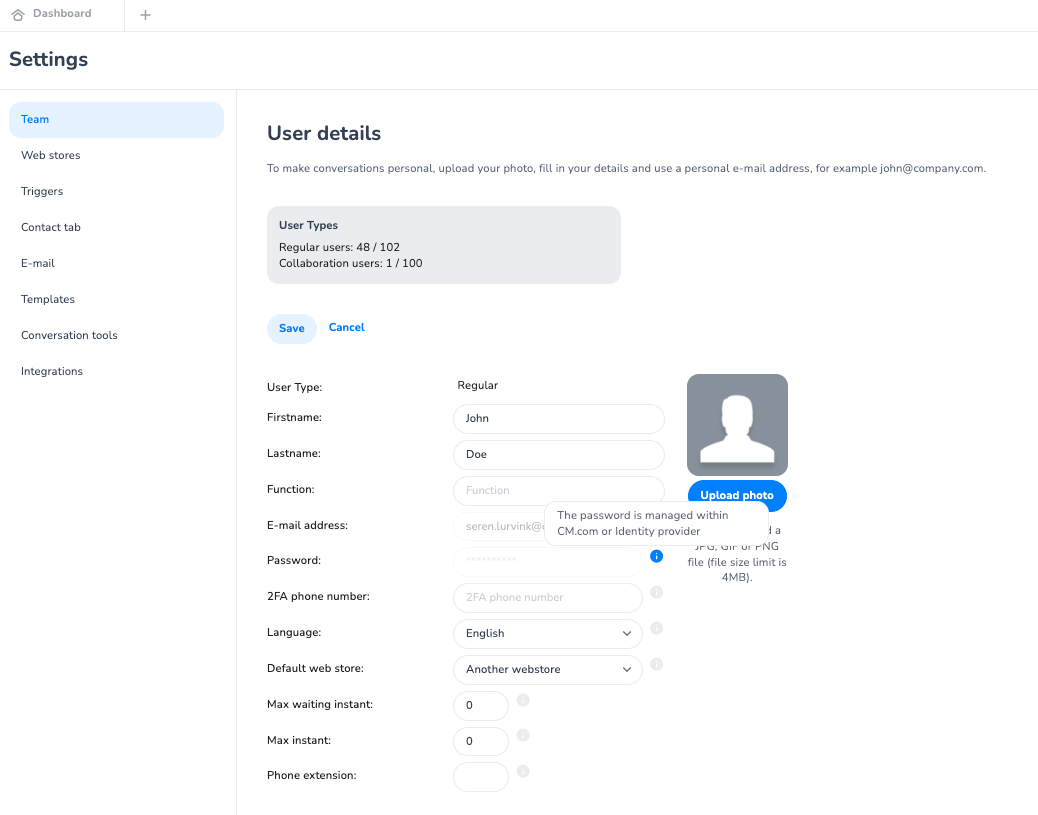
The user(s) will be added with their first name, last name and e-mail address filled. The E-mail and Password fields cannot be edited — these are managed by the identity provider. All access settings are disabled by default.
User is not in the list
-
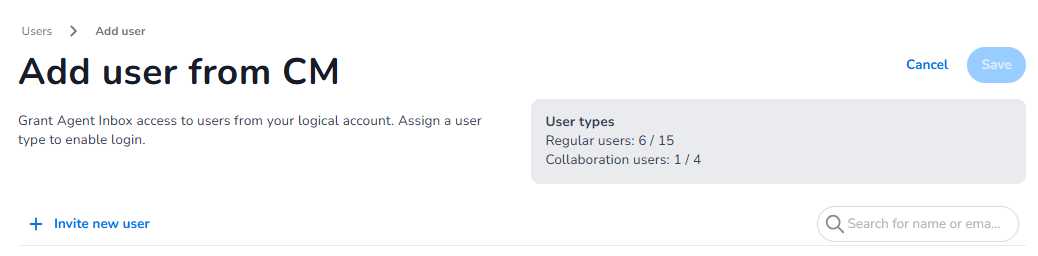
If a user is not in the list, you can invite one to the client platform account via the Invite new user button located at the left top of the list, or on the no-user-found screen when searching for their name.
-
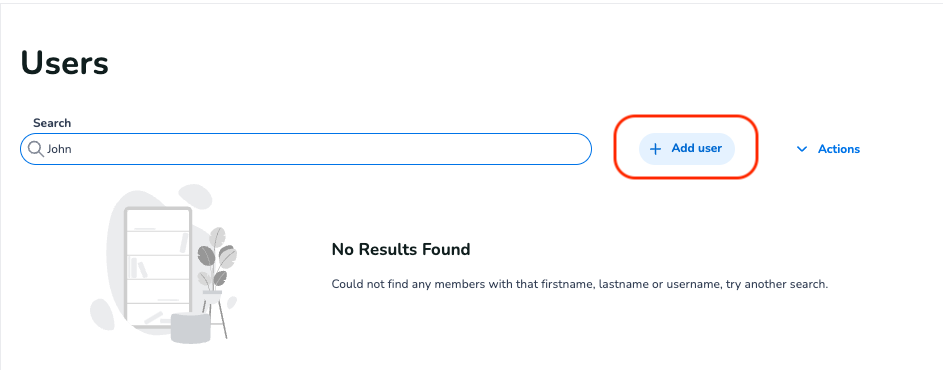
When you have clicked this button, and you logged into the CM platform a new window opens showing the list of users in their platform account. Here you can click Add user to invite them to their platform account.
-
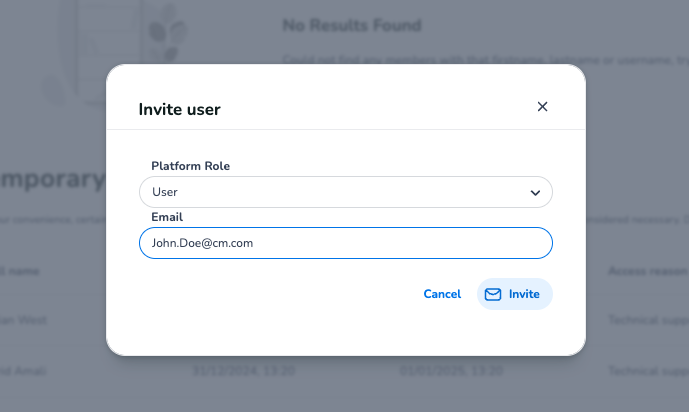
Once you click Add user, you can add the user you want to invite.
-
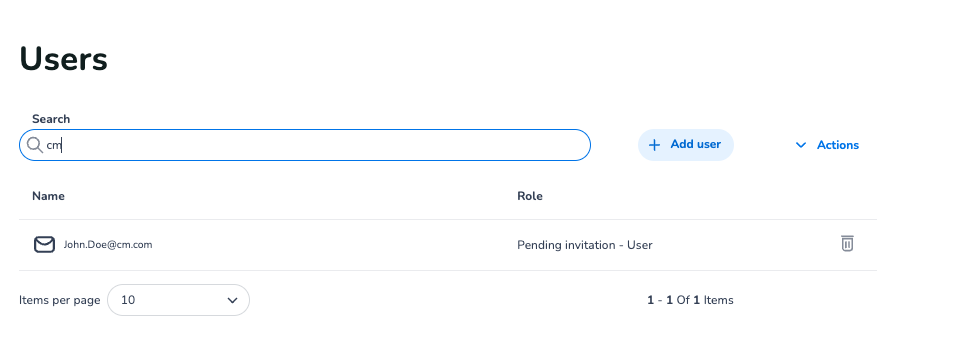
Once you have invited a new user, they will appear in the list of users (waiting for them to create a password and onboard themselves on the platform).
-
You can now go back to the Agent Inbox tab and reopen the Add user modal to fetch your freshly added user.
-
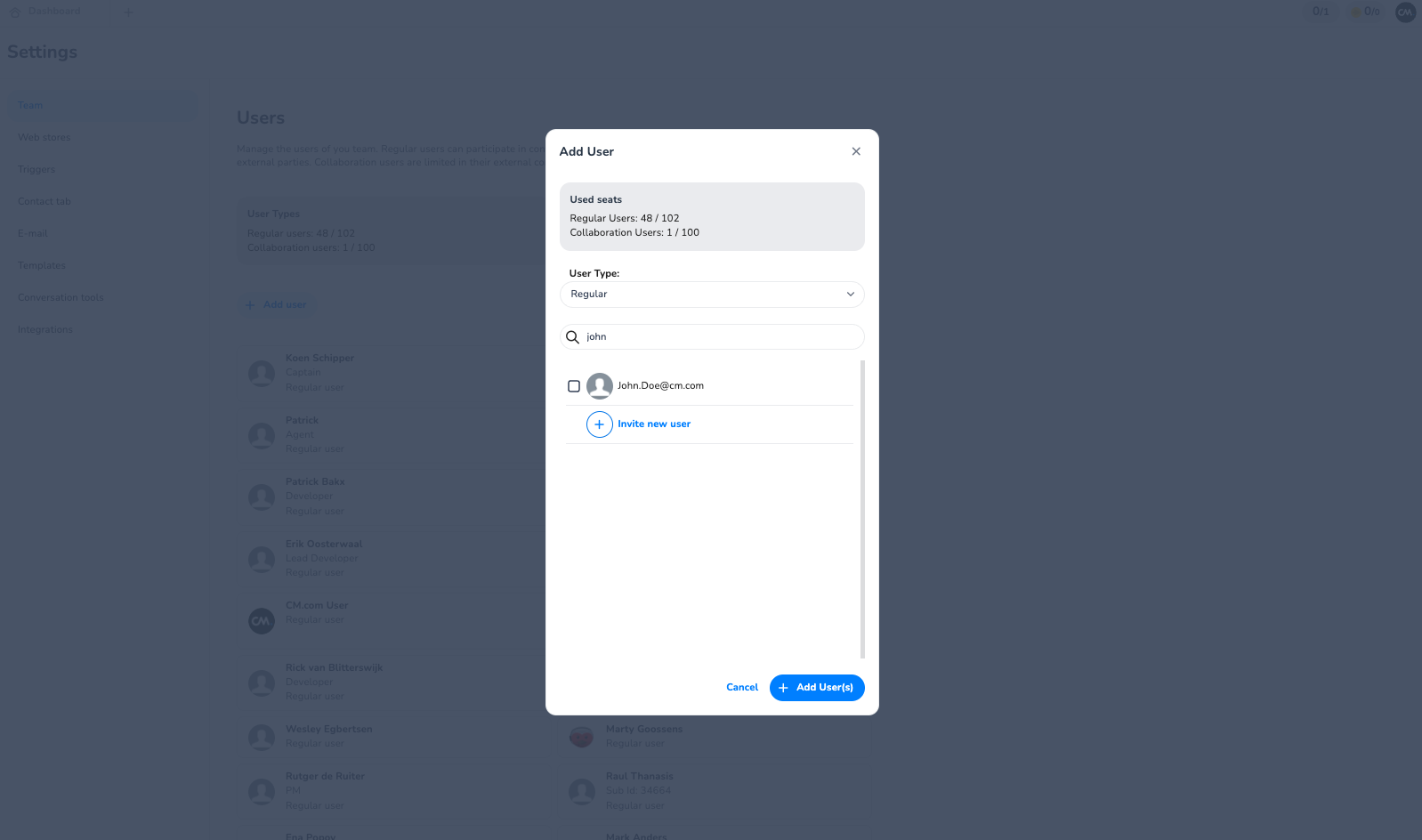
When the modal is reopened, you will see the new user in the modal.
-
Now you can select and add this user to the Agent Inbox by clicking on the + Add user button.
Note: a user can already be added to the Agent Inbox before they have accepted their platform invite.
Logging in as a new user
As the user is imported from their platform account, they will be able to log in using their CM.com platform credentials and flow (e-mail / password / 2FA).