
Introduction
Once the auto translation feature is enabled for your environment, Auto Translation settings become available in two places:
-
Self-service — every user can set their own preferences on the My Profile page (since the January 2026 release)
-
Settings-managed — users with access to settings can still set or override values from the User profile view in Team settings
Self-service: configuring your own auto-translation
-
Click the three-dotted menu in the bottom-left corner of the Agent Inbox.
-
Choose Settings → My Profile.
-
Find the Auto translation section.
-
Set your Default language (the language conversations get translated into for you).
-
Optionally add languages to Never translate — languages you read fluently and don't want translated.
-
Click Save.
If you do not see My Profile in your menu, ask your success manager or someone with access to settings to enable it. See How Do I Configure My Profile?.
Settings-managed: configuring auto-translation for another user
To access an individual user's settings:
-
Click the three-dotted menu in the bottom-left corner.
-
Choose Settings → Team.
-
From the Users overview (searchable list), click the user you want to configure.
-
On the user's General tab, find the Auto Translation section.
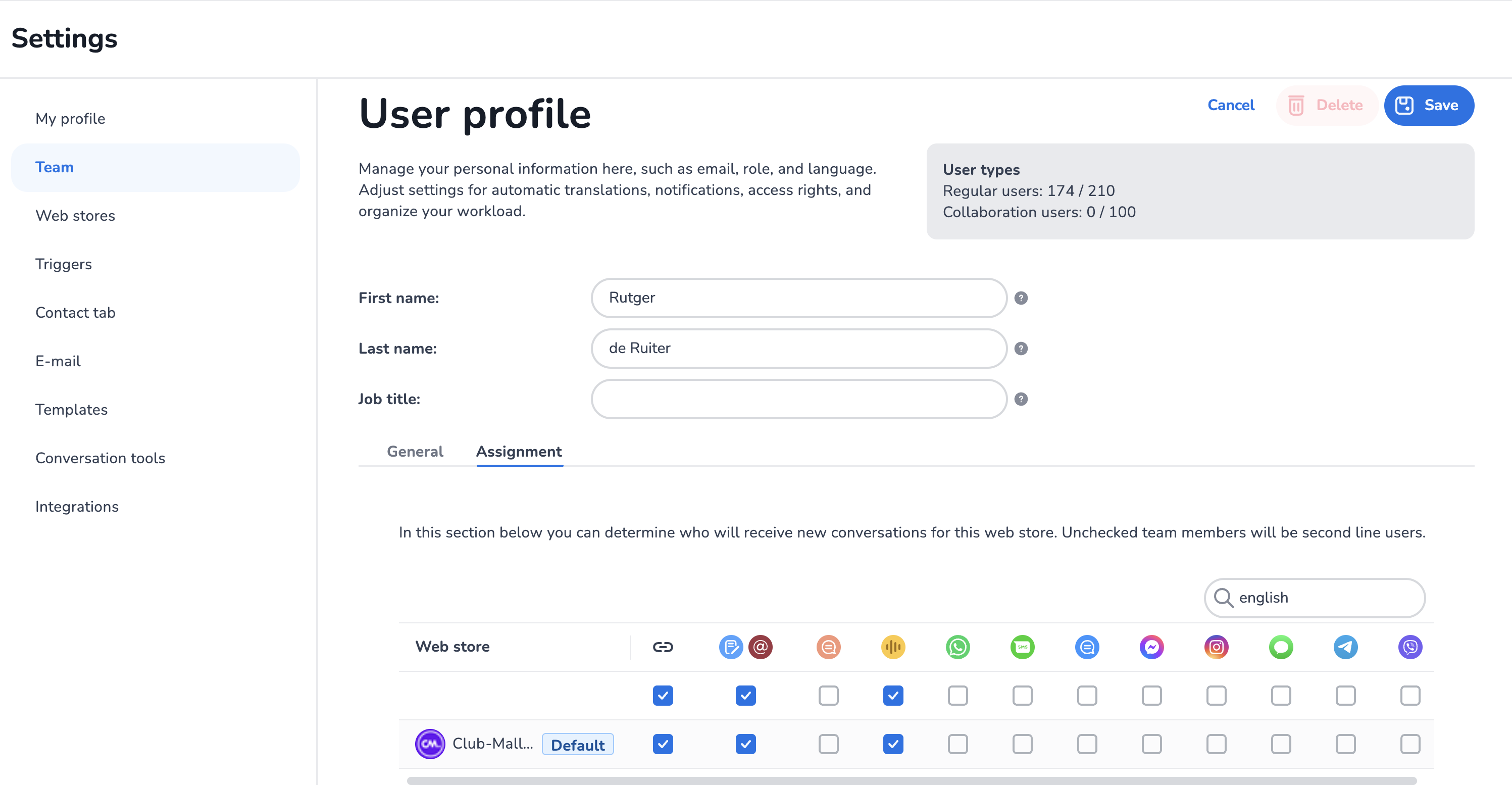
Default language
The default language specifies the language into which conversations in foreign languages will be translated if the user does not speak the language. Use ISO 639-1 notation (for example, en for English, nl for Dutch, de for German).
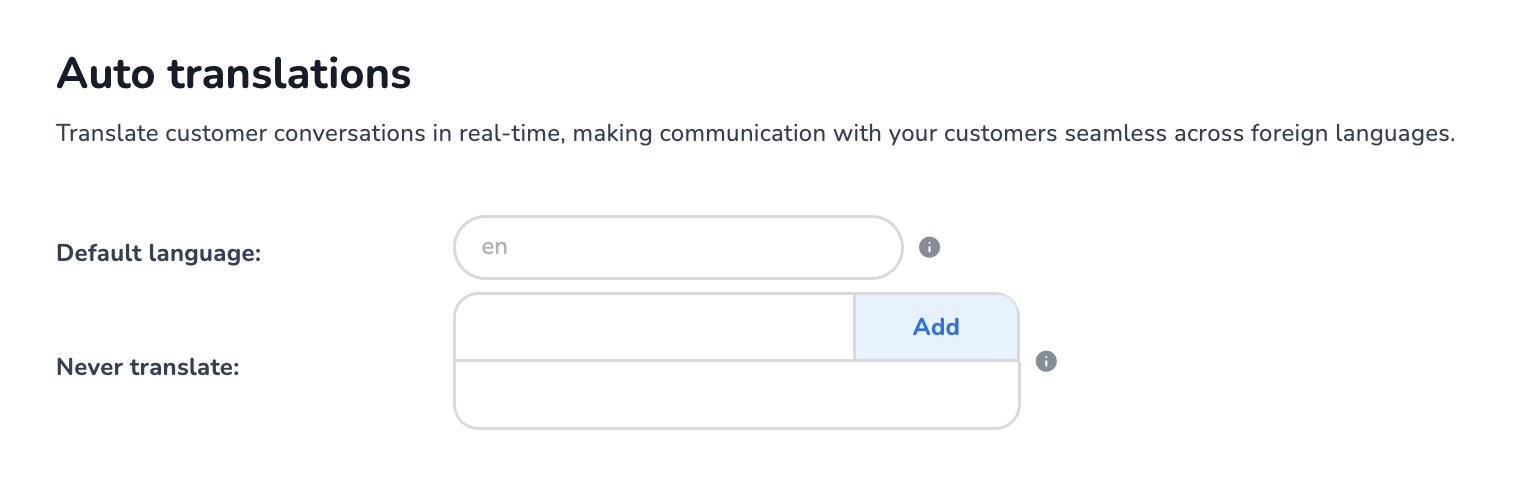
Never translate
The Never translate field lets you specify languages the user speaks fluently and therefore does not want translated. For example, a Dutch user who also speaks English may add both. Use ISO 639-1 notation.
Finalisation
Click Save at the top of the screen to confirm and enable the feature for the user. Until the primary language is configured, the auto translation feature remains inactive — allowing controlled rollout per user.
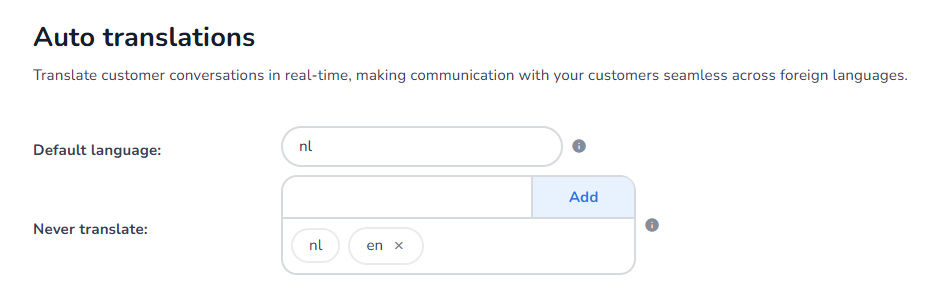
When finalised, the default language is displayed in black, with the never-translate languages listed alongside.
E-learning video
For further guidance, watch our e-learning video on how to add and maintain users in Mobile Service Cloud: https://vimeo.com/933653010/71945fe44b
This video was recorded before the April 2026 UI overhaul and the January 2026 My Profile release.