
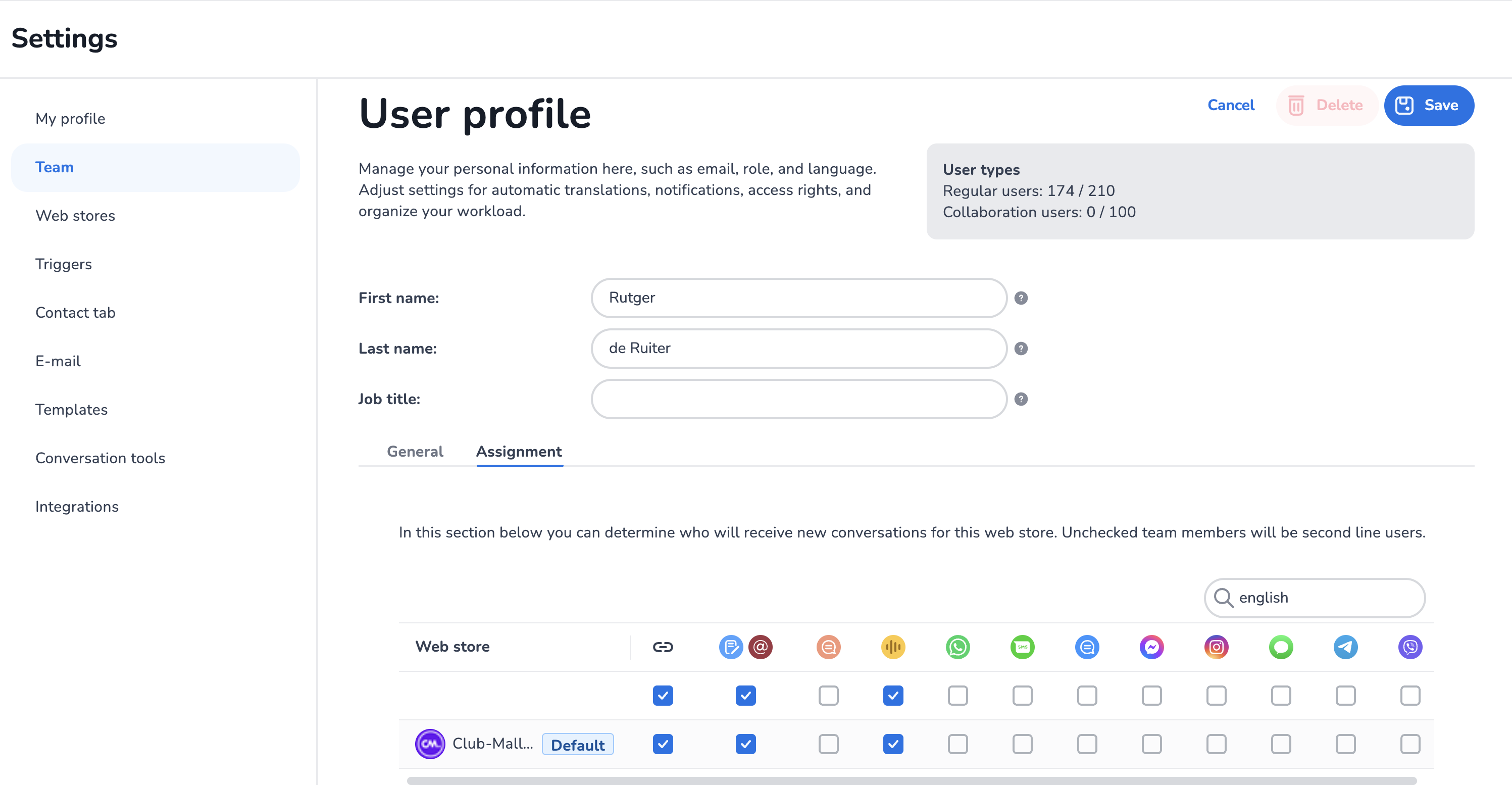
The User settings page lets users with access to settings configure and change the individual characteristics and settings of a specific user within the Agent Inbox.
Since the April 2026 release, users with the right permissions can also manage a subset of these settings themselves through their own My Profile page. The settings-managed page described below remains the source of truth for fields users cannot edit themselves.
How to access
-
Click the three-dotted menu in the bottom-left corner of the Agent Inbox.
-
Choose Settings → Team.
-
From the Users overview, click any user to open their User profile.
The same view is what individual users see for themselves through My Profile (when enabled).
Tabs
The User profile has two tabs:
-
General — all personal and account settings, described below.
-
Assignment — webstores this user is connected to. See How Do I Configure My Team? for details on assignments.
General — fields
First name: The user's first name (used internally and externally towards customers).
Last name: The user's last name (if given, may be shown externally towards customers).
Function: The function title of the user (used internally only).
E-mail address: The e-mail address / username for the user. Used in combination with the password to access their account. Can be a fictional address; in that case the user cannot request password-reset e-mails.
Password: The password for the user's account. Used in combination with the e-mail address to access their account.
2FA phone number: When TwoFactorAuthentication is active for the subscription, this field is shown to set a phone number for receiving a text message containing an OTP for the user to access their account.
Language: The language of the user's account — determines the language shown in their application.
Default webstore: The webstore automatically used for creating new conversations. When the feature VoipOutboundUsesDefaultWebStoreForAgent is enabled, the default webstore is also used for outbound phone conversations.
Instant conversations
Max waiting instant conversations: The maximum amount of unanswered instant conversations a user can have in their personal inbox before reaching the status Busy (Max instant waiting conversations reached).
Max instant conversations: The maximum amount of instant conversations (answered and unanswered) a user can have in their personal inbox before reaching the status Busy (Max instant conversations reached).
Phone (VoIP)
Phone extension: Only used when the VoIP integration with the Agent Inbox has been set up. By entering the phone extension number/string for the user, MSC recognises the phone extension and opens a phone conversation with the correct user.
Message notifications

Email notification: Determines whether the user receives an e-mail message when a new conversation arrives in their personal inbox. Recommended off by default to prevent flooding the customer's e-mail server.

Play sounds: Determines whether the whistle notification sound plays for the user when a notification is triggered.
Access settings

Access to settings: Determines whether a user has access to the MSC settings tab. Selecting No hides the settings icon for the user.

Access to reporting: Determines whether a user has access to the in-app reporting. Selecting No hides the in-app reporting icon for the user.

Access to KPI console: Determines whether a user has access to the KPI console. Selecting No hides the KPI console icon for the user.

Access to bulk actions: Determines whether a user has access to bulk actions. Selecting No removes the bulk actions option for the user.
Self-service availability
Some of the fields above can also be self-managed by the user through their My Profile page (since the January 2026 release):
|
Field |
Admin can set |
User can set in My Profile |
|---|---|---|
|
First name |
Yes |
Yes |
|
Last name |
Yes |
Yes |
|
Function |
Yes |
No |
|
E-mail address |
Yes |
Yes |
|
Password |
Yes |
Yes |
|
Language |
Yes |
Yes |
|
Auto-translation |
Yes |
Yes |
|
Default webstore |
Yes |
No |
|
2FA phone |
Yes |
No |
|
Phone extension (VoIP) |
Yes |
No |
|
Max instant conversations |
Yes |
No |
|
Access settings (Settings / Reporting / KPI / Bulk) |
Yes |
No |
|
Assignments |
Yes |
Only if Admin allows |
E-learning video
For further guidance, watch our e-learning video on how to add and maintain users in Mobile Service Cloud:
This video was recorded before the April 2026 UI overhaul. A new recording is recommended.