
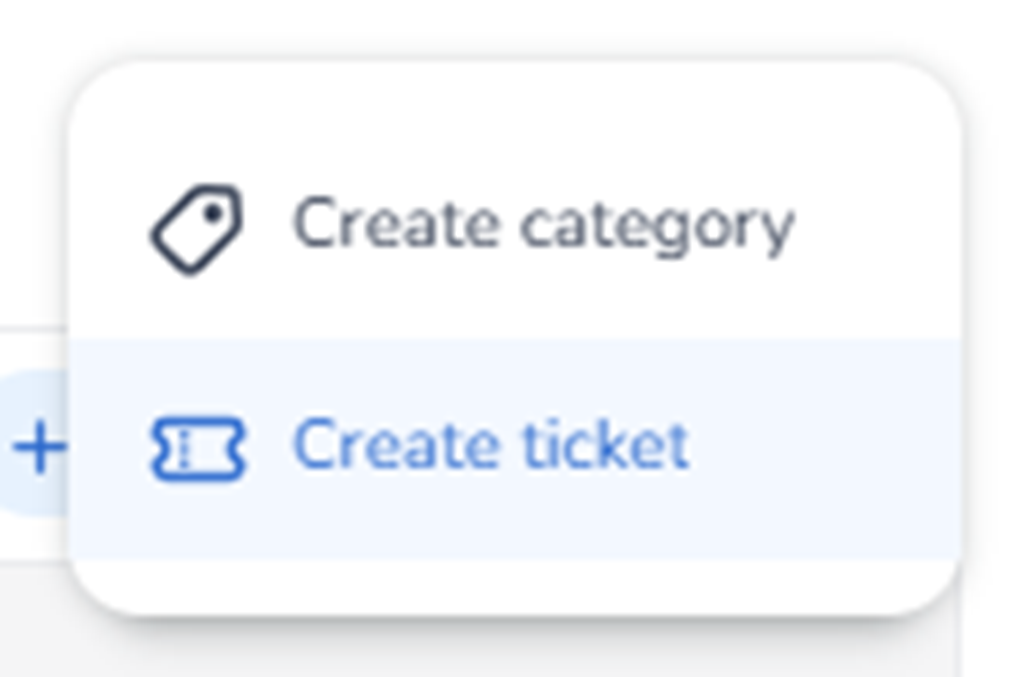
When clicking the + Create button in the Inventory tab, a dropdown menu appears instead of immediately starting a ticket flow.
The dropdown contains two options:
-
Create category
-
Create ticket
Create category
Purpose:
-
Creates a new ticket category/group within the inventory.
-
Used to organise ticket types structurally.
-
Allows grouping tickets (e.g., Regular, VIP, Early Bird, etc.).
Impact:
-
Affects how tickets are displayed and structured.
-
Helps organise large ticket inventories.
-
Does not directly create a sellable ticket — only the grouping container.
When managing multiple smaller events that together form a larger event, it is useful to create categories for the tickets. This provides a clear overview for the buyer in the shop and allows you to control when tickets become available for purchase. This feature is especially valuable for organizations that host multiple events per year.
How to create a ticket category:
-
Navigate to the Tickets section of your event.
-
Click "Create."
-
Select "Create Category."
-
Give the category a name (for example, the name of the sub-event or time period).
-
Drag or assign the relevant tickets into the category.
The category is now visible in the shop and buyers can see the tickets grouped together.
To collapse a category (hide tickets from purchase):
-
Go to the category you want to collapse.
-
Toggle the collapse option so the category is closed.
-
The tickets inside the collapsed category are now hidden in the shop and cannot be purchased.
-
When you are ready to open sales, simply expand the category again.
Example: A festival organizer runs a series of quarterly concerts under one main event. They create a category for each quarter — Q1, Q2, Q3, Q4 — and place the relevant tickets inside each one. Early in the year, only Q1 is expanded and available for purchase, while Q2 through Q4 remain collapsed. As each quarter approaches, the organizer expands the next category to open sales.
Create ticket
Purpose:
-
Starts the ticket creation flow.
-
Creates a new ticket type inside a selected or default category.
Impact:
-
Creates a sellable ticket object.
-
Enables further configuration such as pricing, availability, and allocation (configured in later steps/modules).
Important For The Agent
The + Create button does not directly create a ticket.
The agent must:
-
Recognise that a dropdown appears.
-
Select the correct action based on intent:
-
Structural organisation → Create category
-
New sellable ticket → Create ticket
-
This distinction is important because categories structure the inventory, while tickets represent actual sellable units.
When talking about creating guestlist tickets. That’s not possible you can only create guestlist orders, see Ticketing – Create Order (Manual Order Creation) - Send Guestlist orders/tickets - Add guests