
Safeguard Destination Management helps you control where your traffic is allowed to go. You decide which countries are allowed or blocked for your messaging traffic in the CM Platform.
You can:
-
Allow traffic to all countries
-
Only allow traffic to selected countries (allow‑list)
-
Block traffic to selected countries (block‑list)
This helps you avoid sending messages to countries you don’t operate in, or that are considered high‑risk for fraud.
Explanations
Why should I use Destination Management?
You should use Destination Management if you want to:
-
Reduce fraud and AIT (Artificially Inflated Traffic)
Prevent traffic to destinations that are often used for fraudulent or artificial traffic. -
Avoid unexpected costs
Block countries that are not part of your business so accidental or malicious traffic doesn’t create large, unexpected invoices. -
Stay focused on your real markets
Ensure your traffic only goes to the countries where your customers actually are. -
Stay in control
You control the configuration directly in the CM Platform and can update it any time.
Can CM.com help me decide which countries to block?
CM.com maintains an internal list of high‑risk countries that are more often targeted for Artificially Inflated Traffic and other misuse.
-
For new accounts, this recommended list is not applied by default as part of Safeguard, but the country registered in your CRM record.
-
For existing accounts, your CM.com contact (for example your Account Manager or Support) can advise you based on:
-
Your use case (e.g. OTP, marketing, notifications),
-
Your target markets,
-
Your historical traffic patterns.
-
If you need help choosing the right configuration, please contact Support.
You can also keep an eye on the Messaging Platform Release Notes for Safeguard updates:
https://releasenotes.cm.com/release-notes/connectivity-platform/messaging-platform
Does Destination Management affect all my traffic?
Destination Management applies to:
-
Traffic that passes through CM.com’s messaging gateway,
-
For the account(s) where Safeguard Destination Management is configured.
If you manage multiple environments or accounts (e.g. production vs. test), check the configuration per account to ensure it matches your intended behavior.
Configurations
Which modes can I choose from?
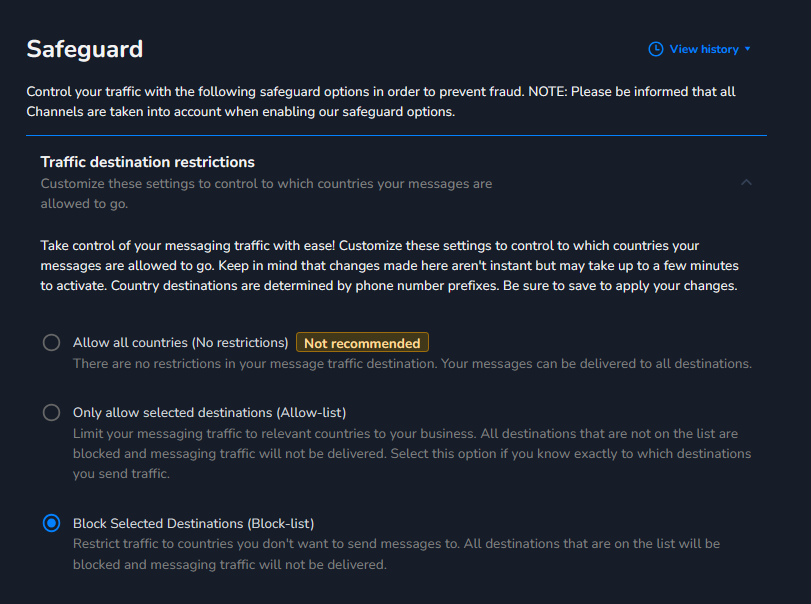
In Traffic destination restrictions, you can choose one of these modes:
a. Allow all countries
-
All countries are allowed.
-
No country‑level restrictions are applied.
-
Easiest setup, but also the highest risk for fraud or unwanted traffic.
Use this only if you genuinely need global reach and have other strong controls in place.
b. Allow‑list: only selected countries are allowed
-
Only the countries you select are allowed.
-
All other countries are automatically blocked.
This is ideal if:
-
You operate in a small number of markets (e.g. only a few countries in Europe).
-
You want very strict control over where messages can be sent.
How to configure an allow‑list:
-
Open Traffic destination restrictions in the Safeguard section.
-
Select the option that only allows selected countries (allow‑list).
-
Add the countries where you actively operate (for example: Netherlands, Belgium, Germany).
-
Save your changes.
From that moment on, messages to any non‑listed country will be blocked.
c. Block‑list: selected countries are blocked
-
All countries are allowed except the ones you block.
-
You can block:
-
CM.com’s recommended high‑risk countries, and/or
-
Additional destinations that are irrelevant or too risky for your business.
-
This is ideal if:
-
You send traffic to many different countries,
-
…but want to exclude a list of high‑risk or unused destinations.
How to configure a block‑list:
-
Open Traffic destination restrictions in the Safeguard section.
-
Select the option that blocks selected countries (block‑list).
-
(Optional) Apply CM.com’s recommended high‑risk countries list.
-
Add or remove individual countries to match your own risk profile.
-
Save your changes.
From that moment on, messages to blocked countries will be cancelled.
You can only use one mode per account: either an allow‑list or a block‑list (or allow all), not both at the same time.
What is configured by default for my new account?
For new Safeguard-enabled accounts created from August 2026 on-wards, CM.com applies a default Destination Management setup to reduce risk from day one:
-
Traffic destination restrictions are enabled.
-
The mode is set to an allow‑list.
-
The allow‑list is automatically populated with the country registered in your CRM record.
-
Messages to your registered country are allowed.
-
Messages to all other countries are blocked/cancelled, unless you change the configuration.
-
This replaces the previous default, which only applied CM.com's recommended high‑risk countries block‑list and otherwise allowed traffic worldwide.
You can adjust this default at any time by:
-
Opening Traffic destination restrictions in the Safeguard section of the CM Platform.
-
Switching to one of the other modes (allow all countries or block‑list), or
-
Editing the list of allowed countries to match the markets you actually operate in.
For accounts created before August 2026, this default was not applied retroactively. If you want to align your setup with the new‑account defaults, you can configure the allow‑list with your operating countries yourself, or contact Support for advice.
How do I choose between allow‑list and block‑list?
Use these simple guidelines:
-
Use an allow‑list if:
-
You only send messages to a limited set of countries.
-
You want maximum control and are fine with managing a short list of allowed markets.
-
-
Use a block‑list if:
-
You send messages to many countries worldwide.
-
You want to exclude high‑risk or irrelevant destinations while keeping broad coverage.
-
If you’re not sure, a good starting point is often:
-
Use a block‑list,
-
Apply CM.com’s recommended high‑risk countries list,
-
Then add any additional countries that are not relevant to your business.
Examples
Only operating in the Netherlands and Belgium
You:
-
Set allow‑list mode.
-
Add Netherlands and Belgium.
Result:
-
Messages to NL and BE are allowed.
-
Messages to any other country are blocked automatically.
Operating globally, but excluding high‑risk destinations
You:
-
Set block‑list mode.
-
Apply CM.com’s recommended high‑risk country list.
-
Add a few extra countries you don’t need.
Result:
-
Messages to most countries are allowed.
-
Messages to blocked destinations are cancelled and show Safeguard error codes.