
IP Address Restriction in Safeguard helps you control who can call your APIs and messaging endpoints based on their network location. You define which IP addresses or ranges are trusted, and Safeguard will only accept traffic from those sources.
This helps you:
-
Only accept traffic from known systems and networks
-
Reduce the risk of account takeover and API key abuse
-
Greatly limit exposure to the public internet
Explanations
Why should I use IP Address Restriction?
You should use IP Address Restriction if you want to:
-
Protect your account from misuse — Limit access to your APIs to a known set of IP addresses (for example your own data centers, VPN ranges, or trusted partners). Even if an API key is leaked, requests from unapproved IPs will be blocked.
-
Reduce exposure to the public internet — Treat Safeguard as an extra firewall in front of your messaging APIs. You decide which networks are allowed; everything else is denied.
-
Meet compliance and security requirements — Many security standards (such as ISO 27001 or PCI DSS) recommend limiting access to critical systems by network location. IP restrictions help you follow those best practices.
-
Stay in control — You manage the IP allow‑list yourself in the CM Platform, and can update it whenever your infrastructure changes.
How does IP Address Restriction work?
-
A request reaches the CM Platform.
-
Safeguard checks the source IP address of the request.
-
The IP is matched against your configured allow‑list rules.
-
If the IP is on the allow‑list, the request continues to normal processing.
-
If the IP is not on the allow‑list (and allow‑list mode is enabled), Safeguard immediately rejects the request with a clear error response.
IP restrictions are evaluated before other Safeguard features (such as Rate Limiting or Destination Management) make a decision. This way, unwanted traffic is stopped as early as possible.
What kind of IPs can I configure?
Depending on your product setup, you can typically configure:
-
Single IP addresses — For example:
203.0.113.10 -
IP ranges using CIDR notation — For example:
203.0.113.0/24(covers multiple addresses in one rule) -
IPv4 and IPv6 addresses — both are supported.
Named entries — Give each IP address or range a descriptive name (e.g. "Office VPN", "Partner X production") so your allow-list stays easy to identify and maintain as it grows.
-
Your office locations
-
Your VPN exit IPs
-
Your own data centers or cloud environments
-
The IPs of specific, trusted partners
Note: If your infrastructure uses dynamic or frequently changing IPs, you need a process to keep the configuration aligned (for example, when cloud providers change outbound IPs).
Warning: Know that Secured SMPP connections and VPN setups are not supported. They are excluded and have their own Allow lists in place.
Configurations
How do I get IP Address Restriction enabled or changed?
IP Address Restriction is part of Safeguard. The exact place to configure it may depend on the products you use.
-
Configure it yourself in the CM Platform (where available for your product).
-
Ask your CM.com contact (for example your Account Manager or Support) to enable or change the configuration.
If you are unsure where to configure it, https://www.cm.com/en-gb/app/support
What can I configure in IP Address Restriction?
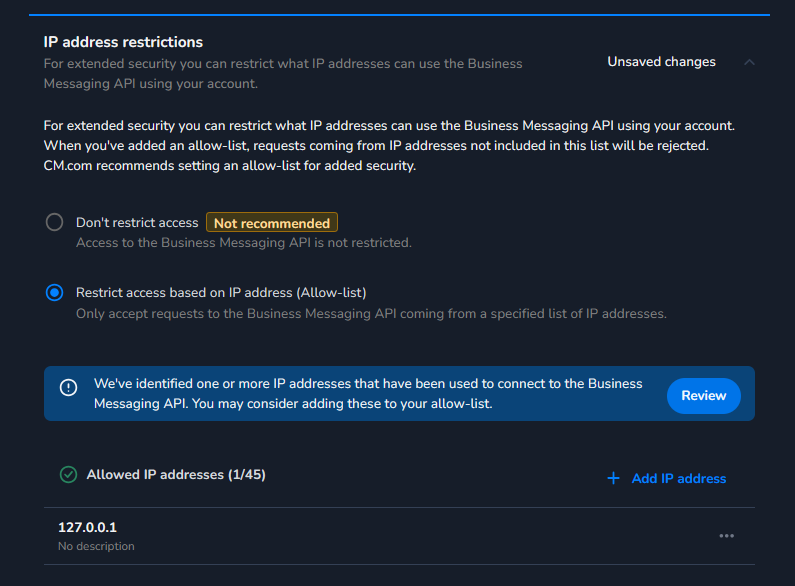
Modes
Depending on your setup, you can choose:
-
Do not restrict — IP Address Restriction is disabled. All IPs can reach your APIs (subject to normal authentication/authorization).
-
Allow‑list — Only traffic from IPs or ranges on your configured list is allowed. Requests from any other IPs will be blocked.
There is currently no dedicated block‑list‑only mode; IP Address Restriction is designed to act as a positive allow‑list control.
For high‑security environments, allow‑list is strongly recommended.
How do I manage a large number of IPs?
-
You can configure up to 250 IP addresses and IP ranges per allow-list.
-
To review or edit many entries at once, use "Review IPs in JSON format" to view your full allow-list as JSON, edit it directly, and paste in bulk changes.
-
Saving a JSON edit replaces your entire allow-list with the data you submit — keep a backup of your current configuration before making large changes.
Which IPs should I put on the allow‑list?
Typically:
-
The IPs of your production systems that call
http://CM.comAPIs -
The IPs of your VPN or secure remote access solutions
-
Any partner systems that legitimately send traffic on your behalf
Avoid adding broad public ranges or personal home IPs unless you have strong update policies and monitoring.
What happens when I change the configuration?
-
Changes to the IP allow‑list usually take effect quickly (near‑real time).
-
New requests from IPs that are not on the list will be blocked immediately.
-
Existing connections may or may not be impacted; this depends on the protocol. For HTTP APIs, each new request is evaluated against the latest rules.
Examples
Allow Traffic from Data Center and VPN Only
You:
-
Enable IP Address Restriction.
-
Configure an allow‑list with:
-
203.0.113.10,203.0.113.11(data center egress) -
198.51.100.0/28(VPN egress range)
Result:
-
Requests from these IPs are accepted (subject to normal authentication and other Safeguard checks).
-
Requests from any other IPs are rejected with a Safeguard error code.
Bulk Update via JSON
You:
-
Have 80 IPs already configured across several partners.
-
Open "Review IPs in JSON format" to export the current list.
-
Add 20 new partner IPs and update the names of 5 existing entries in the JSON.
-
Paste the updated JSON back in and save.
Result:
-
The allow-list is fully replaced with your updated list of 100 named entries in a single action, instead of editing each one individually.
Partner System Access
You:
-
Work with a third‑party platform that sends API calls to CM.com on your behalf.
-
Ask the partner for the IPs or CIDR ranges from which they will connect.
-
Add these IPs/ranges to your allow‑list.
Result:
-
The partner can successfully reach your CM.com APIs from the agreed IPs.
-
If their traffic suddenly starts coming from an unexpected IP, it will be blocked, helping you detect configuration issues or potential misuse.
Where you can find more information
For more details and guidance:
-
Release notes – Messaging Platform
Announcement and ongoing updates related to this change.
https://releasenotes.cm.com/release-notes/connectivity-platform/messaging-platform -
AIT / SMS pumping background article
Explanation of AIT, example scenarios, and how CM.com helps protect you.
https://www.cm.com/blog/combat-sms-pumping-ait-fraude-effectively/
If you have questions about how this change affects your setup, please contact your account manager or Support via the platform.