
Rate Limiting in Safeguard controls how many messages or requests are processed over time for a defined scope. Scope determines the dimension being limited and is either Account-level (all traffic under an account) or Recipient-level (per end recipient, e.g., phone number).
-
It caps throughput per configured scope and time window to protect systems and enforce policies.
-
It is configured and enforced within Safeguard; your systems do not need code changes beyond correctly handling potential error responses when a limit is exceeded.
Explanations
When should I use Rate Limiting?
Rate Limiting keeps your systems healthy during busy moments. It smooths sudden spikes (for example, big campaigns or unexpected bursts) so your apps keep responding instead of slowing down or failing.
Safeguarding Partners
It also safeguards your partners. Mobile networks, gateways, and third‑party APIs often have strict throughput caps. Rate Limiting keeps your traffic within those agreed limits so routes stay open and stable.
Meeting Agreements
It helps you meet what you’ve agreed with customers and partners. You can cap messages per second/minute/hour so usage stays within contract or fair‑use limits, avoiding unexpected overages and tough conversations later.
Protecting Individual Recipients
You can also protect individual recipients. By setting a per‑recipient cap, a single person won’t receive too many messages in a short time, and technical retries won’t keep hitting the same phone number or endpoint.
Safety Net Against Mistakes
Finally, Rate Limiting is a safety net against mistakes or misuse. If a configuration loops, a test targets production, or an API key is abused, it can automatically slow down or stop traffic before it causes outages or unexpected costs.
How are the limit windows calculated?
Rate Limiting uses fixed (calendar) windows, not sliding windows.
Minute window
-
A minute window runs from
HH:MM:00 UTCup toHH:MM:59 UTC.
Example: between12:00:00 UTCand12:00:59 UTCyou can send up to your configured “per minute” maximum. At12:01:00 UTCthe counter resets and a new minute window starts.
Hour window
-
An hour window runs from
HH:00:00 UTCup toHH:59:59 UTC.
Example: between12:00:00 UTCand12:59:59 UTCyou can send up to your configured “per hour” maximum. At13:00:00 UTCthe counter resets.
Day window
-
A day window runs from
00:00:00 UTCup to23:59:59 UTC.
Example: between00:00:00 UTCand23:59:59 UTCyou can send up to your configured “per day” maximum. At00:00:00 UTCthe next day, the counter resets.
Week and month windows (Account scope only)
For week and month limits, the same idea applies:
-
A week covers a full calendar week in UTC.
-
A month covers a full calendar month in UTC.
At the start of a new week or month (UTC), the counter resets.
What happens when a limit is exceeded?
-
1) A request arrives and matches an active limit rule for its scope (Account or Recipient).
-
2) Because the counter for the current window is already at the limit, Safeguard stops processing that request immediately.
-
3) You receive a clear rate‑limit response (see What happens when a message is blocked?) explaining that the limit was exceeded and when to try again (after the window resets).
-
4) The event is logged for visibility and monitoring dashboards show rejected counts and the rule that triggered it.
-
5) If you retry immediately, the request will likely be rejected again; wait or stagger retries until the window resets to succeed.
Configurations
How do I get Rate Limiting enabled or changed?
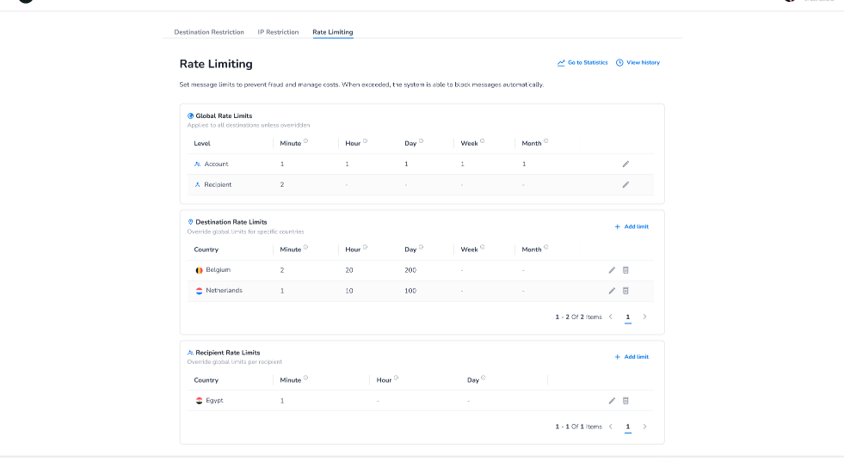
You can configure Rate Limiting yourself or request your account manager to set it up for you. Where to configure it yourself is described here: Where do I configure Safeguard?
What can I configure in Rate Limiting?
Which scope can I configure?
-
Rate Limiting is available on the following scopes:
-
Global
-
Account (all traffic under your account)
-
Recipient (per end recipient, e.g., MSISDN)
-
-
Per Destination
-
Account (all traffic under your account)
-
Recipient (per end recipient, e.g., MSISDN)
-
-
Can I set limits per country?
-
Yes. Alongside your global Account or Recipient limits, you can add a destination-specific rate limit for individual countries.
-
A destination-specific limit overrides the global limit for that country when both are configured.
-
Destination-specific limits can be layered on either Account scope or Recipient scope.
-
Dedicated overview screens show your configured destination limits per country, separately for Account-level and Recipient-level rules.
When a destination-specific limit is configured for a given time window, it replaces the global limit for that window on that scope — other windows without a destination-specific rule still follow the global limit.
What are the limit windows per scope?
-
Account scope supports
-
Minute, hour, day, week, and month.
-
-
Recipient scope supports
-
Minute, hour, and day.
-
How do I choose the right limits?
Choose limits that protect your service without blocking normal business. Start with what your systems and partners can safely handle, then set simple, realistic numbers.
-
Know your safe capacity: how many messages per second/minute your systems and partners reliably handle today.
-
Pick a simple starting point: e.g. Account = 600/minute, Recipient = 5/hour. You can fine‑tune later based on real traffic.
-
Add a small buffer for short, legitimate bursts, but keep limits aligned to any contracts or fair‑use policies.
Examples
Account Scope – Campaign Traffic Smoothing
-
You set an Account-level limit of 600 messages per minute
-
During a busy minute, your systems try to send 750 messages.
-
Safeguard processes the first 600 messages in that minute window (
12:00:00–12:00:59 UTC) and rate-limits the remaining 150. -
The rejected requests return a rate-limit error response (see the Rate Limiting error documentation) indicating that the account limit for the current minute has been reached and when the window resets.
-
When the next minute starts (
12:01:00 UTC), the counter resets and new requests are processed again, keeping overall traffic within what your systems and partners can handle.
Recipient Scope – Protecting a Single Phone Number
-
You set a Recipient-level limit of 5 messages per hour per MSISDN
-
Between
09:00:00and09:59:59 UTC, your application sends 5 different messages to the same phone number, including some retry attempts. -
A 6th message to that same phone number in the same hour is blocked by Safeguard
-
The request receives a rate-limit error response explaining that the per-recipient hourly limit has been exceeded and that you should wait until the next hour window (
10:00:00 UTC) before retrying. -
Messages to other phone numbers continue to be processed normally because they each have their own separate per-recipient counters.
Destination Scope – Country-Specific Override
-
You set an Account-level global limit of 600 messages per minute, plus a destination-specific limit of 100 messages per minute for the US.
-
Traffic to US numbers is capped at 100/minute — the country-specific rule overrides the global limit for that destination.
-
Traffic to all other countries continues to follow the 600/minute global limit.
-
If US traffic exceeds 100 in a given minute window, the excess is rejected — even though the account's overall global limit hasn't been reached.