
API keys are critical for securely accessing your Analytics data. Whether you are setting up access for the first time or rotating existing credentials to maintain security, this guide will walk you through the process of creating and managing reporting API keys in the Admin Portal. Proper handling of API keys ensures your data remains secure while allowing authorized applications to retrieve analytics information.
Steps to Create a New API Key
-
Log into the Admin Portal
Use your administrator credentials to access the portal. -
Navigate to Projects > Security
From the main menu, go to your project settings and select the Security tab. -
Scroll to the API Secret Section
Locate the section labeled API Secret where your reporting API keys are managed. -
Click "Create secret"
Press the Create secret button to generate a new API key. -
Copy the API Credentials
A pop-up will appear with the credentials required to access the Analytics API.
⚠️ Important: These values will not be shown again once the pop-up is closed, so copy them immediately and store them securely in a password manager or other secure location.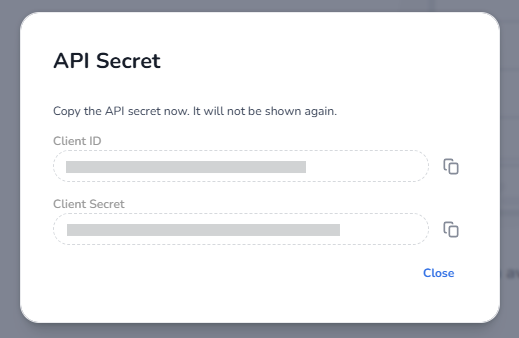
-
Confirm Your New API Secret
Once created, your new API secret will appear in the API Secret section. You can use this credential to authenticate requests to the Analytics API.
(Here, include an image showing the newly created API secret in the Admin Portal.)
Once your API Secret is created, you will see the following:

Steps to Rotate an Existing API Key
If you lose your API credentials or want to rotate them for security purposes:
-
In the API Secret section, locate the secret you want to rotate.
-
Click the Rotate button.
-
A new set of credentials will be generated. Copy and store these securely, as the old credentials will no longer be valid once rotation is complete.
