
Protecting sensitive data is a critical part of using AI Cloud analytics. One key way to safeguard information is by managing anonymization rules, also known as masking rules. These rules ensure that personally identifiable or confidential data is hidden while still allowing analytics to be performed effectively. This guide will walk you through how to add, edit, and delete anonymization rules in the Admin Portal, helping you maintain data privacy and compliance across your projects.
How do I access the anonymization rules?
-
Log into the Admin Portal.
-
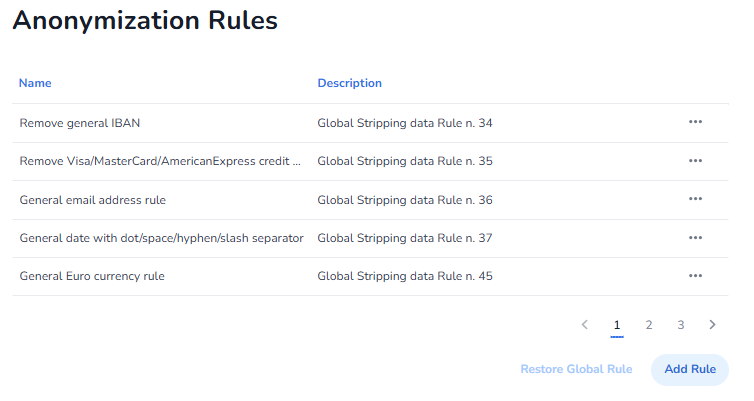
Navigate to Projects > Security.
Here you will see a list of existing anonymization (masking) rules.
How do I add a new anonymization rule?
-
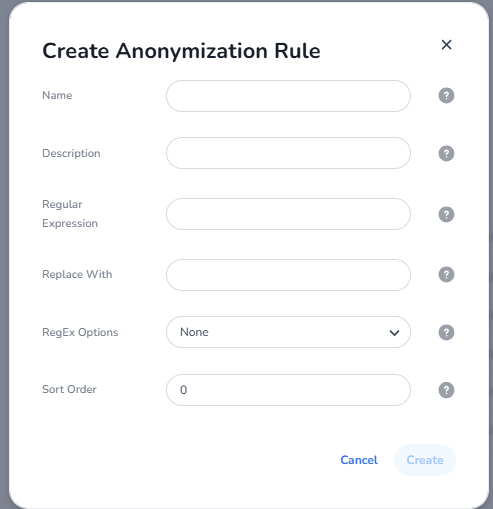
Click the "Add Rule" button.
-
Fill in the required values for the rule (e.g., field to mask, masking type).
-
Click "Create" to save the new rule.
How can I edit an existing rule?
-
Locate the rule you want to modify in the list.
-
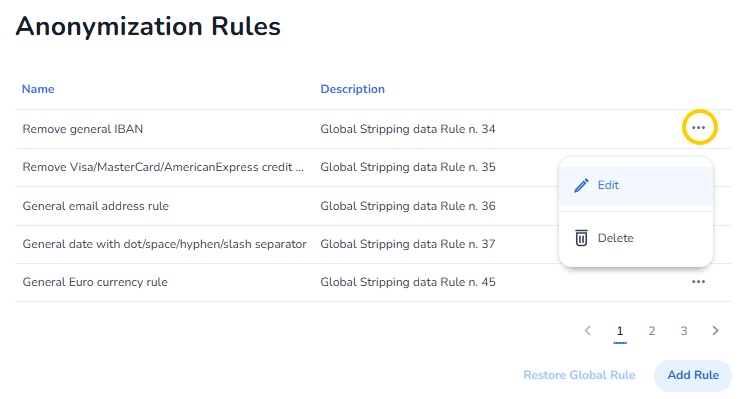
Click the 3-dot menu next to the rule.
-
Select "Edit".
-
Make the necessary changes and save.
How do I delete a rule?
-
Find the rule you wish to remove.
-
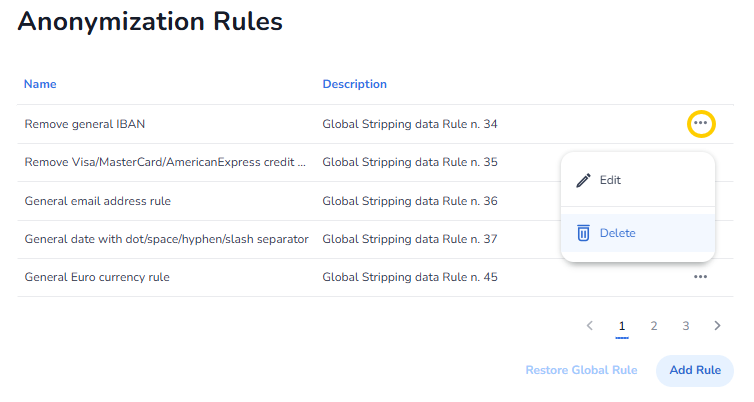
Click the 3-dot menu next to it.
-
Select "Delete".
-
Confirm the deletion when prompted.
Any tips for managing rules effectively?
-
Regularly review rules to ensure compliance with data privacy regulations.
-
Test new rules on sample datasets before applying them to production projects.
-
Use clear naming conventions for rules to easily identify their purpose.