
This guide explains what you, as the customer, need to provide to enable the integration between your WooCommerce store and our platform.
1. Prerequisites
Before proceeding, ensure you have the following:
-
Admin access to your WordPress site.
-
WooCommerce plugin installed and activated.
2. Provide Your WooCommerce API Credentials
To connect your WooCommerce store to our platform, you need to generate and share the following API credentials:
Steps to Generate API Keys
-
Log in to your WordPress admin dashboard.
-
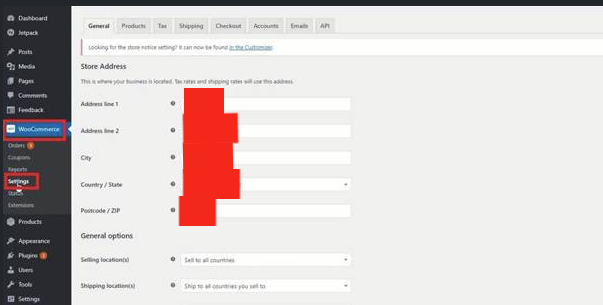
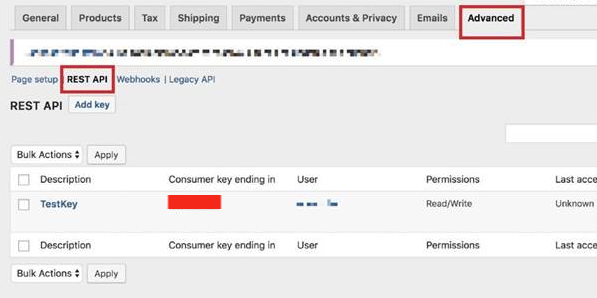
Navigate to WooCommerce > Settings > Advanced > REST API.
-
Click on Add Key to create a new API key.
-
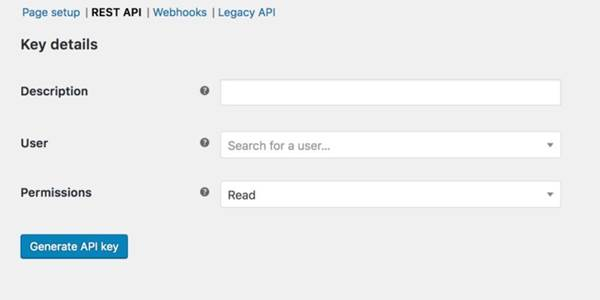
Fill in the required fields:
-
Description: Enter a name like
Integration with Marketplace. -
User: Select the user account with admin privileges.
-
Permissions: Set to Read/Write.
-
-
Click Generate API Key.
-
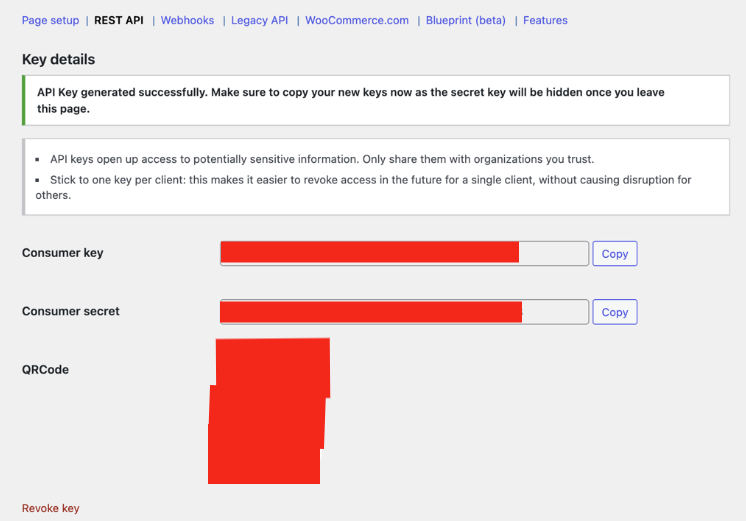
Copy and securely store the following details:
-
Consumer Key
-
Consumer Secret
-
What to Share with Us
-
Store Base URL: The URL of your WooCommerce store (e.g., https://yourstore.com).
-
Consumer Key
-
Consumer Secret
⚠️ Important: Do not share your API credentials publicly. Only share them with authorized personnel.
3. Provide Webhook Delivery URLs
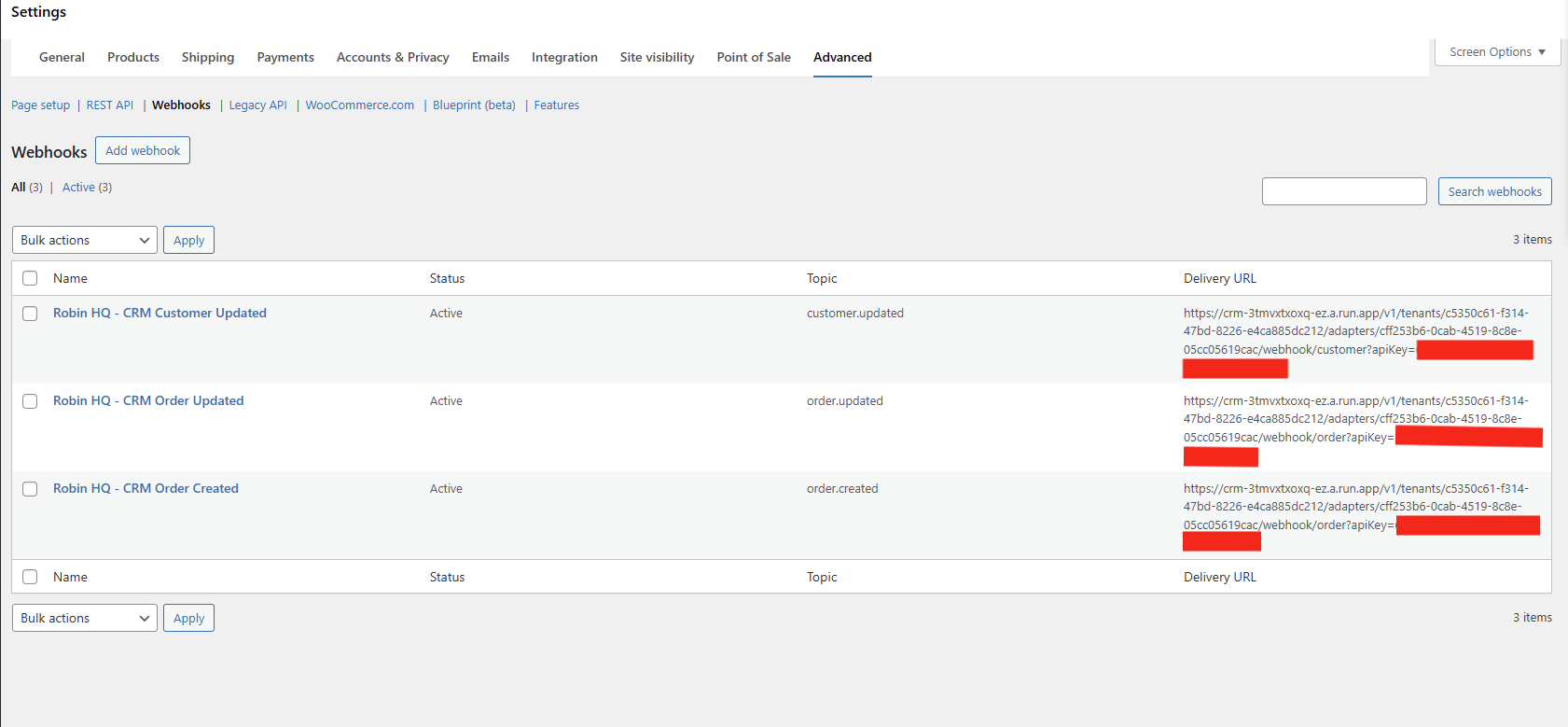
To enable real-time updates for customer and order events, you need to configure webhooks in your WooCommerce store.
Steps to Configure Webhooks
-
Go to WooCommerce > Settings > Advanced > Webhooks.
-
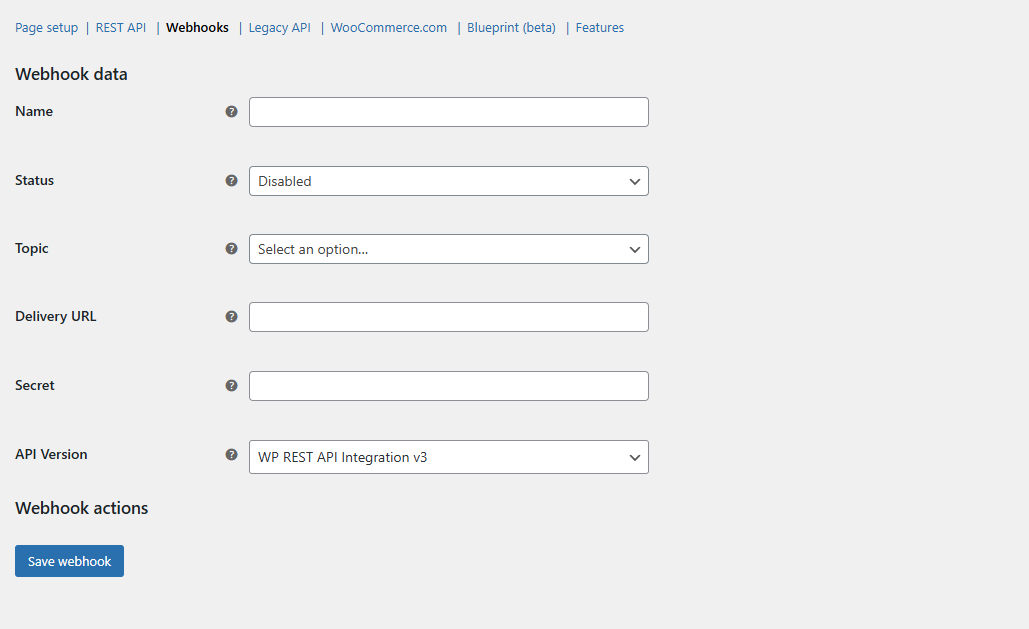
Click Add Webhook.
-
Fill in the following details:
-
Name: Enter a meaningful name (e.g.,
Customer Updated WebhookorOrder Created Webhook). -
Status: Set to Active.
-
Topic: Choose the appropriate topic:
-
For customer updates:
customer.updated. -
For order updates:
order.createdororder.updated.
-
-
Delivery URL: Copy the URL provided by our platform and paste it here.
-
-
Leave all other fields as default.
-
Click Save Webhook.
What to Share with Us
-
Confirm that the webhooks have been configured.
-
Provide the names of the webhooks you created.
4. Test the Integration
Once you've provided the required information, our team will test the integration to ensure everything is working correctly.