
This guide explains what you, as the customer, need to provide to enable the integration between your Magento CRM and our platform.
1. Prerequisites
Before proceeding, ensure you have the following:
-
Admin access to your Magento store.
-
Access to the Magento CLI (Command Line Interface).
2. Install Mageplaza Webhook Extension
To enable webhooks in Magento, you need to install the Mageplaza Webhook extension. Follow these steps:
Recommended: For a production store on a recent Magento version, use the paid version the free version has not been maintained since February 2023 and may have compatibility gaps.
Install Paid Version of Mageplaza Extension
-
Log in to your Magento Admin Dashboard.
-
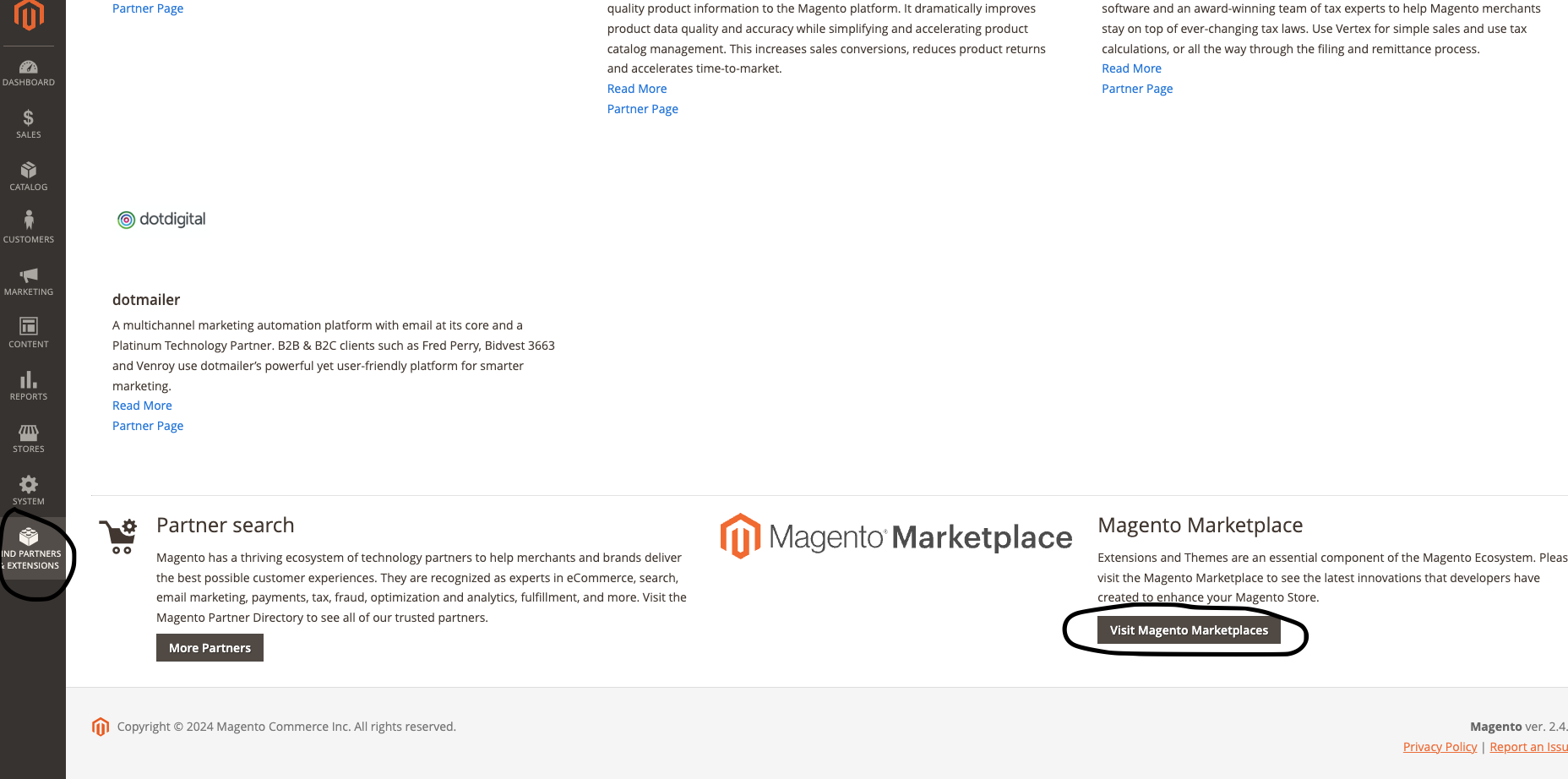
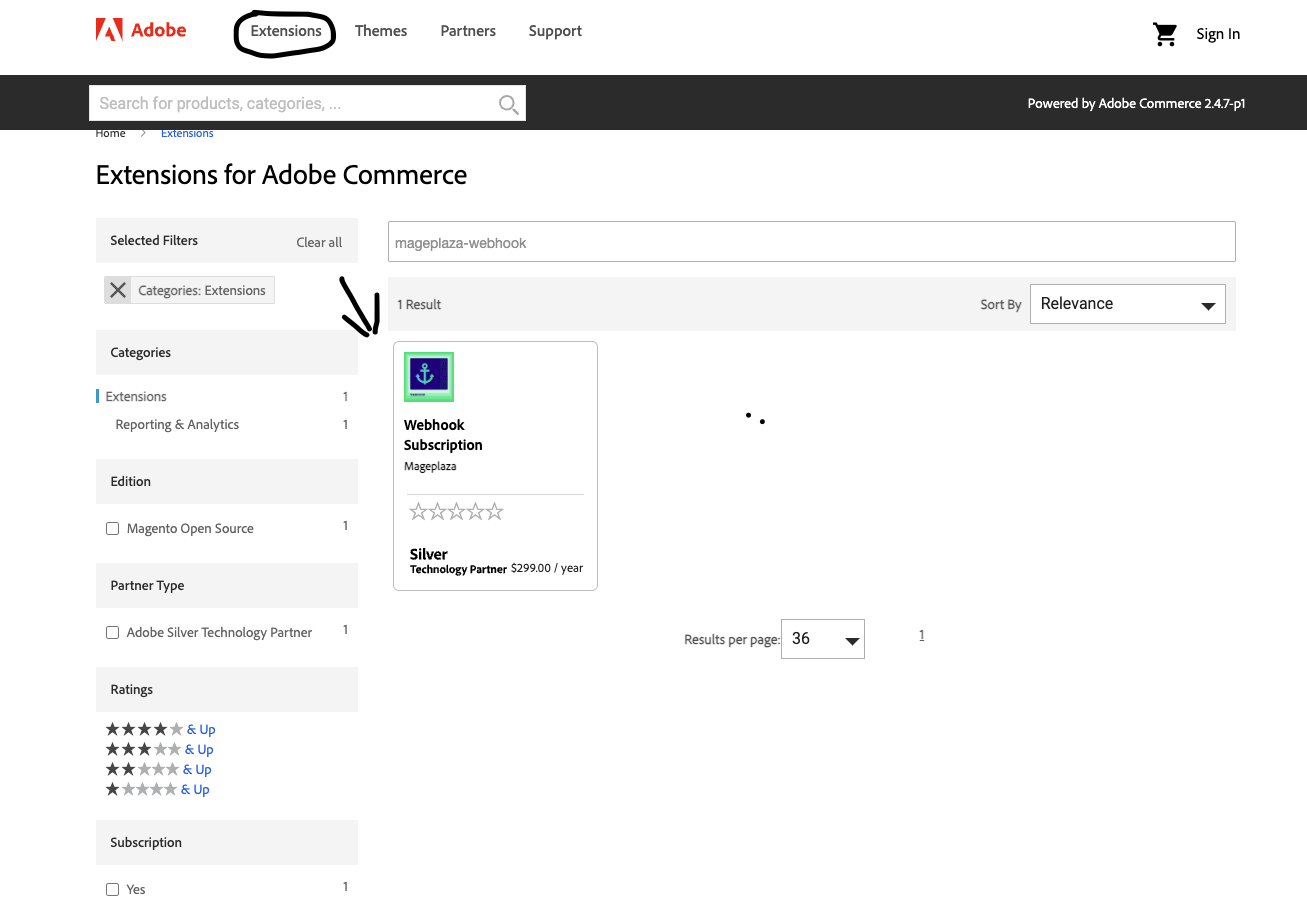
Then Proceed to the Visit to Magento Marketplaces option there you will see the featured categories click on the Extensions from the navbar and search:
-
Click on Visit Magento Marketplace and search for mageplaza-module-webhook.
-
Purchase and install the extension.
mageplaza-module-webhook
-
Refresh your Magento dashboard, log out, and log back in. You will now see the Webhooks option under System > Webhooks > Manage Hooks.
Install Free Version of Mageplaza Extension
The free version is available via Composer. Note it is unmaintained since February 2023 suitable for testing/evaluation, but the paid version is recommended for production.
Refer to the GitHub Repo for brief explanation: Magento2Webhook
-
Open Your Terminal go to your root application folder there install the extension through following commands
-
To install mageplaza webhook extension use the command:
Rubycomposer require mageplaza/module-webhook -
This will ask you for username and password
-
Go to Access Keys page and Create a New Access Key.
-
It should look something like this:
 Public Key: c7afxxxxxxxxxxxxxxxxxxxxxxxxxxxx
 Private Key: 1bfbxxxxxxxxxxxxxxxxxxxxxxxxxxxx
a) Public Key is the username
b) Private Key is the password -
Once Installation is done, Do the upgrade
php bin/magento setup:upgrade -
Compile the latest
php bin/magento setup:di:compile -
Lastly deploy the latest
php bin/magento setup:static-content:deploy
3. Configure Mageplaza Webhook → CDP (direct)
Steps to Configure Webhooks
-
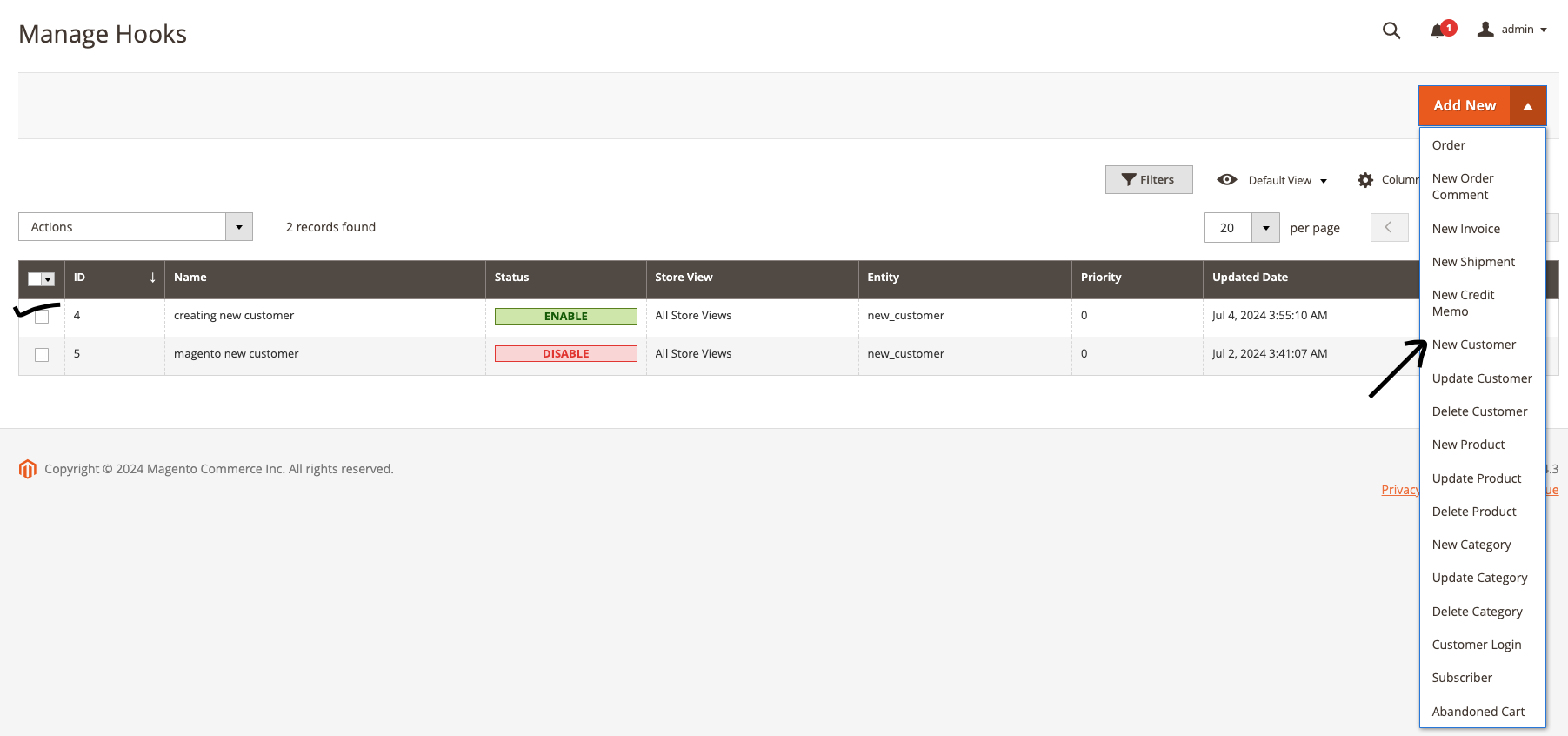
Navigate to System > Webhook > Manage Hooks in your Magento Admin Dashboard.
-
Click Add New and pick a trigger (for example, New Customer). Give it a suitable name, set Status to Enabled, Store Views to All Store Views, and Priority to 0 (highest).
-
Go to the Actions tab and configure the following:
-
-
Payload URL — the CDP events endpoint, using the Tenant ID and Event Type ID supplied by delivery:
https://api.cdp.cm.com/events/v1.0/tenants/{tenant_id}/events/{event_type_id} -
Method: POST
-
Header — pass the CDP product token for authentication:
X-CM-PRODUCTTOKEN: <product token> -
Content Type:
application/json; charset=UTF-8 -
Body — a JSON array whose fields match your Event Type definition. Map the values using Mageplaza's variable picker; field names must match the Event Type exactly. Example:
JSON[{ "Email Address": "{{customer.email}}", "First Name": "{{customer.firstname}}", "Last Name": "{{customer.lastname}}", "Mobile Phone": "{{customer.phone}}" }]
-
-
Press Save to store the webhook configuration.
-
Go to Customers, create a new customer, fill in the details, and click Save Customer. This triggers the webhook, and the event will appear under the matching Source in your CDP.
-
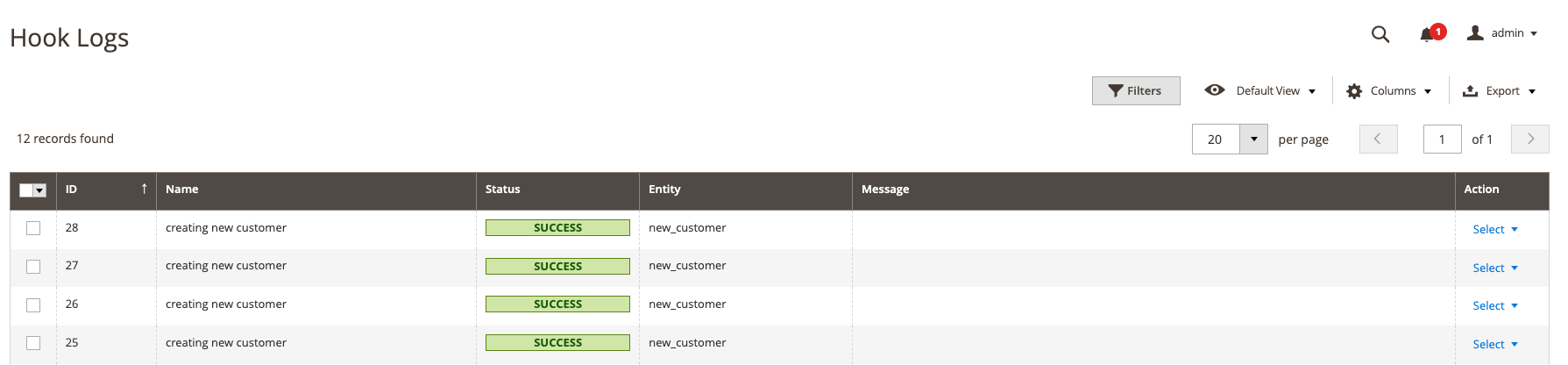
Check Logs: To confirm delivery, go to System > Webhook > Logs. A
2xxstatus means CDP accepted the event.
That's it. In the direct-to-CDP flow there is no OAuth integration, no Consumer Key/Secret or Access Token, and no Marketplace configuration.