
Overview
This guide explains how to build a CXP email campaign that pulls in live content from your product feed, and how to link a product segment to it. Use this when you want to show personalized product recommendations (for example, from an abandoned cart, browsing behavior, or a custom segment) inside a newsletter.
Prerequisites
-
A product feed connected in CXP
-
A segment containing contacts that have product data
Step 1: Create a CXP email campaign
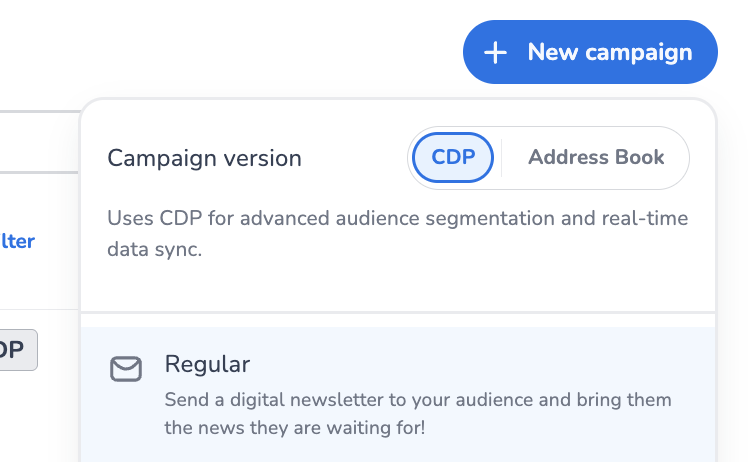
Create a new email campaign and select the Regular Newsletter campaign type.
Step 2: Link the campaign to a segment
Link the email campaign to the segment you want to target.
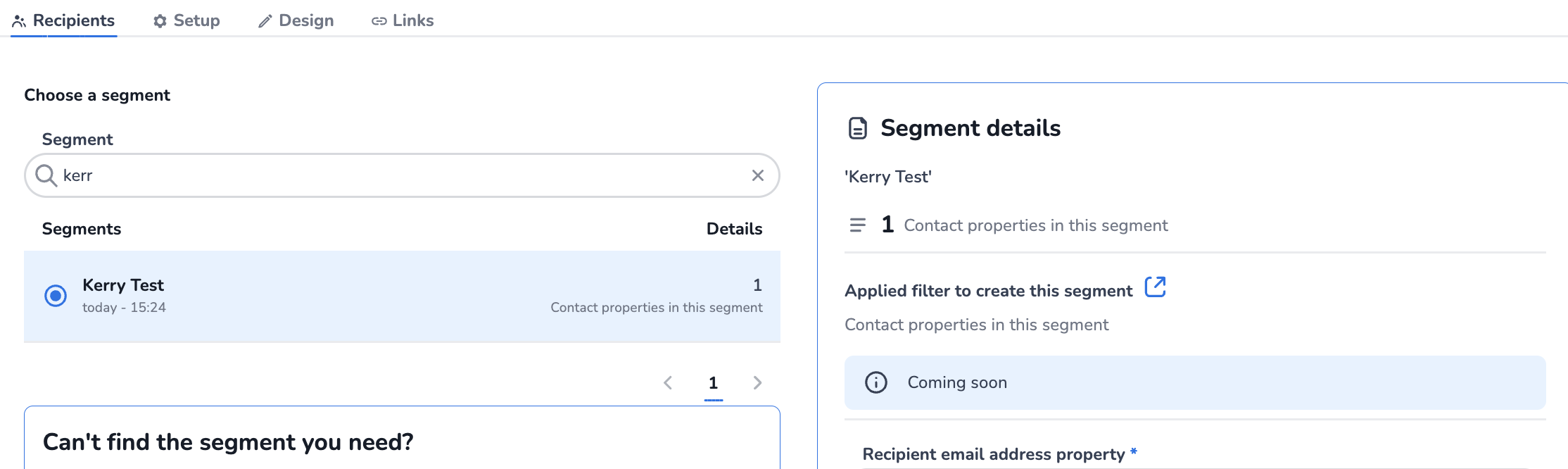
Tip: make sure the segment you select contains contacts that have product data.
Step 3: Add the product content block
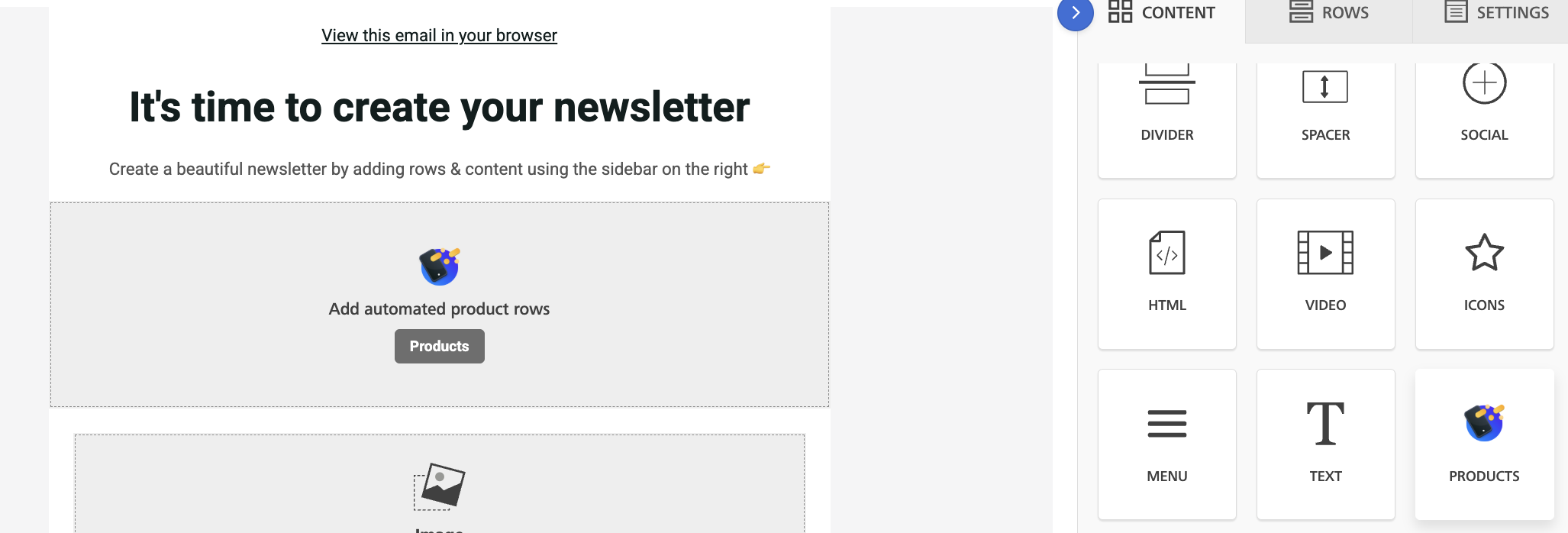
Select the content block named Product and drag it into the email editor.
Step 4: Select your product segment
Select the grey Product button, then choose your product segment from the dropdown.
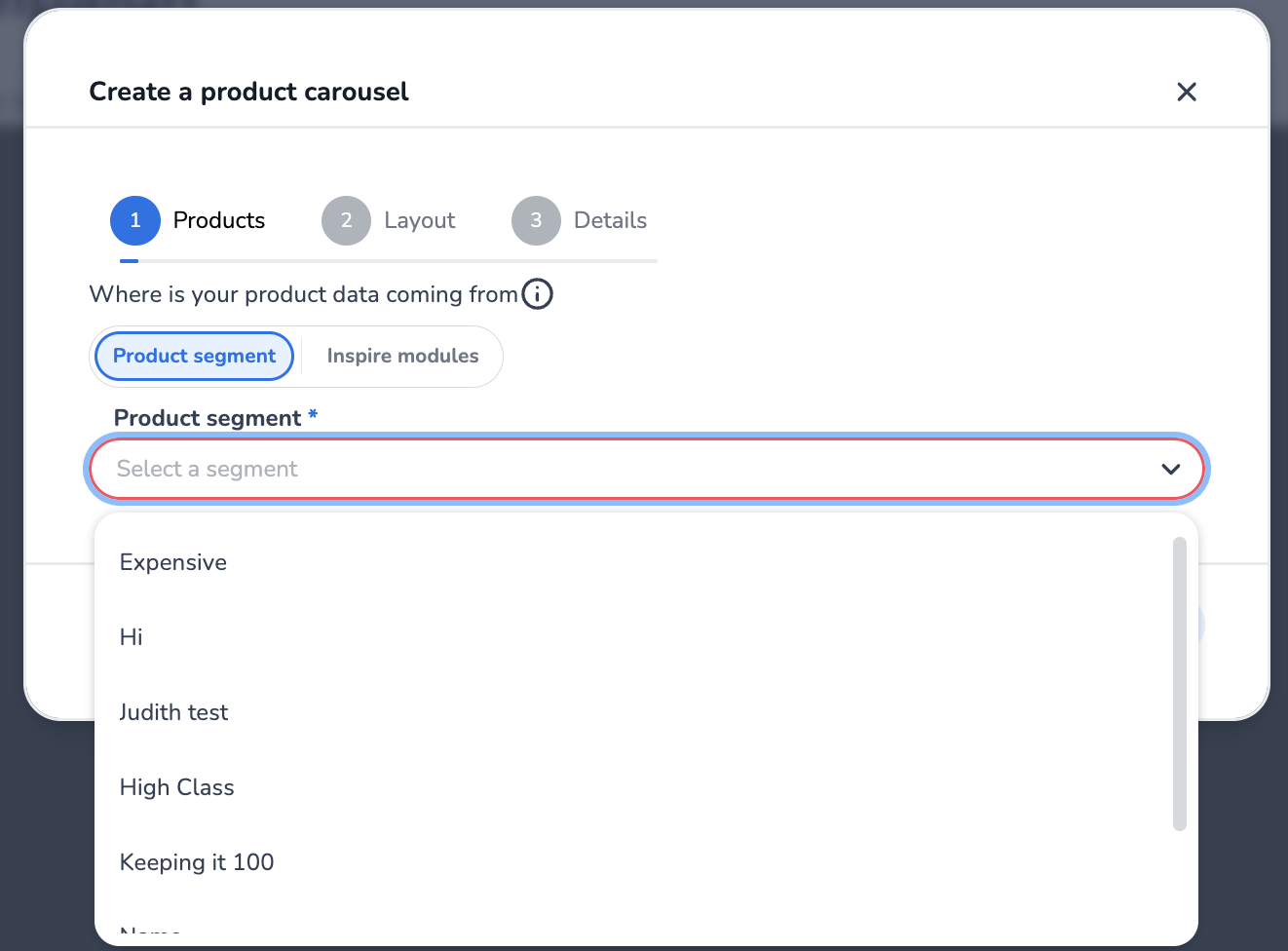
Tip: make sure you select a segment that contains products.
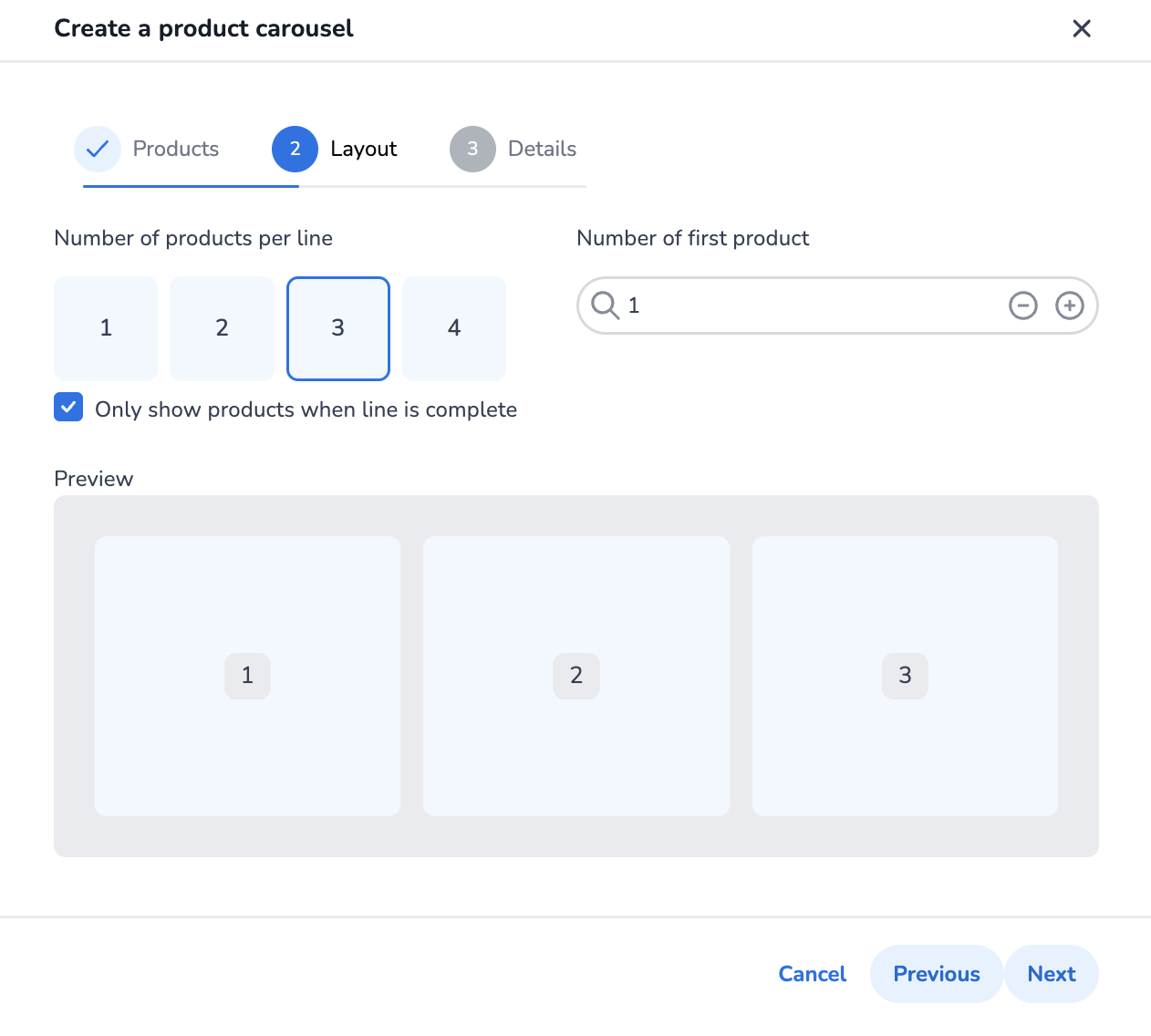
Step 5: Choose a layout
Choose the layout that matches the number of items you want to show. For example, if your segment contains 2 products, select the "2 products per line" layout, then adjust the settings accordingly.
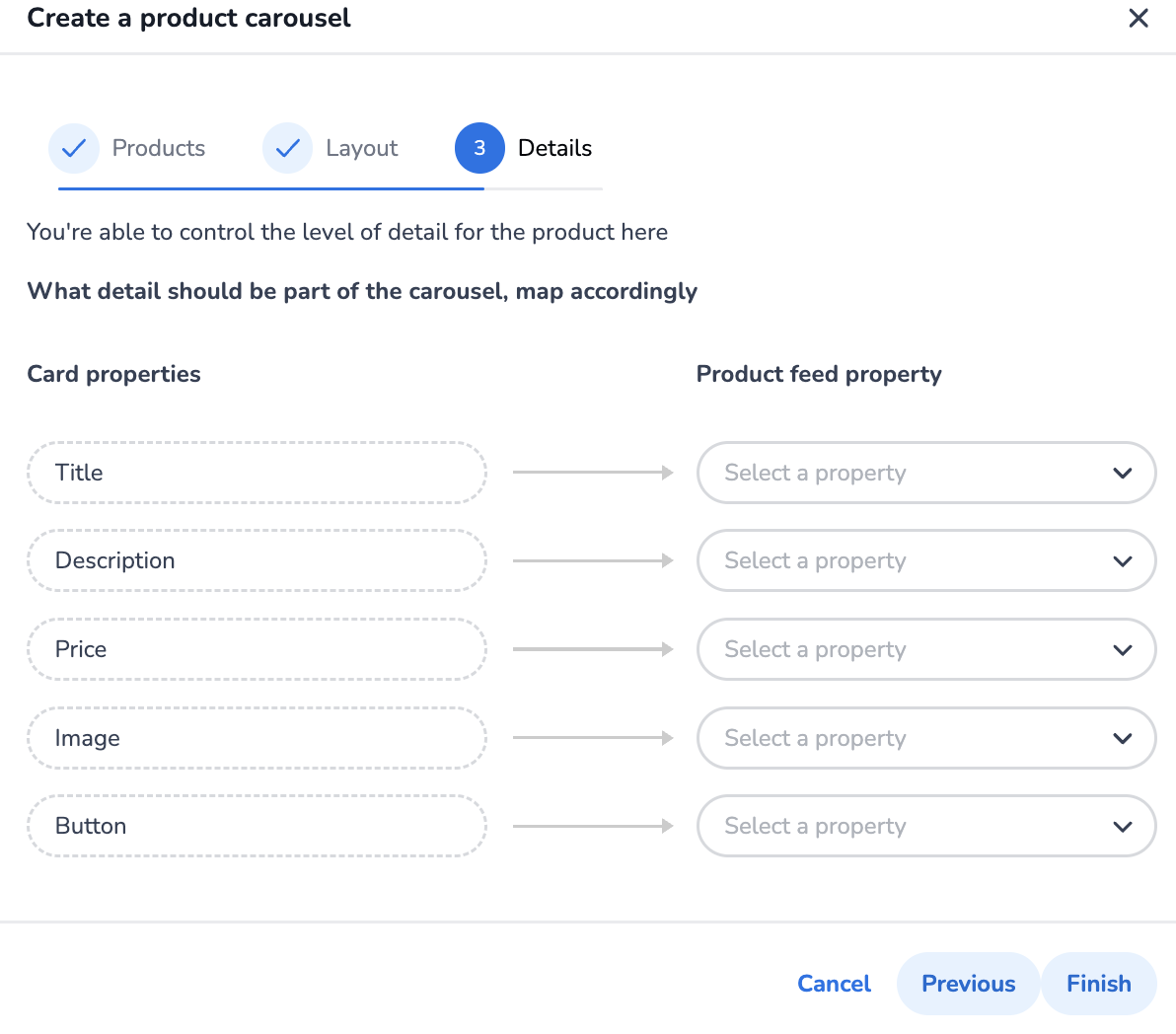
Step 6: Map the product properties
Map each card property in your email to the matching product feed property.
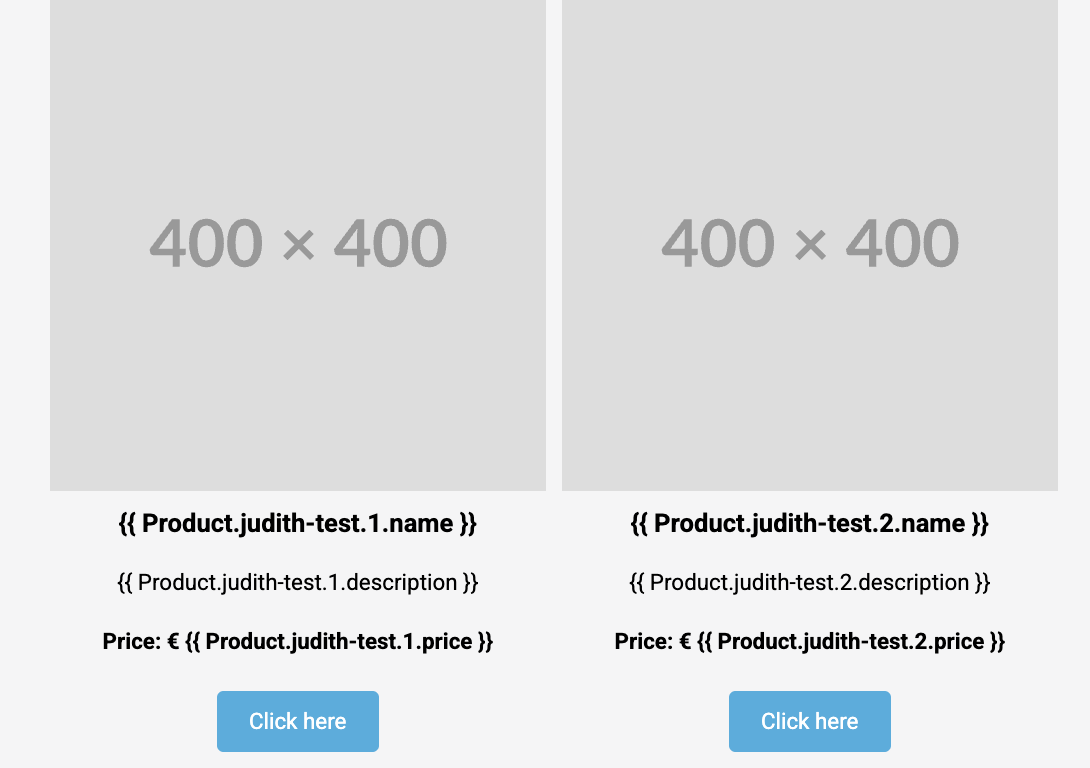
Result
Once mapped, the block populates with your product data as shown below.
Extra challenge: try creating a product segment on your own by navigating to the product feed app in the 9-tile menu.
Step 7: Save and test
Save the campaign and do a test send to confirm everything (images, prices, links) renders correctly before sending to your full segment.
Step 8: Send the campaign
Once the test looks good, send the campaign.
Tip: if product feed data is missing from your products, you can use Claude Code's "/product-feed" command to add fields to each product in the catalogue.