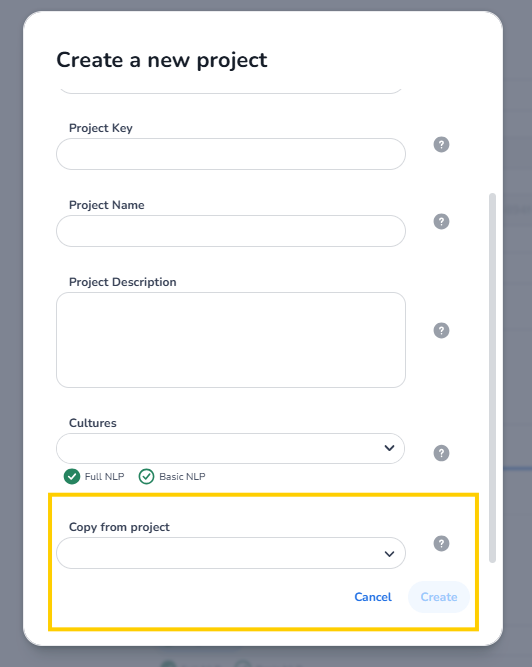
Copying an existing project into a new one allows you to quickly reuse project settings and configurations without starting from scratch. This guide will walk you through the steps to duplicate a project efficiently in the AI Cloud Admin Portal.
Steps to Follow
-
Log into the Admin Portal
Open your web browser and sign in to the Admin Portal using your credentials. -
Navigate to the Projects Tab
Once logged in, go to the Projects tab from the main navigation menu. -
Create a New Project
Click the “+” icon to start creating a new project. -
Fill in the Values for Your New Project
Enter the required information for your new project, such as the project name, description, and other settings. -
Select the Existing Project to Copy From
From the dropdown menu labeled “Copy from existing project”, select the project you want to duplicate. -
Click Create
After verifying all fields, click Create to finalize the new project. The new project will now include all settings from the original project.