
This document explores how to set up the BYOC package in a customer org thus enabling integration between salesforce partner messaging and our platform. It also identifies common challenges or errors that may occur during the process.
Install cmbyoc_app_package: https://login.salesforce.com/packaging/installPackage.apexp?p0=04tHn0000012n8a
1. Update the connected app
Navigate to Connected App Settings
-
Go to Setup > Manage Connected Apps
-
Locate the app installed from the package (e.g., "cmcombyoc_app")
-
Access its settings
Configure oauth policies
-
In the OAuth Policies section, update Permitted Users to "Admin approved users are pre-authorized"
-
Save the changes
-
Add the System Administrator profile to the connected app's Profiles
2. Set Permissions for Platform Event
Access permission set
-
Navigate to Setup > Permission Sets
-
Locate SCRT2 Integration User
Configure platform event permissions
-
Open the permission set
-
Navigate to Object Settings under the Apps section
-
Find the platform event installed from the package (e.g., "cmcombyocevents")
-
Grant Read and Create permissions
-
Save the changes
3. Steps to create a messaging channel
Steps to create messaging channel using API
Get the Conversation Channel Definition Id
-
Access Setup > Installed Packages
-
Select the installed package
-
Click View Components
-
Select the component with type Conversation Channel Definition
-
Note the ID of the Conversation Channel Definition (prefix: "11v")
Create Messaging Channel
-
Use the API to create a messagingChannel
-
Set the Channel Definition Id to the ID obtained in the previous step
-
Set the session handler to the ID of the queue for message handling
-
Once the messagingChannel is created, retrieve the Channel Address Identifier value using the GET API
Steps to create messaging channel using messaging settings
-
Go to Setup > Messaging Settings
-
Create a new Messaging Channel
-
Follow the setup steps
-
Select the partner business channel that was installed from the package
-
Save the configuration
-
Retrieve the Channel Address Identifier from the created channel
4. Troubleshooting
Error while getting the access token or failed to authorize
If you are not getting the access token (authorization token) while doing the setup. The errors might look something like this
{
    "error": "invalid_grant",
    "error_description": "user hasn't approved this consumer"
}
If you have done the step 3 but have not completed step 4 given below:
{
    "error": "invalid_app_access",
    "error_description": "user is not admin approved to access this app"
}
Steps for resolution
-
Navigate to Setup > "Manage Connected Apps".
-
Find the app installed from the package (e.g., "cmcombyoc_app") and access its settings.
-
In the OAuth Policies section, update Permitted Users to "Admin approved users are pre-authorized".
-
Save the changes and add the System Administrator profile to the connected app's Profiles.
Error while creating messaging channel using API
If you are following old documentation or somehow not passing “DeveloperName” and “MasterLabel” while creating messagingChannel, you might run into the error.
The error will look something like this:
{
    "message": "Required fields are missing: [DeveloperName, MasterLabel]",
    "errorCode": "REQUIRED_FIELD_MISSING",
    "fields": [
        "DeveloperName",
        "MasterLabel"
    ]
}
Steps for resolution
-
While creating the messagingChannel through API, also pass “DeveloperName” and “MasterLabel”, the payload will look something like this
{
    "DeveloperName": "cmcombyoc_channel",
    "MasterLabel": "CM COM Byoc Channel",
    "MessageType": "Custom",
    "isActive": "true",
    "ChannelDefinitionId": "11v2t000000000tCAB",
    "MessagingPlatformKey": "352248483XXXXXX",
    "SessionHandler": "00G2t000000OUSs",
    "FallbackQueueId": null
}
-
Here, DeveloperName can be anything unique to your organization, and MasterLabel is the label with which it will be represented on the UI side
Error while sending or receiving messages to and from salesforce
When you fail to receive or send message to salesforce and receive a error like `Invalid schema/topic for topic /event/mktplcdev__cmcombyocevent__e and tenant key core/prod/00D2t00se0039dnEAA` It’s most likely the issue of “SCRT2 Integration User” permission sets.
The error will look something like this:
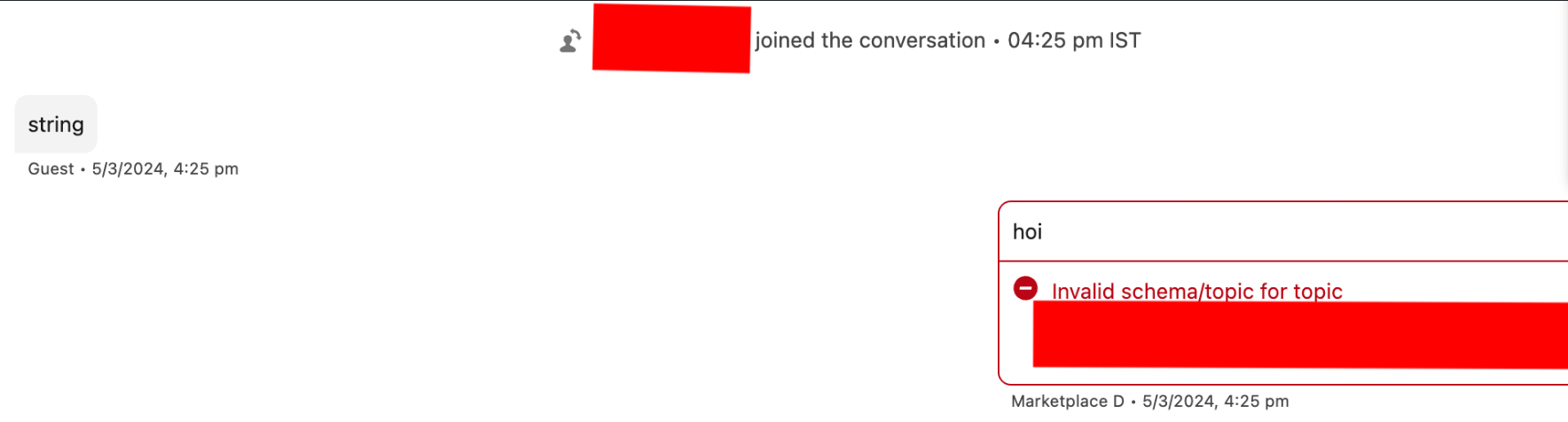
or the error message in server logs may look like:
{
    "message": "The AuthorizationContext for the request isn't valid based on the supplied Authorization access token.",
    "code": 10005
}
Steps for resolution
To resolve this issue, follow these steps:
-
Go to Setup > Permission Sets
-
Locate SCRT2 Integration User
-
Open the permission set and navigate to Object Settings under the Apps section
-
Find the platform event installed from the package (e.g., "cmcombyocevents")
-
Grant Read and Create permissions
-
Save the changes