
This guide explains what you, as the customer, need to provide to enable the integration between Zendesk Livechat and our platform.
1. Create Conversation API
-
Click on the 4 tile icon on header (Right)
-
Select Admin Center
-
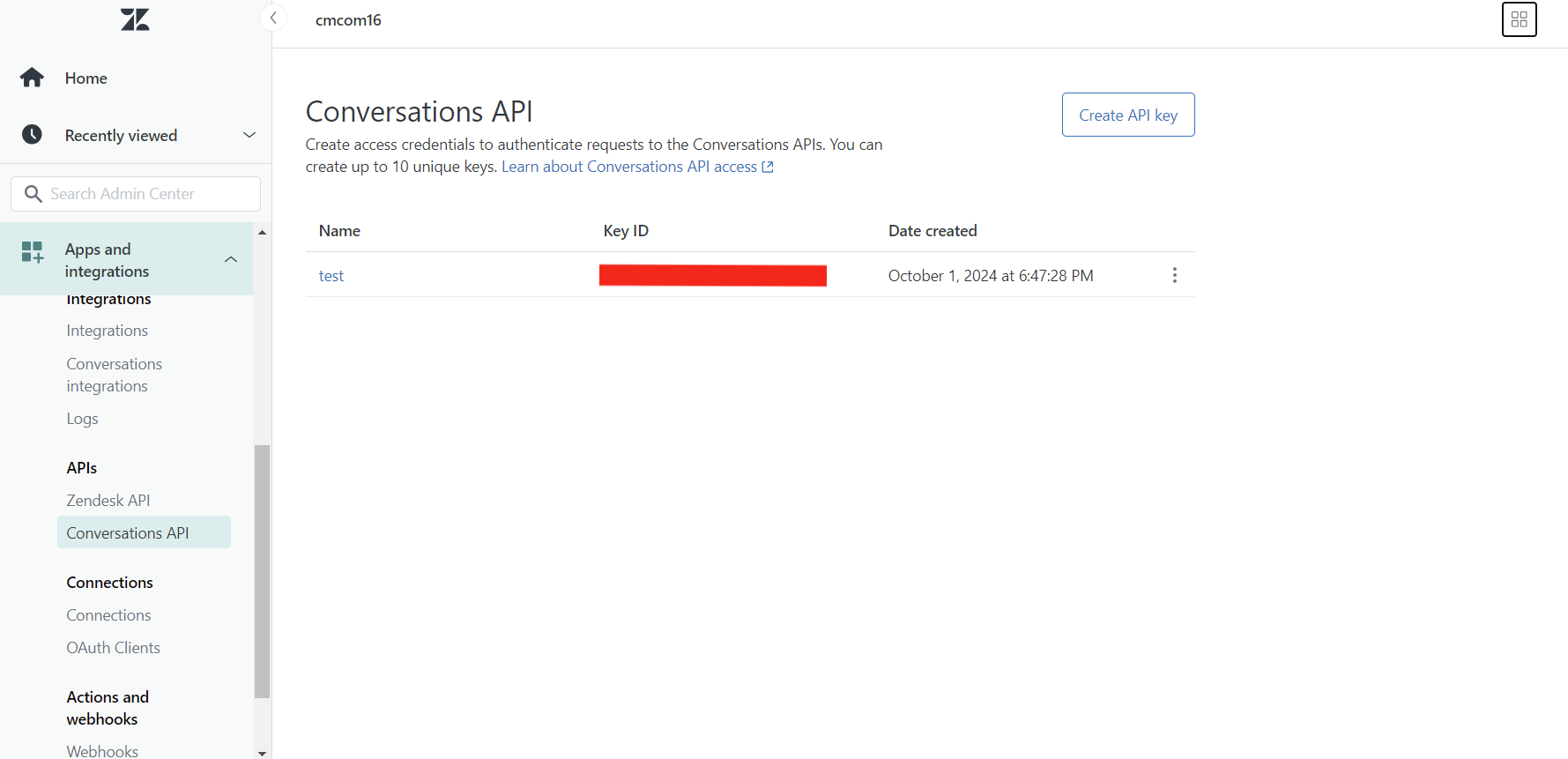
Navigate to App and Integrations > APIs > Conversation API
-
Click Create API Key
-
Give a name and click Create
-
Copy the following credentials: App ID, Key ID, Secret Key
NOTE: Make sure Key ID should start with app_. Example: app_7987899098767....... This means you have given app scope permission on the API key.
Warning: Secret Key will only be generated once, so make sure to keep it safe. You can't generate or see it again.
2. Create New Integration
-
Navigate to Admin Center > Apps and Integrations > Integrations > Conversation Integrations
-
Click on Create Integration
-
Configure the integration:
-
Give a name
-
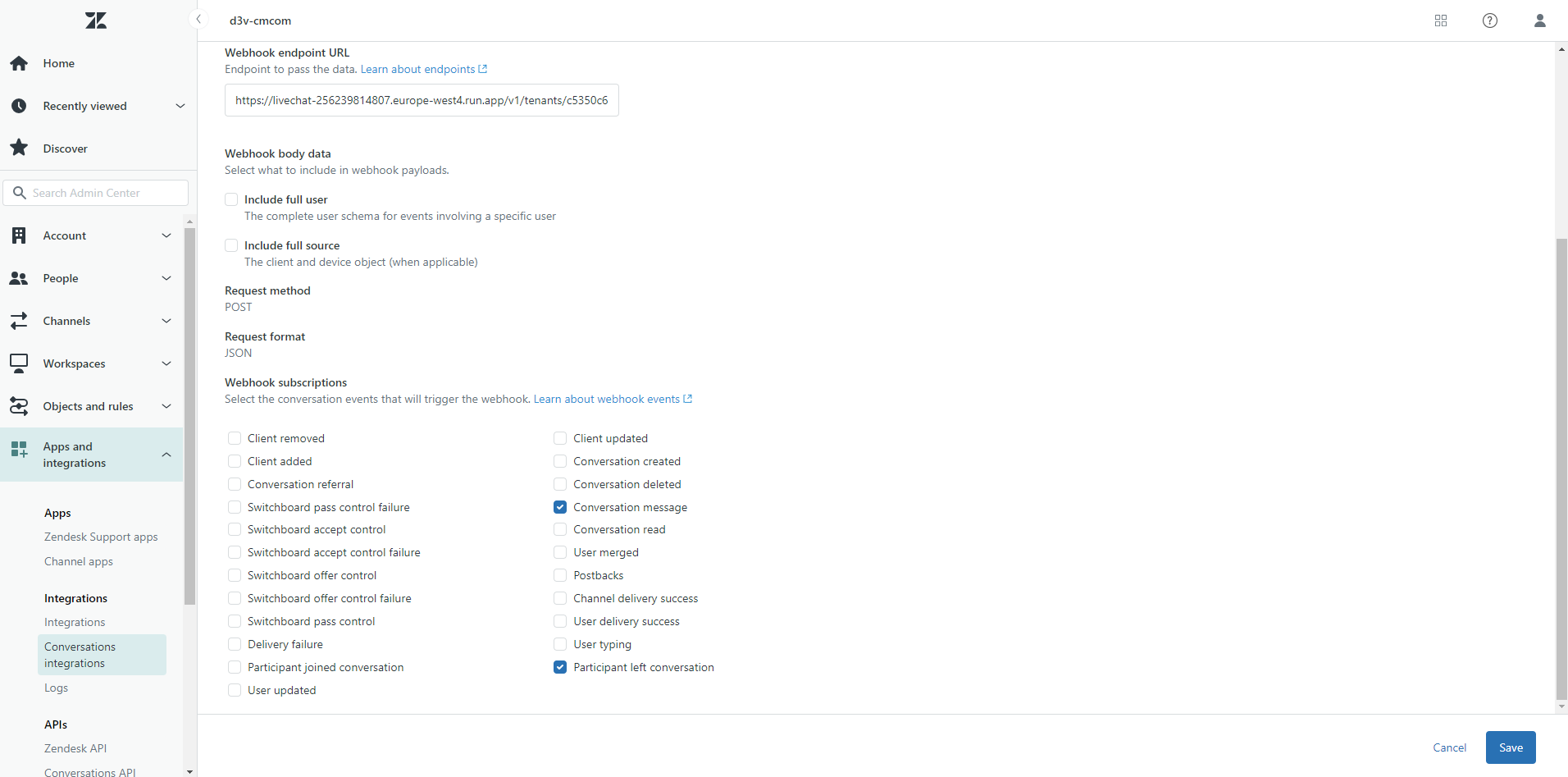
Copy the Webhook URL from Marketplace UI and paste it in Webhook URL
-
Keep everything else as default
-
For Webhook subscriptions, select:
-
Conversation Message
-
Participant Left Conversations
-
-
-
Save the integration
3. Create Zendesk API Token
-
Navigate to Admin Center > Apps and Integrations > APIs > Zendesk APIs
-
Click on Add API Token
-
Copy the API Token
-
Click Save
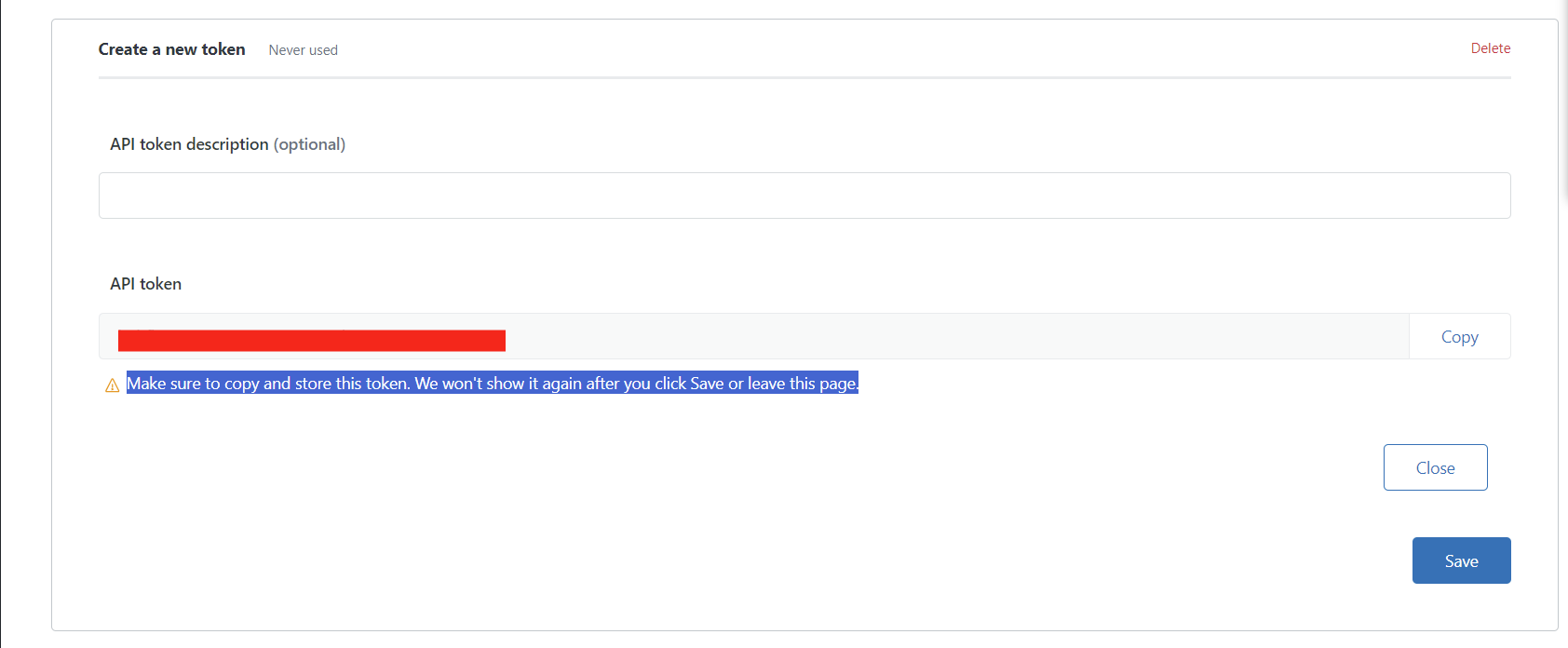
Warning: Make sure to copy and store this token. We won't show it again after you click Save or leave this page.
4. Create OAuth Client
-
On the same page, click on OAuth Client

-
Click Create
-
Configure the client:
-
Give a name
-
Add fields like: company, logo, etc.
-
Keep Client kind as Confidential
-
-
Click Save
-
Important: After saving, please don't click OK/Back
-
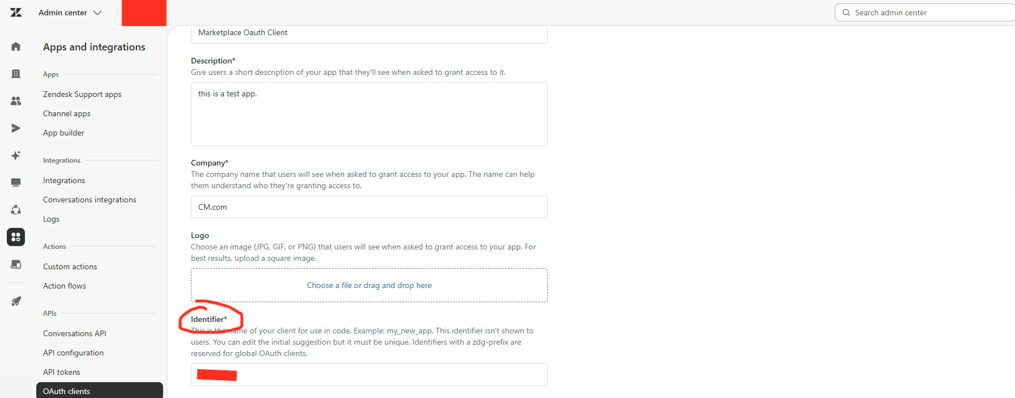
Under Identifier, copy the identifier name and share it with CM. It will be OAuth Client Id
-
Under Secret, A secret value will be displayed — copy that value and share it with CM. it will OAuthClientSecret

5. Setup in Zendesk
This setup may require involving Zendesk support.
Configure Omnichannel Routing
-
Customers need to set up omnichannel in Zendesk live chat. If not already configured, they may need to contact Zendesk support for assistance
-
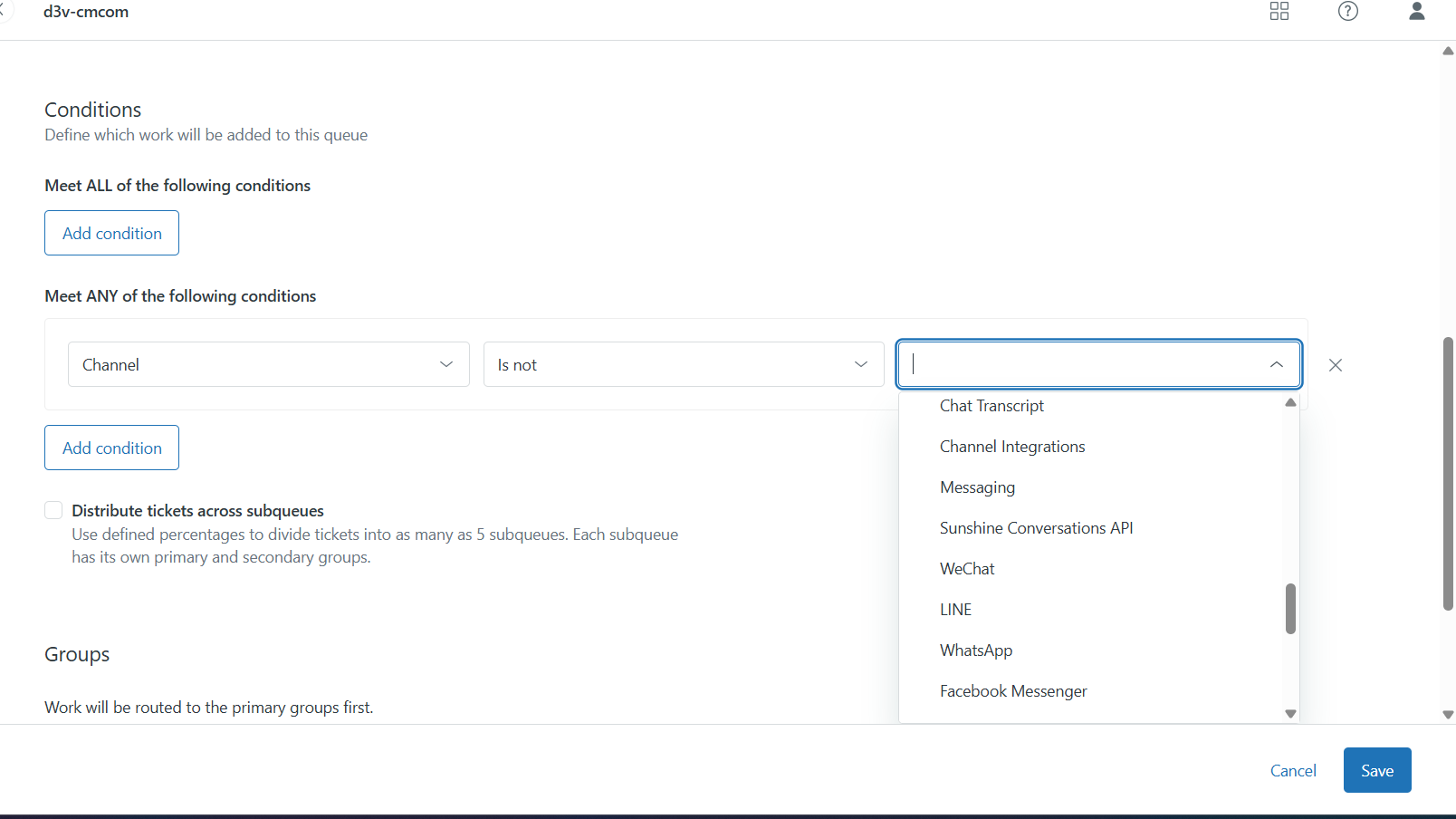
In Admin Center, navigate to Objects and Rules > Omnichannel routing
-
Configure queue and routing rules as per your requirements
-
Make sure to include Sunshine Conversation API in the Queue
Enable Multi-Conversations for Single Users
-
In Admin Center, click Channels in the sidebar
-
Select Messaging and social > Messaging
-
At the top of the page, click Manage settings
-
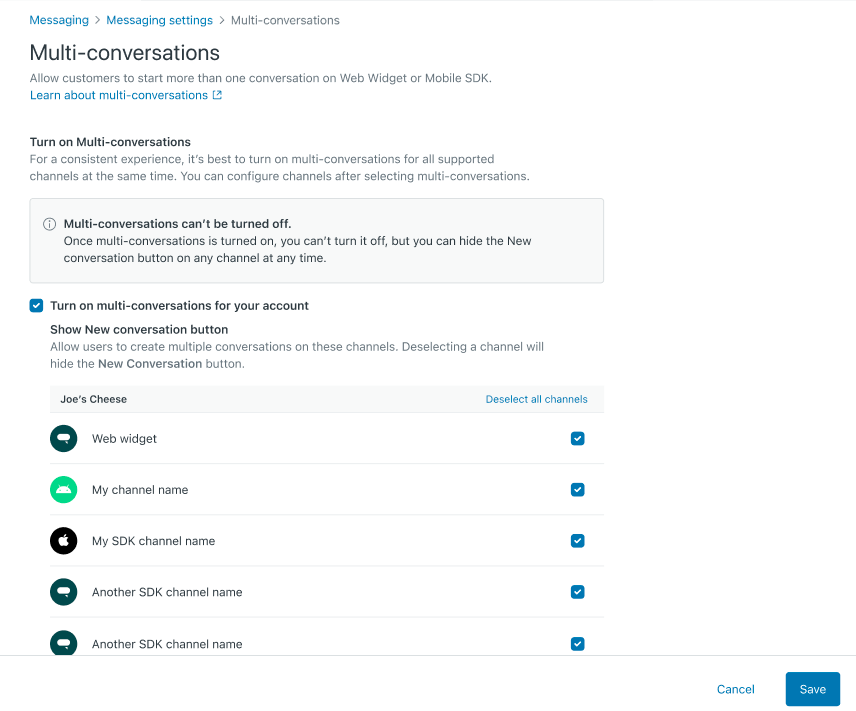
Under Web Widget and Mobile SDKs, expand Multi-conversations
-
Click Set up multi-conversations
-
Click Turn on multi-conversations for your account
-
Select the channels on which you want to offer multi-conversations
-
Click Save
6. Get Group id from Zendesk
-
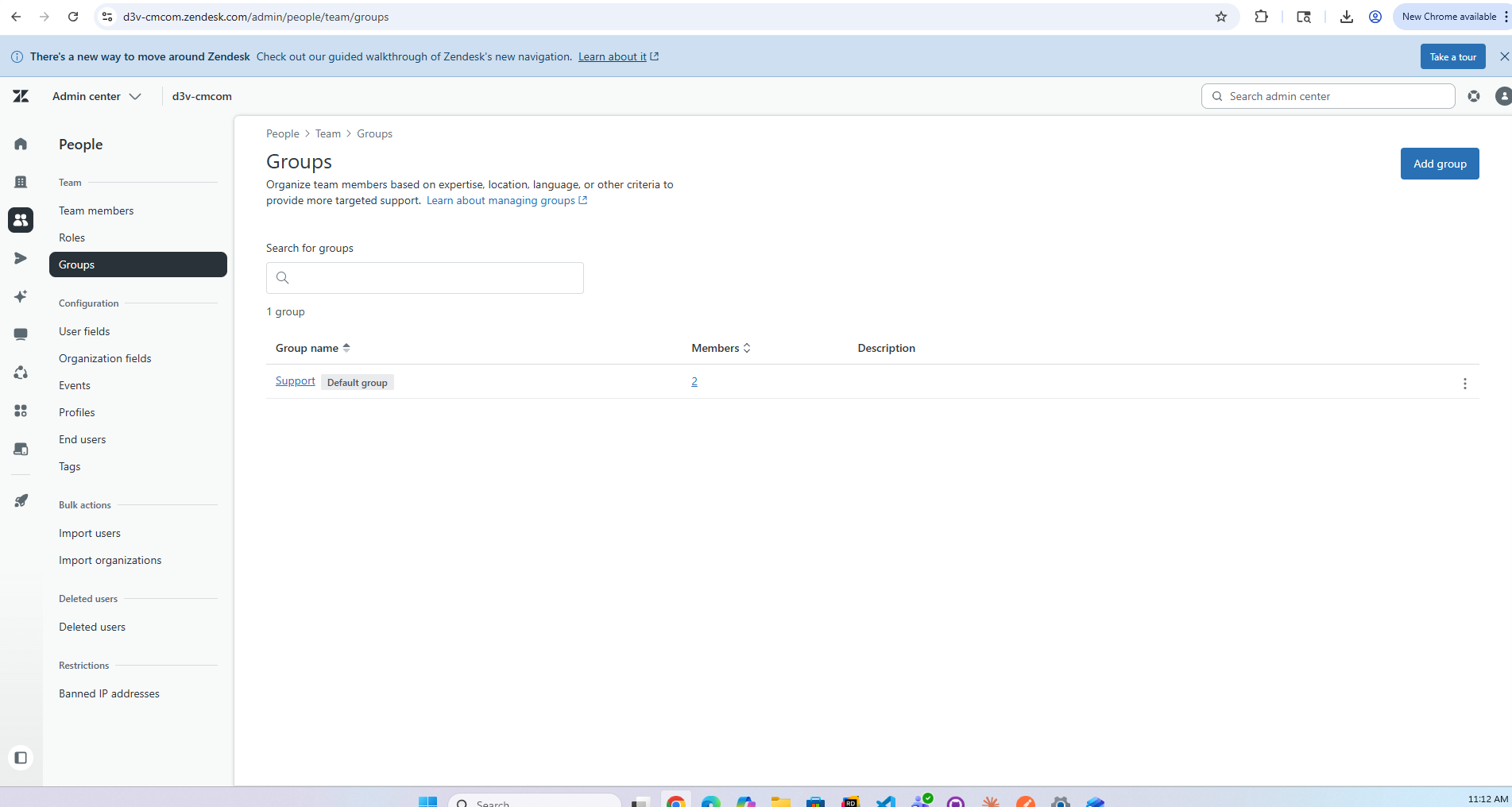
Navigate to Admin Center > People > Groups.
-
Click on the name of the group you want to identify.
-
Look at the URL in your browser address bar. The number at the end is the Group ID.
-
Example URL:
https://yoursubdomain.zendesk.com/groups/123456789(ID: 123456789).