This guide explains what you, as the customer, need to provide and configure to enable the integration between your Google Ads account with the Marketplace.
1. Prerequisites
Before proceeding, ensure you have the following:
-
Admin access to your Google Ads account.
-
Your Google Ads Customer ID.
-
Access to the Marketplace platform.
2. Authorize Google Ads Integration
To enable the integration, you need to authorize our app to access your Google Ads account. Follow these steps:
Steps to Authorize
-
Log in to the Marketplace platform.
-
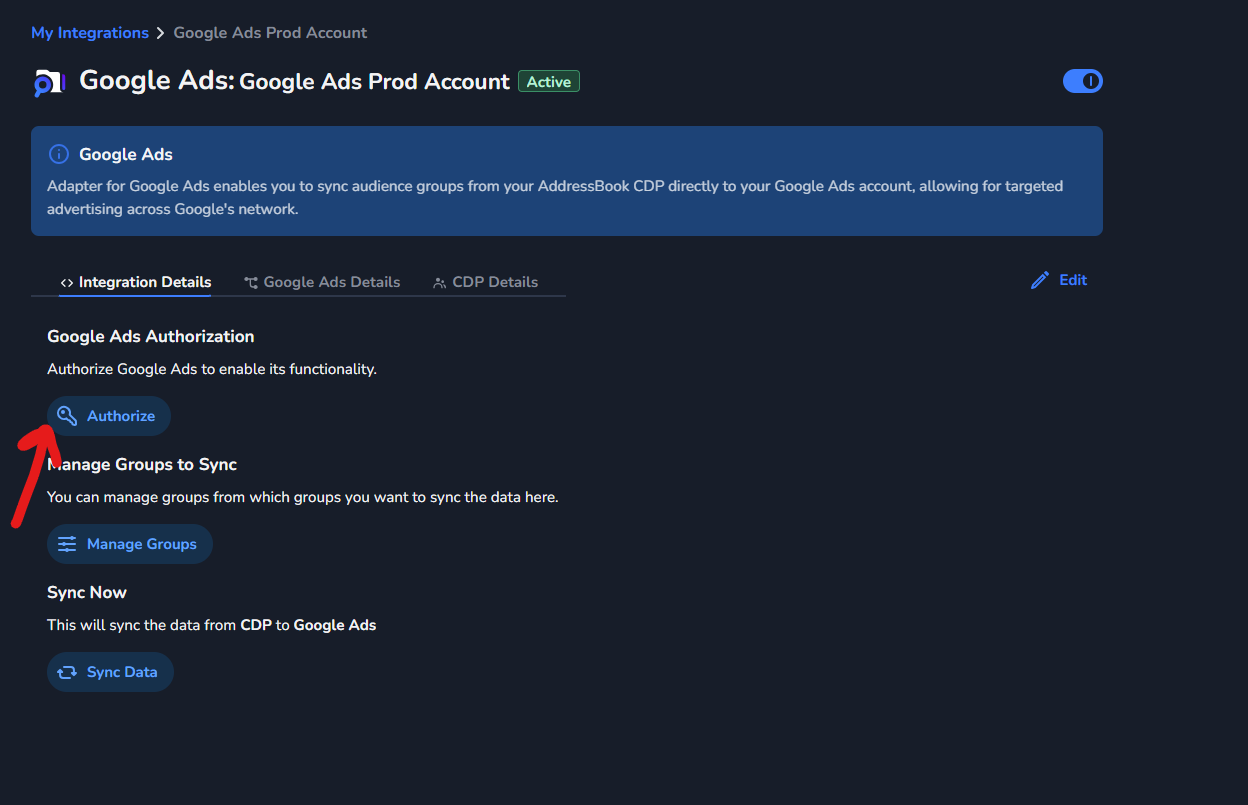
Navigate to the Integrations > Google Ads section.
-
Click on the Authorize button.
-
You will be redirected to the Google authorization page.
-
Log in with your Google account that has access to your Google Ads account.
When you connect your Google Ads account, Google may prompt you to create a passkey. Set one g.co/passkeys up at ahead of time new passkeys need up to 7 days before they work.
-
Grant the necessary permissions to our app.
-
Once authorized, our platform will generate a Refresh Token that will be used to access the Google Ads API.
What to Provide
-
Google Ads Customer ID: This is your unique identifier for your Google Ads account. You can find it in the top-right corner of your Google Ads dashboard.
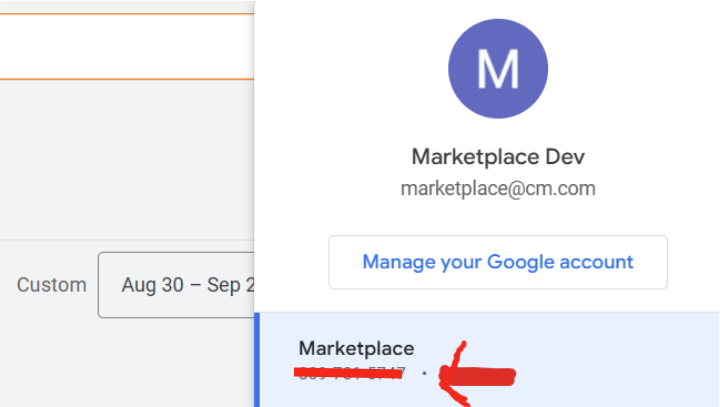
Copy it without the Dashes.
4. Manage Groups for Syncing
If you want to sync specific groups from your Address Book with Google Ads, follow these steps:
Steps to Manage Groups
-
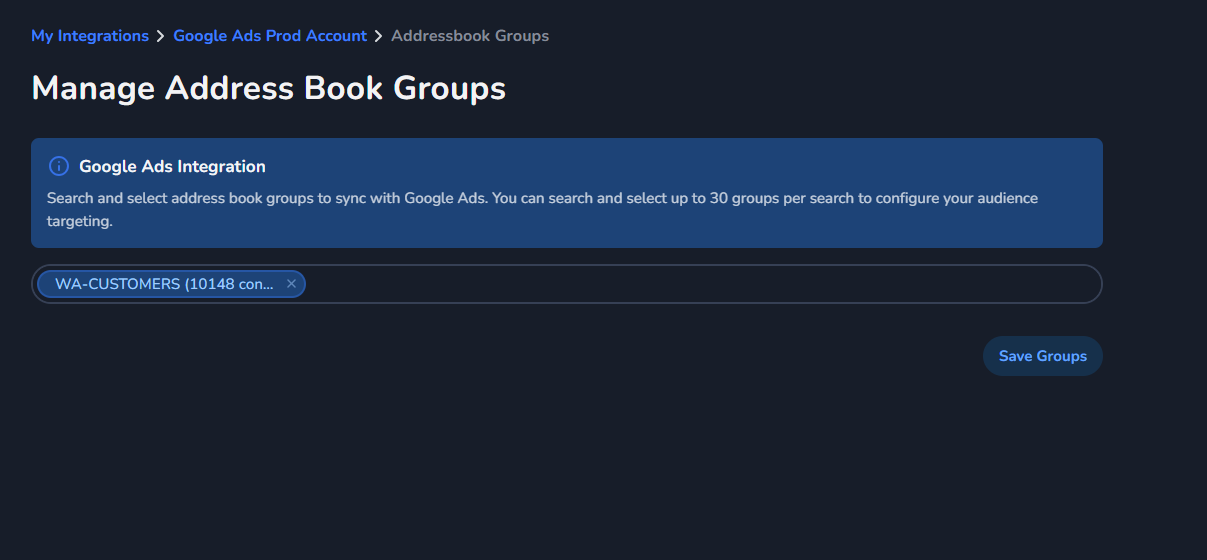
In the Marketplace platform, go to the Integration Details section under Google Ads.
-
Click on Manage Groups.

-
Select the groups you want to sync with Google Ads.