
This document provides details about how to set up the Teams app in a customer organization.
1. Setup App Package
Use the attached appPackage.zip file to upload the app to the customer's Teams instance.
2. Customize app
-
You can customize the app by modifying the details in the manifest.json file as needed by the customer.
-
If you are changing icons, please ensure those files are copied to the package folder.
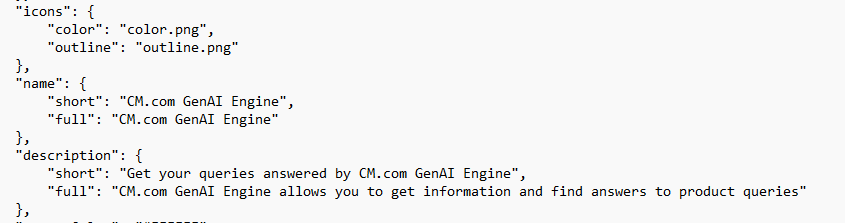
-
Ensure the color icon dimension is 192 × 192 pixels
-
All 3 files should be directly under the zip file, not inside any folder
-
Please validate the app at https://dev.teams.microsoft.com/appvalidation.html before providing it to the customer.
3. Upload app
-
Provide the customer with the package zip file after customization
-
Ask them to follow the steps in the link below to upload to their Teams instance
Reference: Upload your custom app - Teams
There is an option to try out the app personally before publishing it to make it available for everyone in the organization.
4. Get the Tenant ID
-
We need the Tenant ID of the customer to configure in the Marketplace.
-
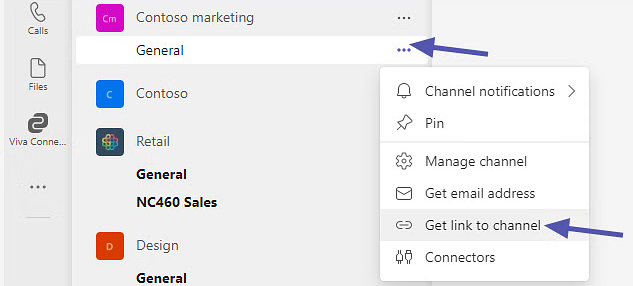
The customer can open the Teams app and copy the link to any channel to extract the Tenant ID from the URL as shown in the reference images.

5. How to add the bot to your channel
-
Go to Apps
-
Select Built for your org
-
Select Cm.Com GenAI Engine
-
Click Open
-
Select the desired channel