
Message Insights helps you analyze your messaging traffic while keeping end‑user privacy protected. This article explains how phone number visibility works for incoming and outgoing messages.
What is protected?
Message Insights shows message logs in different views (such as Log View and Conversations View). For each message, you may see:
-
Sender – typically the phone number that initiated the message (incoming).
-
Recipient – typically the phone number that received the message (outgoing).
-
Message Content – the actual text or rich message content (if enabled).
-
Other technical and routing details (channel, status, timestamps, etc.).
To protect end‑user privacy, phone numbers and message content are treated as sensitive data and can be restricted with permissions.
Incoming vs outgoing messages
In Message Insights, direction is shown as:
-
Outgoing messages – messages your systems or applications send to end‑users.
-
The end‑user phone number is shown in the Recipient column.
-
-
Incoming messages – messages your end‑users send to you.
-
The end‑user phone number is shown in the Sender column.
-
The phone‑number visibility controls described below apply to both of these situations.
How phone number permissions work
Phone number visibility uses the same permission model as Message Content and Rich Message Content, and is combined into one permission:
-
Phone numbers and (rich) message content are treated as sensitive columns.
-
The same permission controls access to:
-
End‑user phone numbers; and
-
Message content (including rich content).
-
-
By default, these can be configured as owner‑only, so that only specific user groups can see them.
-
Other users can still use Message Insights (filters, exports, statistics), but without access to full end‑user phone numbers and message content.
This combined permission applies to:
-
Recipient (outgoing messages)
-
Sender (incoming messages)
-
Conversations View, where both directions are visible in a single timeline
If you already had these columns visible to all users, your platform owner can now restrict them using this combined permission.
What restricted users see
If a user does not have permission to view phone numbers and message content:
-
The Sender, Recipient, and message content columns will be masked or hidden, depending on your configuration.
-
The user can still:
-
Filter on other properties (channel, status, country, etc.).
-
Use Direction to distinguish between incoming and outgoing traffic.
-
Export data, within the limits of their permissions.
-
-
The user cannot recover or reconstruct the full end‑user phone number or message content from the interface or export.
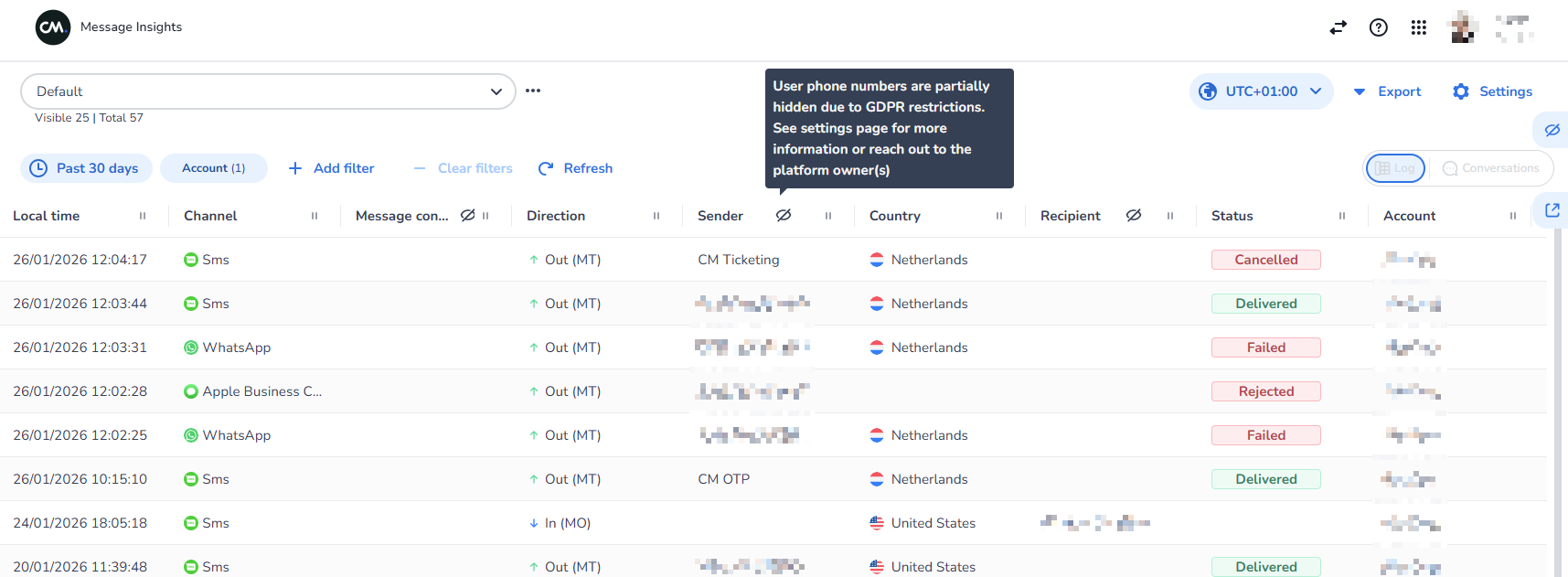
This setup helps your organization protect end‑user privacy and comply with GDPR and law‑enforcement requirements, while keeping Message Insights useful for operational work.
Conversations View and phone numbers
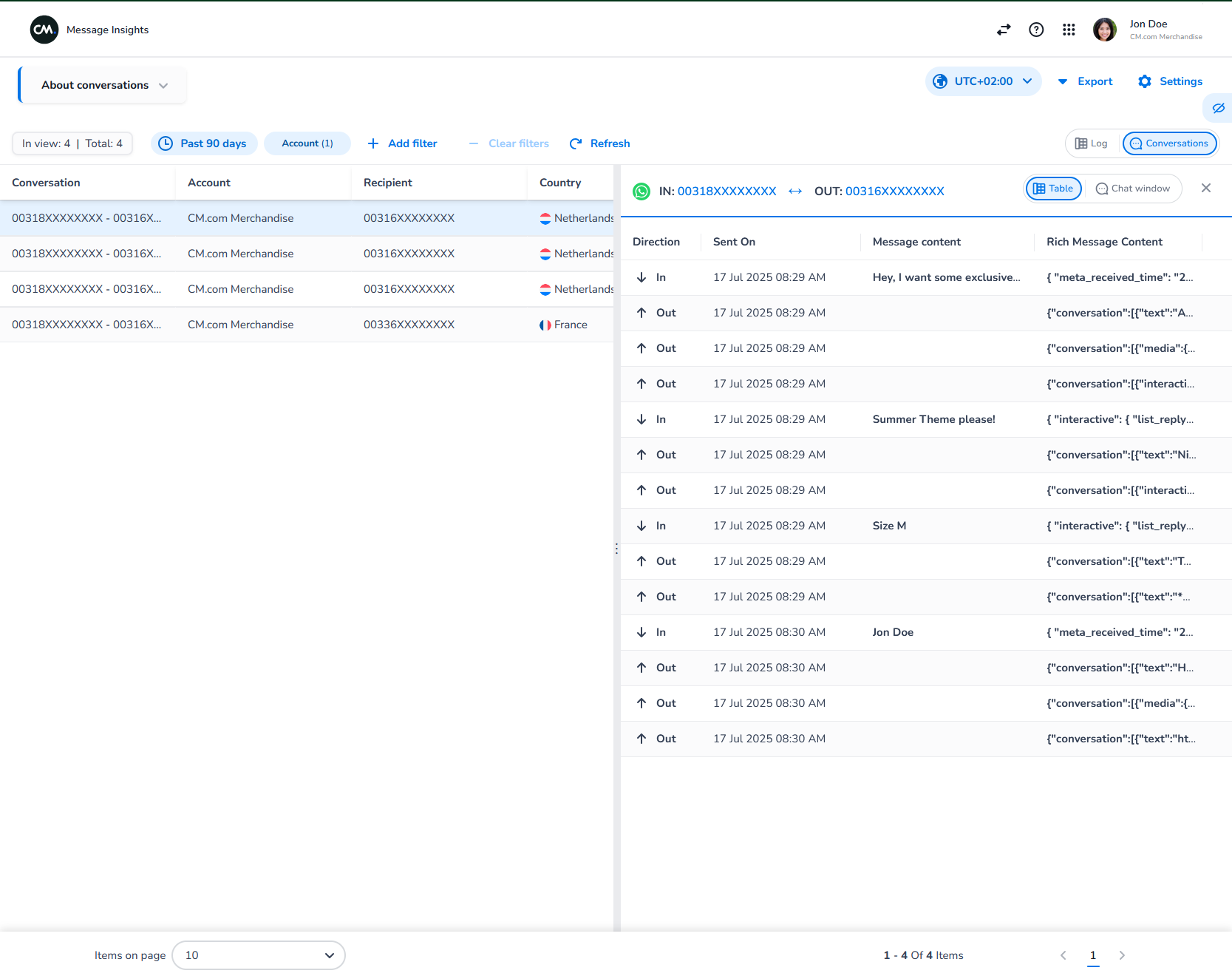
In Conversations View, you see the conversation history between your business and an end‑user, combining both incoming and outgoing messages.
Because the permission for phone numbers and content is combined into a single permission:
-
The option to show phone number and message content is only available when the user has this combined permission.
-
If the user does not have this permission, they will not see the “show phone number/content” controls and will only see the non‑sensitive parts of the conversation.
This ensures that only properly authorized users can see the full conversation context, including who the end‑user is and what was sent.
Managing phone number visibility
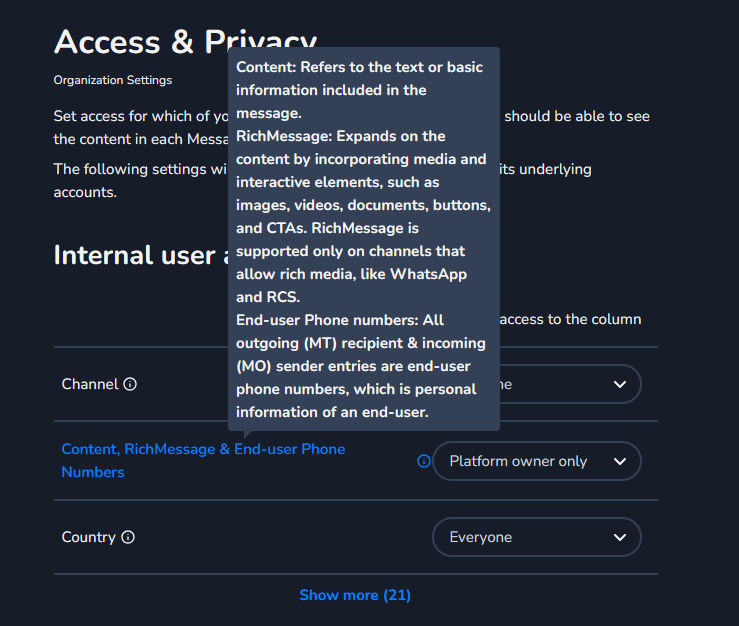
Phone number visibility is configured in the Message Insights access and privacy settings:
-
Platform owners can decide which roles are allowed to see:
-
End‑User Phone Numbers
-
Content
-
Rich Content
-
-
These columns can be restricted to:
-
Platform owners only
-
Administrators
-
All users
-
For detailed steps on how to change these settings, see the parent page “Message Insights Access and Privacy” and related articles (for example, How to see the Message Content in Message Insights and Organization Settings Management in Message Insights).
If you are unsure which option to select (platform owners, administrators, or all users), please contact your CM.com representative or your internal platform owner.