Notifications During Scanning
During the scanning process, the scanner may display different notifications or alerts. These messages provide real-time feedback about the status of a ticket, order, or system action.
It is important for scanning staff to understand these notifications, as they indicate whether access is granted, denied, duplicated, invalid, or requires further action. Correct interpretation of these messages ensures a smooth entry process and helps prevent errors at the entrance.
The notifications described below are the default system notifications. However, it is also possible to create custom notifications in the backend. This allows event organizers to define their own messages based on specific ticket types, access rules, or event requirements.
In addition, tickets can be assigned specific colors. These color indicators help staff quickly recognize different ticket categories, access levels, or special permissions during the scanning process.
In the sections below, the most common default notifications are explained, including what they mean and how to respond appropriately.
Valid Ticket
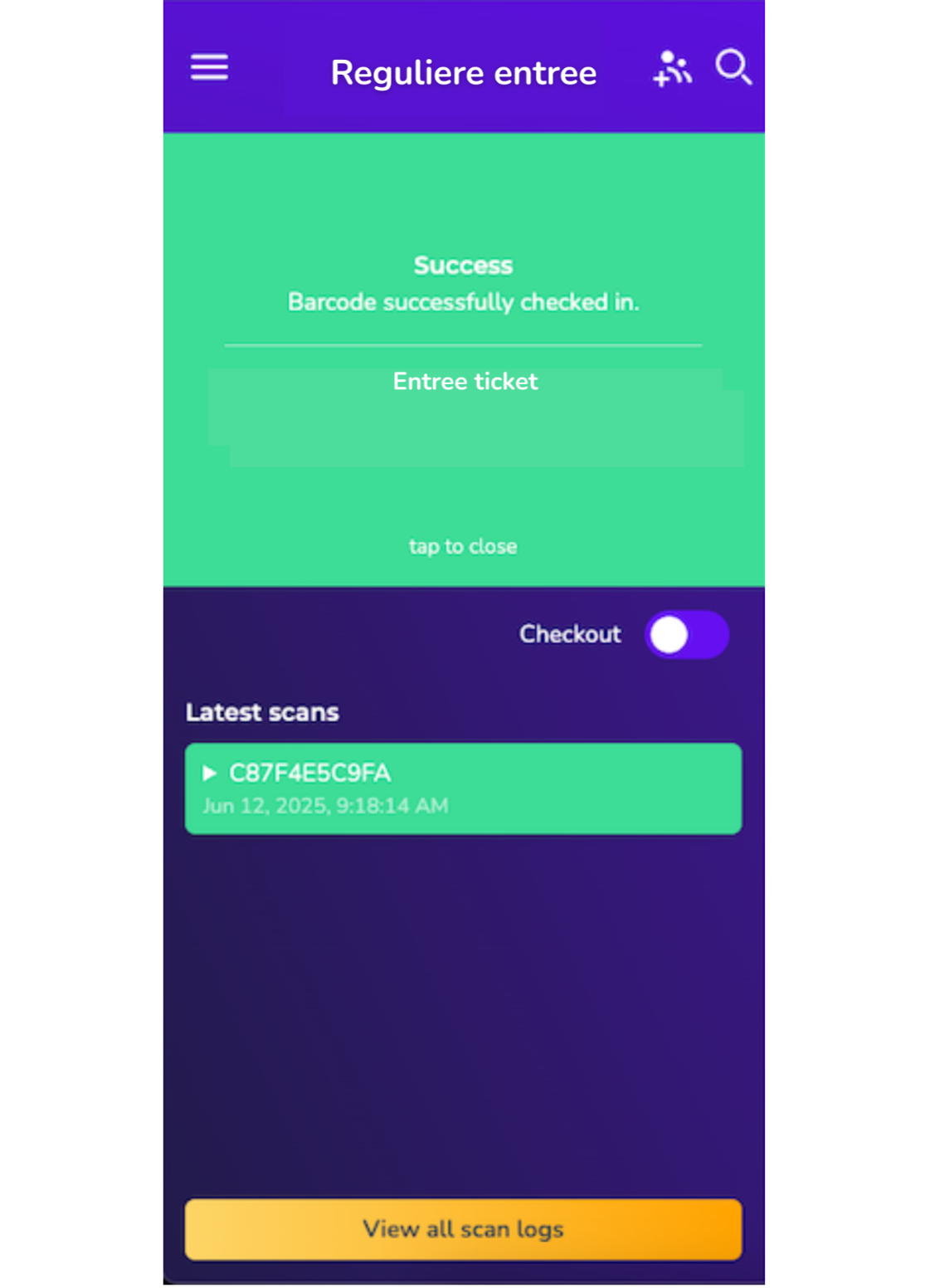
When scanning a valid ticket, the screen will turn green and a confirmation sound will be played.
This indicates that access is granted and the visitor may enter the venue.
See the example image below.
Already Scanned Ticket
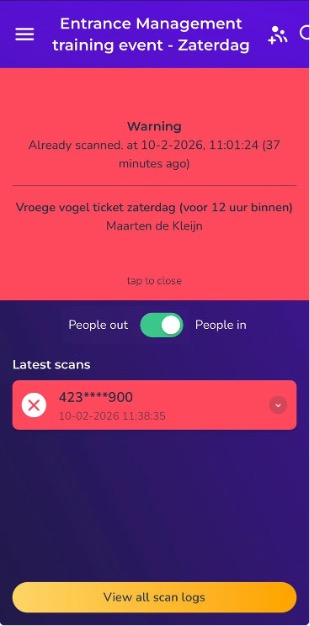
If a ticket has already been scanned, the scanner will display the message “Already Scanned.”
The original scan time will be shown directly below the message. An error sound will also be played to alert the scanning staff.
This indicates that the ticket has already been used for entry.
You can also check the “Latest Scans” overview to verify whether the same code has been scanned twice.
Additionally, it is possible to expand the scan details. In the expanded view, you can see the exact time the ticket was previously scanned.
See the example image below.
Ticket Not Valid at This Time
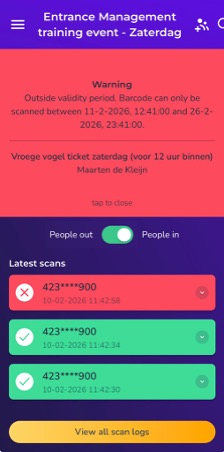
In this example below, the ticket is not valid for this scanner at the current time.
The ticket is an afternoon ticket, while the scanner is logged in as a morning scanner (this can be identified by the text shown in the purple bar at the top of the screen).
Because of this mismatch, the ticket will be rejected and the screen will turn red. An error sound will also be played. This means the visitor does not have access at this moment.
In this specific example, the visitor will be allowed to enter after 12:00 PM, when the ticket becomes valid.
See the example image below.
Error Message: Barcode Unknown
When a barcode is not recognized by the system, the message “Barcode Unknown” will appear on the scanner. An error sound will also be played.
In this case, please check the following on the visitor’s ticket:
-
Is the ticket valid for this event?
-
Does the ticket display the CM logo?
-
Does the QR code match the standard CM format (and is it not issued by another provider or manually generated)?
-
Ask the visitor if they have another ticket that may be valid.
If the barcode cannot be verified after these checks, the ticket should not be accepted.
See the example image below.
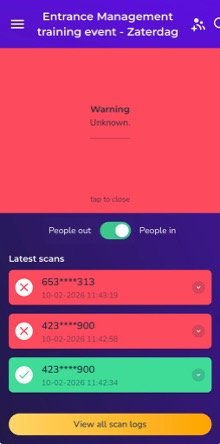
Warning: No scan rule on this plan
The ticket is recognized by the system, but it may be valid for a different date, time slot, or entrance than the one currently being used.
Please carefully check the ticket details (such as date, time, and entrance) on the ticket before allowing entry.
If the ticket appears to be correct but the warning persists, verify that the correct scan plan or entrance configuration is being used.
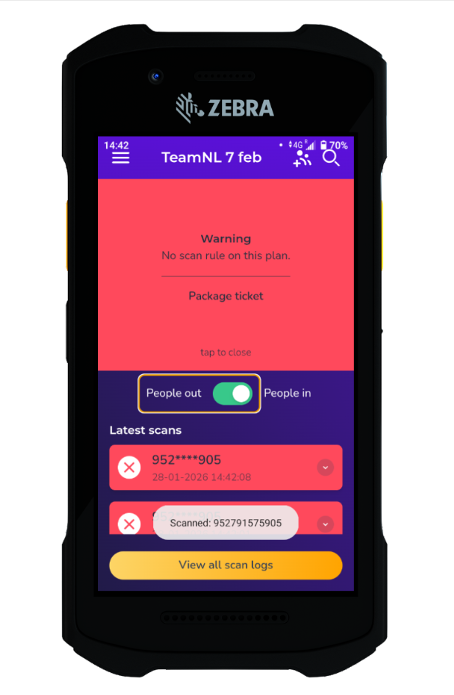
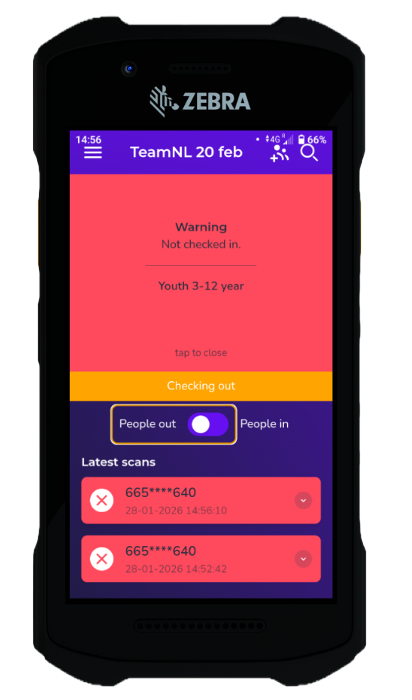
Warning: Not checked in
The ‘People out’ toggle is currently enabled. This means the scanner is set to check visitors out instead of checking them in.
As a result, the system cannot find a previous check-in for this ticket.
Please disable the ‘People out’ toggle to switch back to check-in mode, so visitors can be scanned in correctly.