
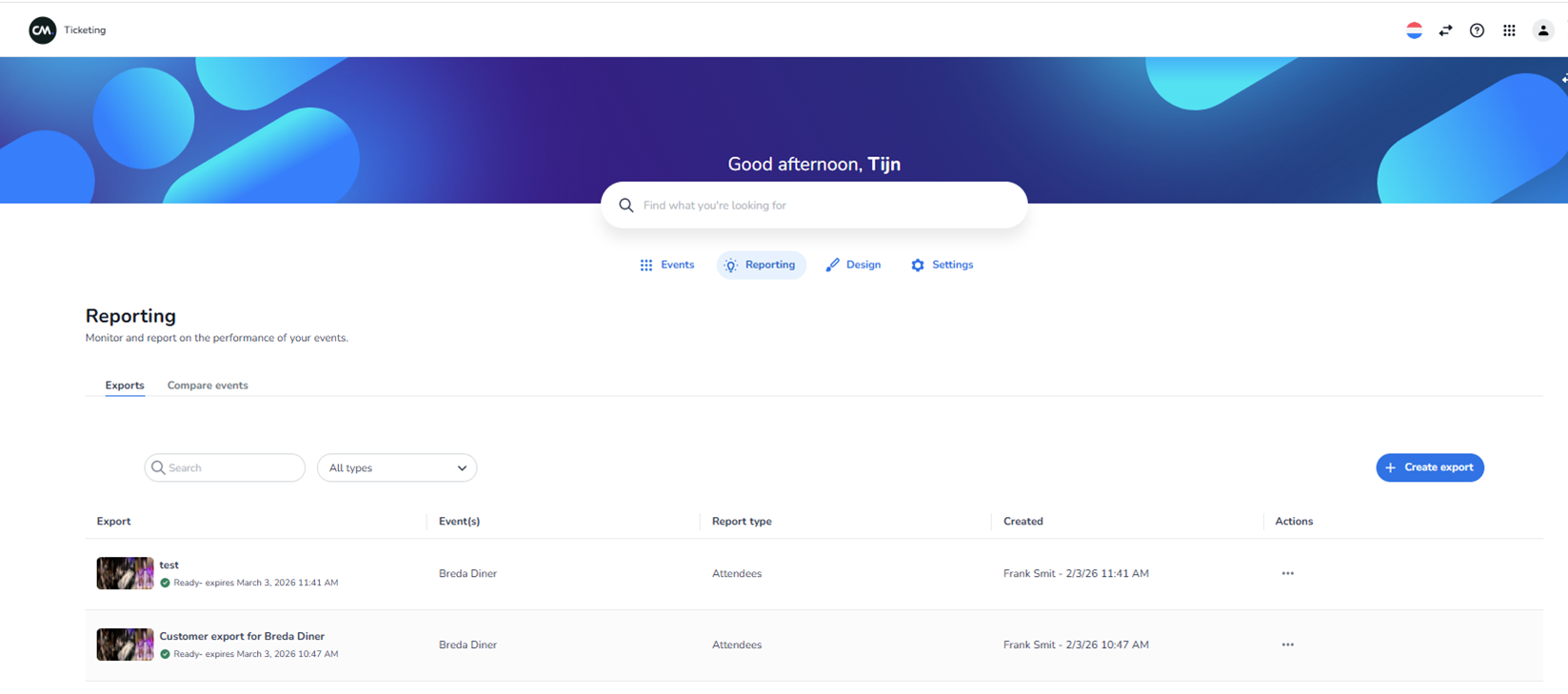
UI Knowledge – Reporting Screen (Exports Overview)
NXT Gen Ticketing Platform
Screen Context
This screen is visible after:
-
Clicking Reporting in the top navigation.
-
The Exports tab is selected.
The active top navigation tab is Reporting.
Top Navigation Area (Same as Other Screens)
Visible at the top:
-
CM logo (top-left)
-
“Ticketing” label
-
Language selector (flag icon)
-
Help icon (question mark)
-
App/grid icon
-
User/profile icon
Below that:
-
Greeting text (e.g. “Good afternoon, [User Name]”)
-
Global search bar
-
Main navigation tabs:
-
Events
-
Reporting (active)
-
Design
-
Settings
-
Reporting Section Header
Title:
Reporting
Subtitle:
“Monitor and report on the performance of your events.”
Reporting Sub-navigation Tabs
Below the Reporting title:
-
Exports (active in screenshot)
-
Compare events
Exports tab shows previously created reports.
Compare events tab likely allows comparison between events.
Exports Screen Layout
-
Filter Area
Below the sub-navigation:
-
Search field (left)
-
Used to search for specific exports
-
-
Dropdown filter (e.g., “All types”)
-
Filters exports by report type
-
-
Create Export Button
Right side of the screen:
-
Blue button: + Create export
This button allows the user to generate a new export.
-
Exports Table
Below the filter section:
A table listing created exports.
Table columns:
-
Export (export name + thumbnail)
-
Event(s) (linked event)
-
Report type (e.g., Attendees)
-
Created (creator name + date/time)
-
Actions (three-dot menu)
Export Row Structure
Each row contains:
-
Thumbnail image (left)
-
Export name (e.g., test / Customer export)
-
Status indicator:
-
Example: “Ready – expires [date/time]”
-
-
Event name
-
Report type (e.g., Attendees)
-
Created by + timestamp
-
Three-dot menu for actions
Functional Meaning of Elements
-
Clicking export name → Opens export details or download view
-
“Create export” button → Starts export creation flow
-
Search field → Filters visible exports
-
Dropdown filter → Filters by export/report type
-
Three-dot menu → Additional actions (e.g., download, delete)
Important Dynamic Elements
The following are dynamic and account-specific:
-
Export names
-
Event names
-
Report types
-
Creator names
-
Dates and times
-
Number of exports shown
The agent must treat all of these as variable data.
What This Screen Represents
This screen allows users to:
-
View previously generated exports
-
Filter export results
-
Create new exports
-
Manage export files
It is part of the Reporting section of the platform.