
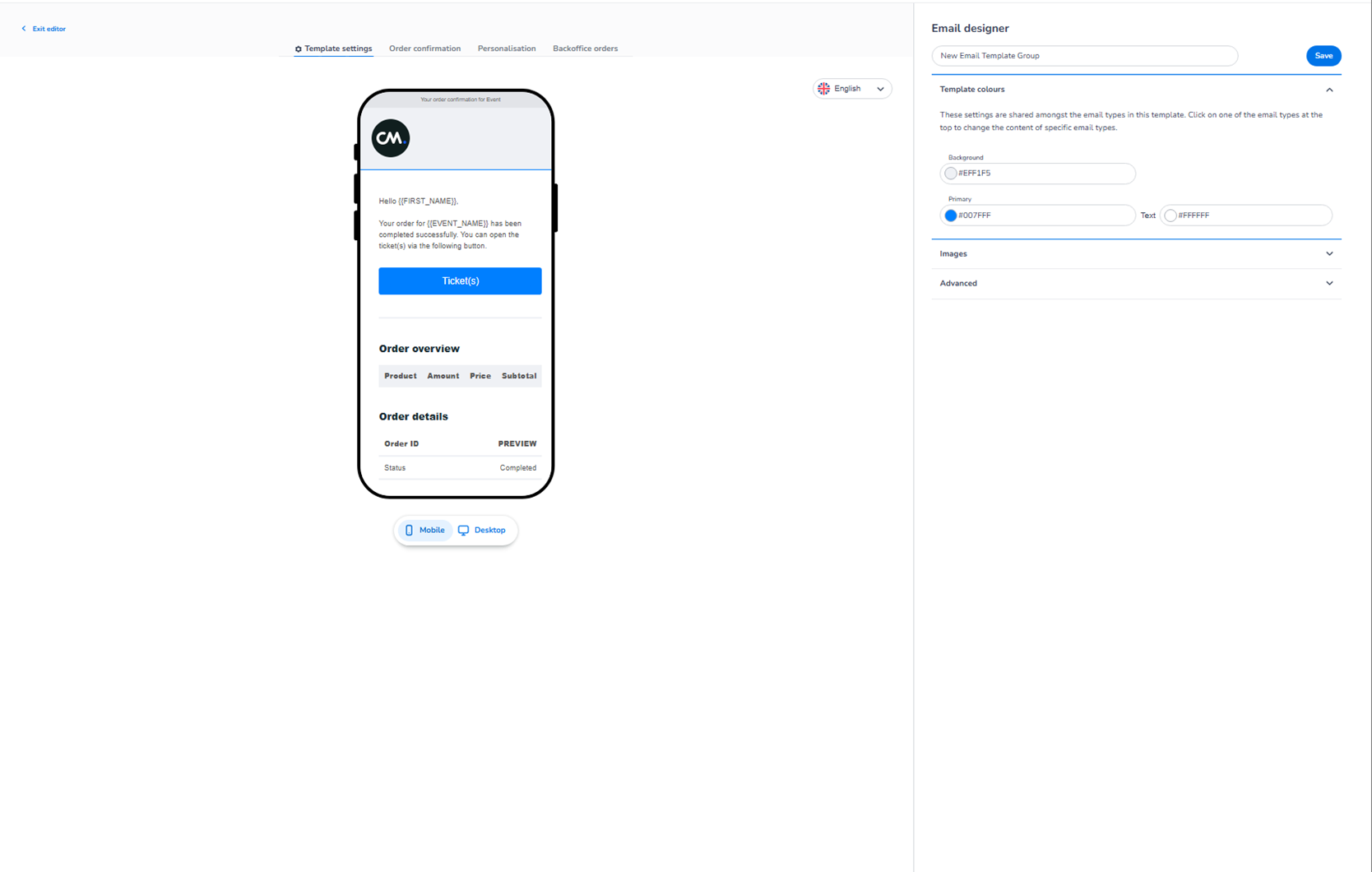
This screen appears when editing an existing email template inside:
Dashboard → Design → Email templates → Edit
This is the visual email editor where you configure branding, layout behaviour, and email type content.
Top Navigation Tabs
At the top of the editor, you see multiple tabs:
-
Template settings
This tab controls the global styling of the email template.
It defines shared elements such as:
-
Background colour
-
Primary brand colour
-
Text colour
-
General styling rules
-
Images and logo usage
-
Advanced styling options
These settings apply to all email types inside this template group.
If you change something here, it affects:
-
Order confirmation emails
-
Personalisation emails
-
Backoffice order emails
This tab controls the visual foundation of the template.
-
Order confirmation
This tab allows you to configure the layout of:
-
The order confirmation email sent to customers after purchase.
You can preview and adjust:
-
Header area
-
Greeting text
-
Ticket button
-
Order overview section
-
Order details section
This tab focuses specifically on the email customers receive after completing an order.
-
Personalisation
This tab controls:
-
The email sent when tickets are personalised.
-
Communication related to assigning tickets to individuals.
You can configure:
-
Instruction blocks
-
Layout sections
-
Visual styling for this specific email type
This is a separate email type from order confirmation.
-
Backoffice orders
This tab manages:
-
Emails triggered from manually created orders.
-
Backoffice reservation flows.
These emails may differ slightly from standard order confirmations but follow the same branding rules.
Language Selector
Top right corner:
-
Language dropdown (e.g., English)
Purpose:
-
Preview the template in different languages (if configured).
-
Switch between language versions visually.
This is for preview purposes.
Email Preview Area
Center of the screen:
-
Live visual preview of the email.
-
Displayed inside a device frame.
This shows how the email will appear to the recipient.
Mobile / Desktop Toggle
Below the preview:
-
Mobile
-
Desktop
These buttons allow you to switch between:
-
Mobile layout preview
-
Desktop layout preview
Important clarification:
There is no functional difference when editing between Mobile and Desktop.
Any change you make:
-
Applies to both versions.
-
Affects the same email template.
The only difference is how the design is displayed in the preview:
-
Mobile shows the responsive stacked layout.
-
Desktop shows the wider layout.
The toggle changes preview mode only — not the configuration itself.
Email Designer Panel (Right Side)
On the right side, you see the Email Designer configuration panel.
This includes:
-
Template name field
-
Save button
-
Template colours
-
Image configuration
-
Advanced settings
This panel controls the styling and structure for the selected tab.
Save Button
Top right inside the designer panel:
-
Save
Purpose:
-
Apply and store all changes made to the template.
Changes are not active until saved.
What This Editor Controls
The Email Template Editor controls:
-
Branding and colours
-
Layout structure
-
Email type configuration
-
Responsive behaviour (previewed)
-
Visual consistency across communication
It affects:
-
Order confirmation emails
-
Personalisation emails
-
Backoffice emails
It does NOT control:
-
Ticket pricing
-
Shop configuration
-
Payment logic
-
Sales triggers
Functional Summary
Within the Email Template Editor, the user can:
-
Configure global template styling (Template settings)
-
Customise order confirmation emails
-
Customise personalisation emails
-
Customise backoffice order emails
-
Preview Mobile and Desktop layouts
-
Save branding changes
Mobile and Desktop only change the visual preview —
all edits apply universally to the same email template.