
Description
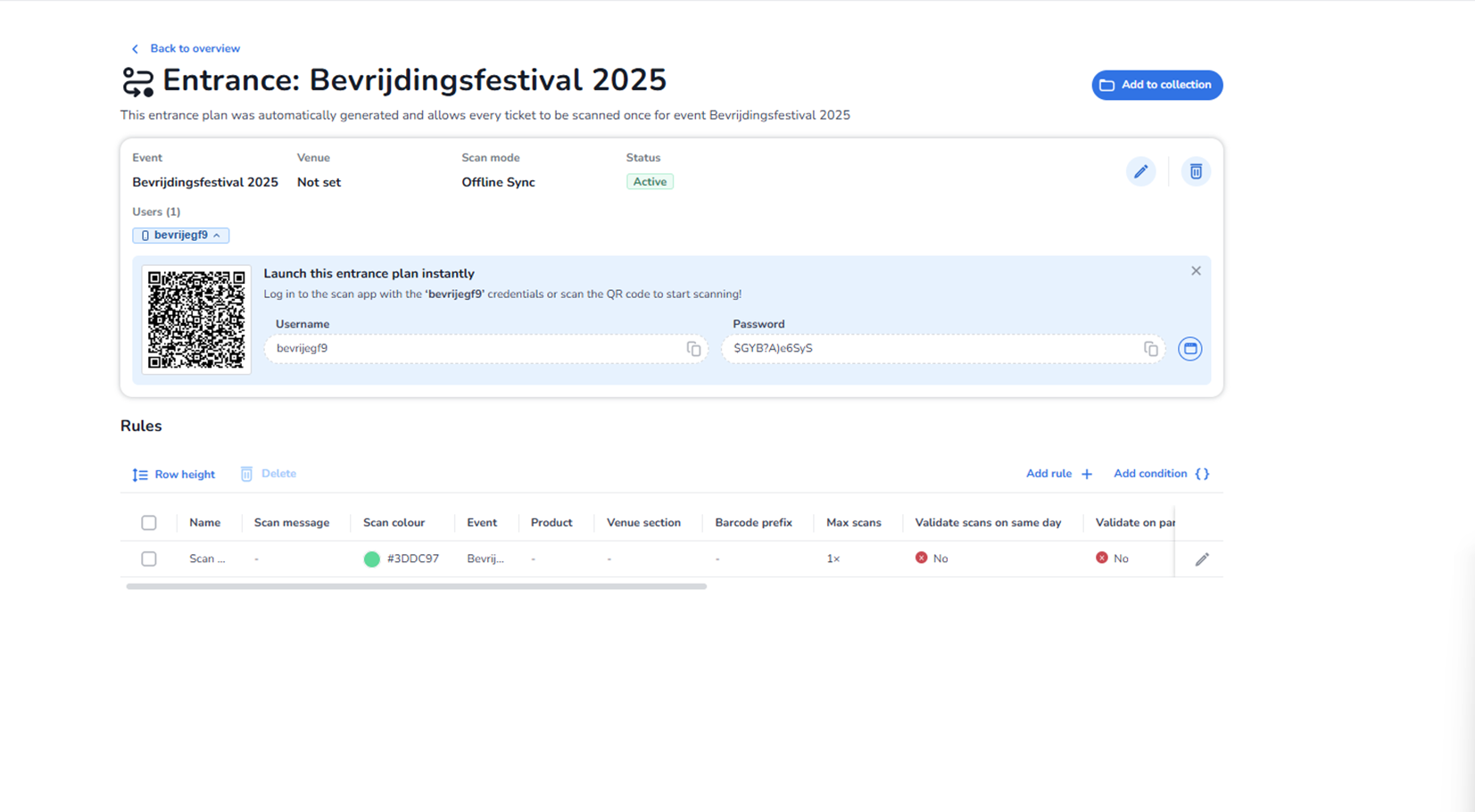
This screen appears when a user selects a specific entrance plan from the Entrance Plans overview. It displays the detailed configuration of that entrance plan.
An entrance plan defines how ticket validation behaves at entry points for a specific event. From this page, users can:
-
View event and scan configuration details
-
Assign or review scanning users
-
Instantly launch scanning access
-
Configure validation rules
-
Add new rules or conditions
-
Edit or delete the entrance plan
All event names, usernames, credentials, and values shown in the screenshot are example data and differ per organisation.
Top Navigation
Back to overview
Located at the top-left.
Function:
-
Returns to the Entrance Plans overview.
-
Does not modify the current entrance plan.
Entrance Plan Header
Displays the entrance plan name.
Below the title, a short description may explain how the entrance plan was created and what its purpose is (for example, automatically generated plans).
Add to collection
Located at the top-right.
Function:
-
Adds this entrance plan to a collection group.
-
Used for logical grouping of entrance plans.
-
Does not change validation rules.
Entrance Plan Overview Panel
This panel summarises key configuration details.
Event
Displays the event associated with this entrance plan.
Function:
-
Defines which ticket pool is validated.
Venue
Displays the linked venue.
If not set:
-
Indicates the entrance plan is not yet tied to a specific venue.
Scan Mode
Example shown: Offline Sync
Function:
-
Defines how scanning behaves.
-
Offline Sync allows devices to validate scans offline and synchronise later.
Status
Indicates whether the entrance plan is active.
Active:
-
Scanning is allowed.
Inactive:
-
Scanning is disabled for this plan.
Edit Icon (Pencil)
Located in the overview panel.
Function:
-
Allows editing of general entrance plan settings.
Delete Icon (Trash Bin)
Function:
-
Deletes the entrance plan.
-
Likely requires confirmation.
Users Section
Displays assigned scanning users.
Each user listed:
-
Has permission to log into the scan app using this entrance plan.
-
Is linked to specific scanning credentials.
Launch This Entrance Plan Instantly
This section provides immediate access credentials for scanning.
QR Code
Function:
-
Can be scanned by the scanning app.
-
Instantly logs in the assigned scanning user.
-
Speeds up operational setup.
Username Field
Displays the scanning username.
Includes:
-
Copy icon to copy username.
Password Field
Displays scanning password.
Includes:
-
Copy icon to copy password.
Close Icon
Closes the instant launch panel.
Rules Section
This is the core configuration area for scan validation logic.
Row Height
Adjusts visual density of rule rows.
Delete
Deletes selected rules.
Requires:
-
Selecting rule checkboxes first.
Add Rule
Creates a new validation rule.
Used to define:
-
Ticket access logic
-
Scan behaviour constraints
Add Condition
Adds additional conditional logic to rules.
Used for:
-
Advanced validation scenarios
-
Complex entry restrictions
Rules Table
Each row represents one validation rule.
Columns include:
Name
-
Identifier of the rule.
Scan Message
-
Message shown upon scanning.
Scan Colour
-
Colour indicator shown on successful or failed scan.
Event
-
Event scope for the rule.
Product
-
Restricts rule to specific ticket products.
Venue Section
-
Applies rule to specific venue section.
Barcode Prefix
-
Restricts rule to barcodes with specific prefix.
Max Scans
-
Defines how many times a ticket may be scanned.
Validate Scans on Same Day
-
Determines whether repeat scans are allowed on the same day.
Validate on Parallel Devices
-
Determines behaviour when multiple devices scan simultaneously.
Edit Rule Icon (Pencil in row)
Function:
-
Opens detailed editing of that specific rule.
What This Page Does
This page defines how tickets are validated at entry points.
It controls:
-
Who can scan
-
What tickets are valid
-
How many times tickets may be used
-
What feedback is shown to scanners
-
Whether repeat scans are allowed
-
How scanning behaves across devices
It acts as the operational rule engine for entrance control.
What You Can Do With It
From this page, users can:
-
Modify general entrance plan settings
-
Assign scanning users
-
Launch scanning instantly via QR
-
Create new validation rules
-
Add advanced conditions
-
Delete or edit rules
-
Control scan limits and validation behaviour
-
Deactivate or delete entrance plans
This page is typically used by:
-
Event operations managers
-
Access control administrators
-
Technical scanning supervisors