
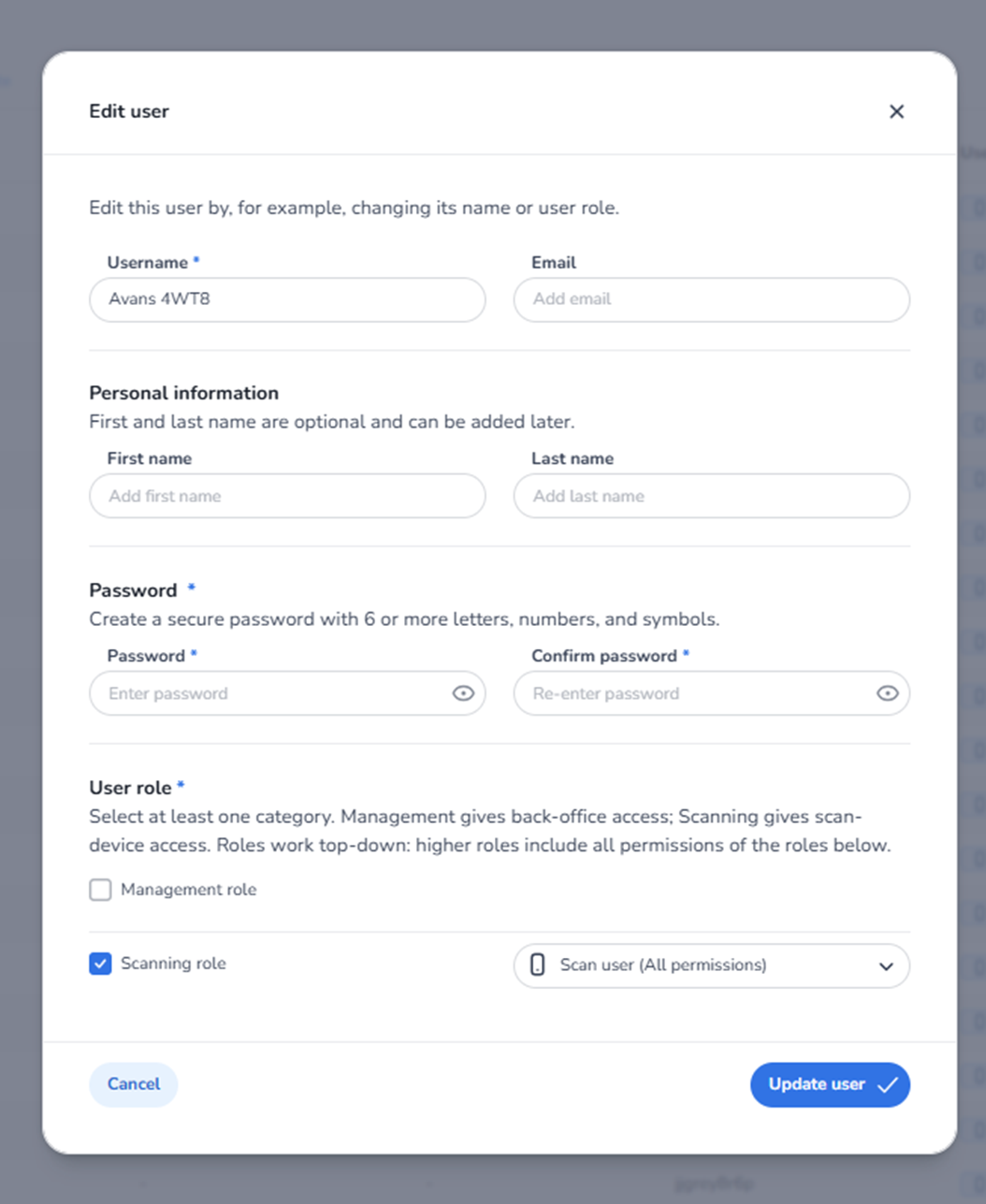
Description
When clicking the pencil icon next to a user in the Users overview, the Edit user modal opens.
This modal allows administrators to update:
-
Account credentials
-
Personal details
-
Password
-
User role and permissions
All values shown in the screenshot are example data and differ per organisation.
Purpose of This Screen
This modal controls:
-
What a user can access
-
Whether they can scan tickets
-
Whether they can manage configuration
-
How they log into the system
It is the central control point for individual user permissions.
Modal Structure
The modal contains:
-
A title
-
Editable account fields
-
Role configuration
-
Action buttons
-
A close icon
Top Section
Edit User Title
Indicates you are modifying an existing user account.
Close Icon (X)
Located in the top-right corner.
Function:
-
Closes the modal.
-
Discards unsaved changes.
Account Information Section
Username (Required)
Field: Username *
Function:
-
Unique login identifier.
-
Used to sign in to the system or scan app.
Important:
-
Must remain unique.
-
Changing this may affect login credentials.
Field: Email
Function:
-
Used for communication.
-
Can be used for account recovery.
-
May be required for invitation workflows.
Personal Information Section
First Name
Last Name
Optional fields.
Purpose:
-
Improve identification of users.
-
Useful for reporting and administration.
-
Can be left empty if not required.
Password Section
Password (Required if changing)
Allows administrators to reset or change the user’s password.
Requirements:
-
Minimum length enforced.
-
Should include letters, numbers, and symbols.
Confirm Password
Must match the password field.
Prevents:
-
Typing mistakes.
-
Incomplete password updates.
Visibility Icon (Eye Icon)
Located inside password fields.
Function:
-
Toggle between hidden and visible password.
-
Helps verify typed passwords.
User Role Section
This section determines the permission level of the user.
Important rule:
Roles are hierarchical. Higher roles include permissions of lower roles.
Management Role (Checkbox)
Grants:
-
Access to back-office configuration.
-
Access to events, venues, products, rules.
-
Administrative control.
Intended for:
-
Administrators
-
Event managers
-
System managers
Scanning Role (Checkbox)
Grants:
-
Access to scan devices.
-
Ability to scan tickets at entrances.
Role Dropdown (Next to Scanning Role)
Example shown: Scan user (All permissions)
Function:
-
Defines the specific scanning permission level.
-
Controls what the scan user can do.
Possible controls may include:
-
Basic scanning only
-
Advanced scan permissions
-
Offline sync rights
-
Special validation permissions
Bottom Action Buttons
Cancel
Function:
-
Closes modal.
-
Discards changes.
-
Returns to Users overview.
Update User (Primary Button)
Function:
-
Saves all modifications.
-
Updates credentials and permissions immediately.
-
Applies role changes instantly.
After saving:
-
The modal closes.
-
Changes are reflected in the Users list.
What You Can Do From This Screen
-
Change login credentials
-
Reset passwords
-
Assign scanning rights
-
Promote or demote users
-
Grant administrative access
-
Remove scanning access
-
Improve user identification
Security Importance
This screen directly affects:
-
System security
-
Access control
-
Operational integrity
-
Scan permissions at live events
Only authorized administrators should manage user roles.