
Description
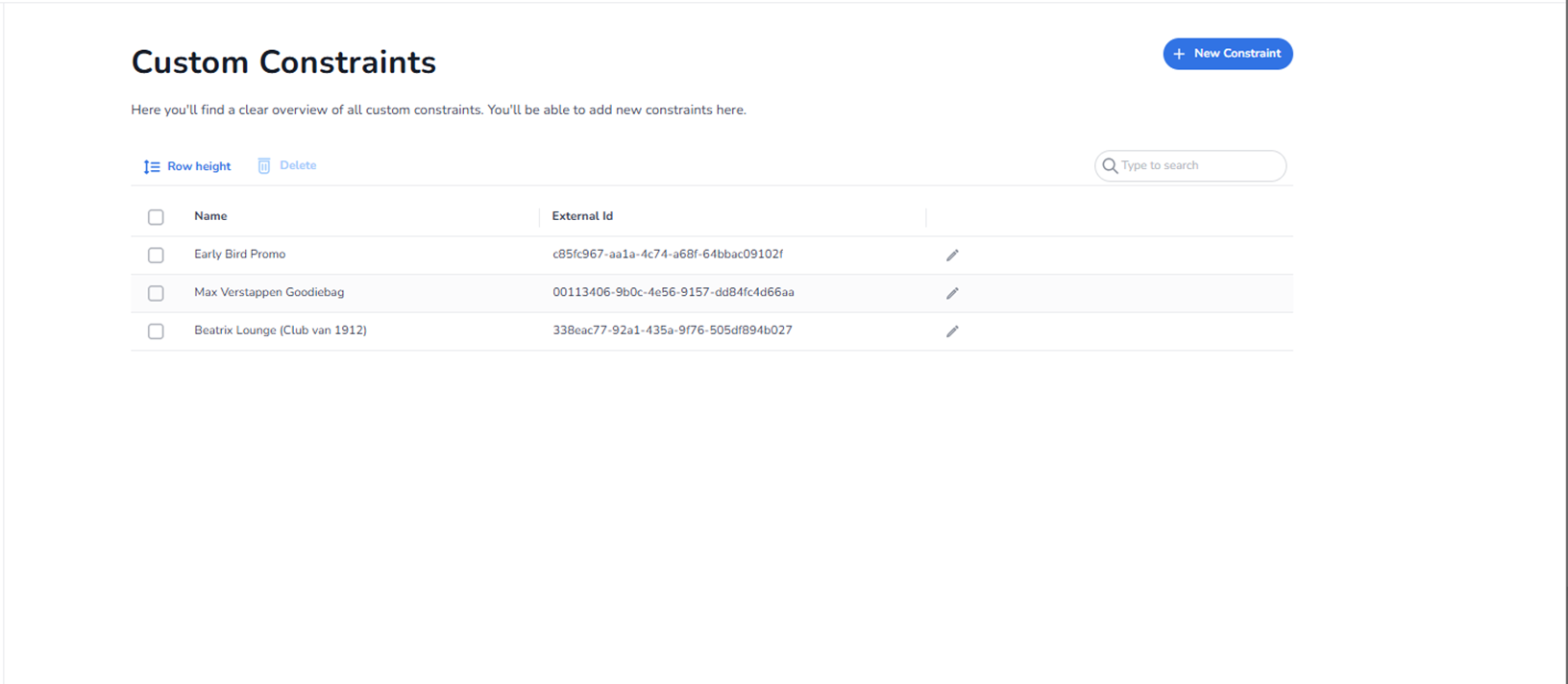
The Custom Constraints section provides an overview of all custom validation or business rules that have been created within the organisation.
Custom constraints are used to define additional restrictions or conditions that apply to tickets, products, or entrance validation. They allow organisations to implement tailored access logic beyond standard configurations.
From this page, users can:
-
View existing constraints
-
Search for specific constraints
-
Add new constraints
-
Edit existing constraints
-
Delete selected constraints
All names and identifiers shown in the screenshot are example data and differ per organisation.
Top Right Action
New Constraint
Blue button located in the top-right corner.
Function:
-
Opens the constraint creation workflow.
-
Allows users to define a new custom rule.
-
Used to add specific validation logic or access restrictions.
Custom constraints can later be linked to:
-
Entrance plans
-
Products
-
Ticket validation logic
Action Controls (Above Table)
Row Height
Adjusts the visual density of the constraint table.
Allows:
-
Compact view
-
Expanded view
Improves readability depending on user preference.
Delete
Deletes selected constraints.
To use:
-
Select one or more constraints using the checkboxes.
-
Click Delete.
-
Confirm deletion if required.
Important:
Deleting a constraint may affect:
-
Entrance plan rules
-
Ticket validation behaviour
-
Access restrictions
Search Field (Right Side)
Allows searching within the constraint list.
Users can search by:
-
Constraint name
-
External ID
Search works independently or alongside other filtering.
Constraints Table
Each row represents one custom constraint.
Checkbox (Left Side)
Used to select constraints for bulk actions such as deletion.
Name
Displays the constraint name.
The name typically reflects:
-
The business rule purpose
-
The access limitation
-
The promotion or condition it represents
Clicking the name or edit icon opens the constraint for modification.
External ID
Unique identifier used for:
-
API integrations
-
External mapping
-
Internal system references
This ID ensures consistency across integrations.
Edit Icon (Pencil)
Located at the end of each row.
Function:
-
Opens the constraint edit configuration.
-
Allows modification of rule logic or metadata.
What This Page Does
The Custom Constraints page acts as a central repository for advanced validation rules.
It enables organisations to:
-
Implement custom business logic
-
Restrict ticket usage based on specific conditions
-
Add promotional or access-based limitations
-
Create reusable validation rules
These constraints can then be applied within:
-
Entrance plans
-
Ticket validation logic
-
Access control workflows
What You Can Do Here
From this page, users can:
-
Create new custom validation rules
-
Modify existing constraints
-
Remove outdated rules
-
Manage advanced ticket logic
This section is typically used by:
-
Operations administrators
-
Access control managers
-
Ticketing specialists
-
System administrators