
Description
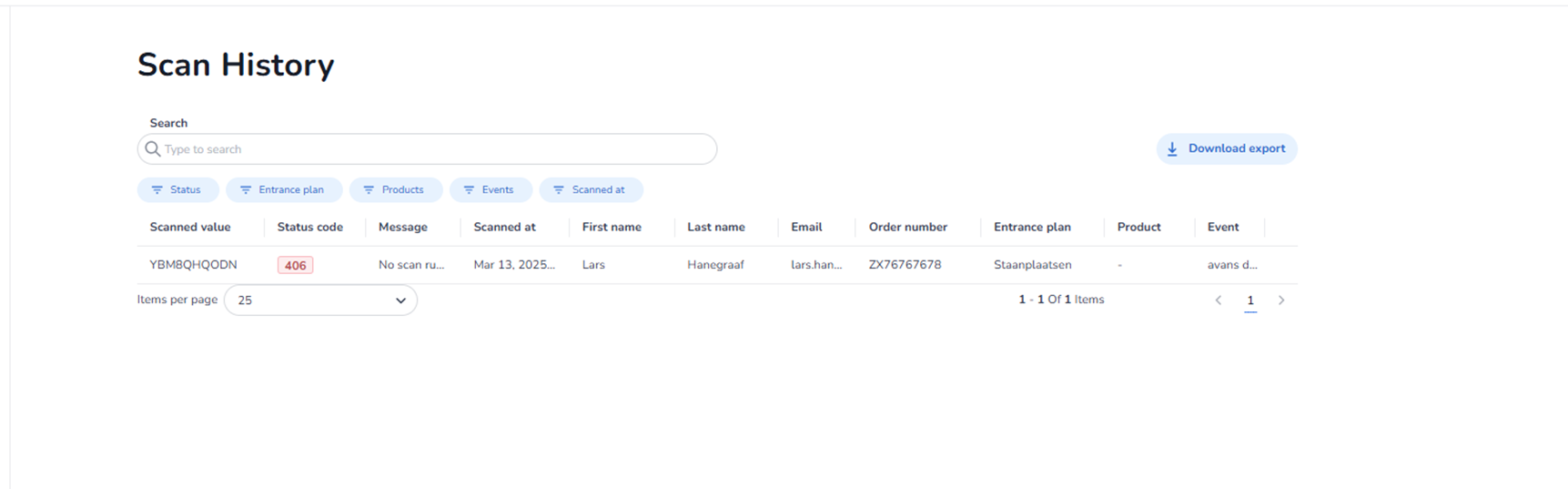
This screen appears when a user clicks Scan history within the Entrance Management environment.
The Scan History page provides a detailed log of all individual scan actions within the selected organisation and date scope. It allows users to review, filter, search, and export scan records for operational control, auditing, and reporting purposes.
All data shown on this page is dynamic and organisation-specific. The values displayed in the screenshot are examples and differ per environment.
This page enables users to:
-
View individual scan records
-
Analyse scan results (valid, invalid, rejected)
-
Filter scan data by multiple criteria
-
Search specific scans
-
Export scan history for reporting or compliance
Page Header
Title: Scan History
Confirms that the page displays a detailed overview of scanning events rather than aggregated analytics.
Top Controls
Search Field
Located at the top of the page.
Placeholder: “Type to search”
Function:
-
Allows users to search across scan records.
-
Can typically match values such as:
-
Barcode
-
Name
-
Email
-
Order number
-
Other searchable fields
-
The search dynamically filters the visible results.
Filter Buttons
Located directly below the search field.
Available filter categories:
-
Status
-
Entrance plan
-
Products
-
Events
-
Scanned at
Each filter button:
-
Opens additional filtering options.
-
Narrows the dataset shown in the table.
-
Can be used in combination with other filters.
This allows precise filtering of scan logs, for example:
-
Viewing only invalid scans
-
Filtering scans for a specific event
-
Viewing scans from a specific entrance plan
-
Filtering by date or time range
Filters do not modify data; they only adjust what is displayed.
Download Export Button
Located in the top-right corner.
Label: Download export
Function:
-
Exports the current scan history view.
-
The export reflects:
-
Active filters
-
Search query
-
Selected date scope
-
This is typically used for:
-
Compliance reporting
-
Post-event analysis
-
Sharing scan data with stakeholders
-
Archiving scan logs
The exported file format depends on system configuration.
Scan History Table
The main section contains a structured data table.
Each row represents a single scan attempt.
Table Columns
Scanned value
-
The barcode or scanned identifier.
-
Represents the ticket scanned at entry.
Status code
-
Numerical status returned during scan validation.
-
Indicates result type (e.g., success, invalid, error).
Message
-
System message describing scan outcome.
-
Explains why a scan was accepted or rejected.
Scanned at
-
Date and time of the scan.
First name
-
Ticket holder’s first name.
Last name
-
Ticket holder’s last name.
-
Email associated with the ticket.
Order number
-
Order reference tied to the ticket.
Entrance plan
-
Entry rule or entrance configuration applied.
Product
-
Ticket product associated with the scan.
Event
-
Event linked to the ticket.
Pagination & Page Controls
Located at the bottom of the table.
Items per page Dropdown
Function:
-
Defines how many records are shown per page.
-
Helps manage large datasets.
Page Navigation
Displays:
-
Current item range (e.g., 1–X of Y items).
-
Page numbers.
-
Previous and next arrows.
Function:
-
Navigate through multiple pages of scan records.
-
Does not alter scan data.
What This Page Does
The Scan History page functions as:
-
A detailed audit log
-
A validation tracking tool
-
A troubleshooting interface
-
A compliance and reporting resource
Unlike the Scan Analytics dashboard (which shows aggregated metrics), this page focuses on individual scan transactions.
What You Can Do With It
On this screen, users can:
-
Search for specific tickets or visitors
-
Filter scans by status, event, product, entrance plan, or date
-
Review validation messages
-
Identify invalid or rejected scans
-
Track entry behaviour
-
Export the filtered scan log
-
Navigate through large datasets
This page is primarily used by:
-
Event operations teams
-
Access control supervisors
-
Compliance and reporting personnel
-
Customer support teams