
Description
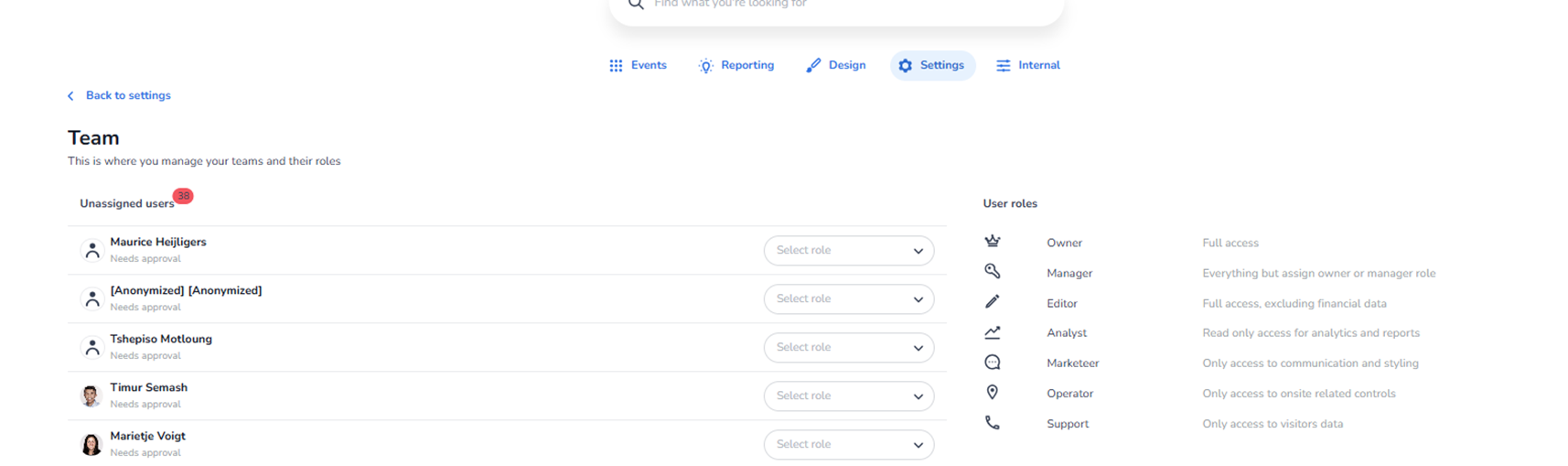
When clicking Manage team within the Organisation section, the Team management page appears.
This page allows administrators to:
-
View organisation-level users
-
Approve pending users
-
Assign or change user roles
-
Control access permissions
All displayed names and user data are organisation-specific and dynamic.
Purpose of This Page
This section controls account-level access, not event-level or scan-level permissions.
It determines:
-
Who can access the platform environment
-
What administrative rights each team member has
-
Which functional areas they can manage
It is used for organisational governance and access control.
Page Structure
Back to Settings
Located at the top.
Function:
-
Returns to the Organisation settings overview.
Unassigned Users Section
This section displays users who:
-
Have requested access
-
Have been invited
-
Have not yet been assigned a role
Each user row typically includes:
-
User name (dynamic)
-
Status indicator (e.g., needs approval)
-
Role dropdown selector
Role Selection Dropdown
For each user, there is a Select role dropdown.
Function:
-
Assign a role to the user.
-
Grant appropriate permissions.
-
Approve access once role is selected.
How it works:
-
Click the dropdown.
-
Select the appropriate role.
-
Confirm assignment.
-
The user gains access based on that role.
Role assignment directly determines platform permissions.
User Roles Overview (Right Side Panel)
The right side of the screen lists available roles and their permission levels.
These typically include structured permission tiers such as:
Owner
-
Full platform access
-
Highest permission level
-
Can assign other owners
Manager
-
Broad administrative access
-
Cannot assign or change owner roles
Editor
-
Full operational access
-
Limited financial visibility
Analyst
-
Read-only access
-
Reporting and analytics focused
Marketeer
-
Access to communication and styling
-
Limited operational permissions
Operator
-
Access to onsite operational controls
-
Limited administrative rights
Support
-
Access to visitor-related data
-
Limited system configuration access
How Role Assignment Works
Roles follow a hierarchical structure:
-
Higher roles include permissions of lower roles.
-
Permissions are predefined per role.
-
Access is immediately updated after assignment.
Changing a role:
-
Adjusts access rights instantly.
-
May grant or restrict system capabilities.
What This Section Controls
Organisation-level access such as:
-
Platform administration
-
Financial visibility
-
API management
-
Communication tools
-
Reporting access
It does not directly control:
-
Scan app credentials
-
Entrance plan rules
-
Event configuration
Those are managed in Entrance Management settings.
What the Knowledge Agent Should Understand
From this screen, the agent should recognize:
-
Users can be pending approval.
-
Each user must be assigned exactly one role.
-
Roles determine permission scope.
-
The system follows a hierarchical permission model.
-
Role assignment is performed via dropdown selection per user.