
Description:
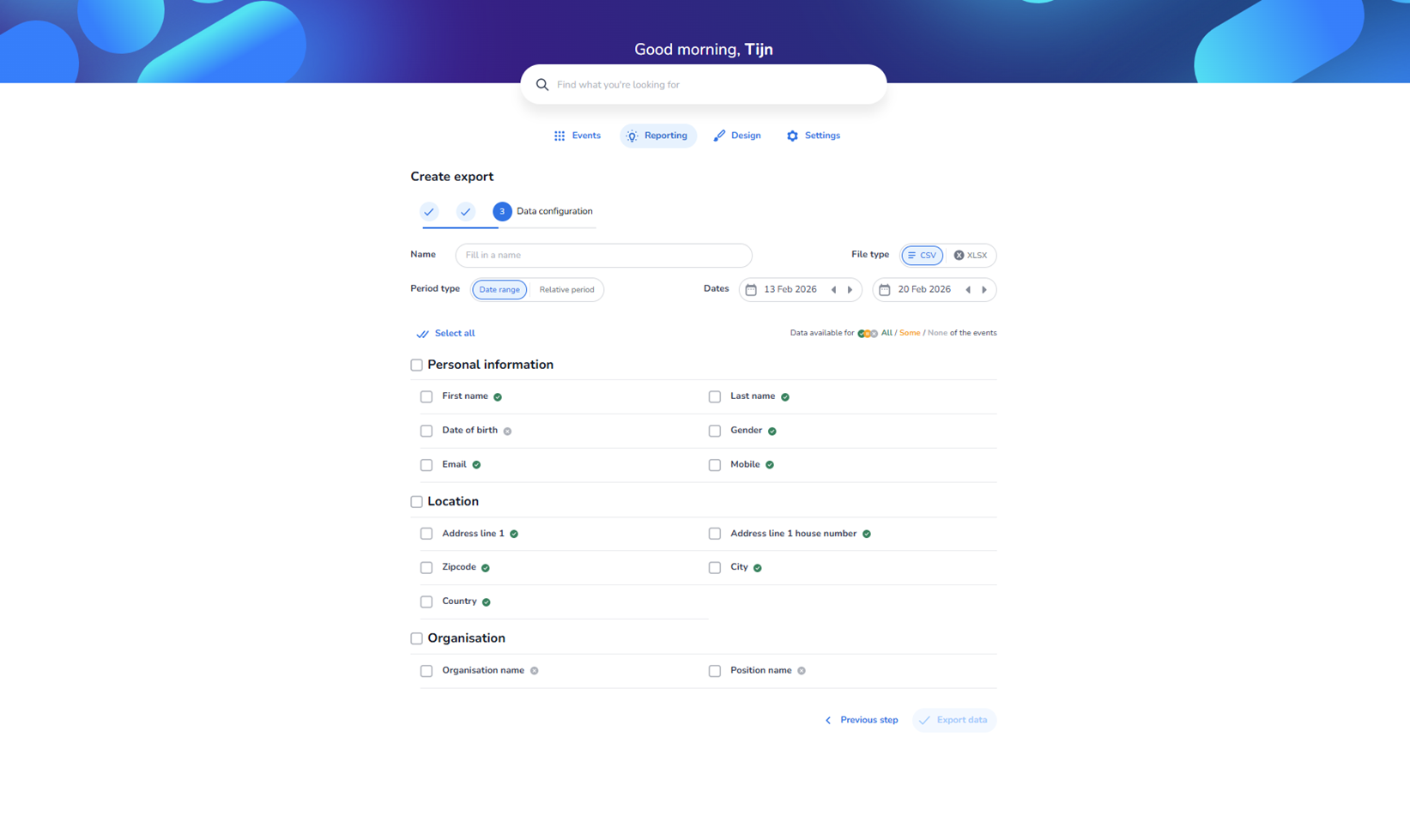
This screen shows Step 3: Data configuration of the export wizard. The previous steps (Export type and Events) are marked as completed with check icons in the progress indicator. The user is now configuring the structure and content of the export file.
Top Section – Export Settings
-
Name field
-
Field label: Name
-
Input placeholder: “Fill in a name”
-
Purpose: Allows the user to define a custom name for the export. This name is typically used to identify the export job in reporting history or download lists.
-
File type selector
Located on the right side of the top section.
-
Options:
-
CSV (currently selected)
-
XLSX
-
-
Purpose:
Determines the file format of the export.-
CSV: Lightweight, universal format for data processing.
-
XLSX: Excel file format with structured sheet support.
-
-
Small button behaviour:
The selected format is visually highlighted. Clicking the other option switches the file type.
-
Period type selection
-
Options:
-
Date range (selected)
-
Relative period
-
-
Purpose:
Defines how the export timeframe is determined.-
Date range: User manually selects a start and end date.
-
Relative period: Typically used for dynamic periods (e.g., last 7 days, last month).
-
-
Date selectors
Two date input fields are displayed when “Date range” is selected:
-
Start date (e.g., 13 Feb 2026)
-
End date (e.g., 20 Feb 2026)
Each date field includes:
-
A calendar icon button → Opens a date picker.
-
Arrow buttons (left/right) → Quickly adjust the date backward or forward.
Purpose:
Filters exported data based on activity within the selected period.
-
Data availability indicator
Text shown:
“Data available for ALL / Some / None of the events”
-
Small colored indicators (legend-style markers).
-
Purpose: Shows whether the selected fields contain data for all selected events, only some, or none.
-
Helps prevent exporting empty columns.
Select All Option
“Select all” button
-
Located above the data categories.
-
Clicking this selects all available fields for export.
-
Acts as a bulk selection toggle.
Field Selection Sections
The user now selects which data columns should be included in the export file.
Each field has:
-
A checkbox → Enables/disables inclusion in the export.
-
A status indicator icon (green check or grey indicator).
-
Personal Information
Fields:
-
First name
-
Last name
-
Date of birth
-
Gender
-
Email
-
Mobile
Purpose:
Exports attendee personal profile data.
Icons explanation:
-
Green check icon → Data is available for selected events.
-
Grey icon → Data might be partially or not consistently available.
-
Location
Fields:
-
Address line 1
-
Address line 1 house number
-
Zipcode
-
City
-
Country
Purpose:
Exports address-related information connected to the attendee.
-
Organisation
Fields:
-
Organisation name
-
Position name
Purpose:
Exports professional or company-related information when available.
Bottom Navigation Buttons
Previous step
-
Returns to Step 2 (Event selection).
-
Keeps current configuration unless explicitly reset.
Export data (Primary action button)
-
Executes the export generation.
-
Only becomes fully active when:
-
At least one field is selected.
-
A valid period is set.
-
Required configuration is completed.
-
Once clicked:
-
The system generates the export file.
-
The export may appear in an export overview list or trigger a download.