
Description
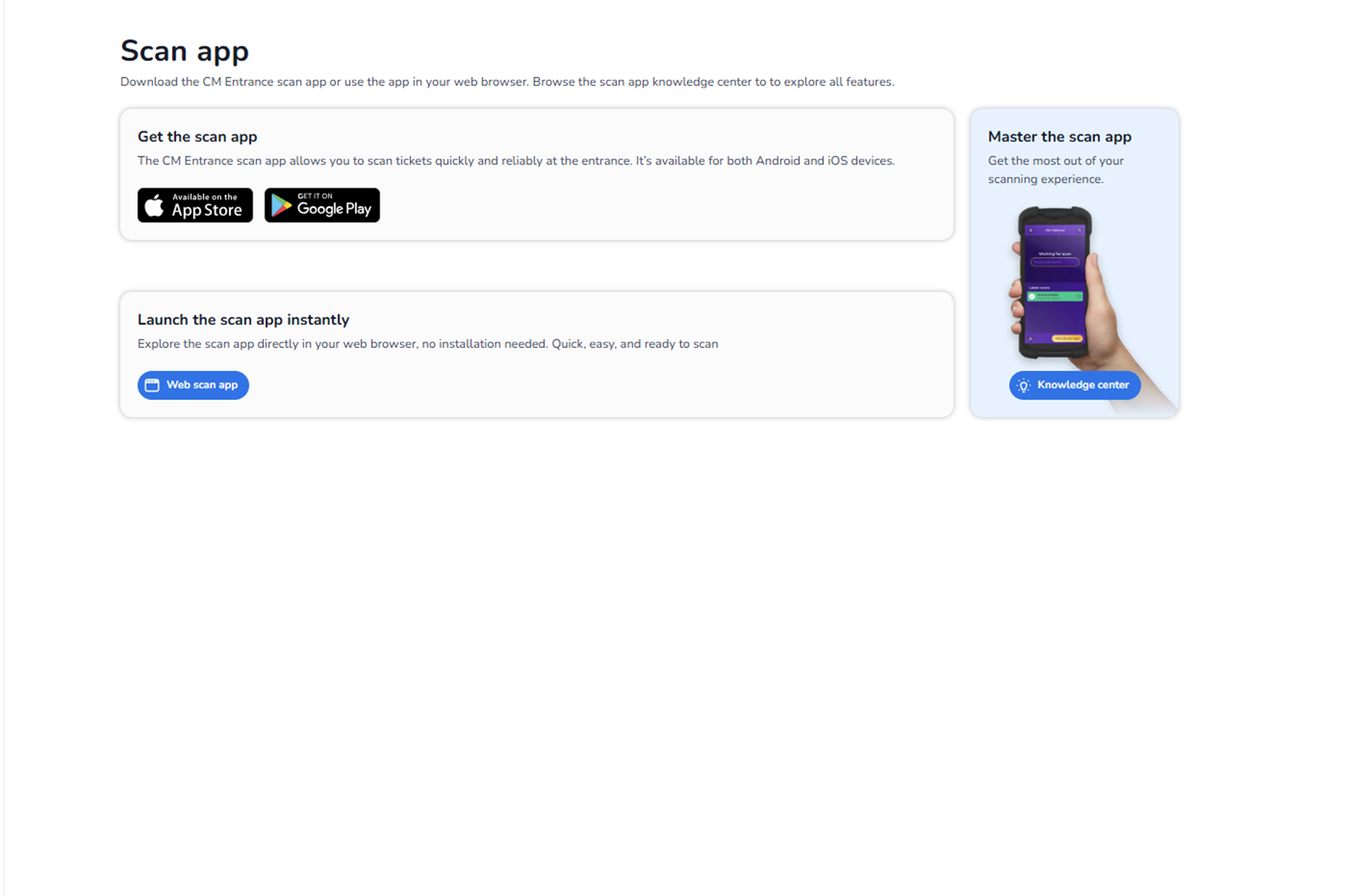
The Scan app section provides access to the CM Entrance scanning application. This is where users can download, launch, or learn more about the scanning solution used at event entrances.
This page connects configuration (back office) with operational execution (live ticket scanning).
It enables staff to scan tickets either:
-
Via the mobile app (iOS or Android)
-
Directly in a web browser (Web scan app)
Purpose of This Page
This section allows you to:
-
Download the official scan application
-
Launch the web-based scan interface
-
Access documentation and feature explanations
-
Prepare scanning staff before an event
It is primarily used by:
-
Scan users
-
Event staff
-
Operations managers
Main Sections on This Page
Get the Scan App
This section provides access to the mobile application.
App Store Button
Downloads the iOS version of the scan app.
Used when:
-
Scanning on iPhones or iPads.
Google Play Button
Downloads the Android version of the scan app.
Used when:
-
Scanning on Android devices.
What the Mobile App Does
The mobile scan app allows users to:
-
Scan ticket barcodes
-
Validate tickets in real-time
-
Work with offline sync (if enabled)
-
Track check-ins and check-outs
-
Apply entrance plan rules
The app is optimized for speed and reliability at entrances.
Launch the Scan App Instantly
This section allows scanning directly in a browser.
Web Scan App Button
Opens the browser-based scanning interface.
Advantages:
-
No installation required
-
Quick setup
-
Ideal for laptops or temporary devices
-
Useful for testing scanning configuration
This is especially helpful when:
-
Devices cannot install apps
-
Staff need quick access
-
Testing entrance plans
Master the Scan App (Right Side Panel)
This section provides educational resources.
Knowledge Center Button
Opens documentation about:
-
Scan app features
-
Best practices
-
Troubleshooting
-
Offline sync behaviour
-
User permissions
Useful for:
-
Training new staff
-
Preparing before large events
-
Solving operational issues
What You Can Do From This Page
-
Install scanning tools
-
Start scanning immediately
-
Train scanning teams
-
Ensure devices are ready before event opening
-
Access support documentation
Operational Flow
Typical workflow:
-
Configure events, entrance plans, and users in Settings.
-
Assign scan users.
-
Go to Scan app section.
-
Launch mobile or web scan app.
-
Log in with scan user credentials.
-
Start scanning tickets at the entrance.
Important
Access to scanning depends on:
-
User role (Scanning role required)
-
Assigned entrance plans
-
Event configuration
Without proper role permissions, scanning access may be limited.