
Description
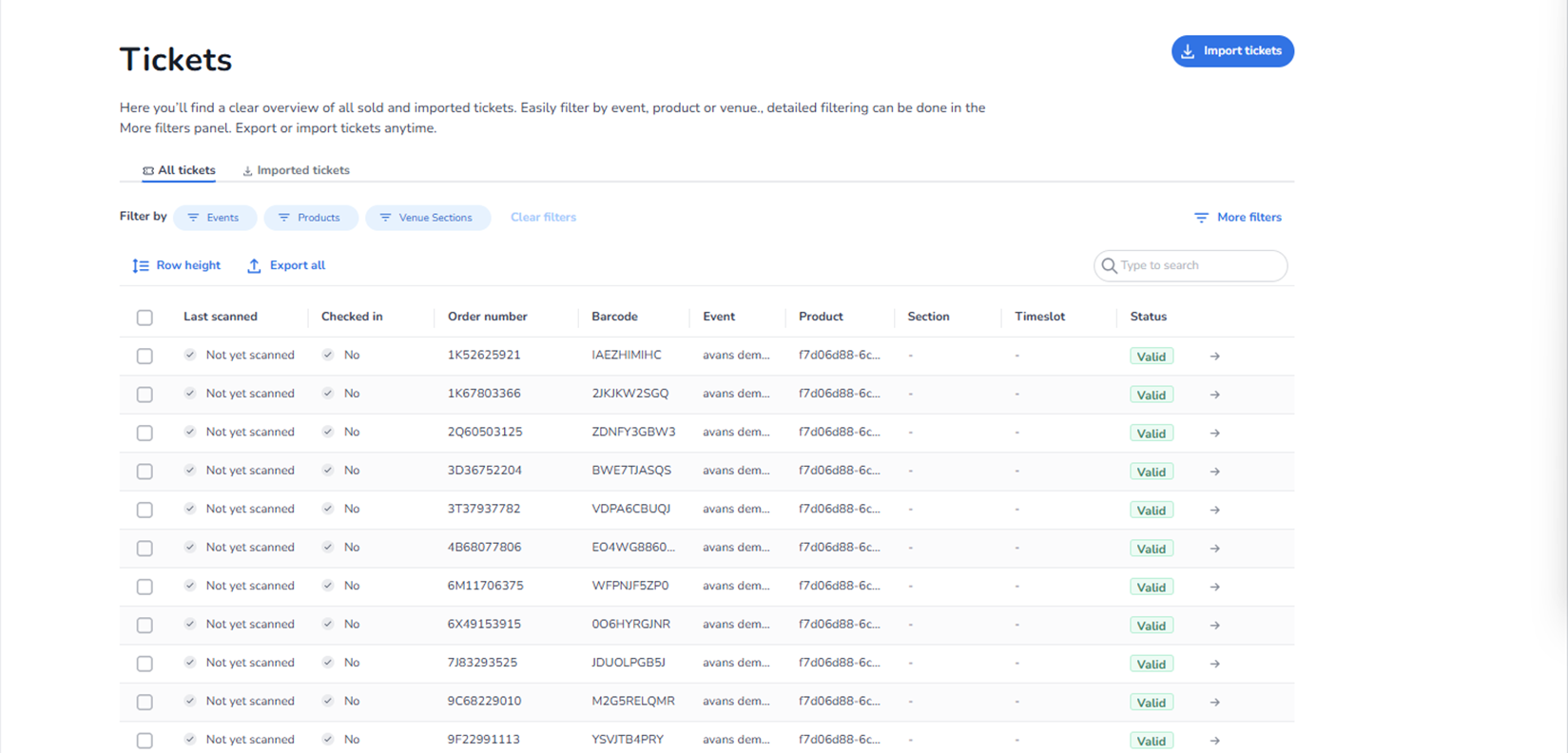
The Tickets section provides a complete overview of all tickets within the selected organisation. This includes tickets sold through the platform as well as tickets imported manually.
This page allows users to:
-
View individual ticket details
-
Filter tickets by multiple criteria
-
Search tickets directly
-
Export ticket data
-
Import new tickets
-
Inspect scan and validation status
All ticket data shown in the screenshot is example data. Actual ticket information differs per organisation and event.
Top Section
Import Tickets (Top Right Button)
Function:
-
Opens the ticket import workflow.
-
Used to upload external ticket datasets.
-
Typically supports file-based imports (e.g., CSV).
-
Adds tickets into the system for scanning and validation.
Ticket Tabs
Two tabs are available at the top:
-
All Tickets
This tab shows:
-
All tickets associated with the organisation.
-
Includes both sold and imported tickets.
-
Displays scanning status and validation data.
This is the primary ticket management overview.
-
Imported Tickets
This tab filters the view to:
-
Only tickets that were manually imported.
-
Excludes tickets created through the native sales flow.
Used when:
-
Managing third-party ticket batches.
-
Verifying external imports.
-
Troubleshooting import-related issues.
Filter Section
Located below the tabs.
Filter by Buttons
Events
Filters tickets by event.
Products
Filters by ticket product type.
Venue Sections
Filters by specific venue sections.
Clear Filters
Removes all active filters and restores the default view.
More Filters
Opens an advanced filtering panel.
Used for:
-
More detailed queries
-
Filtering by status, date, barcode, etc.
Action Buttons (Above Table)
Row Height
Adjusts table density.
Allows:
-
Compact view
-
Expanded view
Export All
Exports ticket data.
Used for:
-
Reporting
-
External analysis
-
Backup purposes
Export typically includes:
-
Ticket details
-
Scan status
-
Validation information
Search Field (Right Side)
Allows direct search.
Can search by:
-
Barcode
-
Order number
-
Name
-
Email
-
Other ticket attributes
Search works in combination with filters.
Ticket Table
Each row represents one ticket.
Checkbox (Left Side)
Allows selection of tickets.
Used for:
-
Bulk actions (if supported)
-
Batch exports or modifications
Last Scanned
Shows:
-
When the ticket was last scanned.
-
Indicates whether the ticket has been used.
Example states:
-
Not yet scanned
-
Date/time of last scan
Checked In
Indicates whether the ticket holder has successfully entered.
Values:
-
Yes
-
No
Order Number
Displays the associated order reference.
Used for:
-
Customer support
-
Transaction tracing
Barcode
Unique ticket identifier.
Used for:
-
Scanning
-
Manual lookup
-
Validation
Event
Shows the event linked to the ticket.
Product
Displays the ticket product type.
Examples:
-
General admission
-
VIP
-
Early access
Section
Indicates venue section if applicable.
Used in:
-
Seated events
-
Section-based entry control
Timeslot
Displays assigned time window if applicable.
Used for:
-
Time-based access control
-
Staggered entry events
Status
Shows current ticket validity.
Common states:
-
Valid
-
Invalid
-
Used
-
Blocked
This status determines whether a ticket can be scanned successfully.
Arrow Icon (Right Side)
Opens detailed ticket view.
Used to:
-
Inspect full ticket information
-
View scan history
-
Review validation logs
What This Page Does
The Tickets page acts as the central ticket management system.
It allows administrators to:
-
Monitor ticket lifecycle
-
Track scanning progress
-
Validate ticket status
-
Troubleshoot entry issues
-
Manage imported ticket batches
-
Export operational reports
Difference Between All Tickets and Imported Tickets
All Tickets:
-
Complete dataset
-
Includes system-generated and imported tickets
Imported Tickets:
-
Subset view
-
Only manually uploaded tickets
This separation helps organisations manage external ticket sources independently from platform sales.