
Description
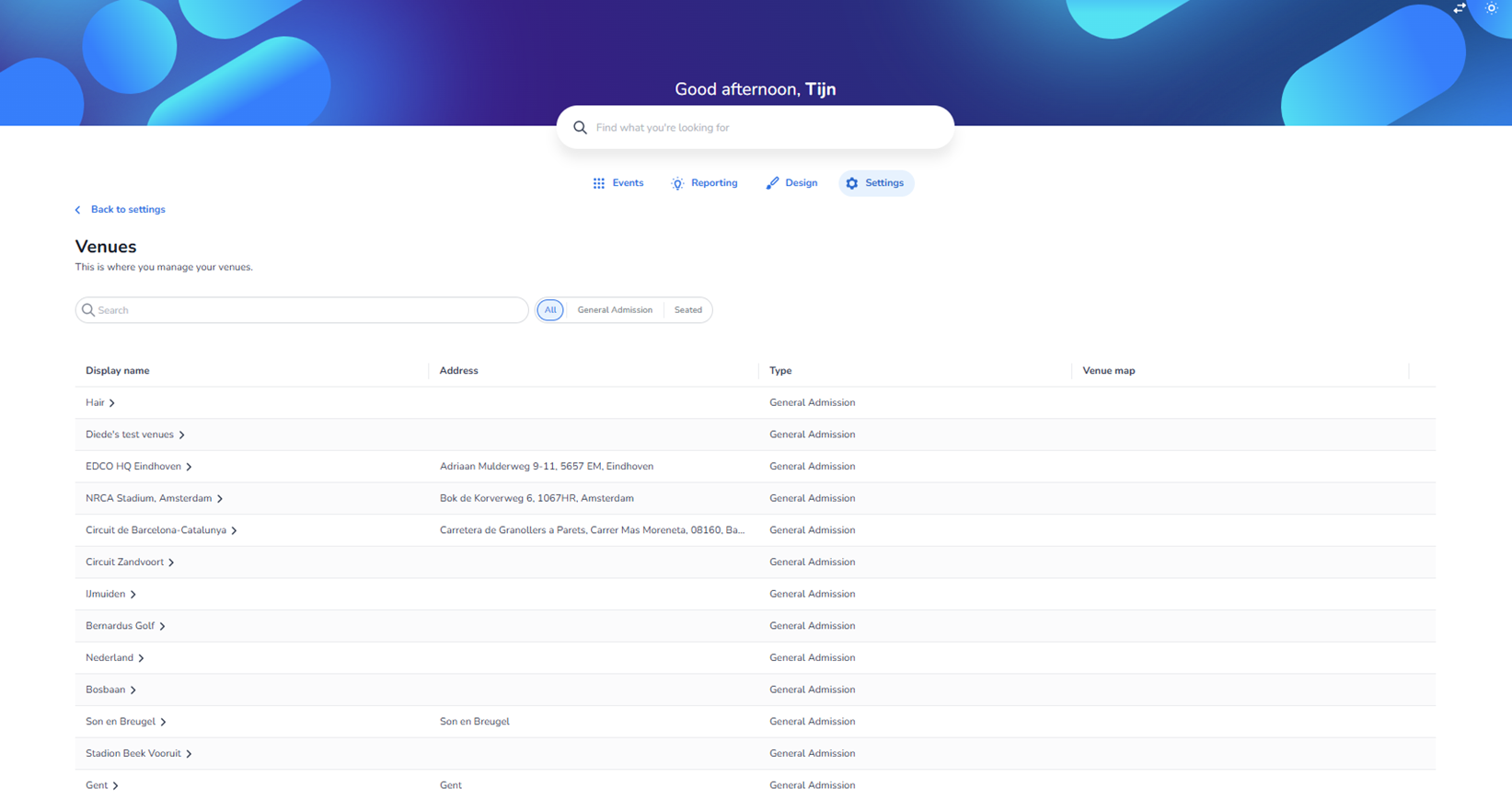
This screen appears when a user clicks Venues inside the Settings section. It is used to manage all venue configurations within the platform.
Important:
The venue names and addresses shown in the screenshot are example or test data. Venue data differs per organisation and should not be considered fixed or reusable knowledge.
This page allows users to:
-
View all configured venues
-
Search for specific venues
-
Filter venues by type
-
Open individual venue configurations
Top Navigation & Context
Back to settings
Located in the top-left corner.
Function:
-
Returns the user to the main Settings overview page.
-
Does not modify data.
Page Title: Venues
Subtitle:
“This is where you manage your venues.”
This clarifies that the section is focused on venue configuration and management.
Search Functionality
A search bar is located beneath the header.
Function:
-
Allows users to filter the venue list by display name.
-
Helps locate specific venues quickly when the list grows large.
The search does not modify data; it only filters visible results.
Venue Type Filter Tabs
To the right of the search bar are three filter tabs:
All
-
Displays all venues regardless of type.
-
Default active state in the screenshot.
General Admission
-
Displays only venues configured for general admission events.
-
These venues typically do not require seat-level configuration.
Seated
-
Displays only venues configured for seated events.
-
These venues may include seat maps, sections, and seating logic.
Purpose of these tabs:
-
Filter venues based on event configuration model.
-
Separate simple entry venues from structured seating venues.
-
Improve clarity when managing multiple venue types.
Switching tabs changes the visible list but does not modify venue data.
Venue Table Overview
The main section contains a structured table with the following columns:
Display Name
-
The visible name of the venue inside the platform.
-
Clicking a row (or arrow indicator) likely opens the venue detail configuration page.
Address
-
Physical location of the venue.
-
May include street, postal code, and city.
-
Some entries may not have a full address listed.
Type
-
Indicates whether the venue is configured as:
-
General Admission
-
Seated
-
This type determines how events behave within that venue.
Venue Map
-
Column reserved for seat map configuration.
-
Typically relevant only for Seated venues.
-
May show map status or availability in the detailed view.
Row Interaction
Each venue row includes a navigation indicator (arrow).
Function:
-
Clicking the row opens detailed configuration for that specific venue.
-
Does not directly edit the venue from this overview screen.
Functional Role of Venues
Venues are foundational infrastructure objects in the platform.
They influence:
-
Event configuration
-
Ticket validation logic
-
Seat mapping (for seated events)
-
Scanning behaviour
-
Capacity limitations
General Admission venues typically:
-
Focus on capacity control.
-
Do not require individual seat assignments.
Seated venues typically:
-
Include structured seating maps.
-
Enable section, row, and seat-level ticketing.
Summary
On this screen, users can:
-
Navigate back to the Settings overview
-
Search for venues
-
Filter by venue type (All, General Admission, Seated)
-
View venue name, address, and type
-
Open detailed venue configuration pages
This page does not create or edit venues directly but acts as the central overview and access point for venue management.