
Description
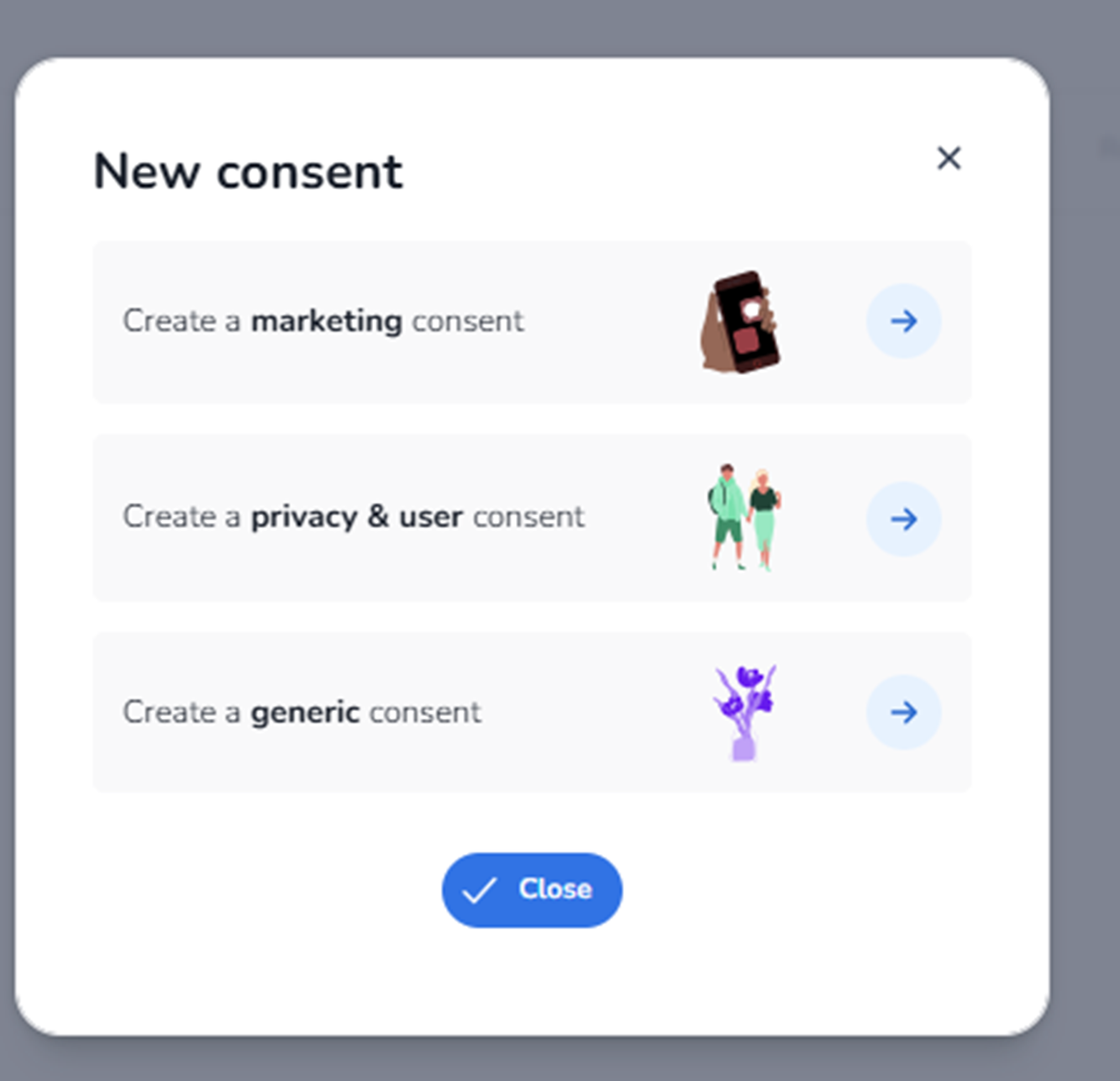
When clicking the Create button in the Consents section, the New consent modal appears.
This modal allows you to choose the type of consent you want to create. Each consent type is designed for a specific purpose and determines how the consent behaves in the attendee journey.
This step ensures that consents are structured correctly based on legal and operational intent.
Modal Structure
The modal contains:
-
A title
-
Three selectable consent types
-
A close button
-
A close icon (X)
Close Icon (Top Right)
Function:
-
Closes the modal.
-
Cancels the consent creation process.
Consent Type Options
Each option includes a short description and a forward arrow button to continue the setup.
-
Create a Marketing Consent
Purpose:
-
Collect permission to send marketing communications.
Typically used for:
-
Email newsletters
-
Promotional campaigns
-
Event announcements
-
Sponsor communications
Behaviour:
-
Usually optional (opt-in).
-
Records whether the attendee agreed to receive marketing content.
This consent helps ensure compliance with communication and data protection regulations.
-
Create a Privacy & User Consent
Purpose:
-
Collect required legal agreements from attendees.
Typically used for:
-
Privacy policy acceptance
-
Terms & conditions agreement
-
Data processing consent
Behaviour:
-
Often required to complete purchase.
-
Ensures legal compliance before ticket confirmation.
This type is typically mandatory and essential for GDPR and similar regulations.
-
Create a Generic Consent
Purpose:
-
Create a fully custom consent type.
Used for:
-
Event photography consent
-
Data sharing with partners
-
Special participation agreements
-
Custom event-specific permissions
Behaviour:
-
Flexible configuration.
-
Can be set as required or optional.
-
Fully customizable text and logic.
This option provides maximum flexibility for non-standard use cases.
Continue Arrow (Per Consent Type)
Function:
-
Moves to the detailed configuration screen.
-
Opens the setup form for the selected consent type.
Each type leads to a slightly different configuration workflow based on its purpose.
Close Button (Bottom)
Function:
-
Cancels consent creation.
-
Returns to the consent overview.
What This Step Controls
This selection determines:
-
How the consent will be structured
-
How it behaves during checkout
-
Whether it is optional or mandatory
-
How it appears in reporting
Choosing the correct type ensures that consent handling remains clear, compliant, and organized.